
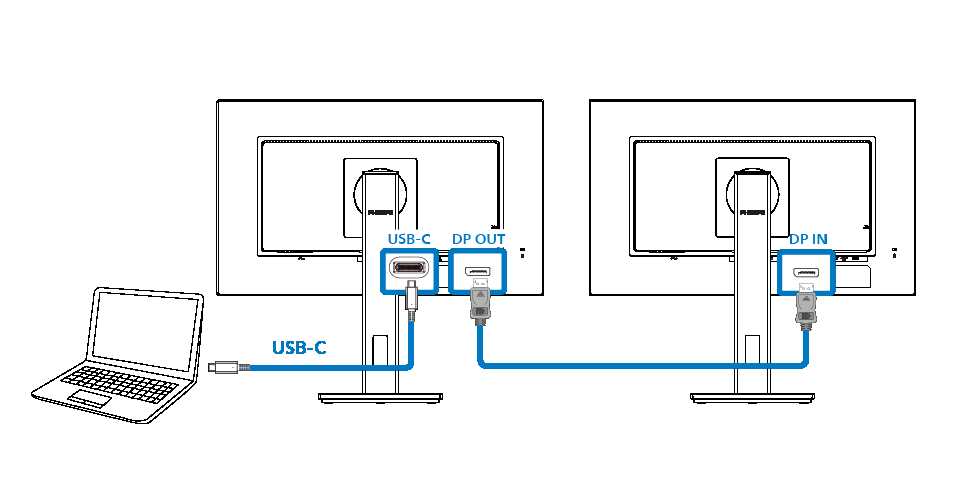
A daisy chain monitor connection is a clever way to link multiple screens using a single cable or port, making your workspace cleaner and more efficient. Think of it as creating a chain of monitors that share video signals seamlessly, eliminating the need for multiple cables running everywhere. In short, it allows you to connect several monitors in a series, simplifying setup and reducing clutter. This setup is especially popular among gamers, designers, and professionals who need multiple screens for improved productivity. By understanding how daisy chaining works, you can expand your display setup without the hassle of complex wiring. Whether you’re looking to boost your gaming experience or create a more organized workstation, knowing what a daisy chain monitor connection is can save you time and effort in setting up your ideal multi-monitor workspace.

What Is Daisy Chain Monitor Connection
A **daisy chain monitor connection** is a simple way to connect multiple monitors using one single cable or port. Instead of plugging each monitor directly into the computer, they are linked together in a sequence. This setup makes it easier to expand your display area without needing many cables and ports.
This method helps save space and keeps your desk organized. It also allows you to connect multiple monitors using fewer video outputs from your computer. Let’s explore how this system works and what you need to make it happen.
How Does Daisy Chain Monitor Connection Work?
In a daisy chain setup, monitors are connected using specialized ports called DisplayPort. Each monitor has two types of ports: one for input and one for output. The output port on one monitor connects to the input port on the next monitor in the chain.
This chain continues until all monitors are linked. The signal from the computer is sent to the first monitor, which then passes it along to the next. This way, a single video connection from the computer can control all monitors in the chain.
What Hardware Is Needed for Daisy Chain Connection?
To set up a daisy chain monitor connection, you need the following:
- Monitors with DisplayPort Out ports: Not all monitors have this feature, so check if your monitors support it.
- DisplayPort cables: One for each connection between monitors.
- Graphics Card Support: Your computer’s graphics card must support DisplayPort Multi-Stream Transport (MST).
It’s important to ensure your hardware supports daisy chaining to avoid compatibility issues.
Advantages of Daisy Chain Monitor Connection
Using a daisy chain setup offers several benefits:
- Reduces cable clutter: Fewer cables are needed to connect multiple monitors.
- Easy to expand: Adding more monitors is simple without changing your entire setup.
- Saves ports on your computer: Uses one video output for multiple screens.
- Flexible workspace arrangement: Creates a more efficient and organized workspace.
Challenges and Limitations
While daisy chaining is helpful, it does have some limitations:
- Monitor compatibility: Only monitors with DisplayPort Out ports support daisy chaining.
- Performance issues: Signal degradation can occur if the chain is too long or bandwidth is limited.
- Resolution constraints: Max resolution may be lower when multiple monitors are connected.
- Graphics card support: Not all graphics cards support MST or multiple displays through a single port.
Supported Ports and Technologies
The main port used for daisy chaining is the DisplayPort. It supports Multi-Stream Transport (MST), allowing multiple signals to flow through a single port. Some monitors also support Thunderbolt or USB-C connections, which can carry DisplayPort signals.
Here’s a quick comparison:
| Port Type | Supports Daisy Chain | Bandwidth | Common Use |
|---|---|---|---|
| DisplayPort 1.2 | Yes | 17.28 Gbps | Most monitors and computers |
| HDMI | No | Up to 48 Gbps (HDMI 2.1) | TVs, projectors |
| USB-C | Yes (with DisplayPort support) | Varies | Modern laptops, docking stations |
Steps to Set Up a Daisy Chain Monitor Connection
Follow these steps to connect multiple monitors using daisy chaining:
- Ensure all monitors support DisplayPort Out and MST.
- Connect the first monitor’s DisplayPort input to your computer’s DisplayPort output.
- Use a DisplayPort cable to connect the first monitor’s DisplayPort Out to the second monitor’s DisplayPort In.
- Repeat for additional monitors, linking each one in sequence.
- Go to your computer’s display settings to detect and arrange the monitors as needed.
Once connected, you can configure display arrangements through your operating system for a seamless experience.
Configuring Your Operating System for Multiple Monitors
After physically connecting your monitors, adjust your display settings. On Windows, go to Display Settings to extend or duplicate your screens. On macOS, use the Displays menu in System Preferences.
Set your preferred resolution, orientation, and whether to extend your desktop or mirror screens. Proper configuration ensures optimal display performance and a better user experience.
Best Practices for Daisy Chain Monitor Connection
To make your setup work smoothly, consider these tips:
- Use high-quality cables: Low-quality cables can cause signal issues.
- Check monitor capabilities: Confirm each monitor supports daisy chaining before setting up.
- Avoid long chains: Keep the number of monitors within the bandwidth support of your hardware.
- Update graphics drivers: Ensure your graphics card drivers are current for better compatibility.
Alternative Connection Methods
If your monitors or graphics card do not support daisy chaining, consider other options:
- Multiple video outputs: Use different ports for each monitor.
- Docking stations: Devices that expand your connectivity options, especially with laptops.
- Display adapters: Convert one type of connection to another for compatibility.
Related Topics
Understanding daisy chain monitor connection also involves knowing about:
- DisplayPort MST: The technology enabling multiple monitors on a single port.
- Graphics Card Capabilities: How different GPU models support multi-monitor setups.
- Resolution and Refresh Rate: How they are affected by daisy chaining.
- Monitor Compatibility: Identifying which monitors support daisy chaining features.
Knowing these topics can help you optimize your multi-monitor setup for work or gaming.
In summary, a daisy chain monitor connection offers a neat way to expand your display area using fewer cables and ports. It requires compatible hardware and proper setup but can significantly improve your workspace’s efficiency and appearance.
Daisy Chain: One Cable to Connect all Your Monitors
Frequently Asked Questions
How does a daisy chain monitor connection work?
A daisy chain monitor connection allows multiple screens to be linked using a single video output from the computer. The process involves connecting one monitor directly to the computer, then connecting the second monitor to the first, and so on. This setup uses DisplayPort Multi-Stream Transport (MST) technology, which transmits multiple video signals through a single port. As a result, each monitor receives its own video feed, enabling seamless multi-screen displays without requiring multiple outputs from the computer.
What are the advantages of using a daisy chain setup for multiple monitors?
Using a daisy chain setup simplifies connecting several monitors by reducing the number of cables needed. It allows more flexible workspace configurations and makes adjustments easier, as entire monitors can be moved or replaced without reconfiguring multiple cables. This method also helps conserve ports on your computer, especially when dealing with limited video outputs. Additionally, it supports high-resolution displays and smooth video performance, making multitasking more efficient.
What types of monitors support daisy chaining through DisplayPort?
To set up a daisy chain, monitors need to have a DisplayPort input and output port, typically labeled as DP IN and DP OUT. Modern monitors with DisplayPort 1.2 or higher generally support daisy chaining. Before purchasing, you should verify that the monitor explicitly mentions support for Multi-Stream Transport (MST) or daisy chaining in its specifications. Ensuring the graphics card also supports MST is crucial for the setup to work effectively and deliver optimal video quality across all connected monitors.
Final Thoughts
A daisy chain monitor connection allows multiple monitors to be linked together using a single video output from the computer. This setup simplifies cable management and reduces the need for multiple ports.
With this connection, users can expand their workspace efficiently without additional hardware.
In conclusion, what is daisy chain monitor connection? It enables multiple displays to connect in a series using one port, making multi-monitor setups straightforward and organized.

I’m passionate about hardware, especially laptops, monitors, and home office gear. I share reviews and practical advice to help readers choose the right devices and get the best performance.
