
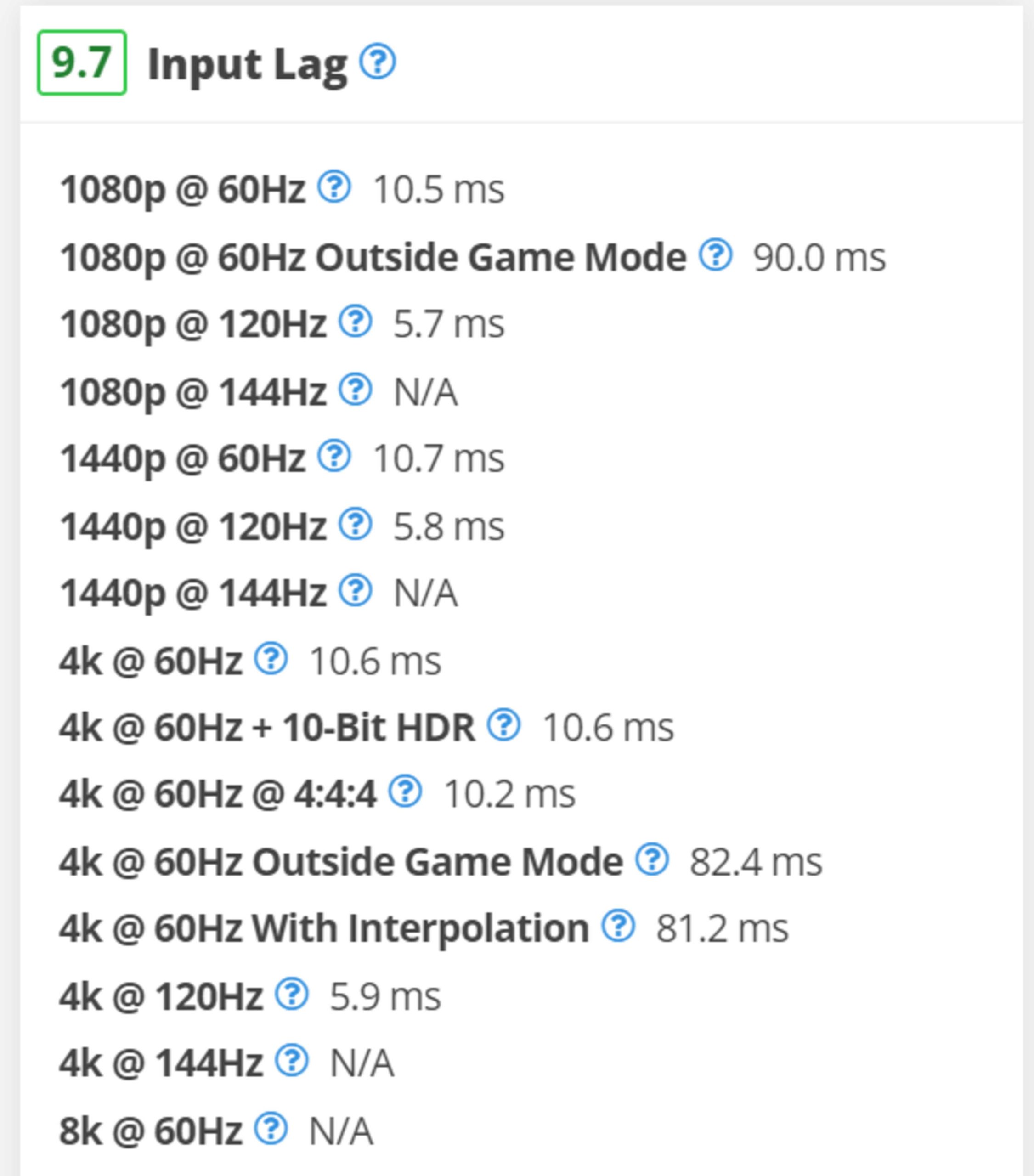
To fix input lag on a 4K monitor, start by enabling game mode, lowering the refresh rate, and updating your graphics drivers. Connecting your monitor via a high-quality HDMI or DisplayPort cable and turning off any unnecessary background programs can also make a big difference. For the best results, consider adjusting your monitor’s settings for faster response times and reducing the resolution scaling.
If you’re experiencing noticeable delays when gaming or working on your 4K display, don’t worry—there are simple steps you can take to improve responsiveness. By tweaking your monitor settings, optimizing your connection, and updating your system drivers, you can minimize input lag and enjoy smoother performance. This guide will walk you through effective solutions to get your 4K monitor performing at its best, making gameplay and tasks feel much more responsive and enjoyable.

How to Fix Input Lag on 4K Monitor
Understanding Input Lag and Why It Matters
Input lag is the delay between your actions and what appears on your screen. When playing fast-paced games or doing precise work, even a small delay can be frustrating. High input lag on a 4K monitor can make everything feel less responsive and less enjoyable. It’s important to identify the causes so you can fix them effectively.
Identifying Common Causes of Input Lag on a 4K Monitor
Several factors can contribute to input lag on 4K displays. These include monitor settings, connection quality, and hardware limitations. Understanding these causes helps you target the right solutions for your setup.
Optimizing Monitor Settings for Reduced Input Lag
Many 4K monitors come with settings designed to reduce input lag. Access your monitor’s menu and look for options like “Game Mode” or “Low Latency Mode.” Turning these features on can significantly improve responsiveness.
Enabling Game Mode
Game Mode adjusts your monitor’s processing to prioritize speed over image enhancements. This mode minimizes post-processing effects that introduce delays. Make sure to activate it via your monitor’s on-screen menu.
Turning Off unnecessary Picture Enhancements
Features such as motion smoothing, noise reduction, and sharpness enhancements can add latency. Disable these options to cut down on processing time. This adjustment helps make your display more responsive.
Adjusting Graphics Card Settings for Better Performance
Your graphics card plays a crucial role in input lag. Proper configuration can reduce delays and improve overall responsiveness.
Updating Graphics Drivers
Always keep your graphics drivers up to date. Manufacturers regularly release updates that optimize performance and fix bugs. Visit the GPU manufacturer’s website and install the latest drivers.
Changing Frame Rate Settings
Set your game or application to run at the highest possible frame rate within your hardware limits. A higher frame rate decreases input lag and makes controls feel more immediate.
Enabling V-Sync and G-Sync/FreeSync
V-Sync can cause input lag but stabilizes image tearing. Alternatively, adaptive sync technologies like G-Sync and FreeSync synchronize frame rates with your monitor, reducing lag and tearing simultaneously. Experiment with these settings to find the best balance.
Configuring Connection and Hardware for Optimal Performance
The type of connection between your computer and monitor greatly affects input lag.
Using the Right Cables
Opt for high-quality HDMI 2.0 or DisplayPort cables that support 4K at high refresh rates. Cheap or outdated cables can cause latency or signal degradation.
Choosing the Correct Input Port
Some monitors have multiple input options with different capabilities. Use ports that support the highest refresh rate and lowest latency, typically HDMI 2.0 or DisplayPort.
Minimizing Background Processes
Close unnecessary applications during gaming or work. Background processes can hog resources, leading to increased input delay.
Adjusting Display Settings and Refresh Rate
Configuring your display settings properly is key to lowering input lag.
Setting the Correct Refresh Rate
Ensure your monitor is running at its native refresh rate, often 60Hz or higher. Higher refresh rates reduce input lag and improve responsiveness.
Reducing Resolution When Necessary
While 4K offers stunning visuals, lowering resolution can improve performance in some cases. If input lag persists, try running games at slightly reduced resolutions while maintaining a high refresh rate.
Optimizing Software and Gaming Settings
Game-specific settings can influence input lag significantly.
Lowering Graphics Quality
Reduce graphics settings such as shadows and texture quality. This eases the workload on your GPU, helping to deliver smoother gameplay with less lag.
Disabling V-Sync in Certain Cases
While V-Sync stabilizes image quality, it can add delay. Turn it off if you prioritize quick response times, especially in fast-paced games.
Additional Tips for Further Reducing Input Lag
Implementing these extra measures can make a notable difference in responsiveness.
Using a Gaming Keyboard and Mouse
High-quality gaming peripherals are designed for minimal input delay. Invest in peripherals with low response times.
Enabling Hardware Acceleration
Ensure hardware acceleration is enabled in your system settings and applications. This helps leverage GPU power for smoother control.
Keeping Your System Cool and Well-Maintained
Overheating components can cause lag. Regular cleaning and sufficient cooling keep your hardware performing well.
Testing and Monitoring Input Lag
Use tools like input lag testers or lag measurement software to assess improvements after adjusting settings. Consistent testing can help identify remaining issues.
Upgrading Hardware if Necessary
If your system consistently struggles, consider upgrading your GPU, CPU, or monitor to newer, faster models that support lower latency.
Related Topics
Explore additional ways to enhance your gaming and viewing experience, such as selecting monitors with low response times or customizing advanced settings through third-party software.
By following these detailed steps, you can significantly reduce input lag on your 4K monitor. With patience and proper setup, you’ll enjoy a more responsive and enjoyable experience whether gaming, working, or watching content.
GET LOWER INPUT LAG BY CHANGING THESE SETTINGS ON YOUR MONITOR! #shorts
Frequently Asked Questions
What display settings can help reduce input lag on a 4K monitor?
Adjust the monitor’s refresh rate to the highest supported setting and enable any gaming or performance modes available. Turning off V-Sync can also decrease input delay, but it might introduce screen tearing. Ensure that your monitor’s response time setting is set to a fast or best option to minimize lag. Updating your graphics driver and firmware can optimize display performance further.
How does enabling ‘Game Mode’ on a 4K monitor affect input lag?
Activating ‘Game Mode’ on your monitor typically disables additional post-processing features, which often cause delays in rendering images. This setting prioritizes input responsiveness by reducing image processing time, thus lowering input lag and making gameplay more responsive.
Can HDMI or DisplayPort cables influence input lag on a 4K monitor?
Yes, using high-quality cables that support the full bandwidth of 4K at higher refresh rates ensures minimal signal delay. Faulty or lower-quality cables can introduce lag or cause display issues. Always choose certified cables compatible with your monitor’s specifications for the best results.
Does adjusting the graphics settings in games reduce input lag on a 4K display?
Lowering graphics settings like resolution, shadow quality, and anti-aliasing can help improve frame rates and reduce lag. A higher frame rate ensures more responsive gameplay. Balancing visual fidelity with performance can mitigate input delay on demanding 4K content.
Are there specific hardware upgrades that can decrease input lag on a 4K monitor?
Upgrading to a more powerful graphics card or adding faster system RAM can boost rendering speeds, thereby reducing input lag. Using a gaming-specific monitor with a higher refresh rate and low response time also significantly improves responsiveness during gameplay.
Final Thoughts
Using a higher refresh rate and enabling game mode can significantly reduce input lag on your 4k monitor. Adjusting the graphics settings to lower levels can also help achieve smoother response times. Updating your graphics drivers ensures compatibility and optimal performance.
To fix input lag on 4k monitor, consider connecting via a high-quality HDMI or DisplayPort cable and disabling V-Sync if unnecessary. These steps improve input responsiveness, providing a better gaming experience.

I’m passionate about hardware, especially laptops, monitors, and home office gear. I share reviews and practical advice to help readers choose the right devices and get the best performance.
