


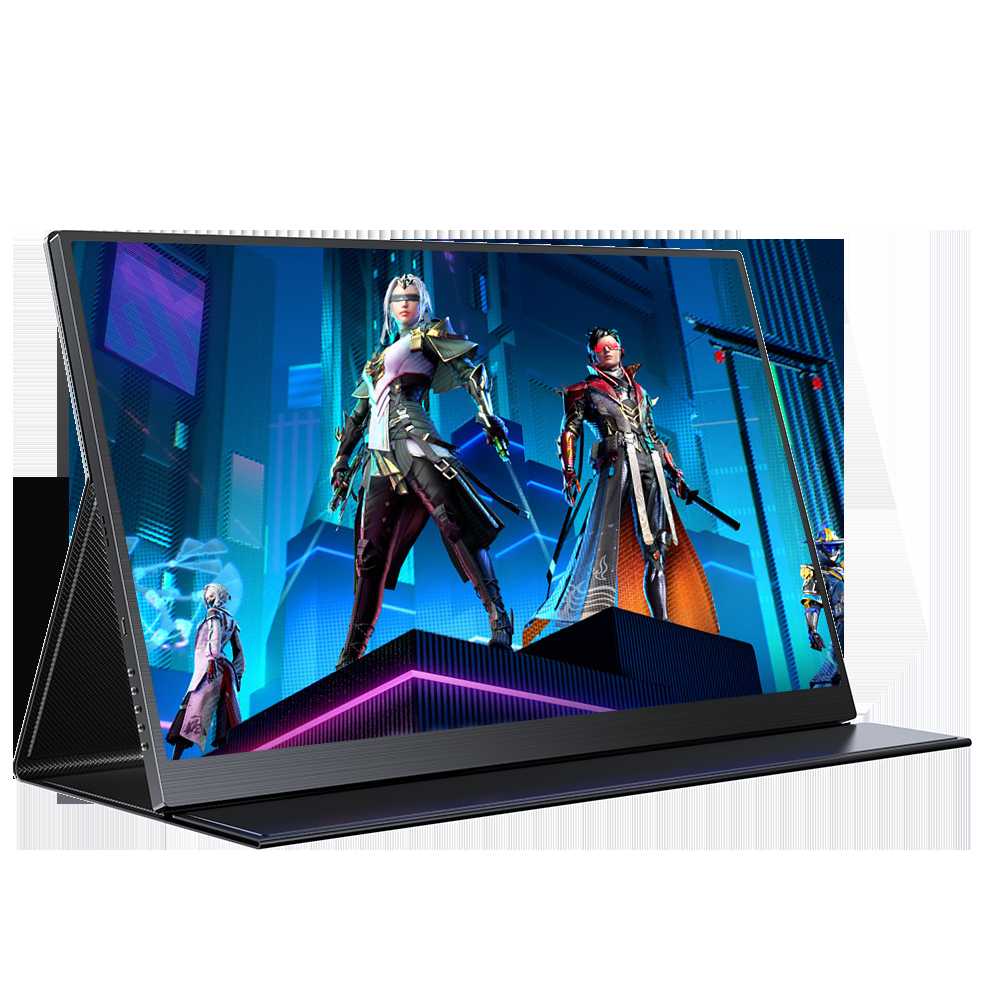
To use a portable monitor for gaming, connect it to your gaming device via HDMI or USB-C, power it up, and configure the display settings for optimal performance. Make sure your device supports the monitor’s input options, and consider adjusting refresh rates for smoother gameplay. Keep your portable monitor charged or plugged in for extended sessions, and enjoy gaming on the go with stunning visuals.
In a nutshell, using a portable monitor for gaming is straightforward: just connect it to your gaming device with the right cables, ensure it receives power, and tweak your display settings for the best experience. It’s a fantastic way to expand your play area, whether you’re traveling, at a friend’s house, or just looking for a bigger screen than your laptop offers. With a little setup, you’ll be ready to enjoy high-quality gaming anywhere you go.
If you’re new to portable monitors, the idea of setting one up might seem complicated, but it’s quite simple once you understand the process. These lightweight, compact screens are designed for easy connectivity and portability, making them ideal for gamers who want flexibility and improved visuals without dragging around heavy equipment. In this guide, we’ll walk you through everything you need to know—how to connect your device, what settings to tweak, and tips to maximize your gaming experience on the go.

How to Use Portable Monitor for Gaming
Choosing the Right Portable Monitor for Gaming
Selecting a portable monitor is the first step to enjoying gaming on the go. Look for models with a high refresh rate, typically 60Hz or higher, to ensure smooth gameplay. Consider resolution options such as Full HD (1920×1080) or higher for clear images, especially during fast-paced scenes.
Size matters when picking a portable monitor. Common sizes range from 13 to 17 inches, balancing portability and visibility. Lighter models, around 1 to 2 pounds, are easier to carry. Determine compatibility with your gaming devices initially—most portable monitors support laptops, gaming consoles, and even smartphones.
Understanding Connectivity Options
Most portable monitors utilize HDMI, USB-C, or DisplayPort for connection. Verify that your gaming device has the compatible port before purchasing. USB-C monitors often allow for single-cable connection, providing both video and power, which simplifies setup.
Some portable monitors also include built-in speakers, adding to an immersive gaming experience. Check if your device supports dual connection types, such as HDMI and USB-C, to maximize flexibility. Using adapters or converters may be necessary if your device lacks the native port.
Preparing Your Gaming Device
Ensure your gaming device is ready for an external monitor. Update graphics drivers if you’re connecting to a laptop or PC for optimal performance. Manage your device’s display settings to recognize the external monitor automatically.
For gaming consoles, check if your model supports external displays. You might need an HDMI splitter or specific cables to connect to the portable monitor. Confirm that your device supplies enough power or has an external power source for prolonged gaming sessions.
Setting Up the Portable Monitor
Find a suitable, flat surface for optimal viewing or utilize a portable stand. Some monitors come with built-in stands or protective cases that double as stands, which are convenient for on-the-go setups. Connect your monitor to your device securely, ensuring all cables are snug.
Once connected, turn on your gaming device and the monitor. Adjust display settings like resolution, refresh rate, and orientation for the best gaming experience. Many monitors detect the correct setup automatically, but manual adjustments might be necessary for perfect alignment.
Optimizing Display Settings for Gaming
To get the most out of your portable monitor, tweak the display settings. Set the refresh rate to the highest supported for smoother gameplay. Adjust brightness and contrast to suit your environment, especially when gaming outdoors or in bright spaces.
Some monitors allow color calibration; fine-tune this for vivid graphics. Enable gaming-specific features such as low latency modes if available. Always check your device and monitor manuals for recommended settings to prevent lag or image issues.
Managing Power and Battery Life
Portability often means relying on battery power. Use monitors with built-in batteries or connect to your device’s power source. For extended gaming sessions, consider carrying portable power banks compatible with your monitor’s power input.
Turn off unused features like Bluetooth or Wi-Fi on your device to conserve battery. Reduce screen brightness and refresh rate if battery life becomes an issue. Keep spare cables and power sources handy for uninterrupted gameplay.
Improving Gaming Experience with Accessories
Enhance your portable gaming setup using accessories. Gaming controllers, Bluetooth mice, and keyboards can improve control, especially if you’re using a laptop. Noise-canceling headphones or external speakers add immersion.
A portable stand or tripod helps position your monitor at eye level, reducing neck strain. Screen protectors or anti-glare films can improve visibility outdoors. Some gamers also use cooling pads or fans to prevent overheating during long gaming sessions.
Adapting to Different Gaming Platforms
Whether gaming on a laptop, console, or smartphone, your portable monitor can adapt. For laptops, simply connect via compatible cables. For PlayStation or Xbox, ensure your monitor supports HDMI input and has low input latency.
Smartphones may require adapters like USB-C to HDMI or wireless streaming options such as Miracast. Installing game streaming apps can also let you play console or PC games remotely on your portable monitor. Adjust settings for the optimal experience based on your device.
Playing Different Types of Games on a Portable Monitor
Portable monitors are versatile for various game genres. Fast-paced shooters benefit from high refresh rates and low latency. Role-playing games and story-driven titles look sharp on high-resolution screens.
Racing games and sports titles feel more immersive with larger displays. Puzzle or casual games can be played comfortably on smaller screens. Keep in mind that game controls might need adaptation based on your device and accessories.
Tips for Maintaining Your Portable Monitor
Proper maintenance ensures longevity and optimal performance. Clean your monitor’s surface with a soft, lint-free cloth regularly. Avoid exposing it to extreme temperatures or moisture.
Use a protective case during transport to prevent damage. Update firmware and drivers when available to improve features and security. Store cables properly to avoid wear and tear, ensuring reliable connections over time.
Troubleshooting Common Issues
If your monitor isn’t displaying correctly, check cable connections first. Switch ports or replace cables if necessary. Restart both your device and monitor to reset temporary glitches.
For image quality problems, verify resolution and refresh rate settings. If experiencing lag, reduce in-game graphics settings or disable unnecessary background processes. Consult the manufacturer’s manual or online support for specific troubleshooting steps.
Additional Tips for a Better Gaming Experience
Use a comfortable chair and proper posture to prevent strain during longer sessions. Adjust lighting around your setup to avoid glare or reflections on the screen.
Experiment with different settings and positions to find what works best for you. Regularly update firmware, drivers, and game software to keep everything running smoothly. This way, your portable monitor remains an excellent gaming companion wherever you are.
You Need This Portable Monitor!
Frequently Asked Questions
What type of connections are needed to set up a portable monitor for gaming?
To set up a portable monitor for gaming, you need to connect it to your gaming device using compatible cables such as HDMI, USB-C, or DisplayPort, depending on the monitor’s input options. Make sure your gaming device supports the connection type you plan to use. Additionally, ensure your device has sufficient power output or use an external power source if necessary to keep the monitor running during extended gaming sessions.
How can I optimize the settings on my portable monitor for better gaming performance?
Adjust the monitor’s settings to enhance your gaming experience by configuring the display resolution, refresh rate, and response time. Set the brightness and contrast to suit your gaming environment and enable any game mode features available. Some portable monitors offer color calibration or preset profiles; selecting these can improve visual clarity and reduce eye strain during long gaming periods.
What should I consider regarding the battery life of a portable monitor for gaming?
Monitor battery life varies based on usage and settings. When gaming on a portable monitor, choose models with larger batteries or those that support fast charging. Reduce screen brightness, disable unnecessary features, and limit background processes to conserve power. Planning your gaming sessions around the monitor’s battery capacity ensures you have enough runtime for uninterrupted play.
Are there specific features to look for in a portable monitor for gaming purposes?
Look for a portable monitor with a high refresh rate (at least 60Hz, ideally 120Hz or higher) to ensure smooth gameplay. A low response time minimizes motion blur and input lag. Additionally, consider models with adaptive sync technology like FreeSync or G-Sync support, high resolution for detailed visuals, and multiple input options to connect various gaming devices seamlessly.
How can I ensure compatibility between my gaming console or laptop and the portable monitor?
Check the input and output ports of both your gaming device and the monitor to confirm compatibility. For example, if your console or laptop uses HDMI, select a monitor with an HDMI port. If your device supports USB-C with video output, choose a monitor that accepts USB-C connections. Additionally, verify that your device can deliver sufficient power through the connection, or plan to use an external power source if needed for optimal performance.
Final Thoughts
Using a portable monitor for gaming is straightforward. Connect your device with the appropriate cable, such as HDMI or USB-C, ensuring the monitor is powered on. Adjust the display settings for optimal visuals and performance.
Remember to position the monitor comfortably and ensure your gaming setup has a stable power source. With simple connections and proper settings, you can enjoy gaming on the go.
In conclusion, how to use portable monitor for gaming involves connecting the monitor, configuring settings, and setting it up comfortably. This setup allows you to enjoy gaming anywhere without hassle.



