


To quickly determine if your office monitor is ergonomic, check if it offers adjustable height, tilt, and swivel features, and if the screen size and resolution promote comfortable viewing without eye strain. An ergonomic monitor should support proper posture and reduce physical discomfort during long working hours.
In a nutshell, an ergonomic office monitor is one that can be customized to your body’s needs, encouraging good posture and minimizing strain. Look for adjustable settings, a comfortable size and resolution, and features that promote optimal viewing angles. Knowing these key aspects will help you find a monitor that supports your health and productivity.
Choosing the right monitor for your office setup can be game-changing for your comfort and efficiency. With many options on the market, how do you know which one ticks all the boxes for ergonomics? It’s crucial to pay attention to adjustable features like height, tilt, and swivel, as well as screen size, resolution, and anti-glare properties. An ergonomic monitor adapts to your natural posture, reducing neck, eye, and back strain, so you can work longer and more comfortably. Recognizing these features amid a sea of options ensures you invest in a device that promotes health and boosts your productivity over time.

How to Know if Office Monitor Is Ergonomic
Understanding Ergonomics in Monitors
To determine if your office monitor is ergonomic, you first need to understand what ergonomics means in this context. Ergonomics is about designing equipment that fits your body and work needs, reducing strain and increasing comfort. An ergonomic monitor helps prevent neck, eye, and shoulder pain, making your work more comfortable over long periods.
Key Features of an Ergonomic Office Monitor
An ergonomic office monitor typically includes several features that support good posture and eye health. These features ensure the monitor adapts to your workspace, not the other way around. Critical features include adjustable height, tilt, swivel, and screen quality.
Adjustable Height and Positioning
One of the most important aspects is that the monitor can be raised or lowered easily. The top of the screen should be at or slightly below your eye level when sitting comfortably. This prevents you from tilting your head up or down, which can cause neck strain.
Tilt and Swivel Capabilities
Tilt and swivel features allow you to angle the screen to reduce glare and find the most comfortable viewing position. These adjustments help align the monitor with your natural line of sight and reduce eye strain.
Size and Screen Resolution
An ergonomic monitor should have a size suitable for your workspace, typically between 24 to 32 inches. Higher resolution (such as 1080p, 1440p, or 4K) provides sharper images, reducing eye effort when reading or viewing graphics for long periods.
Screen Quality and Eye Comfort
Apart from adjustments, the monitor’s screen quality affects ergonomic comfort. Consider features like flicker-free technology, blue light filters, and anti-glare coatings.
Flicker-Free Technology
Flickering screens can cause eye fatigue and headaches. An ergonomic monitor with flicker-free technology provides a steady image, easing strain on your eyes during extended use.
Blue Light Filters
Blue light can lead to eye discomfort and disrupt sleep cycles. Monitors with built-in blue light filters or adjustable settings help reduce this risk.
Anti-Glare Coatings
Glare from ambient lighting can cause you to squint and strain your eyes. Anti-glare screens reflect ambient light and offer a clearer, more comfortable viewing experience.
Connectivity and Compatibility
Ensuring your monitor’s compatibility with your computer setup is essential for ergonomic use. Look for features like multiple input ports (HDMI, DisplayPort, USB-C) and compatibility with your OS.
Multiple Connection Options
Having several connection ports allows you to connect the monitor to different devices or switch easily between work and personal computers, minimizing cable clutter and maintaining a tidy workspace.
Adjustable Stand and Mounting Options
An ergonomic monitor should support VESA mounting or have an adjustable stand. This flexibility enables you to position the monitor precisely for your ergonomic needs.
Additional Ergonomic Considerations
Beyond the physical features of the monitor, other factors can improve ergonomic comfort.
Placement Relative to Your Keyboard and Mouse
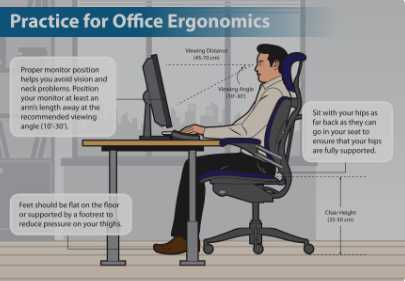
Your monitor should be directly in front of you, about an arm’s length away. The top of the screen should be level with your eyes, creating a natural line of sight.
Lighting and Glare Management
Proper lighting reduces glare and reflections on your screen. Position your monitor away from windows and bright lights or use curtains and adjustable desk lamps.
Ergonomic Accessories and Setup Tips
Use ergonomic accessories like monitor risers, adjustable stands, or monitor arms for better positioning. Adjust your chair height so your feet are flat on the floor and your knees are at a 90-degree angle.
Testing Your Monitor’s Ergonomics
To verify if your monitor is ergonomic, perform simple assessments after setup. Check your posture: sit back comfortably with your back supported, feet flat, and shoulders relaxed.
Eye Level Check
Ensure the top of your monitor is at or just below eye level. Look at the center of the screen without tilting your head up or down.
Viewing Distance
Your monitor should be about an arm’s length away. Adjust the distance if you notice your eyes straining or your neck leaning forward.
Comfort During Use
Use the monitor for some time and note any discomfort. If you experience neck, eye, or shoulder pain, reconsider your monitor’s position or features.
Additional Tips for Maintaining an Ergonomic Workspace
Creating an ergonomic workspace is an ongoing process. Regularly evaluate your setup, take breaks, and adjust as needed.
Follow the 20-20-20 Rule
Every 20 minutes, look at something 20 feet away for at least 20 seconds to reduce eye strain.
Adjust Your Work Environment
Make sure your workspace lighting complements your monitor. Use adjustable desks or ergonomic chairs to support good posture.
Regular Breaks and Stretching
Take short breaks to stretch your neck, shoulders, and back. Moving periodically helps prevent musculoskeletal issues caused by prolonged sitting.
Knowing if your office monitor is ergonomic involves examining its features, adjustability, and how well it fits your workspace. An ergonomic monitor supports healthy posture, reduces fatigue, and fosters a more comfortable working experience. Regular assessment and proper setup make a significant difference in your overall comfort and productivity.
The Perfect Ergonomic Desk Setup To Avoid Back & Neck Pain
Frequently Asked Questions
What are the key features that indicate an office monitor is designed ergonomically?
An ergonomic office monitor features adjustability options such as height, tilt, swivel, and pivot to ensure a comfortable viewing angle. It should have a screen size and resolution that reduce eye strain, along with anti-glare coatings. A good ergonomic monitor also offers proper color accuracy and brightness levels, supporting the user’s posture and minimizing physical discomfort during extended use.
How can I evaluate if the monitor’s screen positioning supports healthy posture?
Position the monitor so that the top of the screen is at or slightly below eye level, about an arm’s length away. The display should be centered directly in front of you to prevent twisting your neck. Ensure that your shoulders are relaxed and your elbows form a 90-degree angle when typing. An ergonomic monitor allows these adjustments, helping you maintain a neutral and comfortable posture.
What signs indicate that a monitor might cause eye or physical strain?
If you experience frequent headaches, eye fatigue, dry or irritated eyes, or neck and shoulder pain, your current monitor setup may not be ergonomic. These symptoms suggest that the monitor’s brightness, glare, or positioning does not suit your needs. An ergonomic monitor reduces these issues by offering adequate brightness, anti-glare features, and flexible positioning options.
How important are adjustable features in identifying an ergonomic office monitor?
Adjustable features are vital in creating a customized work environment that fits your body and tasks. Monitors with height, tilt, swivel, and pivot adjustments enable you to position the screen optimally, preventing strain. The ability to make these adjustments easily indicates that a monitor is designed with ergonomic principles in mind.
Can resolution and screen quality impact the ergonomic benefits of a monitor?
Yes, higher resolution and superior screen quality reduce eye strain by providing clearer, sharper images without flickering or blurriness. A high-quality display with proper brightness and contrast levels ensures that you view content comfortably for longer periods, supporting your visual health and overall ergonomic experience.
Final Thoughts
Knowing if your office monitor is ergonomic involves checking its adjustability features. Ensure the monitor has height, tilt, and swivel options to align with your eye level. A good ergonomic monitor reduces neck and eye strain during long hours of work.
Pay attention to screen size and resolution. A 24-27 inch display with high resolution offers clear visuals and comfortable viewing. Proper brightness and anti-glare coatings also contribute to a healthier workspace.
In conclusion, how to know if office monitor is ergonomic depends on adjustability, size, and display quality. Prioritize features that promote comfort and reduce strain for optimal productivity and well-being.



