


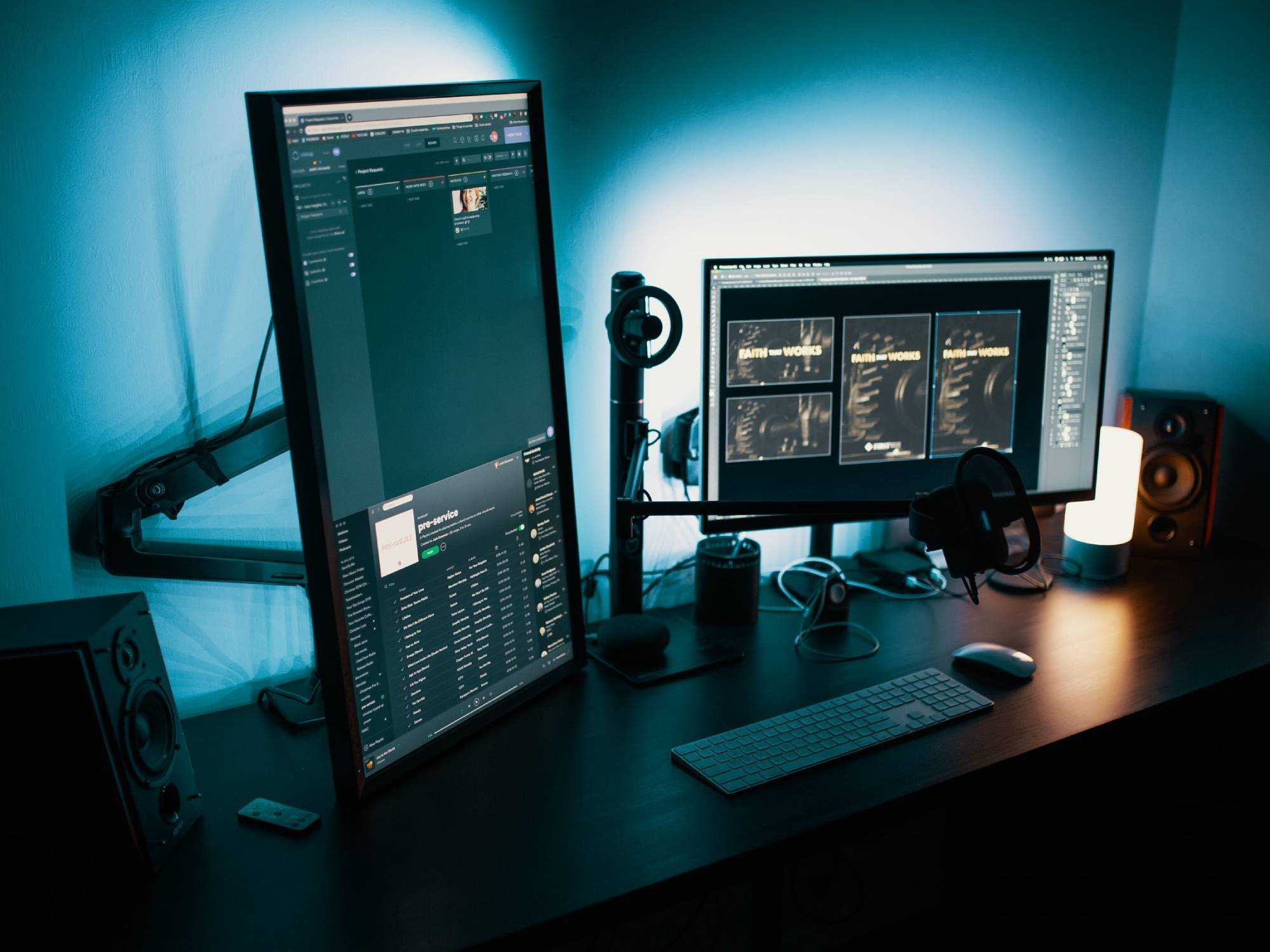
Yes, you can use a TV as a vertical monitor, but there are some important factors to consider. TVs can be rotated and configured to serve as a vertical display, which might be useful for tasks like coding, social media management, or reading long documents. However, keep in mind that not all TVs are ideally suited for this purpose; factors such as resolution, refresh rate, and input lag play crucial roles in ensuring a good experience.
Using a TV as a vertical monitor is definitely possible and can be a great alternative to traditional monitors if you choose the right model and set it up properly. It’s a cost-effective way to expand your screen real estate, especially if you already have a large TV. Just be prepared for potential issues like image distortion or lower refresh rates, which can affect how smooth your experience is.
If you’re wondering whether a TV can serve as a vertical monitor, the answer is yes, but with some adjustments and considerations to make sure it works effectively for your needs. For anyone looking to maximize their workspace or enjoy a bigger viewing experience, exploring this option could be worth it. Just remember, not all TVs are created equal when it comes to vertical use, so pick wisely and set it up correctly for the best results.

Can You Use a TV as a Vertical Monitor? Everything You Need to Know
Understanding the Basics: What Does It Mean to Use a TV as a Vertical Monitor?
Using a TV as a vertical monitor means rotating the screen 90 degrees so the height becomes longer than the width. This setup is popular among gamers, programmers, and content creators who prefer a portrait orientation. It allows for better viewing of tall documents, social media feeds, or coding windows without scrolling constantly.
Why Choose a Vertical Monitor Over a Traditional Horizontal Setup?
Many users opt for a vertical monitor because it offers a more natural view for certain tasks. Reading long articles, browsing the web, or editing code becomes easier and less tiring. Additionally, a vertical monitor can improve productivity by providing more room for stacked windows and side-by-side applications.
Can a TV Be Rotated to Use as a Vertical Monitor?
Most televisions are designed to be placed in a fixed orientation and are not built to be rotated. However, some models with a flexible stand or wall-mount capabilities can be turned to a portrait position. It is essential to check the TV’s stand specifications or mounting options before attempting to rotate it.
Types of Mounts That Can Help Rotate Your TV
- Full-Motion Mounts: These mounts allow you to swivel, tilt, and rotate your TV easily, making switching between landscape and portrait possible.
- Fixed Wall Mounts: Usually do not permit rotation, so they are less suitable for vertical use.
- Adjustable Stands: Some manufacturers offer stands that can be manually rotated for portrait setup.
Is Your TV Suitable for Vertical Use?
Not all TVs are ideal for vertical orientation. Certain factors influence this decision, including the size, aspect ratio, and design of the display.
Key Features to Consider
- Aspect Ratio: Larger aspect ratios like 16:9 are common, but some newer models offer 16:10 or ultrawide screens which may not fit well in portrait mode.
- Bezels: Thin bezels enhance the experience for multi-monitor setups and reduce distraction.
- Stand Design: The stand should support rotating the TV without risking damage or instability.
Adjusting Display Settings for Vertical Orientation
Once your TV is physically positioned in portrait mode, you need to change the display settings on your computer.
Steps to Change Screen Orientation
- Connect your TV to your computer using HDMI, DisplayPort, or VGA.
- Open the display settings menu on your computer.
- Select the TV from the list of connected displays.
- Choose the option to rotate or change the orientation to portrait mode.
- Adjust resolution as needed to ensure clarity and sharpness.
Compatibility Considerations for Using a TV as a Vertical Monitor
Compatibility is crucial to ensure smooth operation and avoid issues like black bars, improper scaling, or flickering.
Connectivity Options
- HDMI: Most modern TVs support HDMI, which is the most common connection type for computers.
- DisplayPort: Offers higher resolutions and refresh rates, ideal for high-performance setups.
- DVI/VGA: Older connection types, less common but still supported by some TVs and computers.
Graphics Card Support
Many modern graphics cards support multiple displays and rotation. Check your card specifications to confirm compatibility with vertical orientations and the maximum resolution supported.
Potential Challenges and How to Overcome Them
Using a TV as a vertical monitor can introduce some challenges that require solutions.
Issue: Image Distortion or Black Bars
Some TVs may not handle rotation perfectly, resulting in distorted images or black bars. Adjust the display settings for scaling and aspect ratio to fix these problems.
Issue: Reduced Clarity or Blurring
Lower resolutions or non-native display settings can cause blurry images. Always select the native resolution of your TV for the best picture quality.
Issue: Limited Rotation Capabilities
If your TV stand or mount does not support rotation, consider purchasing an adjustable mount or dedicated stand to facilitate vertical use.
Enhancing Your Vertical Monitor Experience
To get the most out of your setup, consider additional accessories and adjustments.
Using a Keyboard and Mouse for Better Navigation
Choose wireless or ergonomic peripherals to reduce clutter and improve comfort during long sessions.
Managing Cables and Power
Use cable organizers and short HDMI or DisplayPort cables to keep your workspace tidy and avoid accidental disconnections.
Additional Software Tools
Some software solutions can help with managing multiple displays or customizing display scaling, making your vertical monitor more functional.
Related Topics to Consider
- Dual Monitors Setup: Combining a vertical TV with a traditional horizontal monitor for maximum productivity.
- Gaming on a Vertical Screen: Exploring how vertical orientation can enhance or impact gaming experiences.
- Best TVs for Use as a Monitor: Features to look for when selecting a TV suitable for computer use.
Summing It Up
Using a TV as a vertical monitor is possible and can be a practical way to multitask or view content in portrait mode. Choosing the right TV, mounting options, and adjusting display settings are key steps to ensure a smooth experience. While some challenges may arise, with proper setup, you can enjoy a versatile and expansive vertical screen for various tasks.
Vertical TV!? #verticalvideo #VerticalTV #vertical
Frequently Asked Questions
What are the advantages of using a TV as a vertical monitor?
Using a TV as a vertical monitor allows you to display more content vertically, which is especially helpful for coding, reading long documents, or browsing social media feeds. It provides a larger viewing area compared to traditional monitors, making multitasking easier. Additionally, TVs typically have high resolution and vibrant colors, enhancing overall visual experience.
Are there any hardware requirements for turning a TV into a vertical display?
Yes, you need a compatible device such as a computer or laptop with HDMI, DisplayPort, or VGA output to connect to the TV. Ensure your graphics card supports rotation or display orientation adjustments. You might also need mounting equipment or stands that can hold the TV in a vertical position securely. Proper cables and adapters are essential for a stable connection.
Can adjusting the display settings effectively rotate a TV screen for vertical use?
Most modern operating systems allow you to rotate the display within the display settings. You can choose a 90 or 270-degree rotation to switch your TV to a vertical orientation. However, some TVs may have auto-rotation features or require manual hardware adjustments. Confirm that your device supports rotation without compromising display quality.
Are there any potential downsides to using a TV as a vertical monitor?
Using a TV as a vertical monitor might introduce issues like input lag, especially if you connect through certain cables or interfaces. The TV’s pixel response time could also cause motion blur during fast movements. Additionally, reflections and glare from ambient lighting can affect visibility, and some TVs may not display text as sharply as dedicated monitors due to pixel density differences.
What precautions should I take to prevent damage when positioning a TV vertically?
Ensure the TV is mounted securely using appropriate brackets designed for vertical orientation. Avoid placing the TV in high-traffic areas where it could be knocked over. Keep the TV away from direct sunlight and sources of heat to prevent overheating. Regularly check the stability of the mounting setup and handle cables carefully to avoid strain or damage.
Final Thoughts
Using a TV as a vertical monitor is possible with the right setup. Many modern TVs support rotation, allowing you to switch between horizontal and vertical orientations easily. This can enhance productivity, especially for tasks like coding or reading long documents.
However, consider potential downsides such as resolution limitations and input lag, which may affect your experience. Ensure your TV has adjustable stand or mounting options for a stable vertical position.
In conclusion, can you use a tv as a vertical monitor? Yes, you can, but verify your TV’s features and your needs beforehand.



