


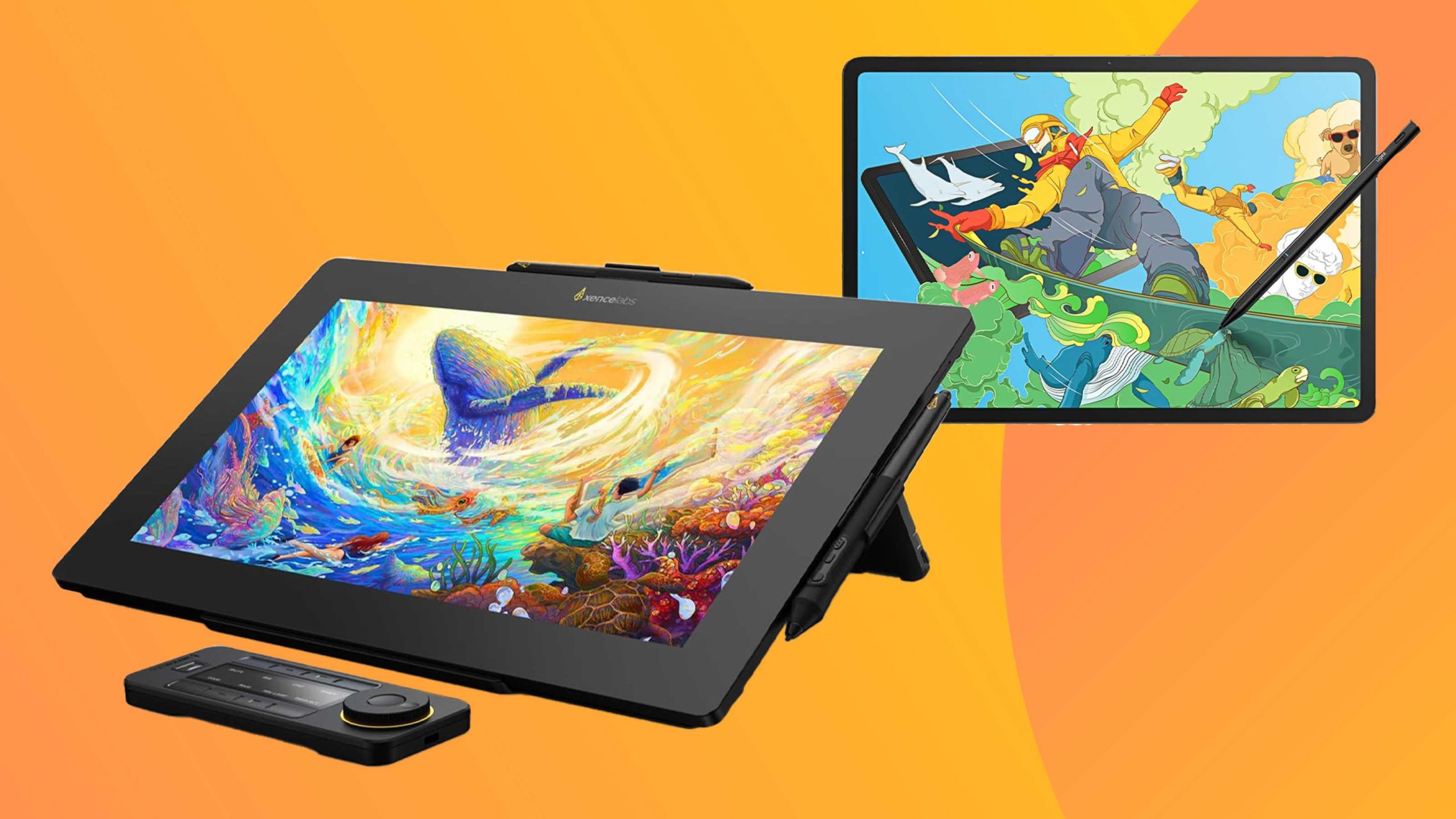
Yes, touchscreen monitors can often be used as drawing tablets, but their effectiveness depends on specific features like pen sensitivity and display quality. While they can serve as an alternative for casual drawing, professional artists may prefer dedicated tablets for better precision and pressure sensitivity.
Touchscreen monitors are increasingly popular for creative work, offering the convenience of a wide display combined with touch capabilities. If you’re considering using a touchscreen monitor as a drawing device, it’s important to look for features such as a responsive stylus, high resolution, and good color accuracy. This way, you can enjoy the versatility of a large screen while still being able to sketch and design directly on it. However, for complex and detailed digital art, dedicated drawing tablets usually outperform general touchscreen monitors in terms of pressure sensitivity, tilt support, and overall drawing experience.

Can Touchscreen Monitors Be Used as Drawing Tablets?
Introduction to Touchscreen Monitors and Drawing Tablets
Touchscreen monitors are popular for their versatility and ease of use in various tasks, from browsing the web to working on creative projects. Drawing tablets, however, are specialized devices designed specifically for digital art and illustration. Many artists wonder if they can use touchscreen monitors as a replacement for dedicated drawing tablets.
While both devices feature touch capabilities, they serve different purposes and come with unique features. Understanding their similarities and differences helps determine if a touchscreen monitor can effectively double as a drawing tablet for your artistic needs.
Key Differences Between Touchscreen Monitors and Drawing Tablets
Design and Purpose
Touchscreen monitors are primarily built for general use, combining display and touch input in one device. They are used for tasks like photo editing, video editing, and daily computer work.
Drawing tablets, on the other hand, are optimized for artists. They often include a stylus with pressure sensitivity and tilt recognition, allowing precise control needed for detailed artwork.
Input Technology
Touchscreen monitors typically use capacitive touch technology, reacting to finger contact. They do not usually support styluses with pressure sensitivity unless specified as a pen-enabled monitor.
Drawing tablets incorporate specialized pen technology, such as EMR (Electromagnetic Resonance), which detects pen pressure, tilt, and sometimes rotation. This makes them ideal for nuanced drawing and shading.
Screen Size and Resolution
Most touchscreen monitors come in larger sizes, often 24 inches or more, with high-definition resolutions for sharp visuals.
Drawing tablets tend to be smaller, focusing on portability, with sizes ranging from 6 to 22 inches. The resolution is also high to capture detailed artwork accurately.
Cost and Accessibility
Touchscreen monitors are generally more affordable than high-end drawing tablets, especially those with advanced stylus features.
Professional artists might find the added features of dedicated drawing tablets worth the investment. Beginners may opt for touchscreen monitors for a more budget-friendly option that also supports casual drawing.
Using Touchscreen Monitors as Drawing Devices
Capabilities of Touchscreen Monitors for Drawing
Touchscreen monitors can work well for basic digital drawing tasks. They support finger input for simple sketches and doodles.
Some models are compatible with styluses, which can enhance drawing precision. However, the styluses used with monitors usually lack pressure sensitivity, limiting detailed shading and line variation.
Stylus Compatibility
If your touchscreen monitor supports active stylus input and has stylus compatibility, it can better serve as a drawing tool.
Check if the stylus is pressure-sensitive and if the monitor driver supports pen input. Not all styluses work seamlessly with monitor screens, so compatibility is key.
Limitations to Expect
Without pressure sensitivity, artists may find it challenging to produce nuanced artwork. The lack of tilt and rotation support further reduces the device’s capabilities for professional illustration.
Response latency can also be an issue, affecting the natural feel of drawing. For quick sketches or casual art, this may not be a major concern.
Advantages of Using a Touchscreen Monitor for Drawing
- Multifunctional device: use for work, entertainment, and art.
- Large display area, ideal for detailed work.
- Less costly than high-end drawing tablets.
- Easy to integrate with existing computer setups.
Technological Enhancements That Improve Drawing Experience
Stylus Technology
The type of stylus is crucial. Active styluses with pressure sensitivity enable better control and natural drawing experience.
Some high-end monitors support styluses with tilt recognition and custom buttons, approximating what dedicated drawing tablets offer.
Screen Sensitivity and Response Speed
A responsive screen with low latency improves the drawing experience. Look for monitors that advertise fast response times for smoother strokes.
Checking user reviews can help gauge real-world performance.
Best Practices for Artists Using Touchscreen Monitors as Drawing Devices
Choosing the Right Monitor
Select a monitor with high resolution for detailed work and a responsive touch interface.
Consider models that support stylus input with pressure sensitivity and tilt, even if they are not dedicated graphics tablets.
Optimizing Software Settings
Use drawing or graphic design software that supports stylus pressure and tilt. Adjust sensitivity settings for more natural control.
Program custom shortcuts to streamline your workflow, making drawing easier and more efficient.
Using External Styluses
Employ styluses compatible with your monitor to improve accuracy. Testing different styluses can help find the best fit for your drawing style.
Ensure the stylus has good tip accuracy and comfortable grip for prolonged use.
Additional Accessories
Consider using a stand or adjustable arm for your monitor to get a better drawing angle.
A matte screen protector can reduce glare and improve drawing precision.
Are There Better Alternatives for Digital Artists?
Dedicated Drawing Tablets
Artists seeking the highest precision should look into drawing tablets like Wacom, Huion, or XP-Pen. These devices specialize in pressure sensitivity, tilt support, and customizable buttons.
They often include screens with natural feel and are designed to mimic traditional drawing surfaces.
Display Tablets with High-Quality Screens
Drawing tablets like Wacom Cintiq or Huion Kamvas combine display and pen input, offering a seamless experience. They are excellent for professionals and serious hobbyists.
These devices can be expensive but provide the most natural drawing experience.
Hybrid Devices and 2-in-1 Options
Some convertible laptops and tablets like the Microsoft Surface Pro or iPad with Apple Pencil allow drawing directly on the screen.
They combine portability with a high-quality stylus experience, making them versatile options for artists on the go.
Conclusion for Artists
While touchscreen monitors can serve as basic drawing tools, they lack the advanced features of dedicated art devices.
If drawing is a primary focus, investing in a specialized tablet with pressure-sensitive stylus support will yield better results and more natural control.
For casual or beginner artists, a touchscreen monitor offers a practical, multi-use solution that can handle light digital art tasks effectively.
Related Topics for Further Exploration
- What are the best styluses for touchscreen monitors?
- Top budget-friendly drawing tablets for beginners
- Comparison of display quality in graphics tablets
- How to set up your workspace for digital art
- Tips for improving your digital drawing skills with touchscreen devices
Drawing tablets: Display vs Non Display
Frequently Asked Questions
Are touchscreen monitors suitable for detailed digital artwork?
Touchscreen monitors can work well for detailed digital art, but their suitability depends on their specifications. Monitors with high resolution, accurate color reproduction, and minimal latency provide a better experience for artists. Some models include features like an anti-glare coating and high refresh rates, which enhance precision and comfort during intricate work. However, for professional-level artwork, dedicated drawing tablets often offer more advanced pressure sensitivity and tilt recognition.
What are the advantages of using a touchscreen monitor as a drawing device?
Using a touchscreen monitor as a drawing tool allows artists to work directly on the screen, offering intuitive control and a natural drawing experience. It eliminates the need for additional devices like graphic tablets, reducing workspace clutter. Many touchscreen monitors support stylus input with varying levels of pressure sensitivity, enabling precise strokes. Additionally, they can serve multiple purposes, such as a regular display and a drawing surface, providing flexibility for creative workflows.
Are there any limitations to consider when using a touchscreen monitor for digital art?
While touchscreen monitors offer convenience, they may lack the advanced features found in specialized graphics tablets, like high-level pressure sensitivity, tilt support, and customizable shortcut buttons. Some models may also experience issues like lag or less accurate stylus tracking, which can hinder detailed work. Furthermore, screen glare and reflections can affect visibility, especially in brightly lit environments. Artists should evaluate whether a touchscreen monitor meets their specific needs for precision and responsiveness.
Final Thoughts
Touchscreen monitors can be used as drawing tablets, offering a versatile option for digital artists. Their large screens and responsive touch capabilities make sketching, coloring, and editing intuitive. However, they may lack the pressure sensitivity and accuracy of dedicated drawing tablets. Overall, for casual or beginner artists, touchscreen monitors provide a practical and cost-effective solution. Can touchscreen monitors be used as drawing tablets? Yes, they can, but users should consider their specific needs and expectations.



