


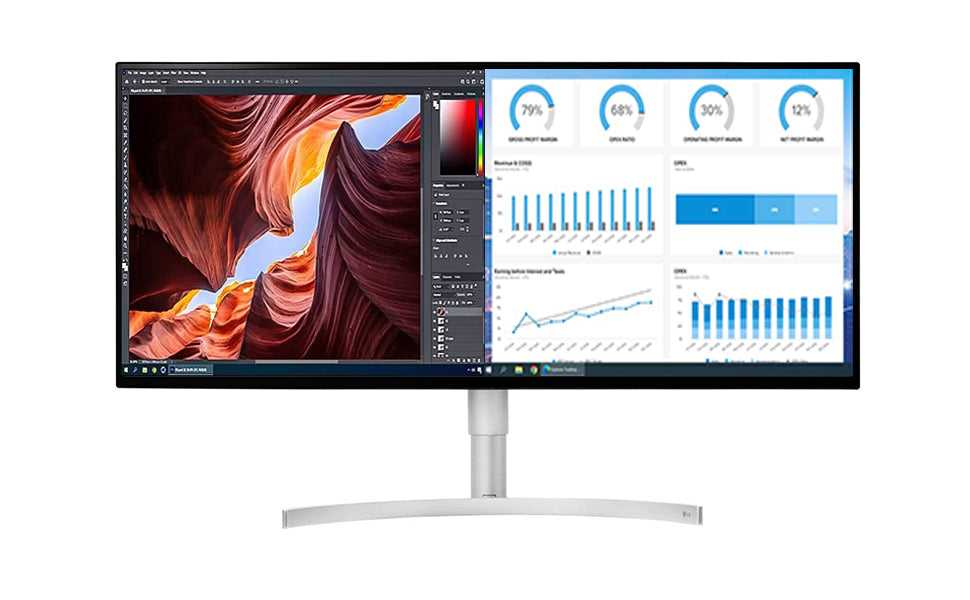
A touchscreen monitor can be a game-changer for multitasking, offering quick and intuitive access to multiple applications and windows. It’s especially handy for those who prefer a more interactive experience, allowing you to navigate, resize, and switch between tasks with just a tap or swipe. Overall, whether a touchscreen is good for multitasking depends on your workflow and preferences. For some, it enhances efficiency, while others might find traditional setups more comfortable for extended work periods.
In brief, touchscreen monitors can be effective for multitasking, especially when ease of access and quick interaction are priorities. They suit certain tasks and users well but may not be ideal for everyone, particularly for long hours of intensive work.
Jumping into the question of whether a touchscreen monitor is suitable for multitasking, it’s important to consider how you plan to use your device. With their intuitive interface, touchscreen monitors can streamline your workflow by allowing you to quickly switch between apps, edit documents, and manipulate content with natural gestures. They’re especially popular among creative professionals, students, and those who like a more interactive experience. However, it’s also crucial to evaluate the potential downsides, such as fingerprints, glare, or fatigue during prolonged use. Ultimately, a touchscreen monitor can be a valuable multitasking tool if it matches your habits and workspace needs, making daily tasks smoother and more engaging.

Is Touchscreen Monitor Good for Multitasking?
Understanding Multitasking on a Computer
Multitasking means working on multiple tasks at once. It involves switching between programs or viewing several windows simultaneously. Touchscreen monitors can change how we handle multiple tasks daily.
How Touchscreen Monitors Support Multitasking
Touchscreen technology allows users to tap, swipe, and drag directly on the screen. This makes managing several open apps easier and more intuitive. Instead of using a mouse or keyboard for everything, you can quickly switch between windows with your fingers.
Efficient Window Management
With a touchscreen, you can resize or move windows faster. For example, drag files or open apps directly on the screen without fiddling with small icons. This simplifies multitasking and saves time, especially when working on complex projects.
Pinch and Zoom Features
Pinch-to-zoom allows users to enlarge or shrink content instantly. This is perfect for handling detailed images or spreadsheets while working on multiple documents. Being able to manipulate content with gestures adds flexibility to multitasking.
Advantages of Touchscreen Monitors for Multitasking
Many users find multitasking easier and more engaging with touchscreen interfaces. Here are some benefits:
- Speed: Touch controls let you perform actions quickly without navigating through menus.
- Intuitiveness: Touch gestures are natural, making it easy for new users to adapt.
- Improved Workflow: With multitouch, you can use two or more fingers to perform complex actions, enhancing efficiency.
- Enhanced Collaboration: Touchscreens are ideal for team settings, allowing multiple users to interact directly with the display.
Challenges of Using Touchscreen Monitors for Multitasking
While touchscreens offer many advantages, some challenges may affect daily use.
Potential for Fatigue
Constant tapping and swiping can lead to arm or hand fatigue over extended periods. For long work sessions, this might become uncomfortable compared to using a mouse and keyboard.
Precision Limitations
Touch inputs can sometimes be less precise than a mouse for detailed work like graphic design or data entry. Small icons or crowded workspaces may cause accidental selections.
Screen Smudges and Maintenance
Frequent finger use leads to fingerprints and smudges, which can diminish screen clarity. Regular cleaning is necessary to maintain optimal visibility and responsiveness.
Ideal Use Cases for Touchscreen Monitors in Multitasking
Certain activities benefit more from touchscreen capabilities.
Creative Tasks
Artists and designers can draw, sketch, or edit images directly on the screen. Multitouch gestures enable smooth navigation between projects.
Presentations and Collaborations
Touchscreens are excellent for interactive presentations. Multiple users can annotate or navigate content quickly during meetings.
Educational Purposes
Students and teachers can use touchscreens for interactive lessons, making multitasking engaging and effective.
Compatibility and Software Support
A touchscreen’s effectiveness depends heavily on software compatibility.
Operating System Optimization
Modern OS like Windows 10 and 11 support multitouch gestures intuitively. These systems recognize taps, swipes, and pinches seamlessly.
Application Compatibility
Most popular apps now incorporate touch support, allowing smooth multitasking. However, some older or specialized software may not be optimized for touch inputs.
Choosing the Right Touchscreen Monitor for Multitasking
When selecting a touchscreen monitor, consider these factors:
- Size: Larger screens (24 inches and above) provide more workspace for multitasking.
- Resolution: Higher resolution (Full HD, 4K) ensures clarity when managing multiple windows and content.
- Touch Sensitivity: Precise and responsive touch features improve efficiency.
- Build Quality: Durable screens prevent damage from frequent touches or accidental impacts.
Additional Accessories to Maximize Multitasking
Pairing a touchscreen monitor with other devices can enhance multitasking efforts.
External Keyboard and Mouse
While touchscreens reduce reliance on peripherals, a keyboard and mouse remain essential for detailed tasks or lengthy work periods.
Stylus Pen
For creative work or precise selections, a stylus adds accuracy and comfort.
Multi-monitor Setups
Adding extra screens increases workspace, making multitasking more practical and less cluttered.
Touchscreen monitors can be a good choice for multitasking, especially for activities that benefit from direct interaction and gesture controls. They provide a more natural way to navigate and manage multiple applications quickly. However, users should weigh challenges like potential fatigue and precision limitations. By selecting a suitable model and combining it with proper accessories, you can make multitasking more efficient and enjoyable.
I Used An UltraWide Monitor For 365 Days (Worth It?)
Frequently Asked Questions
How does a touchscreen monitor affect multitasking efficiency?
A touchscreen monitor can improve multitasking efficiency by allowing quick access to menus, gestures, and shortcuts directly on the screen. With intuitive touch controls, users can switch between applications faster, resize windows, or perform actions without reaching for a mouse or keyboard. This direct interaction streamlines workflow and helps manage multiple tasks more seamlessly.
Is it easier to manage multiple windows on a touchscreen monitor?
Managing multiple windows becomes more straightforward on a touchscreen monitor because you can drag, resize, and organize applications with your fingers. Touch gestures such as pinching to zoom or swiping to switch between open apps reduce the need for precise mouse movements, making it simpler to keep several tasks visible and accessible at once.
Can a touchscreen monitor handle complex workflows involving several applications?
Yes, a touchscreen monitor can handle complex workflows effectively, especially when combined with compatible software that supports touch input. Users can interact directly with their applications, navigate between different tools, and perform actions more intuitively. This setup supports a more dynamic and responsive working environment for multitasking needs.
What are the advantages of using a touchscreen monitor for creative or design work?
Touchscreen monitors benefit creative tasks by providing direct, precise control over design elements, drawing, or editing. Artists and designers can use touch gestures to manipulate images or sketches more naturally than with a traditional mouse. This real-time interaction enhances productivity, especially when working on detailed projects involving multiple layers or tools.
Are there any potential drawbacks of using a touchscreen monitor for multitasking?
While touchscreen monitors offer many benefits, they may also cause fatigue during prolonged use due to the repetitive nature of touch interactions. Additionally, accidental touches can interrupt workflow, and some models might be less accurate than traditional input devices for precise tasks. Combining touch with a mouse and keyboard can help mitigate these issues.
Final Thoughts
A touchscreen monitor can be quite effective for multitasking, allowing users to switch between applications quickly and intuitively. Its tactile interface offers direct control, reducing reliance on a mouse or keyboard for certain tasks. This can lead to increased efficiency, especially for tasks that benefit from quick gestures or multiple window management.
However, not everyone finds touchscreens comfortable for extended use, as they can cause fatigue or smudging issues. Consider your workflow and preferences before choosing a touchscreen monitor for multitasking.
In conclusion, is touchscreen monitor good for multitasking? Yes, it offers convenience and faster interaction, making it a valuable tool for multitasking.



