


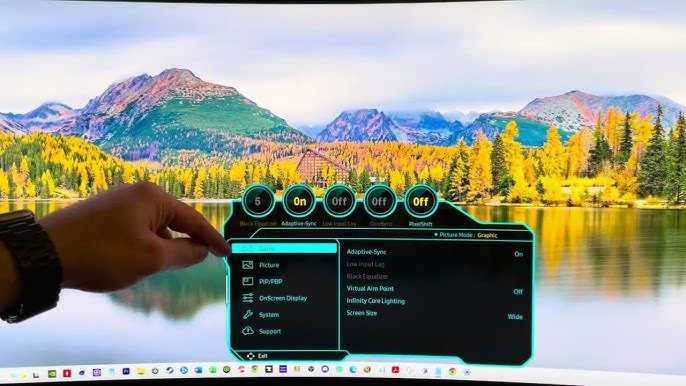
To enable G-SYNC on your OLED monitor, access your graphics card control panel, turn on G-SYNC, and select the appropriate display. Make sure your monitor supports G-SYNC and that you have the latest drivers installed. This setup will deliver a smoother gaming experience with reduced screen tearing and input lag.
Enabling G-SYNC on an OLED monitor can significantly improve your gaming or viewing experience by reducing screen tearing and ensuring smoother motion. The process involves just a few steps in your graphics card’s control panel, provided your monitor is compatible with G-SYNC technology. With the right settings, you’ll enjoy vibrant visuals without tearing or stuttering, making your favorite games and videos look their best. Whether you’re a casual gamer or a serious enthusiast, knowing how to enable G-SYNC on an OLED monitor empowers you to optimize your display for peak performance. Let’s walk through the simple steps to get this feature up and running so you can enjoy seamless visuals.

How to Enable G-Sync on OLED Monitor
Enabling G-Sync on an OLED monitor helps create smooth gameplay with less screen tearing and input lag. This technology syncs your graphics card’s frame rate with your monitor’s refresh rate for a more seamless experience. Even though OLED monitors are known for their stunning picture quality, getting G-Sync to work properly takes specific steps.
Understanding G-Sync and OLED Technology
G-Sync is a technology developed by NVIDIA that prevents visual glitches during fast-paced gaming. It works by adjusting the monitor’s refresh rate dynamically to match the frame rate from your GPU. OLED screens are praised for their vibrant colors and deep blacks, but they need proper configuration to work with G-Sync.
Before enabling G-Sync, it’s important to understand the compatibility of your hardware. Check if your monitor supports G-Sync and if your graphics card is compatible with G-Sync technology. Most modern NVIDIA GPUs support G-Sync, but some older models may not.
Prerequisites for Enabling G-Sync on an OLED Monitor
- Ensure you have a compatible NVIDIA graphics card supporting G-Sync.
- Use a DisplayPort cable, as it typically provides better support for G-Sync on OLED and other monitors.
- Update your graphics card drivers to the latest version to avoid compatibility issues.
- Make sure your monitor’s firmware is up to date. Manufacturers often release updates that improve G-Sync support.
- Confirm that your monitor’s settings allow enabling G-Sync or variable refresh rate features.
Connecting Your OLED Monitor for G-Sync
To get started, connect your OLED monitor to your PC using a DisplayPort cable. HDMI may work in some cases, but DisplayPort generally offers better support for G-Sync. Once the physical connection is secure, turn on your monitor and PC.
Navigate to your monitor’s on-screen display menu. Find the setting related to G-Sync, FreeSync, or variable refresh rate. Enable this feature if it’s not already turned on.
Enabling G-Sync via NVIDIA Control Panel
Accessing the NVIDIA Control Panel
Right-click on your desktop and select “NVIDIA Control Panel” from the menu. This control panel manages all NVIDIA GPU settings, including G-Sync configuration.
Configuring G-Sync Settings
- In the NVIDIA Control Panel, click on “Set up G-Sync” under the “Display” section.
- Select your OLED monitor from the list of available displays.
- Check the box labeled “Enable G-Sync, G-Sync Compatible.”
- Choose whether to enable G-Sync for windowed, full-screen, or both modes. Full-screen mode is generally recommended for gaming.
- Apply the settings to activate G-Sync.
Adjusting Your Windows Settings for Optimal Performance
After enabling G-Sync in the NVIDIA Control Panel, ensure your Windows settings are configured to maximize performance. Head to Settings > System > Display > Graphics settings.
Here, you can set your preferred GPU for specific applications and ensure that your game or application is running in the preferred graphics mode. You may also want to enable “Hardware-accelerated GPU scheduling” in Windows for better performance.
Fine-tuning G-Sync for OLED Monitors
Setting the Refresh Rate
In the display settings, set your OLED monitor’s refresh rate to the maximum supported. Higher refresh rates, such as 120Hz or 144Hz, improve G-Sync effectiveness and provide smoother visuals.
Adjusting the Frame Rate Range
In the NVIDIA Control Panel, under the G-Sync setup, you can specify the minimum and maximum refresh rates. Setting these limits ensures G-Sync operates effectively within optimal ranges, reducing issues like stuttering or input lag.
Calibration and Testing for Best Results
- Use tools like NVIDIA Scan or monitor-specific calibration software to fine-tune the display’s color and response.
- Run benchmark tests to verify that G-Sync is working correctly, looking for smooth motion and no tearing.
- Adjust in-game settings to maintain frame rates within the G-Sync range for a consistent experience.
Common Problems and Troubleshooting
G-Sync Not Activating
If G-Sync isn’t working, check all physical connections and make sure the monitor supports G-Sync in its specs. Restart your PC and update all drivers.
Stuttering or Screen Tearing
Ensure your frame rate stays within the G-Sync range, and disable V-Sync in your game to avoid conflicts. Adjust monitor settings for lower latency.
Compatibility Issues with OLED Monitors
Some OLED monitors may have limited G-Sync support or require specific firmware updates. Consult your monitor’s manual or manufacturer support for guidance.
Additional Tips for OLED G-Sync Users
- Use the highest quality DisplayPort cable to avoid signal issues.
- Keep your system cool; OLED panels can be sensitive to heat during extended gaming sessions.
- Regularly check for monitor firmware updates to improve G-Sync compatibility and performance.
- Adjust your system’s power settings to prevent the GPU from throttling during gameplay.
Related Topics to Explore
- Difference between G-Sync and FreeSync on OLED monitors
- Best settings for OLED gaming monitors
- Impact of G-Sync on gaming performance and image quality
- How to troubleshoot G-Sync issues on various monitor types
Configuring G-Sync on an OLED monitor involves a few essential steps, but once set up correctly, it greatly enhances your gaming experience. By understanding compatibility, connecting your device properly, and adjusting settings in the NVIDIA Control Panel and Windows, you ensure a smooth, tear-free visual. Stay updated with the latest firmware and driver releases to maintain optimal performance and enjoy your OLED display at its best.
How to turn on G-Sync
Frequently Asked Questions
What steps should I follow to enable G-Sync on my OLED monitor?
To enable G-Sync on your OLED monitor, first ensure your graphics card supports G-Sync technology. Connect your monitor to the GPU using a DisplayPort or HDMI cable recommended for G-Sync. Open your graphics card control panel, such as NVIDIA Control Panel, navigate to the G-Sync settings, and check the box to enable G-Sync. Make sure G-Sync is enabled for the specific display, and adjust related settings as needed to optimize performance.
How can I verify that G-Sync is working correctly on my OLED display?
You can verify G-Sync functionality by enabling the G-Sync indicator within your graphics card control panel. Once activated, run a game or application with dynamic frame rates and observe the on-screen experience. If G-Sync is functioning properly, you should notice smoother gameplay with reduced screen tearing and stuttering. Some monitors also display a confirmation message when G-Sync is active, providing additional reassurance.
What should I do if G-Sync doesn’t activate on my OLED monitor?
If G-Sync does not activate, double-check your connections to ensure you’re using a compatible cable and port. Verify that your GPU driver is updated to the latest version and that G-Sync is enabled in the control panel. Also, confirm your monitor’s firmware is current. If issues persist, try disabling and re-enabling G-Sync or restart your system to refresh the settings. Consulting your monitor’s manual can also help identify any specific configuration requirements.
Are there any specific settings I should adjust for optimal G-Sync performance on OLED screens?
To maximize G-Sync performance, set your display’s refresh rate to its maximum supported value within your graphics settings. Enable V-Sync within the game or application to prevent input lag. Adjust the frame rate limit to match your monitor’s capabilities, which helps G-Sync work more effectively. Avoid running other demanding applications in the background to maintain a steady frame rate and ensure smooth operation.
Can I enable G-Sync on an OLED monitor with both HDMI and DisplayPort connections?
G-Sync functionality typically requires a DisplayPort connection, as HDMI support for G-Sync is limited to specific versions and monitor models. Check your monitor’s specifications to confirm compatibility with HDMI G-Sync. If supported, ensure you select the correct input source within your graphics card control panel. For the best performance, using a DisplayPort connection is recommended, as it tends to offer more reliable synchronization and higher refresh rates.
Final Thoughts
To enable g sync on oled monitor, start by ensuring your GPU supports G-Sync technology. Update your graphics drivers to the latest version for optimal performance. Open the NVIDIA Control Panel and navigate to the “Set up G-SYNC” section.
Select your OLED monitor from the list and check the box to enable G-Sync. Adjust the refresh rate settings if needed for better synchronization. Restart your system to apply the changes.
In summary, to enable g sync on oled monitor, ensure your hardware supports it, update drivers, and activate G-Sync in the control panel. This process enhances your gaming and viewing experience seamlessly.



