


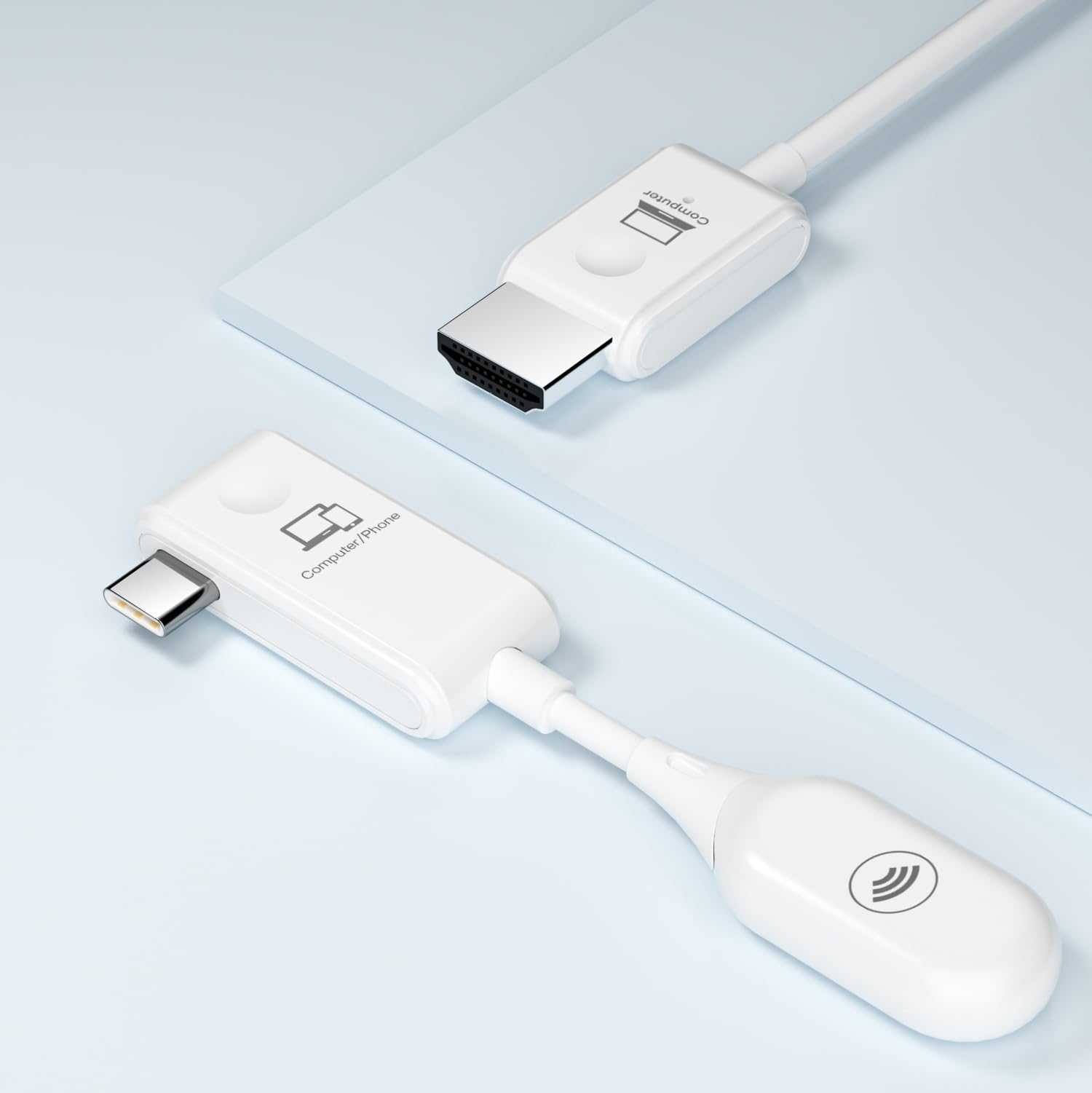
To mirror your screen with a USB-C monitor, simply connect your device using a compatible USB-C cable and enable screen sharing or display options in your device settings. This quick connection allows you to instantly duplicate your device’s display onto the monitor, turning your workspace or entertainment setup into a seamless dual-screen experience. Just make sure your device and monitor support video transmission via USB-C.
In the simplest terms, you need a USB-C cable that transmits video, connect it between your device and the monitor, then select the appropriate display mode on your device. No complex setups or external adapters are usually necessary. If you follow these steps, you’ll have your screen mirrored in moments, making presentations, gaming, or content viewing more efficient and enjoyable.
If you’re wondering how to mirror your screen using a USB-C monitor, don’t worry—it’s easier than you might think. Whether you’re using a laptop, tablet, or even certain smartphones, the key is ensuring both the device and monitor support video over USB-C. Once connected, activating the mirror mode is usually a quick tweak in your device’s display settings. This approach provides a clean, cable-efficient way to extend your screen, making it ideal for work presentations, watching videos, or multitasking. With just a simple USB-C cable, you can transform a single connection into a versatile, mirrored display setup that’s both functional and sleek.

How to Mirror Screen with USB C Monitor: A Complete Guide
Understanding Mirror Screen Functionality with USB C Monitors
Mirroring your screen means displaying everything from your device onto a larger monitor. With a USB C monitor, this process is simple and efficient because USB C supports both video and data transfer. It allows you to create a seamless connection between your laptop or smartphone and your monitor.
This feature is useful for presentations, watching videos, or working across multiple screens. Knowing how to set it up quickly saves time and makes your workspace more flexible. By understanding the basics, you can improve your workflow and enjoy high-quality display output.
Why Use USB C for Screen Mirroring?
USB C offers several advantages for screen mirroring. First, it supports high-resolution displays, including 4K and even higher, providing crystal-clear images. Second, it consolidates multiple functions into one cable—power, data, and video transfer—reducing clutter.
Additionally, USB C connections are widely compatible with many devices such as laptops, tablets, and smartphones. Its reversible design makes plugging in easier, especially when working in tight spaces. These benefits make USB C an ideal choice for effortless and reliable screen mirroring.
Prerequisites for Mirroring Your Screen using USB C
Before starting, ensure your device and monitor support the screen mirroring feature via USB C. Check the specifications of your devices for compatibility details. Confirm that your USB C cable supports video transfer, not just data or charging.
Other necessary items include:
- USB C to USB C cable with video support
- Device with a USB C port that supports DisplayPort or Thunderbolt 3/4
- Monitor with a USB C input capable of video input
Make sure your device’s software or firmware is updated to avoid any connectivity issues.
Connecting Your Device to the USB C Monitor
To start mirroring, connect your device and monitor with a high-quality USB C cable. Insert one end into your device’s USB C port, and the other into the monitor’s USB C input. Once connected, your device should automatically detect the monitor.
If not, you may need to enable screen mirroring manually through your device’s display settings. Sometimes, a restart of devices can help establish a stable connection. Properly securing the connection prevents accidental disconnections during use.
Configuring Screen Mirroring Settings
After connecting, adjust your display settings for optimal viewing. On Windows devices, open the display settings and select “Duplicate” or “Mirror” mode. On macOS, go to System Preferences, then Displays, and select the mirroring option.
You can also choose to extend your display instead of mirroring if needed. Adjust resolution settings for best quality and performance, especially when working with high-resolution content. Proper configuration ensures a smooth and clear display replication.
Troubleshooting Common Connection Issues
If the screen doesn’t mirror correctly, check the cable connection first. Replace the cable if it’s damaged or incompatible. Verify that your device supports video output over USB C.
Updating device drivers or firmware can resolve compatibility problems. Restarting devices sometimes fixes temporary glitches. Also, confirm that your monitor is set to the correct input source. These steps help ensure a successful mirror setup.
Using Additional Features with Your USB C Monitor
Many USB C monitors come with extra features like built-in speakers, adjustable stands, or USB hubs. Explore these options to enhance your workspace. For example, use the monitor’s built-in speakers for sound without connecting external speakers.
Adjust the monitor’s tilt, height, or rotation to find the most comfortable viewing angle. Connecting peripherals via the monitor’s USB ports can declutter your desk. Knowing how to utilize these features makes your setup more versatile and convenient.
Security and Privacy Considerations
When mirroring your screen, ensure your device is secure to prevent unauthorized access. Avoid sharing sensitive information when connected to public or shared monitors. Use device encryption and password protection for added safety.
Disconnect the monitor when not in use to prevent accidental data exposure. Regularly update security software to keep your device protected during screen sharing sessions. These steps help safeguard your information while enjoying the benefits of screen mirroring.
Tips for Maintaining Your USB C Connection
Use high-quality cables rated for video transfer to avoid connectivity issues. Keep connectors clean and free of dust or debris. Avoid bending or twisting the cable excessively to prevent damage.
Update your device’s drivers and firmware periodically for compatibility. When setting up, ensure cables are securely plugged in. Proper maintenance prolongs the lifespan of your cables and ensures reliable mirror performance.
Exploring Alternatives to USB C for Screen Mirroring
If your devices do not support USB C or you encounter compatibility issues, consider other options. Wireless solutions like Miracast, Chromecast, or Apple AirPlay offer easy screen sharing without cables.
However, these may have latency or resolution limitations compared to wired USB C connections. Choose the method that best fits your needs based on device compatibility and usage scenarios. Wired connections generally offer more stable and higher-quality display mirroring.
Advanced Tips for Enhanced Screen Mirroring Experience
Experiment with display settings for color calibration and refresh rate adjustments. Use third-party software to customize how screens are mirrored or extended.
Consider adding a docking station for multiple device connections and cleaner setup. For professional use, explore calibration tools to optimize display quality. These enhancements improve your overall experience and productivity.
Related Topics
- Best USB C cables for video transfer
- How to connect smartphones to monitors via USB C
- Differences between screen mirroring and extending display
- Setting up a dual monitor workstation
- Top USB C monitors for office and gaming
Understanding how to mirror screens with a USB C monitor equips you with the skills needed for efficient and flexible workspace setups. By following these detailed steps and tips, you can enjoy high-quality, reliable display sharing across compatible devices. Whether for work, entertainment, or presentations, mastering this process enhances your device’s capabilities and makes your daily tasks more manageable.
How to Mirror Android Smartphone to 16.1" External Monitor by a USB Type-C Cable!|GeChic
Frequently Asked Questions
What steps should I follow to connect my device to a USB-C monitor for screen mirroring?
First, ensure your device supports video output through USB-C. Connect the USB-C cable from your device to the monitor’s USB-C port. Once connected, your device might automatically detect the monitor and start mirroring the screen. If it doesn’t, go to your device’s display settings and select the monitor as the display output. Adjust resolution and display preferences as needed for optimal viewing.
How can I troubleshoot if the screen doesn’t display when I connect via USB-C?
If your monitor stays blank or no image appears, check the USB-C cable connection to ensure it’s secure. Confirm that your device’s USB-C port supports video output, as some ports only handle data transfer. Try using a different USB-C cable or port if available. Additionally, verify that your device’s display settings are configured to mirror the screen and that the monitor is set to the correct input source. Restart both your device and monitor if issues persist.
Are there specific requirements my device must meet to mirror its screen using a USB-C monitor?
Yes, your device needs a USB-C port that supports DisplayPort Alternate Mode or Thunderbolt 3/4 for video output. Check your device’s specifications to confirm compatibility. Operating system support is also essential; ensure your device’s software is up to date to recognize external displays correctly. Using a high-quality cable that supports the required data transfer standards helps prevent connectivity issues.
Can I connect multiple devices to a single USB-C monitor for screen mirroring?
Most USB-C monitors allow connection of one device at a time for screen mirroring, but some models include multiple input options such as HDMI or DisplayPort. You can switch between devices by changing the input source on the monitor. To mirror screens across several devices, disconnect one and connect another, ensuring each device is compatible with the monitor’s input options.
What additional settings might I need to adjust after connecting my device to a USB-C monitor?
After connection, check your device’s display settings to tune resolution, orientation, and scaling options for optimal display quality. Some devices may require you to enable screen mirroring or extend desktop features manually. Also, explore monitor settings to adjust brightness, contrast, and input source. Configuring these settings helps ensure clear visuals and smooth performance during screen sharing.
Final Thoughts
To mirror your screen with a USB C monitor, start by connecting your device using a compatible USB C cable. Ensure your device and monitor support display mirroring, then select the correct input source on your monitor. Adjust display settings on your device if needed for optimal viewing.
In summary, learning how to mirror screen with USB C monitor involves a simple connection process and proper configuration. This method provides an easy way to share your screen instantly, making presentations or viewing content more convenient.



