To quickly troubleshoot a USB-C monitor connection, start by checking the cable and port for damage, ensure your device supports video output via USB-C, and verify the correct input is selected on the monitor. Restart your computer and reconnect the cable, updating your display drivers if necessary. These simple steps often resolve most connection issues.
If your USB-C monitor isn’t displaying properly, it’s often due to a faulty cable, incompatible hardware, or outdated drivers. Troubleshooting involves testing different cables, confirming device compatibility, and adjusting display settings. By systematically checking these common problem areas, you can quickly identify and fix the issue, restoring your monitor to perfect working order.
Having a USB-C monitor that refuses to connect can be frustrating, especially when you’re eager to get back to work or entertainment. The good news is that many connection problems are straightforward to resolve with a few troubleshooting steps. Sometimes, it’s as simple as checking the cable connections, updating your device drivers, or adjusting your display settings. Whether your monitor shows no signal, flickers, or displays incorrectly, these common fixes can help you diagnose and fix the problem efficiently, saving you time and hassle. Understanding the basics of USB-C compatibility and connection troubleshooting will empower you to address issues confidently and quickly get your setup back on track.

How to Troubleshoot USB C Monitor Connection
Connecting a monitor through USB C can sometimes be tricky. Issues might happen due to hardware problems, cable quality, or software settings. In this guide, we’ll cover everything you need to know to fix common USB C monitor connection problems.
Understanding USB C and Its Role in Connecting Monitors
USB C is a versatile port that carries power, data, and video signals. This feature makes it popular for connecting modern monitors to laptops and desktops. Knowing how USB C works can help you identify where the problem might be.
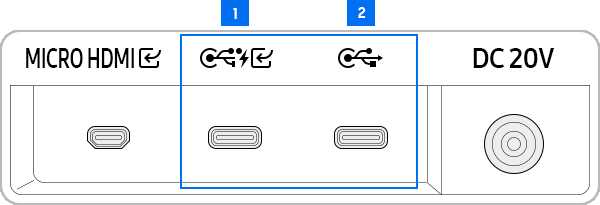
Some USB C ports support only data and charging, while others support video output. Make sure your device and monitor both support video over USB C before troubleshooting.
Check your device’s specifications or user manual to confirm whether it supports USB C video output. This information helps narrow down the sources of connection issues.
Common USB C Monitor Connection Problems
Before fixing the issue, understand the common problems that can occur. These include no display output, flickering screens, or partial display.
- No Signal Detection: The monitor isn’t receiving any video signal from the device.
- Flickering or Intermittent Display: The screen flickers or flashes unexpectedly.
- Resolution or Display Clarity Problems: The display appears blurry or with incorrect resolution settings.
- Device Not Recognized: The computer doesn’t detect the monitor as connected.
These issues can stem from hardware faults, incompatible cables, driver problems, or incorrect settings.
Checking the Hardware and Cable Connections
Ensure Proper Cable Connection
First, verify that the USB C cable is securely plugged into the port on both the monitor and the device. Even a slight looseness could prevent a proper connection.
If you notice any damage or fraying on the cable, replace it with a high-quality, certified USB C cable designed for video transmission.
Use the original or certified cables to ensure compatibility and maximum data transfer capabilities.
Test with Different Cables and Ports
If the connection still doesn’t work, try using a different USB C cable. Sometimes cables are defective or don’t support video output.
Switch the USB C port on your device if multiple ports are available. Some ports may support charging or data only, not video.
Testing multiple ports and cables helps identify if the issue is related to hardware limitations or faults.
Inspect the Monitor’s Input Settings
Use the monitor’s buttons or on-screen menu to select the correct input source. Sometimes the monitor defaults to the wrong input mode, preventing display detection.
Ensure the input source is set to USB C or the appropriate port where the cable is connected.
Refer to the monitor’s user manual for specific instructions on changing input sources.
Updating and Reinstalling Drivers
Check for Driver Updates
Outdated or corrupt graphics drivers can cause display issues over USB C. Visit your graphics card or device manufacturer’s website to download the latest drivers.
Perform system updates through your operating system’s update feature to ensure all drivers are current.
Regular driver updates help maintain compatibility and fix known bugs related to external displays.
Reinstall Graphics Drivers
If updating doesn’t solve the problem, try uninstalling and reinstalling your graphics drivers. This process resets driver settings to default and can resolve conflicts.
Use Device Manager on Windows or System Preferences on Mac to locate your graphics device, then select ‘Uninstall’ before reinstalling the latest drivers.
This method often clears up issues related to driver corruption or misconfiguration.
Adjusting Display Settings for Compatibility
Set the Correct Resolution
Incorrect resolution settings can cause display problems. Access your display settings and set the resolution to match your monitor’s native resolution.
On Windows, right-click on the desktop, select ‘Display Settings’, and choose the recommended resolution.
On Mac, go to ‘System Preferences’, then ‘Displays’, and set the resolution accordingly.
Check Refresh Rate Settings
The refresh rate should be compatible with your monitor. Navigate to advanced display settings to verify or adjust the refresh rate.
This ensures a smooth display and prevents flickering or tearing.
Most monitors work well with standard refresh rates such as 60Hz, but higher refresh rates may require specific compatibility checks.
Testing the Device and Monitor Hardware
Connect to Another Device
To determine whether the issue is with your device or the monitor, connect the monitor to a different computer or device.
If the monitor works with another device, the original device might be at fault. Conversely, if the problem persists, the monitor itself could be defective.
This step helps isolate hardware faults and guides your next troubleshooting steps.
Test the Device with a Different Monitor
Similarly, connect your device to a different monitor using the same USB C cable and port. If it works properly, your original monitor may need repair or replacement.
These tests help identify which component is causing the connection issues.
Checking Software and Firmware Updates
Update Device Firmware
Some monitors and devices offer firmware updates that improve compatibility and fix bugs. Visit the manufacturer’s website for firmware update instructions.
Follow the provided steps carefully to ensure successful firmware installation, which can resolve persistent connection problems.
Check regularly for updates to keep your hardware functioning smoothly.
Operating System Compatibility
Ensure your operating system supports the monitor’s features and USB C video output. Sometimes, OS updates include important drivers or fixes.
Update your system to the latest version to prevent compatibility issues and improve stability.
Additional Tips and Troubleshooting Resources
- Consult the user manual for specific instructions related to your monitor model.
- Look for online forums or communities with users who may have experienced similar issues.
- Contact customer support if hardware repairs or replacements are necessary.
Staying informed and proactive can help you solve stubborn connection issues faster and more effectively.
By carefully checking each of these areas, you can troubleshoot most problems related to connecting a USB C monitor. Remember, patience and methodical testing are key to pinpointing the root cause and restoring your display setup.
M7 Samsung Monitor USB-C Not working Issue! Fix!
Frequently Asked Questions
Why is my USB-C monitor not displaying any image even though the cable is connected?
Check if your USB-C port on the device and monitor support video transmission. Ensure that you are using a USB-C cable that supports video output rather than just data transfer. Also, verify that your device’s graphics drivers are up to date, as outdated drivers can prevent proper display output. If everything seems correct, try disconnecting and reconnecting the cable or testing it with a different USB-C port or cable to identify potential hardware issues.
How can I determine if my USB-C port supports video output?
Consult your device’s specifications or user manual to confirm if the USB-C port supports video transmission, often indicated as “DisplayPort Alternate Mode.” You can also look for the USB-C port symbol, which sometimes includes a display icon. Additionally, test the port with a compatible USB-C monitor or docking station that explicitly mentions support for video output. If the port does not support video, connecting a monitor may not work regardless of the cable used.
What steps should I take if my monitor is recognized but shows a blank or flickering screen?
Start by adjusting the display resolution settings to match your monitor’s native resolution. Use your device’s display settings to detect monitors and configure the appropriate display mode. Check if the monitor’s refresh rate is compatible with your device by adjusting it in the display settings. Also, inspect the cable and connections for any damage or loose contacts. If flickering persists, try restarting your device or testing the setup with a different USB-C cable or monitor to identify if the issue lies with hardware compatibility.
Final Thoughts
To troubleshoot usb c monitor connection, start by checking the cable and port for damage or dirt. Ensure that your device and monitor are compatible and properly connected. Update your graphics driver and firmware to fix potential software issues. If problems persist, test the monitor on another device or try a different cable to identify the cause. By following these steps, you can resolve most connection problems efficiently. Troubleshooting usb c monitor connection becomes straightforward when you systematically verify hardware, software, and compatibility issues.

With experience in IT support and consumer technology, I focus on step-by-step tutorials and troubleshooting tips. I enjoy making complex tech problems easy to solve.