


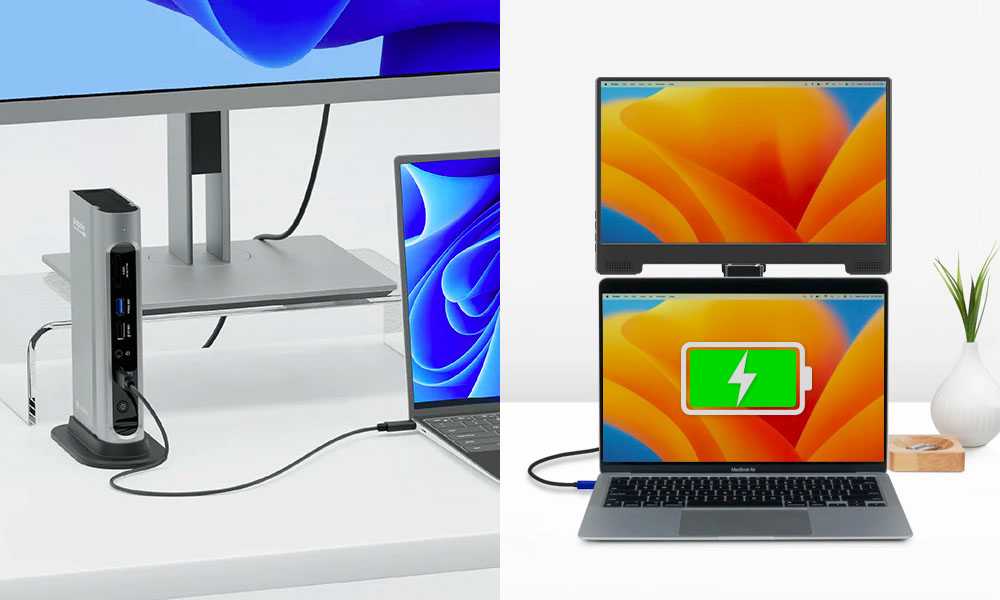
Yes, some USB-C monitors can charge laptops while in use, but not all models support this feature. The ability depends on whether the monitor offers Power Delivery (PD), which allows it to transfer power alongside video and data. If your monitor supports PD, it can effectively function as a charging station, reducing cable clutter and enhancing your workspace setup.
In short, whether your USB-C monitor charges your laptop depends on the monitor’s specifications, especially if it has Power Delivery capabilities. Not every USB-C monitor provides this feature, so it’s essential to check the product details before making a purchase.
Imagine having a sleek, single-cable setup where your monitor not only displays your work but also keeps your laptop powered throughout the day—sound appealing? This feature has become increasingly popular among professionals looking to streamline their desks and simplify connectivity. Today, many modern USB-C monitors support charging, but there are still some that don’t, so understanding the technical details is crucial. This article explores which USB-C monitors can charge laptops, how they work, and what to look for to ensure you get the right one for your needs.

Do USB C Monitors Charge Laptops? An In-Depth Look
Many people wonder if USB C monitors can also power their laptops. This is an important question because it affects how you set up your workspace. Understanding this topic can help you choose the right monitor and avoid unnecessary extra cables or chargers.
What Is USB C and Why Is It Popular?
USB C is a type of connector that can transfer data, video, and power through a single cable. It has become popular because it simplifies connections and reduces clutter. Many modern laptops and monitors now come equipped with USB C ports for convenience.
Unlike older USB types, USB C offers faster data transfer rates and higher power delivery. This makes it a versatile option for users who want a neat, efficient workspace.
Can USB C Monitors Charge Laptops?
Yes, some USB C monitors can charge laptops. These monitors are equipped with a feature called Power Delivery.
Power Delivery allows the monitor to send power back to the laptop through the same USB C cable used for video and data transfer. However, not all monitors with USB C ports offer this feature.
How Does Power Delivery Work?
Power Delivery (PD) is a technology that enables higher power transfer between devices. It can deliver up to 100 watts of power, enough to charge most laptops.
For a monitor to charge a laptop, it must have a built-in PD port capable of delivering sufficient wattage. The connection must also be compatible with the laptop’s power requirements.
What Are the Benefits of Charging Laptops via USB C Monitors?
- Less clutter: You only need one cable for video, data, and power.
- Space-saving: Fewer cables mean a cleaner, more organized desk.
- Convenience: Easily connect and disconnect your laptop without plugging in multiple cables.
These benefits make USB C monitors with charging capabilities an attractive option for many users.
Are All USB C Monitors Able to Charge Laptops?
No, not all USB C monitors can charge laptops. The ability depends on the monitor’s specifications, particularly its Power Delivery capacity.
Always check the monitor’s product details to see if it supports charging and the maximum wattage it can deliver.
How to Choose a USB C Monitor That Charges Your Laptop
Check Power Delivery Compatibility
Look for monitors that specify Power Delivery ratings. A higher wattage rating, such as 65W or 100W, is better for charging most laptops.
Verify Laptop Compatibility
Ensure your laptop supports charging via USB C. Some models only transfer data and video but do not support charging through USB C.
Match Ports and Cables
Use high-quality USB C cables that support Power Delivery to ensure safe and fast charging. Confirm the monitor’s ports are compatible with your laptop’s charging port.
Consider Additional Features
Think about resolution, refresh rate, and other features important for your workflow. Choose a monitor that combines these with charging capabilities for the best experience.
Potential Limitations and Considerations
While USB C monitors with charging features offer many advantages, there are some limitations.
Some monitors may not deliver enough power to fully charge larger or more power-hungry laptops. It’s also possible that charging speeds may be slower compared to using a dedicated charger.
Ensure your laptop’s manufacturer recommends or approves charging via external monitors to avoid potential damage or warranty issues.
Comparison Table: USB C Monitors With and Without Charging Capabilities
| Feature | USB C Monitors With Charging | USB C Monitors Without Charging |
|---|---|---|
| Power Delivery | Yes, usually up to 100W | No |
| Data Transfer | Supported | Supported |
| Video Output | Supported | Supported |
| Ease of Use | High, single cable for everything | Lower, need separate charger |
| Cost | Generally higher | Usually lower |
Additional Tips for Using USB C Monitors to Charge Laptops
- Use the monitor’s original or certified cables: Avoid cheap cables that may not support Power Delivery or could be unsafe.
- Check your laptop’s specifications: Some laptops may not support charging via USB C, even with a capable monitor.
- Balance power needs: If your monitor offers 65W but your laptop needs 100W, you’ll still need the original charger for full power.
- Update firmware and drivers: Keep your devices updated to ensure smooth compatibility and performance.
Related Topics to Explore
- Best USB C Monitors for Laptop Work
- Understanding USB C Power Delivery Standards
- How to Set Up a Minimalist Workspace with USB C Devices
- Charging Multiple Devices Using USB C Hubs
Choosing a USB C monitor that can charge your laptop simplifies your setup and reduces cable clutter. Always check the specifications carefully, especially the Power Delivery capacity, to ensure it meets your needs. With the right monitor, you can enjoy a cleaner workspace and have your laptop charged and ready to use at all times.
The USB-C Cables You NEED for External Displays
Frequently Asked Questions
Can all USB-C monitors provide power to a laptop?
Not all USB-C monitors offer power delivery capabilities. Some monitors are designed solely for display output and do not supply power to connected laptops. Before purchasing, check the monitor specifications to determine if it includes charging features, typically indicated by supported wattage for power delivery.
What wattage should I look for in a USB-C monitor to charge my laptop effectively?
To charge your laptop efficiently, the monitor should support a wattage that matches or exceeds your device’s charging requirements. Most laptops require between 45W and 100W. For faster charging and optimal performance, choose a monitor that provides at least 60W of power delivery.
Does using a USB-C monitor to charge a laptop affect display performance?
Charging a laptop through a USB-C monitor typically does not impact the display quality if the monitor and cable support the necessary data transfer and power delivery standards. However, using lower-quality cables or incompatible devices can lead to reduced performance or connection issues.
Are there any risks associated with charging my laptop via a USB-C monitor?
When using a monitor that supports power delivery, ensure it complies with safety standards. Using incompatible or damaged cables might pose risks such as electrical faults or overheating. Always verify the monitor’s specifications and use certified accessories to minimize potential hazards.
Can I connect my laptop to a USB-C monitor for both display and charging simultaneously?
Yes, many USB-C monitors are designed to connect to a laptop for both display and power delivery at the same time. Confirm that the monitor and the cable support both functions at the required wattage. This setup reduces the number of cables and simplifies workspace management.
Final Thoughts
Using a USB-C monitor to charge laptops depends on the monitor’s power delivery capabilities. Many modern monitors provide enough wattage to recharge devices during use.
However, not all USB-C monitors support charging laptops, so check their specifications.
In conclusion, do usb c monitors charge laptops? The answer varies, but many models do offer this feature. Understanding the monitor’s power delivery specs ensures seamless charging and work flow.



