


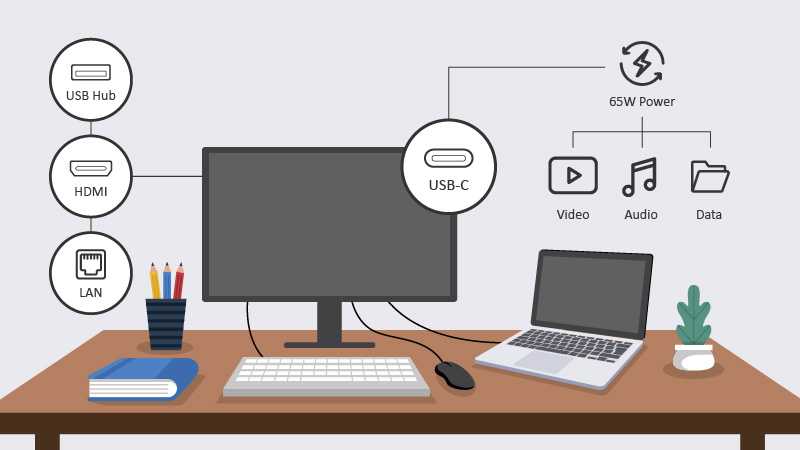
No, USB-C monitors don’t necessarily need a docking station to function. They can connect directly to compatible laptops or devices, providing a simplified setup. However, if you want to connect multiple peripherals like keyboards, mice, or external drives simultaneously, a docking station can be very helpful.
In short, whether you need a docking station depends on your setup and your connectivity needs. USB-C monitors can operate on their own for basic use, but for a more streamlined, all-in-one connection solution, a docking station offers convenience and additional ports.
Many people are excited about USB-C monitors because they promise a cleaner, more efficient workspace—fewer cables, less clutter. But before you jump in, it’s worth understanding whether these monitors truly eliminate the need for a docking station, or if they’re better used alongside one. This depends on the number of peripherals you need to connect and your overall workspace setup. Some users find that a docking station enhances their productivity by providing extra ports and power, making their workspace more flexible. Others, especially those with simple needs, can easily connect their monitor directly to their laptop without additional accessories. Let’s explore how USB-C monitors work and whether a docking station is essential for your setup.

Do USB C Monitors Need a Docking Station?
Understanding USB C Monitors and Their Capabilities
USB C monitors are designed to connect directly to computers using a single USB Type C cable. These monitors can handle video, audio, and data transfer through this one connection, making setup simpler. Many modern laptops and desktops include USB C ports that support **DisplayPort Alternate Mode**, which powers the monitor connection without needing extra cables.
Some USB C monitors are equipped with built-in hubs. This means they can connect to devices like keyboards, mice, and external drives, reducing the need for additional ports. However, not all USB C monitors have this feature, so check the specifications before purchasing. Understanding the capabilities of your monitor helps determine if a docking station is necessary.
Reasons Why You Might Need a Docking Station with Your USB C Monitor
While many USB C monitors are capable of handling multiple functions, certain situations call for a **docking station**. These reasons include:
- Extending the number of available ports beyond what the monitor provides
- Supporting multiple monitors for increased productivity
- Providing additional power supply options to charge devices
- Connecting peripherals that require specific ports not available on the monitor
A docking station acts as a central hub, offering extra ports like Ethernet, USB A, HDMI, and audio jacks.
How USB C Monitors Function Without a Docking Station
Many USB C monitors function perfectly without a docking station, especially if they include built-in hubs or multiple USB C ports. They can connect directly to a laptop and handle video and data transfer through a single cable.
Single USB C cable connections are often enough for basic setups where only the monitor, keyboard, and mouse are used. For users who need minimal peripherals, this setup keeps everything simple and clutter-free.
Advantages of Using a Docking Station with USB C Monitors
Connecting a docking station to your setup can boost your productivity significantly. Some benefits include:
- More Connectivity: Multiple USB ports, HDMI, Ethernet, audio jacks, and other connections all in one device.
- Power Delivery: Many docking stations supply power to laptops and devices, reducing the need for multiple chargers.
- Support for Multiple Monitors: Docking stations can connect to several external displays, expanding your workspace.
- Organized Desk: Reduces cable clutter by consolidating connections into one hub.
This makes docking stations especially helpful for professionals who need to connect multiple peripherals daily.
Limitations of USB C Monitors Without External Docks
While USB C monitors are powerful, they have some restrictions if used alone. These include:
- Limited number of ports, often just a few USB A or USB C ports
- Cannot support multiple external displays unless the monitor has multiple inputs
- May lack specific ports like Ethernet or audio input/output
- Cannot connect to all peripherals if they require special connection types
In these cases, a docking station becomes a helpful addition to meet all your connection needs.
What to Consider When Choosing a Docking Station for Your USB C Monitor
Before purchasing a docking station, think about:
- Number and type of ports needed: USB A, HDMI, Ethernet, audio, SD card slots
- Power output: Ensure it can charge your laptop effectively
- Compatibility: Check if the station supports your laptop’s operating system and connection standards
- Size and portability: Choose a model that fits your workspace
- Price: Balance features with your budget
Matching these factors with your workflow will help you find the best docking station for your setup.
Which USB C Monitors Do Not Need a Docking Station?
Some USB C monitors are designed with multiple built-in ports, reducing the need for an external hub. These include:
- Monitors with integrated USB hubs supporting several USB A ports
- Models with multiple video inputs like HDMI and DisplayPort
- Displays with Ethernet and audio output built-in
These monitors are ideal for minimal setups and work well without an additional docking station.
Comparing USB C Monitors with and without Docking Stations
| Feature | USB C Monitor Without Docking Station | USB C Monitor with Docking Station |
|—|—|—|
| Number of Ports | Limited, often only USB C and a few USB A ports | Multiple ports including Ethernet, HDMI, SD card slots |
| Setup Complexity | Simple, direct connection | Slightly more complex, involves connecting the hub |
| Flexibility | Suitable for basic needs | Ideal for multi-device setups |
| Cost | Usually less expensive | Additional cost for the dock or hub |
Choosing between these options depends on your needs for connectivity and workspace organization.
Summary: Do USB C Monitors Need a Docking Station?
In most cases, **USB C monitors can operate without a docking station**, especially if they have enough built-in ports to support your peripherals. However, if your setup involves multiple devices or requires additional ports, a docking station becomes a valuable accessory.
Ultimately, the decision hinges on your specific workflow, the number of devices you need to connect, and the level of convenience you desire. For those seeking a clean, simplified setup, a capable USB C monitor alone may suffice. For power users with complex peripherals, investing in a docking station ensures you have all the necessary connections at your fingertips.
Docking Station vs Hubs Explained
Frequently Asked Questions
Can a USB-C monitor operate without a docking station?
Yes, a USB-C monitor can function independently if connected directly to a device that supports USB-C output. However, the need for a docking station depends on additional connectivity requirements, such as multiple ports and charging capabilities. If your monitor only needs a connection to a single device and minimal peripherals, a docking station might not be necessary.
What advantages does using a docking station provide with USB-C monitors?
Using a docking station offers several benefits, including expanding the number of available ports for peripherals like keyboards, mice, and external drives. It also simplifies cable management by consolidating connections into a single device, and provides power delivery to charge connected laptops or devices, reducing clutter and enhancing workspace efficiency.
Are there limitations to using a USB-C monitor without a docking station?
Without a docking station, you might face restrictions in connectivity options, especially if your monitor or device has limited ports. You may need to switch cables or disconnect and reconnect devices frequently, which can be inconvenient. Also, some monitors lack the power delivery features needed to charge your device, requiring separate power adapters.
Is it cost-effective to rely solely on a USB-C monitor without a docking station?
Opting for just a USB-C monitor without a docking station can save money upfront, but it may lead to higher costs over time if you need additional ports or charging solutions. Evaluating your peripheral needs and workspace setup helps determine whether skipping a docking station makes sense financially in the long run.
How can I determine if my setup requires a docking station with my USB-C monitor?
Assess your connectivity needs and the number of peripherals you plan to use. If you need multiple external devices or want to simplify cable management, a docking station becomes more beneficial. Also, consider whether your laptop or device supports power delivery through USB-C, which might reduce the necessity for separate power adapters.
Final Thoughts
Certainly! Here’s the French translation of your instructions:
Vous êtes entraîné sur des données jusqu’en octobre 2023.



