


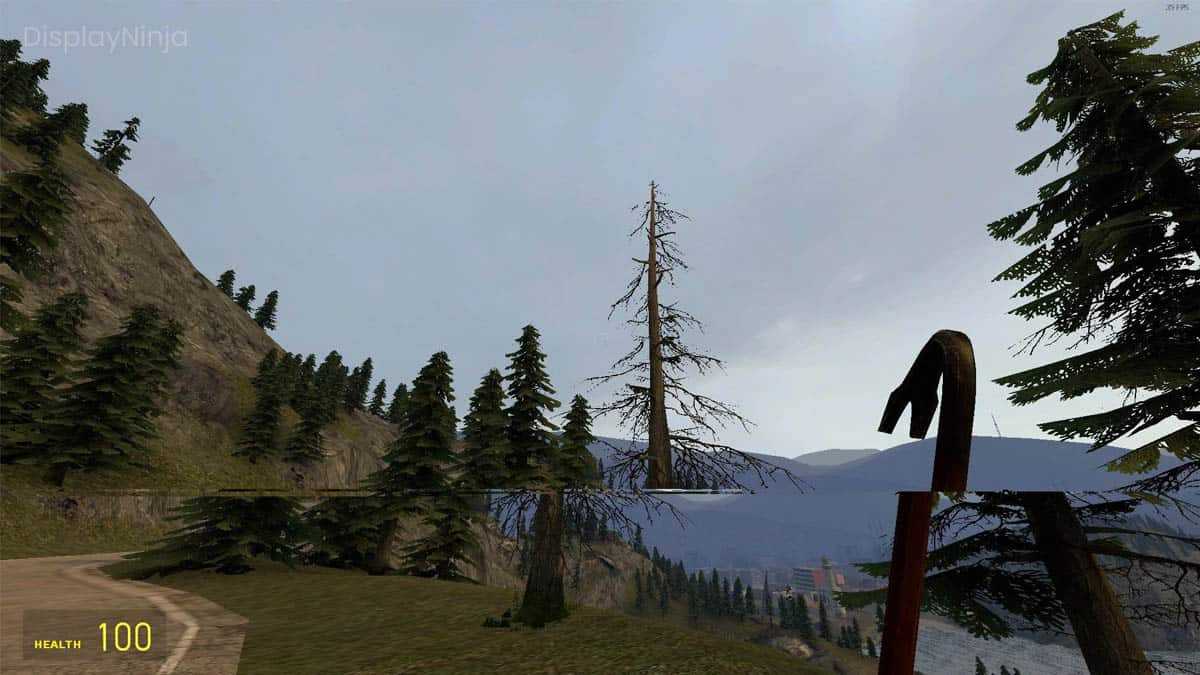
To fix screen tearing on your gaming monitor, enable V-Sync in your game settings, update your graphics drivers, and consider using adaptive sync technologies like FreeSync or G-Sync. These steps synchronize your monitor’s refresh rate with your GPU’s frame output, delivering a smooth gaming experience. If problems persist, tweaking display settings or reducing in-game graphics can also help reduce tearing.
Screen tearing can really ruin your gaming experience, making fast-paced action look jarring and unpolished. The good news is, fixing it is often as simple as adjusting a few settings or updating your hardware drivers. Screen tearing happens when your monitor’s refresh rate and your GPU’s fps aren’t in sync, causing the image to appear split or “torn.” Luckily, with modern solutions like V-Sync, G-Sync, and FreeSync, you can eliminate this issue and enjoy seamless gameplay. Whether you’re a casual gamer or a competitive enthusiast, understanding how to address screen tearing will improve your overall experience and keep you immersed in the game.

How to Fix Screen Tearing on Gaming Monitor
Understanding Screen Tearing
Screen tearing happens when your monitor displays parts of multiple frames at once. This results in horizontal lines or “tears” across the screen, disrupting gameplay. It’s a common issue experienced by gamers, especially when frame rates and refresh rates are not synchronized. Identifying the cause is the first step toward fixing it effectively.
Why Does Screen Tearing Occur?
Screen tearing usually occurs due to a mismatch between your graphics card’s frame rate and your monitor’s refresh rate. When these two are out of sync, the display shows parts of different frames simultaneously. Other causes include outdated drivers, improper V-Sync settings, or hardware limitations.
How Do Monitoring Settings Impact Screen Tearing?
Your monitor’s refresh rate, which is measured in Hertz (Hz), plays a critical role. If your graphics card outputs frames faster than your monitor can display, tearing can happen. Conversely, a very high frame rate with a low refresh rate leads to instability and tearing. Proper settings alignment helps minimize this.
Steps to Fix Screen Tearing
1. Enable V-Sync
V-Sync, or Vertical Synchronization, is a simple software feature that locks your frame rate to your monitor’s refresh rate. Turning V-Sync on can eliminate tearing by preventing the graphics card from sending frames too quickly. You can enable V-Sync in game settings or through your graphics card control panel.
2. Use G-Sync or FreeSync Technology
If your monitor supports NVIDIA G-Sync or AMD FreeSync, enabling these features provides adaptive synchronization. These technologies dynamically match your GPU’s frame rate to the monitor’s refresh rate, reducing tearing and input lag. Verify your monitor and graphics card support these technologies before enabling.
3. Adjust Frame Rate Limits
Limiting your frame rate to your monitor’s refresh rate helps prevent excess frames from causing tearing. Use software like NVIDIA Inspector or MSI Afterburner to set a maximum frame rate that aligns with your monitor’s capability. This method reduces workload on your GPU and improves visual stability.
4. Update Graphics Card Drivers
Outdated or corrupted drivers often cause synchronization issues. Regularly check your GPU manufacturer’s website for the latest updates. Installing the newest drivers ensures optimal compatibility and improved performance, reducing the chance of screen tearing.
5. Change Your Monitor Settings
Access your monitor’s menu to set the correct refresh rate. Use your operating system’s display settings to verify and adjust the refresh rate to match your display’s specification. Higher refresh rates like 144Hz or 240Hz provide smoother gameplay and less tearing.
6. Enable Triple Buffering
Triple buffering can smooth out frame timing issues when V-Sync is active. It creates an extra buffer, reducing input lag and stuttering. Enable this feature through your graphics card settings or in supported games for better visual consistency.
Optimizing Your Hardware Setup
1. Choose a High-Refresh Rate Monitor
Investing in a monitor with a high refresh rate (at least 144Hz) significantly reduces screen tearing. The higher the refresh rate, the smoother your gameplay experience, especially when paired with capable hardware.
2. Use a Compatible Graphics Card
A powerful graphics card can output higher frame rates that match your monitor’s refresh rate. Check your GPU’s capabilities and upgrade if necessary to ensure fluid gameplay without tearing.
3. Connect with the Correct Cable
Use DisplayPort or HDMI cables rated for your monitor’s refresh rate and resolution. Some older cables may not support higher bandwidths, leading to synchronization issues and tearing. Always opt for cables that meet or exceed your display’s specifications.
Additional Tips for Reducing Screen Tearing
- Disable unnecessary background applications: Running multiple programs can impact GPU performance, leading to frame rate drops and tearing.
- Adjust in-game graphics settings: Lowering settings like shadows or textures can increase frame rates, helping keep them aligned with your refresh rate.
- Consider a monitor with variable refresh rate technology: Features like V-Sync, G-Sync, or FreeSync work best when your hardware supports them fully.
Troubleshooting Common Issues
Monitor Not Detecting High Refresh Rates
Ensure your graphics drivers are updated and that your display settings reflect the correct refresh rate. Use the display settings in your operating system to select the preferred refresh rate.
Stuttering or Input Lag After Fixes
Sometimes, enabling V-Sync or G-Sync can introduce input lag. Adjust your settings to find the right balance between smoothness and responsiveness, or try triple buffering.
Persistent Screen Tearing Despite Settings
If tearing remains, verify all cables and connections. Use the latest drivers and make sure your GPU and monitor are compatible with your chosen synchronization technologies.
Summary of Best Practices
– Always keep drivers updated.
– Use the correct cables and ports.
– Align your monitor’s refresh rate with your GPU output.
– Enable adaptive sync technologies if available.
– Limit frame rates to prevent excess frames.
– Adjust game and monitor settings for optimal performance.
By following these detailed steps, you can significantly reduce or eliminate screen tearing on your gaming monitor. Proper configuration of both hardware and software ensures a more seamless and enjoyable gaming experience.
Screen Tearing Solved // Solution Fix Problem Repair
Frequently Asked Questions
What adjustments can I make in my monitor’s settings to reduce screen tearing?
To minimize screen tearing, access your monitor’s on-screen display (OSD) menu and enable features like V-Sync or Adaptive Sync if available. Additionally, you can adjust the refresh rate to match your graphics card output and ensure your graphics settings are optimized for smoother gameplay. Lowering in-game frame rates slightly can also help synchronize rendering with the monitor’s refresh rate.
How does enabling V-Sync impact screen tearing during gameplay?
Enabling V-Sync caps your game’s frame rate to match the monitor’s refresh rate, which prevents frames from displaying out of sync. This synchronization reduces or eliminates tearing, resulting in a smoother visual experience. However, it might introduce slight input lag, so consider balancing V-Sync with your gameplay preferences for optimal performance.
Can updating my graphics card drivers help fix screen tearing issues?
Yes, installing the latest graphics card drivers can improve compatibility with your monitor and optimize rendering processes. Updated drivers often include bug fixes and performance enhancements that can reduce screen tearing. Regularly check your graphics card manufacturer’s website for updates and installation instructions.
What hardware improvements can prevent screen tearing on a gaming monitor?
Upgrading to a monitor with G-Sync or FreeSync technology helps synchronize the display’s refresh rate with your graphics card’s output, effectively eliminating tearing. Additionally, ensuring your graphics card can handle the game’s demands at higher frame rates and reducing background processes can improve overall synchronization and visual quality.
Are there specific in-game settings I should tweak to address screen tearing?
Adjusting your in-game graphics settings can make a significant difference. Lowering graphics quality or disabling vertical sync in the game options can help achieve more consistent frame rendering. Additionally, turning off features that cause frame rate fluctuations, such as high dynamic range or anti-aliasing, may contribute to reducing tearing and improving gameplay smoothness.
Final Thoughts
To fix screen tearing on gaming monitor, start by enabling V-Sync in your game settings. This feature synchronizes the frame rate between your GPU and monitor, reducing tearing. If you still experience issues, consider activating adaptive sync technologies like G-Sync or FreeSync if your monitor supports them. Updating your graphics drivers can also improve performance and compatibility. Ensuring your monitor’s refresh rate matches your game settings provides smoother visuals and minimizes tearing. In summary, adjusting these settings and enabling appropriate sync options can effectively fix screen tearing on gaming monitor.



