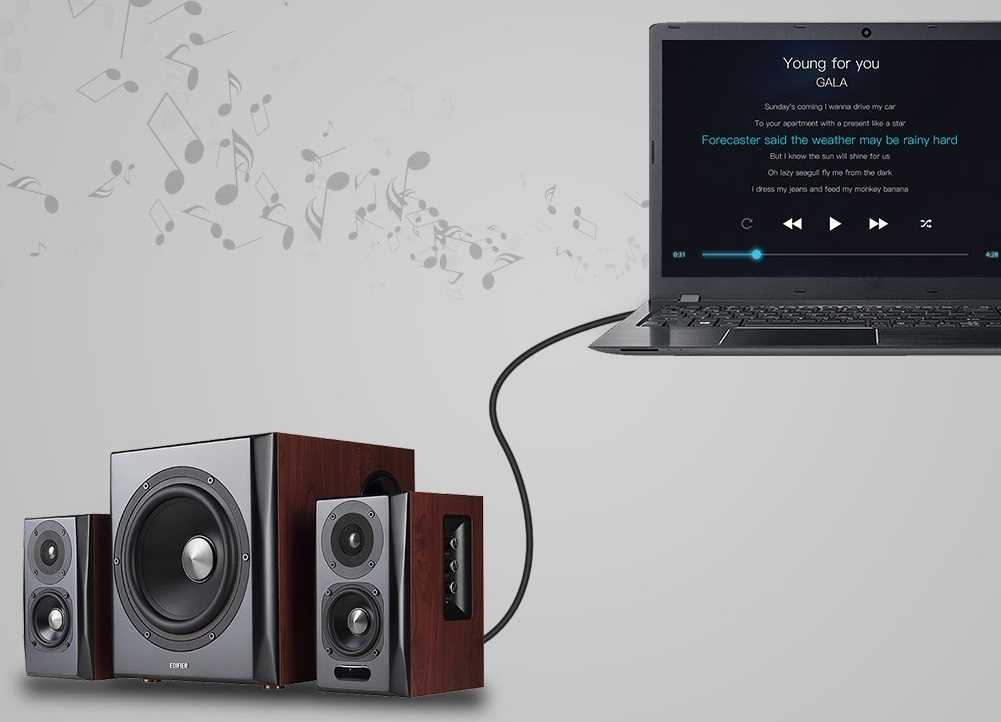
To connect a sound box to your laptop quickly, simply plug the sound box into your laptop’s audio port using the provided cable, and then select the sound box as your default audio device in the sound settings. If your sound box is Bluetooth-enabled, pair it via Bluetooth settings on your laptop. This ensures you get clear, immersive sound instantly.
Connecting a sound box to your laptop is easier than you might think, whether it’s a wired or wireless model. Just a few simple steps—plugging in the cable or pairing via Bluetooth—are all you need to enjoy better sound quality. No need for complicated setups; a quick connection transforms your laptop into a portable speaker system in minutes. This guide will walk you through both methods, helping you get your sound box up and running without any hassle.

How to Connect Sound Box to Laptop
Connecting a sound box to your laptop allows you to enjoy better audio quality and richer sound experience. Whether you’re watching movies, listening to music, or gaming, a good sound system makes a big difference. This guide will walk you through different methods to connect your sound box to your laptop step by step.
Understanding Your Sound Box and Laptop Connections
Before you start, it’s important to identify the types of connections your sound box supports. Most sound boxes or speakers can connect via Bluetooth, audio cables, or USB. Your laptop should also have compatible ports or Bluetooth capabilities.
Check your sound box manual to see what connection options are available. Similarly, look at your laptop’s ports, usually located on the sides or back, to determine what connection methods will work best for you.
Connecting Using Bluetooth
Step 1: Enable Bluetooth on Your Laptop
First, turn on the Bluetooth feature on your laptop. On Windows, go to the Start menu, select Settings, then Devices, and toggle Bluetooth to ON. On Mac, click the Bluetooth icon in the menu bar and turn it on if it isn’t already.
Step 2: Set Your Sound Box to Pairing Mode
Most wireless sound boxes have a Bluetooth button. Press and hold this button until the LED light flashes, indicating it’s in pairing mode. Consult your sound box manual if you are unsure how to do this.
Step 3: Connect Your Sound Box to the Laptop
Back on your laptop, in the Bluetooth settings, click on “Add Bluetooth or other device” or similar, then select Bluetooth. Find your sound box in the available devices list and select it. Wait for the connection to establish, and you’ll see confirmation on the screen.
Step 4: Set Sound Box as Default Audio Device
After pairing, ensure your sound box is set as the default audio device. On Windows, right-click the sound icon in the taskbar, select “Open Sound settings,” then choose your sound box from the output device options. On Mac, go to System Preferences, click Sound, and select your sound box under the Output tab.
Connecting Using Audio Cables (Wired Method)
Step 1: Identify the Correct Audio Port on Your Laptop
Most laptops have a 3.5mm headphone jack. This port is usually marked with a headphone icon. Some newer models may also have an optical output or other audio ports.
Step 2: Use the Appropriate Audio Cable
For wired connection, use a 3.5mm stereo audio cable. If your sound box supports RCA or other inputs, you may need an adapter or different cables to connect properly.
Step 3: Connect the Cable from Laptop to Sound Box
Plug one end of the cable into the laptop’s audio port and the other end into the input port on the sound box. Confirm a secure connection for clear sound transmission.
Step 4: Adjust Sound Settings
Once connected, go to your laptop’s sound settings and select the wired output device if necessary. Play some audio to test the connection. Adjust volume levels on both your laptop and sound box for optimal sound.
Connecting Using USB (If Supported)
Step 1: Plug the USB Cable into the Laptop
Many modern sound boxes or speakers have a USB input. Connect the USB cable from the sound box to a free USB port on your laptop.
Step 2: Install Necessary Drivers
Some sound boxes may require drivers to be installed automatically. Wait for your laptop to recognize the device and complete driver installation if prompted.
Step 3: Set the Sound Box as Default Device
Navigate to your sound settings and select the USB sound box as the default output device. Test the audio quality to ensure proper functionality.
Additional Tips for Connecting Sound Box to Laptop
Ensure Compatibility
Check that your sound box and laptop support the same connection types to avoid issues. Compatibility guarantees a smoother setup process.
Update Drivers and Software
Keeping your laptop’s audio drivers and the sound box firmware up-to-date helps prevent connection problems and enhances performance.
Use Quality Cables and Equipment
Invest in good quality cables for wired connections. Cheap or damaged cables can cause poor audio quality or connectivity issues.
Adjust Sound Settings for Best Experience
Test different volume and sound enhancement settings on your laptop and sound box. Proper configuration yields better sound clarity and balance.
Related Topics: Troubleshooting Common Issues
- No Sound Output: Check connections, volume levels, and default device settings.
- Bluetooth Not Connecting: Ensure devices are in pairing mode, and Bluetooth drivers are updated.
- Distorted or Poor Audio Quality: Use high-quality cables, reduce interference, or adjust equalizer settings.
- Sound Delays or Latency: Update drivers or try wired connections if audio lag occurs.
Summary of Connection Methods
| Method | Requirements | Pros | Cons |
|---|---|---|---|
| Bluetooth | Bluetooth-compatible sound box and laptop | Wireless, convenient | Potential lag or interference |
| Wired Audio Cable | 3.5mm, RCA, or other audio cables | Reliable, no latency | Less mobility, cable clutter |
| USB Connection | USB input on sound box and compatible drivers | Good sound quality, easy setup | Requires drivers, limited to supported devices |
Choosing the best method to connect your sound box to your laptop depends on your preferences for convenience and sound quality. Wireless options like Bluetooth offer ease of use, while wired connections provide stability and better audio fidelity. Always ensure your devices are compatible and properly configured for the best experience.
How to Connect a Bluetooth Speaker to Laptop
Frequently Asked Questions
What steps should I follow to connect my sound box to a laptop using Bluetooth?
To connect your sound box via Bluetooth, ensure that both the laptop and sound box are powered on and in pairing mode. On your laptop, open the Bluetooth settings, usually found in the system tray or control panel. Search for available devices, select your sound box from the list, and click ‘Pair’ or ‘Connect’. Once paired, the sound box will automatically be used as the audio output device.
How can I connect a wired sound box to my laptop using an auxiliary cable?
Connect one end of the auxiliary (3.5mm) cable into the headphone or audio output jack on your laptop. Plug the other end into the auxiliary input port on your sound box. After connecting, select the sound box as your default audio output device if it doesn’t switch automatically. Play some audio to confirm the connection, and adjust the volume on both devices as needed.
What should I do if my sound box isn’t recognized by my laptop via USB connection?
First, verify that you are using a compatible USB cable and that it’s properly connected to both the laptop and sound box. Check if your laptop recognizes the device in the device manager or sound settings. If not, update your audio drivers, restart your laptop, and try reconnecting the sound box. Consult your sound box’s manual for specific driver installation requirements or additional setup steps.
Can I use an audio splitter to connect multiple sound devices to my laptop?
Yes, an audio splitter allows you to connect multiple sound devices to your laptop’s headphone jack. Plug the splitter into the audio port, then connect your sound box and any other devices to the splitter’s outputs. Keep in mind that using a splitter may reduce sound quality or volume, so adjust the settings accordingly to maintain optimal audio performance.
Is there a way to connect a sound box to my laptop wirelessly without Bluetooth?
Yes, you can connect your sound box to your laptop wirelessly using Wi-Fi-enabled speakers and a compatible app or streaming service. Alternatively, some sound boxes support NFC pairing, allowing you to connect by simply bringing the devices close together. Check your sound box’s specifications to explore available wireless connection options beyond Bluetooth.
Final Thoughts
To connect a sound box to a laptop, start by checking the available ports such as the headphone jack or USB port. Use the appropriate cable—auxiliary or USB—and plug it into both devices. Confirm the sound box is powered on and set as the default audio device in your laptop settings. By following these steps, you ensure a smooth connection and enjoy enhanced audio quality effortlessly. Connecting sound box to laptop is straightforward when you follow these simple instructions, making your listening experience better.

I follow the latest trends in smart devices, portable monitors, and gaming accessories. My goal is to provide real-world insights that help readers make smarter tech decisions.