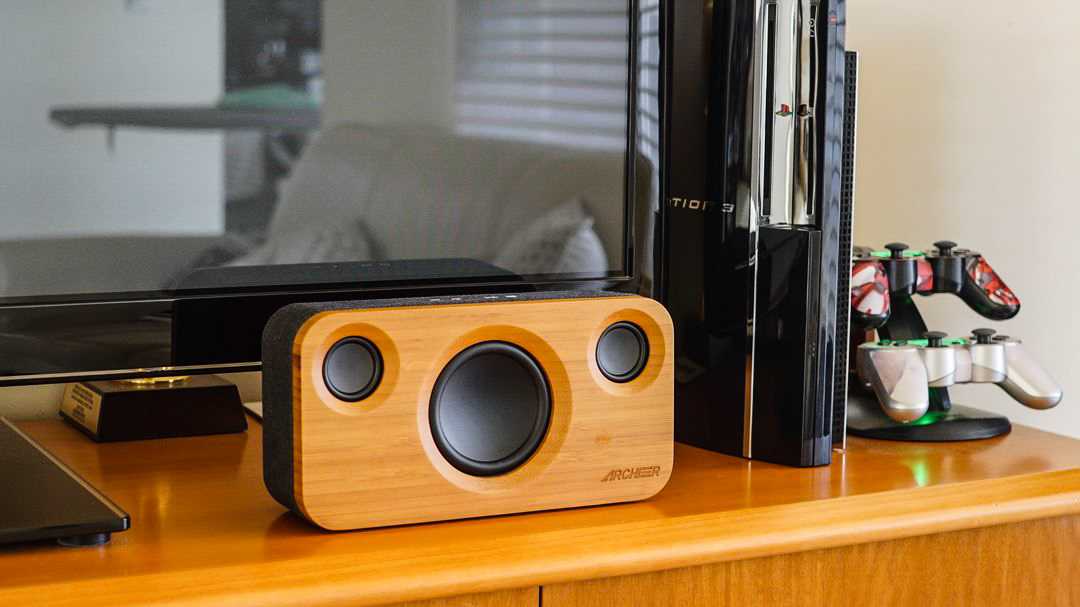
A muffled sound from your Bluetooth speaker can be really frustrating, especially when you’re trying to enjoy your favorite tunes or podcasts. The good news is, usually, the fix is simple and quick. The main reasons your Bluetooth sound box might sound muffled include low-quality audio files, interference, or improper device settings. Most of these issues can be resolved by adjusting the volume, cleaning the device, or checking Bluetooth connections.
When your Bluetooth speaker sounds muffled, it’s often due to a few common reasons like poor Bluetooth connection, dirt blocking the speaker grill, or audio settings that need tweaking. Troubleshooting these simple issues can restore clarity and ensure you get the crisp sound you’re expecting. Keep reading to discover how to fix this problem and enjoy perfect sound quality every time.

Why Does Bluetooth Sound Box Sound Muffled? An In-Depth Explanation
Understanding Bluetooth Sound Quality
Bluetooth sound quality is influenced by many factors. When your Bluetooth sound box sounds muffled, it often points to specific issues affecting sound clarity. Recognizing these causes can help you diagnose and fix the problem quickly.
Common Reasons for Muffled Sound from Bluetooth Speakers
- Low Battery Levels: When your speaker’s battery is running low, it may not perform optimally, leading to distorted or muffled sound. Always keep your device charged for better audio quality.
- Poor Bluetooth Connection: Weak or interrupted Bluetooth signals can cause sound delays and muffling. Moving closer to the device or removing obstacles can improve this.
- Device Interference: Other electronic devices or Wi-Fi signals may interfere with Bluetooth signals, impacting sound clarity.
- Audio Settings Issues: Incorrect EQ settings, volume levels, or sound effects can cause muffling. Check and adjust your settings for a clearer sound.
- Blocked or Dirty Speaker Grills: Dust, dirt, or debris blocking speaker vents can prevent sound from traveling properly, making it seem muffled.
Technical Aspects of Sound Muffling
Understanding how sound is transmitted can clarify why muffling occurs. The sound from Bluetooth speakers relies on both the audio source device and the speaker’s hardware.
Bluetooth Codec Compatibility
Different Bluetooth codecs like SBC, AAC, aptX, and LDAC transmit audio with varying degrees of fidelity. If your device doesn’t support high-quality codecs, the sound may seem muffled or distorted. Updating hardware or changing settings may resolve this.
Sound Processing and Equalization
Many speakers have built-in sound processing features. Incorrect equalizer (EQ) settings can reduce high frequencies, making speech and treble sounds seem muffled. Resetting these settings can restore clarity.
Hardware Quality and Damage
Low-quality speakers or physical damage from drops or impacts can impair sound production. Damaged cones, diaphragms, or internal components often result in muffled audio.
Steps to Fix Muffled Bluetooth Sound
Addressing the muffling issue involves troubleshooting and sometimes hardware fixes. Here are practical steps to improve your sound box’s clarity.
Check Battery and Power
Ensure your speaker is fully charged. A low battery can reduce output quality, including muffling the sound. Turn off the device and recharge it if needed.
Re-establish Bluetooth Connection
Disconnect and then reconnect your device. Sometimes, removing the device from paired devices list and re-pairing it helps restore proper sound quality.
Update Firmware and Drivers
Manufacturers often release updates to fix bugs or improve compatibility. Check for firmware updates for your Bluetooth sound box and update whenever possible.
Adjust Sound Settings
Open your device’s sound settings and check the EQ options. Set the equalizer to a neutral or flat setting to prevent muffling. Avoid heavy bass boosts or treble cuts unless desired.
Clean Speaker Grills and Ports
Use a soft brush or compressed air to remove dust and debris from the speaker grills. Proper airflow is crucial for sound clarity and volume.
Troubleshooting Hardware and Compatibility Problems
When software fixes don’t work, hardware issues might be the cause.
Test with Different Devices
Pair your speaker with another device to see if muffling persists. If it does, the problem likely lies within the speaker hardware.
Inspect for Damage
Look for visible damage or loose parts. If your speaker has been dropped or exposed to water, internal damage could be muffling the sound.
Seek Professional Repair or Replacement
If hardware damage is confirmed, consider professional repair or replacing the speaker. Many issues, such as blown drivers, require specialized repairs.
Additional Tips for Better Bluetooth Sound Experience
Enhancing your Bluetooth experience goes beyond fixing muffling issues. Here are some tips to ensure consistent, high-quality sound.
Use Compatible Devices with Support for High-Quality Codecs
Check your device supports advanced codecs like aptX or AAC. These provide higher audio fidelity and clearer sound.
Keep Firmware and Software Updated
Regular updates often improve compatibility and performance, reducing issues like muffling.
Place Your Speaker in a Clear, Open Area
Avoid placing your speaker inside cabinets or behind objects that block sound waves. An open space allows sound to disperse freely.
Minimize Interference
Keep your Bluetooth device away from Wi-Fi routers, microwaves, and other electronics that can cause signal interference.
Use Quality Cables and Connectors When Possible
If your speaker supports wired connections, use high-quality cables for better sound quality and reduced muffling.
Related Topics to Explore
- Bluetooth Range and Signal Strength: How distance impacts sound quality
- Different Types of Bluetooth Speakers: Portable vs. stationary and their sound characteristics
- Best Practices for Maintaining Bluetooth Devices: Tips to prolong device life and performance
- Understanding Different Bluetooth Codecs: How they affect sound fidelity
Summary of Key Points
Muffled sound from a Bluetooth sound box can be caused by hardware issues, signal interference, settings misconfiguration, or physical damage. Fixing the problem involves checking power levels, re-pairing devices, updating firmware, cleaning the speaker, and inspecting for damage. Enhancing your Bluetooth environment and settings can also lead to better, clearer sound.
By understanding these factors and taking proactive steps, users can resolve muffling issues and enjoy crisp, high-quality audio from their Bluetooth speakers. Regular maintenance, proper placement, and staying updated with firmware will help keep your sound experience optimal.
Why do my speakers sound muffled: Say goodbye to Muffled sound with this 5 top Solution/Fix!
Frequently Asked Questions
What should I check if my Bluetooth sound box sounds muffled even when connected properly?
If your Bluetooth sound box sounds muffled, inspect the connection to ensure it’s stable and secure. Sometimes, loose connections or interference can distort audio quality. Also, verify that the device is paired correctly and that there are no obstructions between the sound box and the source device. Restarting both devices can help clear temporary glitches that cause muffled sound.
How can audio settings impact the clarity of sound on my Bluetooth box?
Audio settings on your device play a significant role in sound quality. Confirm that equalizer or sound enhancement features are disabled or optimized for clarity. Check the volume levels and ensure they aren’t set too low or too high, as this can result in distortion. Adjusting these settings to a mid-range level often improves overall sound clarity.
Why might a dirty or blocked speaker cause muffled sound in a Bluetooth speaker?
Dust, dirt, or debris blocking the speaker grille can dampen sound vibrations and lead to muffled audio. Regularly clean the speaker enclosure with a soft cloth and gently remove any buildup that might interfere with sound transmission. Avoid using liquids or harsh chemicals that could damage the speaker components.
Could the Bluetooth version or firmware update affect the sound quality?
Yes, outdated Bluetooth firmware can cause compatibility issues and degrade sound quality. Check if your sound box has available firmware updates from the manufacturer. Updating the firmware often resolves bugs, improves audio performance, and ensures better connection stability, which helps prevent muffled sound issues.
What role does the power source or battery level play in sound quality?
A low battery or unstable power supply can negatively influence the performance of your Bluetooth sound box, leading to muffled audio. Ensure the device is charged adequately or connected to a reliable power source. Maintaining sufficient power helps the sound system operate at optimal capacity, delivering clearer sound output.
Final Thoughts
The main reason a Bluetooth sound box sounds muffled often relates to connection issues or dirty speakers. Poor Bluetooth pairing can reduce sound clarity, making the audio seem dull.
Check if the device and speaker are within range and free from interference. Cleaning the speaker grills can also improve sound quality by removing dust and debris.
Additionally, ensure the audio settings are correctly adjusted, and the firmware of the speaker is up to date.
Why does Bluetooth sound box sound muffled? The issue usually stems from connection problems, dirty speakers, or incorrect settings. Addressing these factors restores clear sound output.

I follow the latest trends in smart devices, portable monitors, and gaming accessories. My goal is to provide real-world insights that help readers make smarter tech decisions.