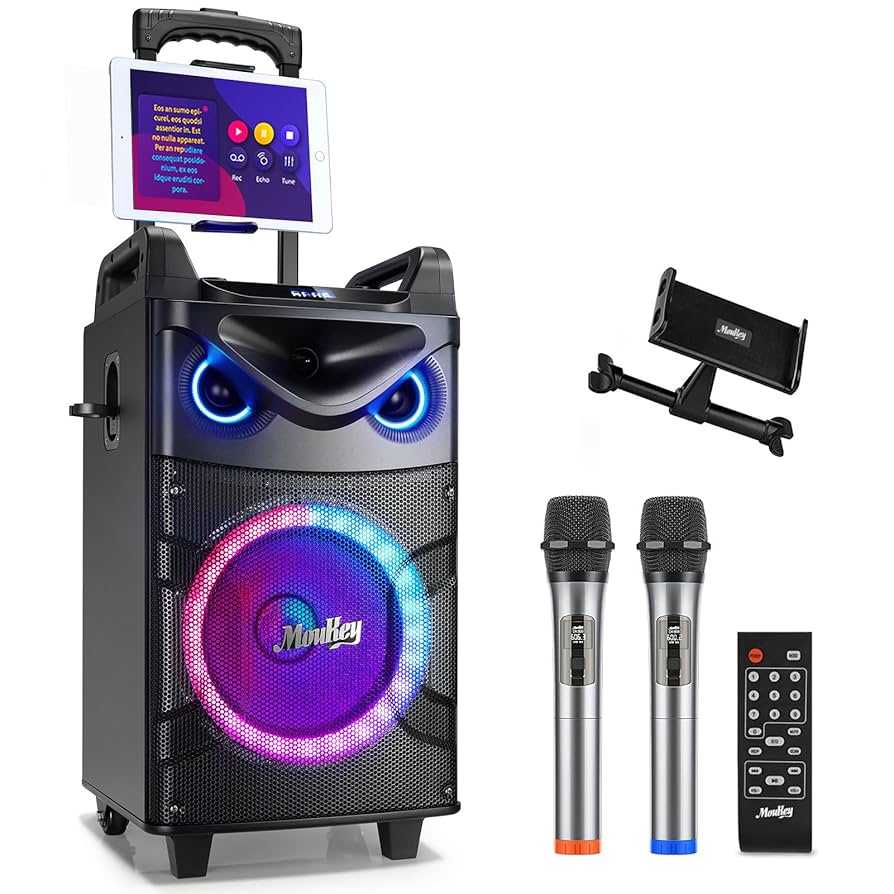
To fix echo in your sound box during karaoke, start by checking your microphone and sound settings, and ensure your audio connections are secure. Adjust the echo or reverb effects on your karaoke device to reduce or eliminate the echo, and if needed, reposition your microphone or sound box to minimize feedback. Ensuring proper sound levels and avoiding lag between devices can also make a big difference.
In a nutshell, to fix echo during karaoke, first identify the source of the echo—whether it’s from the microphone settings or the sound system itself—and make necessary adjustments. Turning off or reducing reverb effects, checking connections, and managing sound levels are quick ways to clear up the sound. By tweaking your setup, you can enjoy a crisp, echo-free karaoke experience without interruptions.
When it comes to karaoke fun, nothing is more frustrating than dealing with echo issues that distort your singing experience. Echo can occur for a variety of reasons—from incorrect sound settings to feedback loops—making your performance less enjoyable. Fortunately, fixing the echo isn’t complicated and can be done with a few simple steps. Start by inspecting your microphone and sound system, adjusting reverb effects, and ensuring your connections are tight. Repositioning your microphone away from speakers and lowering the volume can also help minimize feedback. Whether you’re hosting a party or just practicing at home, knowing how to troubleshoot echo problems helps you get back to singing your heart out without distraction.

How to Fix Echo in Sound Box During Karaoke
Understanding the Cause of Echo in Karaoke Sound Systems
Echo during karaoke occurs when sound reverberates within the sound system or room, creating a distorted or delayed repetition of your voice. This problem can happen due to several reasons, like incorrect audio settings, faulty hardware, or room acoustics. Recognizing the root cause helps in applying the most effective fix quickly and easily.
Common Reasons for Echo in Sound Boxes During Karaoke
- Echo settings enabled on the karaoke machine or microphone: Most systems have built-in echo effects that can be toggled on or off.
- Problems with the microphone or cables: Faulty or damaged cables or microphones can introduce undesired echo effects.
- Incorrect audio feedback loop: When speakers pick up sound from microphones, causing a looping echo.
- Room acoustics and placement: Hard surfaces can reflect sound waves, amplifying echo effects.
- Sound system settings: Improper equalizer or reverb settings may lead to excessive echo or reverb effects.
How to Turn Off Echo Effect on Karaoke Machines
Many karaoke systems have a simple setting to control echo or reverb. Locate the control panel or menu options, and look for options labeled “Echo,” “Reverb,” or “Effects”. Turning these settings off usually stops the echo immediately.
Steps to disable echo effects
- Power on your karaoke system and access the settings menu.
- Navigate to audio or sound effects options.
- Look for the echo or reverb controls.
- Reduce the echo/reverb level to zero or select the “Off” option.
- Test your microphone to check if the echo has stopped.
If your system has physical knobs or sliders, simply turn the echo or reverb down to the minimum.
Inspecting and Troubleshooting Microphone and Cables
Faulty microphones or damaged cables are common sources of unwanted echo. Regularly check that your microphone is working properly and cables are securely connected without damage.
How to check microphone and cables
- Test your microphone with another sound system to see if the echo persists.
- Inspect cables for visible damage, frayed wires, or loose connectors.
- Replace damaged cables or try a different microphone to determine if the problem resolves.
Using high-quality, shielded cables can reduce interference and echo issues.
Adjusting Sound System Settings for Better Sound Quality
Misconfigured sound settings can cause echo or feedback loops. Fine-tuning these parameters improves sound clarity and reduces echo.
Key settings to modify
- Reverb and echo levels: Keep these settings minimal unless intentionally used for effect.
- Equalizer (EQ): Avoid boosting low frequencies excessively, as this can cause muddiness and echo.
- Microphone volume: Set at a comfortable level to prevent feedback and echo.
Practical tips for optimal settings
- Start with all effects turned off, then gradually add reverb if desired.
- Perform test recordings to find the right balance of sound effects.
- Keep microphone volume moderate to prevent feedback loops.
Managing Room Acoustics and Placement
Room acoustics significantly impact sound quality during karaoke. Hard, reflective surfaces can cause sound waves to bounce and create echo.
Strategies to improve room acoustics
- Use soft furnishings like rugs, curtains, or foam panels to absorb excess sound.
- Place speakers and microphones at appropriate distances to reduce feedback.
- Avoid placing microphones directly in front of speakers that could cause sound bouncing back into the microphone.
- Consider installing sound-absorbing panels or diffusers to break up sound reflections.
Configuring Sound System Hardware for Echo-Free Karaoke
Sometimes, hardware components require configuration for optimal performance. Proper setup of speakers, mixers, and amplifiers ensures sound clarity without echo.
Setting up speakers and monitors
- Position speakers away from microphones and reflective surfaces.
- Use directional speakers to focus sound toward the audience, minimizing reflections.
- Adjust speaker volume to balance between clear voice and avoiding feedback.
Using mixers effectively
- Adjust gain levels carefully to prevent feedback loops.
- Apply equalization to reduce problematic frequencies that may cause echo or muffling.
- Employ built-in delay or echo effects only as needed, and keep them at low levels.
Additional Tips to Prevent and Fix Echo During Karaoke
Implementing standard practices and regular maintenance prevents echo issues from recurring.
Regular maintenance
- Update firmware and software for your audio equipment regularly.
- Ensure cables and connections are free from dust and damage.
- Test equipment before karaoke sessions for proper functioning.
Using external audio processors
External digital signal processors (DSP) can help in filtering and controlling echo and feedback. These devices allow more precise adjustments for studio-quality sound.
Consulting professionals
If persistent echo problems occur despite troubleshooting, consider consulting a professional audio technician who can diagnose hardware or room issues more thoroughly.
Summary of Key Actions to Fix Echo in Sound Box During Karaoke
| Action | Details |
|---|---|
| Disable echo effects | Use system controls or menus to turn off reverb or echo. |
| Check microphone and cables | Replace or repair as needed; ensure secure connections. |
| Adjust sound settings | Balance reverb, EQ, and volume levels for clarity. |
| Improve room acoustics | Add sound-absorbing materials and adjust speaker placement. |
| Configure hardware properly | Position speakers and set mixer controls for optimal sound. |
| Regular maintenance | Keep equipment clean, updated, and tested before use. |
Carefully applying these steps will significantly reduce or eliminate echo issues during karaoke. Whether adjusting settings or improving room acoustics, consistency and attention to detail are key to enjoying clear, echo-free sound every time.
How to Remove Echo & Reverb on K12 Karaoke Machine Wireless Bluetooth Speaker with Microphone
Frequently Asked Questions
How can I adjust my microphone settings to prevent echo during karaoke?
Access your karaoke system’s microphone settings and reduce the microphone gain or sensitivity. Setting a lower gain prevents the microphone from picking up too much sound and causing echo. Additionally, enable any noise suppression or echo cancellation features available in your device to minimize undesired reverberations.
What steps should I take to optimize the placement of speakers to reduce echo?
Position your speakers away from reflective surfaces like walls or mirrors to prevent sound from bouncing back into the microphone. Elevate the speakers at ear level and ensure they are directed toward the audience rather than walls. Proper placement helps control sound reflections that contribute to echo during singing.
How can I determine if the echo is caused by audio feedback or device misconfiguration?
Play with the volume levels of your microphone and speakers individually. If reducing speaker volume diminishes the echo, it suggests feedback issues. Check your device settings for any misconfigured audio processing options, such as reverb or echo effects, and disable them if unnecessary. Conducting these checks helps identify the root cause of the echo problem.
Are there specific settings or equipment I should consider to eliminate echo during karaoke?
Invest in a quality echo or reverb suppressor designed for karaoke. Use a mixer with built-in echo control features to fine-tune sound quality. Adjust the equalizer settings to minimize frequencies that amplify echo and ensure your microphone and speaker connections are secure and compatible to avoid technical issues that lead to echoing.
Can software updates or firmware upgrades help fix echo issues in sound systems?
Yes, updating your sound system’s firmware or karaoke software can resolve bugs or glitches causing echo. Manufacturers often release updates that improve audio processing and add new features like better echo cancellation. Regularly check for updates and install them to maintain optimal sound performance during karaoke sessions.
Final Thoughts
To fix echo in sound box during karaoke, start by adjusting the echo or reverb settings on your device. Check and lower the microphone and speaker levels to reduce excessive sound feedback. If needed, reposition the microphone away from the speakers to prevent sound from looping. These simple steps will help you enjoy clearer sound and better karaoke sessions.

I follow the latest trends in smart devices, portable monitors, and gaming accessories. My goal is to provide real-world insights that help readers make smarter tech decisions.