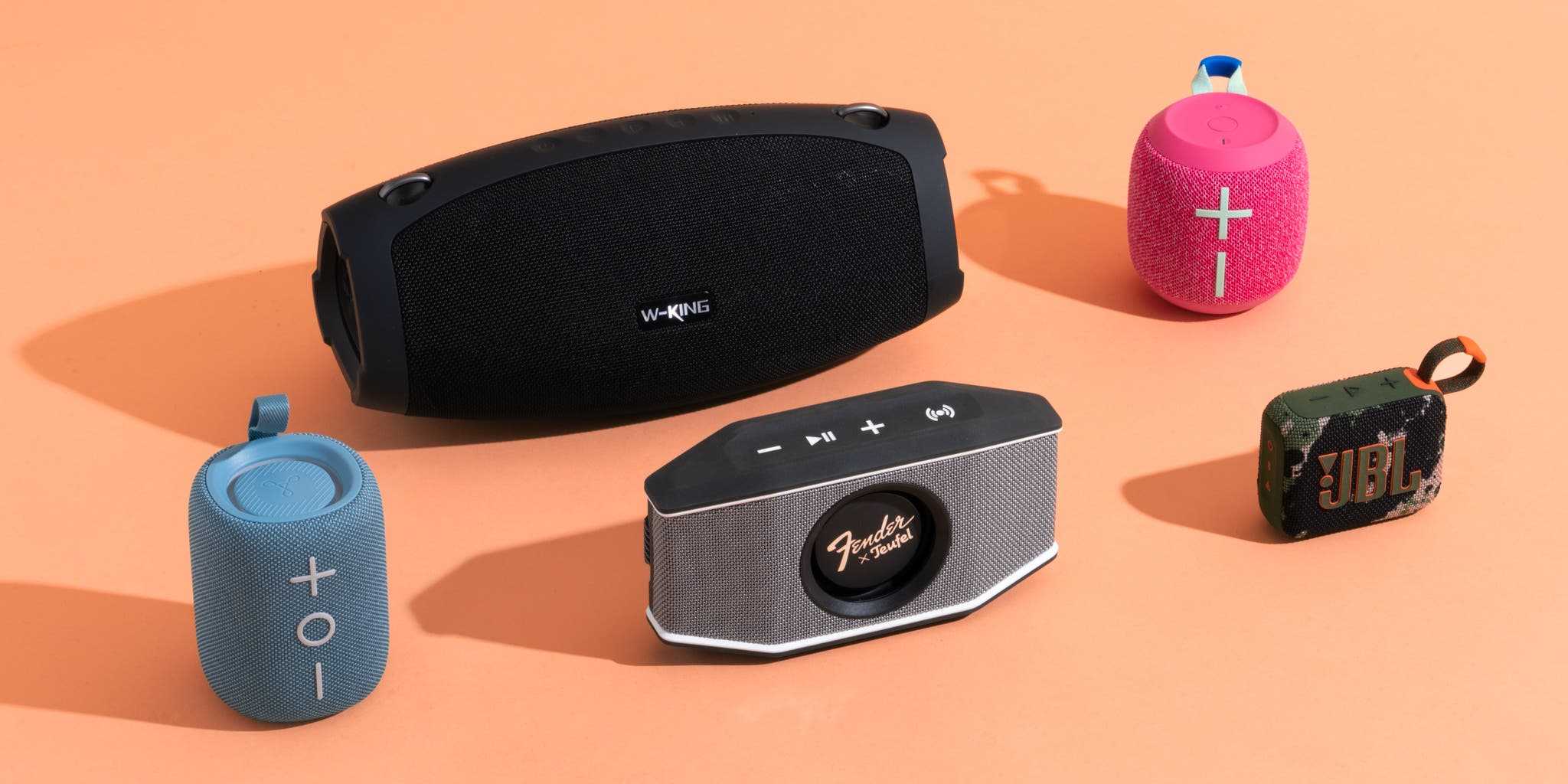
To add multiple AI sound boxes in one home seamlessly, connect each device to your Wi-Fi network and use a central app or hub to control and synchronize them. Make sure they are compatible and set up in different rooms for an immersive audio experience. If needed, assign each to a specific zone for easy management through a unified interface.
You can easily add multiple AI sound boxes to your home by ensuring they are compatible with your existing smart home system and connecting each device to your Wi-Fi network. Using a central app, you can control and coordinate the sound in different rooms to create a multi-room audio experience. Proper placement and setup are key to maximizing sound quality and convenience, making your home smarter and more enjoyable.
Bringing multiple AI sound boxes into one home isn’t just about having more speakers; it’s about creating a cohesive, surround sound environment that enhances your daily life. Whether you want music in every room, synchronized audio for parties, or a seamless way to control your soundscape, adding multiple sound boxes is easier than you think. With a little planning and the right tools, you can enjoy high-quality audio throughout your entire home, making your living space more connected and fun.

How to Add Multiple AI Sound Boxes in One Home
Adding more than one AI sound box in your home can be a great way to enjoy seamless audio experiences in different rooms. It allows everyone to control their own music, reminders, or voice commands without interference. In this guide, we’ll explore how to set up multiple AI sound devices efficiently and ensure they work well together.
Understanding the Basic Requirements
Before installing multiple AI sound boxes, you need a few key elements. Most devices require a stable Wi-Fi connection to function properly. Make sure your internet is strong enough to support multiple devices simultaneously.
Another important aspect is the availability of a compatible smart home ecosystem. Whether you use Amazon Alexa, Google Assistant, or Apple HomeKit, your AI sound boxes should support the same platform for easy integration.
Choosing the Right AI Sound Boxes
Select devices that are compatible with your existing smart home system. Some popular options include Amazon Echo, Google Nest Audio, and Apple HomePod Mini.
Consider the size and design of each device to fit different rooms. Also, check for features such as multi-room audio, voice recognition, and compatibility with other smart devices.
It’s helpful to pick models that support multi-room audio features, allowing synchronized playback across multiple boxes.
Setting Up Your Home Network for Multiple Devices
Ensure your Wi-Fi network is optimized for multiple devices. Use a dual-band router that supports both 2.4 GHz and 5 GHz bands.
Place your router in a central location to provide even coverage. Avoid obstructions or interference from other electronics, which can weaken signals.
Consider upgrading to a mesh Wi-Fi system if you have a large home. Mesh systems provide reliable coverage in every corner and support multiple connected devices easily.
Installing and Connecting Each AI Sound Box
Step 1: Power Up and Connect to Wi-Fi
Plug in each AI sound box and follow the manufacturer’s instructions to connect to your Wi-Fi network. Use the dedicated app for setup, which simplifies configuration process.
Step 2: Linking Devices to Your Smart Home Ecosystem
Open the app and sign in to your smart home account. Add each device step by step, making sure they’re correctly linked to your ecosystem.
Allow the devices to recognize your voice or user profiles, especially if you want personalized responses or commands.
Step 3: Naming Your Devices
Name each sound box based on its location, such as “Living Room,” “Kitchen,” or “Bedroom.” Clear naming helps with voice commands and device management.
Configuring Multi-Room Audio and Grouping Devices
Many AI sound devices allow you to group them to play synchronized audio. This feature is perfect for filling your house with music or reducing echoes in large rooms.
Open your device app and look for the multi-room or group feature. Follow the instructions to create audio groups for different rooms or zones.
Once grouped, you can command your device to play music across all speakers simultaneously or select specific rooms.
Optimizing Voice Recognition and Avoiding Interference
Set up voice profiles if your devices support this feature. It helps each AI sound box recognize individual voices and respond accordingly.
Avoid placing devices too close to each other to prevent voice command overlap. Keep a reasonable distance between sound boxes for clarity.
Adjust the microphone sensitivity settings if available to reduce false activations or cross-responding devices.
Managing Power and Connectivity for Multiple Devices
Use surge protectors to safeguard your devices against electrical issues. Turn off unused devices to save energy and reduce network load.
Monitor your Wi-Fi bandwidth regularly, especially if you notice lag or disconnections. Prioritize your smart devices in your network settings if necessary.
Conduct regular firmware updates for all sound boxes; updates often improve connectivity and introduce new features.
Creating Custom Voice Commands and Routines
Many AI sound boxes allow you to set routines that trigger multiple actions. For example, a “Good Morning” routine can turn on lights, play news, and start the coffee maker.
Use the app’s routine builder to customize commands for each room. This helps control multiple devices from a single voice command.
Experiment with different routines to make your daily activities smoother and more hands-free.
Maintaining and Troubleshooting Multiple AI Sound Boxes
If a device isn’t responding, check the Wi-Fi connection and power supply. Restart the device and ensure the firmware is up to date.
Resetting a device can resolve connectivity issues. Follow the manufacturer’s instructions for a factory reset if needed.
Regularly check your network speed and device performance to prevent lag or audio quality issues.
Enhancing Your Smart Home with Multiple AI Sound Boxes
Using multiple sound boxes can make your home smarter and more convenient. Integrate with other smart devices like thermostats, cameras, and lights for a cohesive system.
Set up routines that involve multiple devices for a personalized experience. For example, “Goodnight” can turn off lights, lock doors, and turn off sound boxes.
Experiment with placement and grouping to optimize sound quality and voice command accuracy throughout your home.
Implementing multiple AI sound boxes adds flexibility and fun to your smart home setup. Proper planning and configuration ensure they work together smoothly, creating a connected and responsive environment.
How to Use GPTinf to Convert AI Content to Human Text and Trick Any Detector! 🔥
Frequently Asked Questions
What steps should I take to connect multiple AI sound boxes in my home network?
Begin by ensuring each AI sound box is connected to your home Wi-Fi network. Use the device’s app to add each speaker individually, following the setup prompts. Once all devices are connected, check that they are on the same network and compatible. Use the app’s device management feature to assign groups or zones, enabling synchronized playback across multiple speakers.
How can I organize my AI sound boxes to function together seamlessly?
Create specific groups or zones within the device management app. Assign individual speakers to these zones based on their location in your home. This setup allows you to play music or audio across selected speakers simultaneously. It also provides easy control over volume, playback, and grouping options, making multi-room listening effortless.
What should I do if my AI sound boxes aren’t syncing properly?
Check that all your sound boxes are connected to the same Wi-Fi network and have the latest firmware updates. Restart your Wi-Fi router and each device to resolve temporary connectivity issues. Within the app, verify that the speakers are assigned to the same group or zone. If problems persist, remove and re-add the devices to the app to refresh their connections.
Can I assign different audio sources to each AI sound box in the same home?
Yes, most systems allow you to set different audio sources for individual devices or groups. Using the app, select the specific sound box or zone, then choose the preferred source for each. This flexibility helps you customize your audio experience based on room usage or preference.
Is it necessary to use the same brand of AI sound boxes for multi-room setup?
While using the same brand simplifies setup and ensures compatibility, some third-party apps and protocols support mixing brands. Check if your devices support common standards like Google Cast or Apple AirPlay 2. If they do, you can often control multiple brands within a single app, but using the same brand typically provides a smoother experience.
Final Thoughts
Adding multiple AI sound boxes in one home is straightforward with the right setup. First, ensure your Wi-Fi network supports multiple devices seamlessly. Next, connect each AI sound box to your network and sync them using the companion app.
Configure the settings to group the speakers for synchronized audio or separate zones. This approach allows for flexible and personalized sound experiences.
In short, how to add multiple AI sound boxes in one home involves connecting devices, creating groups, and customizing zones to suit your needs.

I follow the latest trends in smart devices, portable monitors, and gaming accessories. My goal is to provide real-world insights that help readers make smarter tech decisions.