


If your webcam is blocked by another application, you’re not alone—this common issue stops video calls, recordings, and live streams. This guide walks you through simple fixes like closing conflicting apps, updating drivers, and adjusting privacy settings to get your camera back online quickly.
Key Takeaways
- Close background apps: Many programs like Zoom, Skype, or security software can lock your webcam—close them first.
- Check privacy settings: Windows and macOS restrict camera access by default; enable it for your preferred apps.
- Update or reinstall drivers: Outdated or corrupted webcam drivers often cause blocking issues.
- Restart your device: A simple reboot can release the camera from a stuck application.
- Use Task Manager or Activity Monitor: Force-quit hidden processes that may be using the camera without your knowledge.
- Test in multiple apps: Confirm whether the issue is app-specific or system-wide.
- Disable antivirus temporarily: Some security tools block camera access—test with them off (then re-enable).
Quick Answers to Common Questions
Is your webcam light on but not working?
Yes—this means another app is using it. Check Task Manager (Windows) or Activity Monitor (Mac) to find and close it.
Can you use your webcam in one app but not another?
This usually means the second app lacks permission. Go to your system’s privacy settings and enable camera access for that app.
Does your external webcam work on another computer?
If yes, the issue is with your original device—likely drivers or settings. If not, the webcam itself may be faulty.
Why does Chrome say “camera blocked” even after allowing access?
Clear your browser cache or try incognito mode. Sometimes cached permissions cause conflicts.
How often should you update webcam drivers?
Check every 3–6 months, or whenever you notice camera issues. Windows Update often handles this automatically.
How to Fix Your Webcam Is Blocked by Another Application
Ever tried joining a video call only to see a black screen and a message saying “webcam is blocked by another application”? It’s frustrating—but fixable. This happens when another program is already using your camera, preventing new apps from accessing it. Whether you’re on Windows, Mac, or using a browser-based tool, this guide will help you resolve the issue quickly and get back to streaming, calling, or recording.
In this step-by-step guide, you’ll learn how to identify which app is blocking your webcam, close it safely, adjust system settings, and prevent future conflicts. No tech degree required—just follow along, and you’ll have your camera working in minutes.
Step 1: Close Background Applications
The most common cause of a blocked webcam is another app already using it. Video conferencing tools like Zoom, Microsoft Teams, Skype, or even photo editors can lock the camera without you realizing it.

Visual guide about How to Fix Your Webcam Is Blocked by Another Application
Image source: cdn.appuals.com
How to check and close apps on Windows
- Press Ctrl + Shift + Esc to open Task Manager.
- Look for apps like Zoom, Skype, Discord, or any video-related software under the “Processes” tab.
- Right-click each one and select End Task.
- Try opening your webcam app again.
How to check and close apps on Mac
- Press Command + Space, type “Activity Monitor,” and hit Enter.
- Go to the “CPU” tab and search for apps like FaceTime, Zoom, or Photo Booth.
- Select the app and click the X button to quit it.
- Confirm by clicking “Force Quit” if needed.
Pro tip: Even if you closed an app normally, it might still run in the background. Always double-check Task Manager or Activity Monitor.
Step 2: Restart Your Computer
If closing apps doesn’t work, a full restart often does. This clears temporary locks and resets system resources, including camera access.
Visual guide about How to Fix Your Webcam Is Blocked by Another Application
Image source: fineshare.com
- Save your work and restart your PC or Mac.
- After reboot, open only the app you want to use (e.g., Google Meet or OBS).
- Test the camera immediately to see if it works.
Restarting is a simple but powerful fix—don’t skip it!
Step 3: Check Camera Privacy Settings
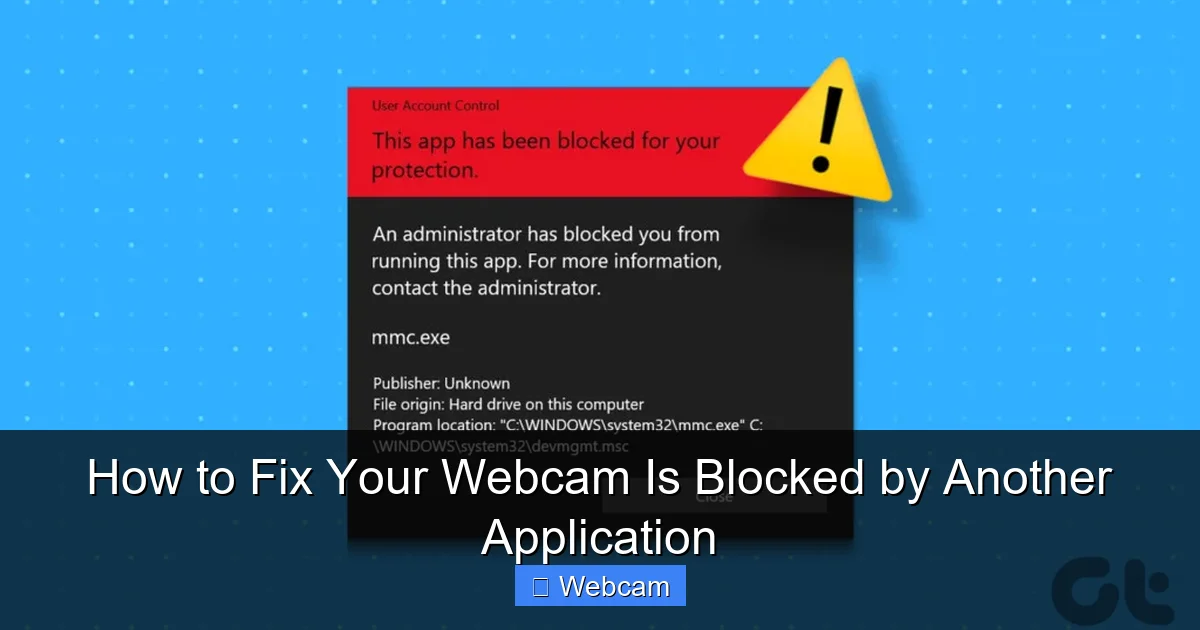
Modern operating systems protect your privacy by restricting camera access. If an app isn’t allowed to use the camera, it may appear “blocked” even if no other app is running.
Visual guide about How to Fix Your Webcam Is Blocked by Another Application
Image source: guidingtech.com
On Windows 10 and 11
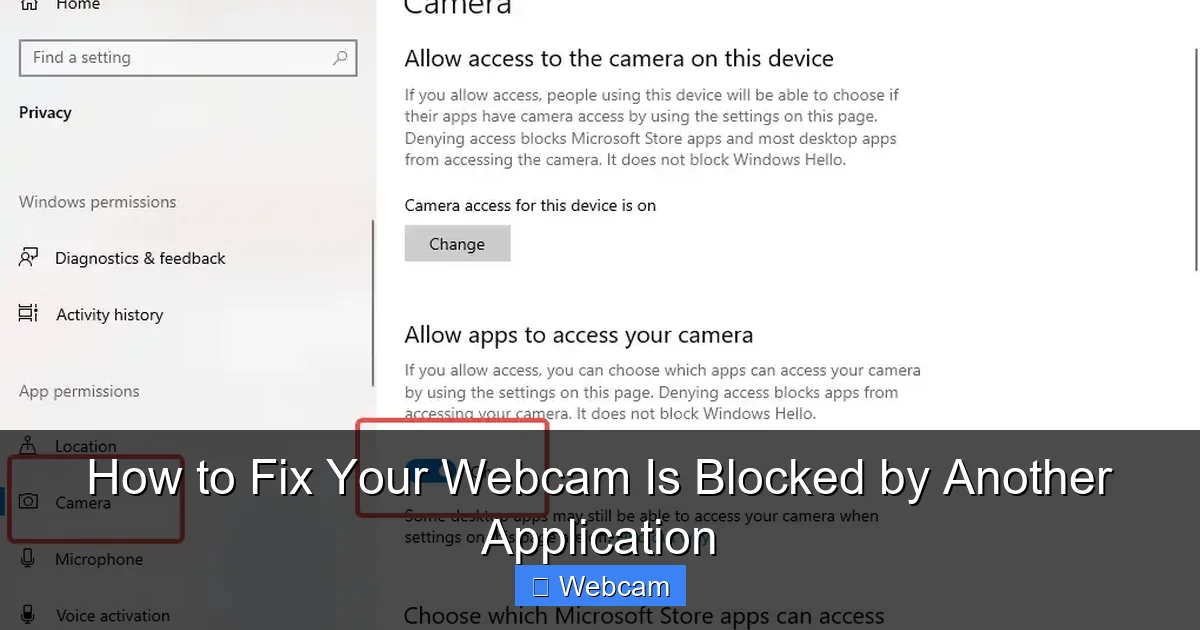
- Go to Settings > Privacy & security > Camera.
- Make sure Camera access is turned on.
- Scroll down to “Let apps access your camera” and ensure it’s enabled.
- Check the list below and toggle on access for your preferred apps (e.g., Chrome, Zoom, Teams).
On macOS
- Open System Settings (or System Preferences on older versions).
- Go to Privacy & Security > Camera.
- Unlock the padlock (enter admin password) if needed.
- Check the box next to apps you want to allow (e.g., FaceTime, Zoom, Chrome).
Note: Some browsers like Chrome or Firefox need camera permission per website. Look for a camera icon in the address bar and click “Allow.”
Step 4: Update or Reinstall Webcam Drivers
Outdated or corrupted drivers can cause your webcam to malfunction or appear blocked. Updating them often resolves the issue.
On Windows
- Press Windows + X and select Device Manager.
- Expand Cameras or Imaging devices.
- Right-click your webcam and choose Update driver.
- Select “Search automatically for drivers” and follow prompts.
If that doesn’t work:
- Right-click the webcam again and select Uninstall device.
- Restart your PC—Windows will reinstall the driver automatically.
On Mac
Macs handle drivers automatically, but you can reset system management:
- Shut down your Mac.
- Press and hold Shift + Control + Option on the left side of the keyboard, then press the power button.
- Hold all four keys for 10 seconds, then release and turn on your Mac.
This resets the System Management Controller (SMC), which can fix hardware-related issues.
Step 5: Disable Antivirus or Security Software Temporarily
Some antivirus programs (like Norton, McAfee, or Bitdefender) include webcam protection features that block access—even from trusted apps.
- Open your antivirus software.
- Look for settings like “Webcam Protection,” “Camera Shield,” or “Privacy Guard.”
- Temporarily disable the feature.
- Test your webcam in your desired app.
Important: Only disable protection briefly for testing. Re-enable it afterward for security.
Step 6: Test in Multiple Apps
To confirm whether the issue is app-specific or system-wide, test your camera in different programs.
- Try opening the camera in Windows Camera app (search “Camera” in Start menu).
- On Mac, open Photo Booth.
- If it works there, the problem is likely with your original app (e.g., Zoom or Chrome).
- If it doesn’t work anywhere, the issue is system-level (driver, privacy, or hardware).
This helps narrow down the cause and guides your next steps.
Troubleshooting Tips
- Check for physical switches: Some laptops have a physical camera shutter or function key (e.g., Fn + F10) to disable the camera.
- Update your browser: Outdated browsers may not support camera access properly.
- Try a different USB port: If using an external webcam, switch ports or test on another computer.
- Look for firmware updates: Visit your webcam manufacturer’s website (e.g., Logitech, Microsoft) for updates.
Conclusion
A blocked webcam doesn’t have to ruin your day. In most cases, it’s caused by a simple conflict—another app using the camera, privacy settings, or outdated drivers. By following these steps—closing background apps, checking permissions, updating drivers, and testing across platforms—you can quickly restore camera access.
Remember: always restart your device after making changes, and keep your software up to date. With these fixes, you’ll be back on camera in no time—ready for your next meeting, stream, or video call.



