


Worried about your privacy? This guide provides comprehensive, step-by-step instructions to stop apps from using webcam across all your devices. Discover how to manage app permissions, disable camera access, and implement hardware solutions to ensure your webcam is only active when you want it to be. Take control of your digital security and protect yourself from unauthorized access with our easy-to-follow advice.
How to Stop Apps from Using Webcam
In our increasingly connected world, webcams have become a standard feature on nearly every device. From laptops and desktops to smartphones and tablets, these tiny lenses allow us to connect with friends, family, and colleagues face-to-face. However, with convenience comes concern, especially when it comes to privacy. The idea of an app secretly accessing your webcam without your knowledge is unsettling, to say the least.
You’re not alone in wanting to ensure your digital security. Many users worry about malicious software or even legitimate apps overstepping their boundaries. The good news is that operating systems have become much better at providing users with control over their privacy settings. This comprehensive guide will walk you through exactly how to stop apps from using webcam on all your devices, giving you back control and peace of mind.
We’ll cover everything from simple software settings to physical solutions, ensuring you have all the tools to protect your privacy. By the end of this guide, you will be well-equipped to manage your webcam access effectively.
Key Takeaways
- Understand OS-Specific Controls: Learn how to manage webcam permissions differently on Windows, macOS, Android, and iOS through their respective privacy settings.
- Utilize App Permissions: The most direct way to stop apps from using webcam is by individually revoking camera access for suspicious or unnecessary applications.
- Implement Hardware Solutions: For complete peace of mind, consider using a physical webcam cover or unplugging external cameras when not in use.
- Regularly Review Settings: Periodically check your app permissions and privacy settings, especially after system updates or installing new applications, to ensure no unwanted access.
- Beware of Malware: Unauthorized webcam access can be a sign of malware. Run regular scans with reputable antivirus software to protect your system.
- Understand Indicator Lights: Most webcams have an indicator light. If it’s on when you’re not using the camera, it’s a red flag indicating potential unauthorized access.
- Default to Deny: Adopt a “deny by default” mindset for camera access. Only grant permission to apps you fully trust and that genuinely require it.
Why It’s Important to Control Webcam Access
The primary reason to control who can use your webcam is, of course, privacy. Unauthorized access could lead to:
- Spying and Surveillance: Malicious actors can secretly record you and your surroundings, leading to blackmail or identity theft.
- Data Collection: Even legitimate apps might collect more data than necessary, infringing on your personal space.
- Security Breaches: A compromised webcam can be a gateway for attackers to gain deeper access to your device and personal information.
Knowing how to stop apps from using webcam is a crucial step in maintaining your digital fortress. Let’s dive into the practical steps for each major operating system.
How to Stop Apps from Using Webcam on Windows
Windows offers robust privacy settings to help you manage your webcam access. Whether you want to disable it for specific apps or entirely, there are several ways to stop apps from using webcam.
1. Manage Camera Privacy Settings
This is the most common and effective method to control webcam access on Windows.
-
Open Settings: Click on the Start button (Windows icon) and then click on the gear icon to open “Settings,” or press
Windows key + I.
Visual guide about How to Stop Apps from Using Webcam
Image source: groovypost.com
-
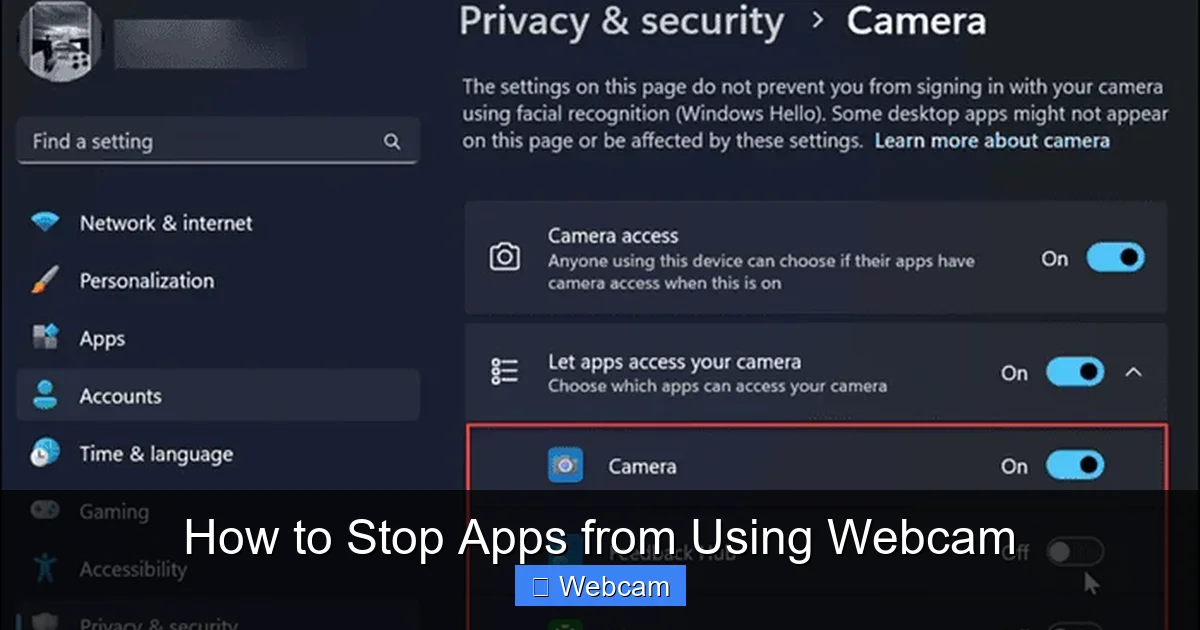
Navigate to Privacy & Security: In the Settings window, click on “Privacy & security” in the left-hand menu.
-
Select Camera: Scroll down the right-hand pane until you find “App permissions” and click on “Camera.”
-
Control Global Access:
- You’ll see a toggle labeled “Camera access.” If you want to stop all apps from using webcam, toggle this to “Off.” This will prevent all applications, including Windows features, from using your camera.
- Below that, you’ll find “Let apps access your camera.” Toggling this to “Off” will prevent most non-Microsoft Store desktop apps from accessing your camera, even if “Camera access” is on. For ultimate privacy, turn both off.
-
Manage App-Specific Access:
- Scroll down further to “Let desktop apps access your camera.” Here, you’ll see a list of desktop apps that have requested camera access. You can individually toggle off access for any app you don’t trust or don’t want to use your webcam.
- For apps downloaded from the Microsoft Store, there’s a separate list under “Choose which apps can access your camera.” Go through this list and toggle off access for any app you don’t want to use your webcam.
Practical Tip: Regularly review this list, especially after installing new software. If an app doesn’t genuinely need camera access (e.g., a photo editor might, a calculator definitely shouldn’t), turn it off. This is a primary way to stop apps from using webcam when you’re unsure.
2. Disable Webcam via Device Manager
This method completely disables your webcam at the hardware level, preventing any software from accessing it. It’s a more drastic step, ideal if you rarely or never use your webcam.
-
Open Device Manager: Right-click on the Start button and select “Device Manager” from the context menu.
-
Locate Your Webcam: Expand the “Cameras” or “Imaging devices” category. You should see your webcam listed (e.g., “Integrated Webcam,” “USB Camera”).
-
Disable the Device: Right-click on your webcam and select “Disable device.” You might see a warning message; confirm your decision. If you ever need to use it again, you can return here and select “Enable device.”
Caution: Disabling your webcam here means no app can use it until you re-enable it. This is a very effective way to stop apps from using webcam completely.
How to Stop Apps from Using Webcam on macOS
Apple’s macOS also provides strong privacy controls for your camera.
1. Manage Camera Privacy Settings
This is the go-to method for controlling which applications can access your webcam on a Mac.
-
Open System Settings: Click on the Apple menu in the top-left corner of your screen and select “System Settings” (or “System Preferences” on older macOS versions).
Visual guide about How to Stop Apps from Using Webcam
Image source: techviral.net
-
Navigate to Privacy & Security: In the sidebar, click on “Privacy & Security.”
-
Select Camera: Scroll down in the right-hand pane until you find “Camera” under “App Privacy.” Click on it.
-
Control App-Specific Access: You will see a list of applications that have requested or have been granted camera access. Review this list carefully.
- To stop an app from using your webcam, simply toggle the switch next to its name to “Off.”
- If an app isn’t listed, it means it hasn’t requested camera access yet, or it’s a legacy app that might not be fully integrated with modern privacy controls.
Practical Tip: If you are concerned about an app not listed here, or if you want to completely ensure no app can access it, consider a physical cover.
How to Stop Apps from Using Webcam on Android Devices
Mobile devices are just as vulnerable, and knowing how to stop apps from using webcam on your Android phone or tablet is essential.
1. Manage App Permissions
Android’s robust permission system allows you to control exactly what each app can access.
-
Open Settings: Swipe down from the top of your screen and tap the gear icon, or find “Settings” in your app drawer.

Visual guide about How to Stop Apps from Using Webcam
Image source: it24hrs.com
-
Navigate to Apps: Tap on “Apps” or “Apps & notifications.”
-
Access Permission Manager: Tap on “Permission manager” (sometimes called “App permissions” or “Permissions”).
-
Select Camera: In the Permission manager, tap on “Camera.”
-
Review App List: You’ll see a list of apps categorized under “Allowed” (or “Allowed all the time,” “Allowed only while in use”) and “Denied.”
- Go through the “Allowed” list. If you see an app that doesn’t need camera access (e.g., a simple game or a note-taking app), tap on its name.
- On the app’s permission screen, select “Don’t allow” (or “Ask every time” if available and preferred). This will effectively stop the app from using your webcam.
Practical Tip: For a quick check of a specific app, you can long-press its icon on your home screen or app drawer, then tap “App info” (the ‘i’ in a circle icon). From there, go to “Permissions” and manage its camera access.
How to Stop Apps from Using Webcam on iOS Devices (iPhone/iPad)
Apple’s iOS is known for its strong privacy features, making it straightforward to manage camera access.
1. Manage App Permissions
Similar to Android, iOS allows granular control over app permissions.
-
Open Settings: Tap the “Settings” icon on your home screen.
-
Navigate to Privacy & Security: Scroll down and tap on “Privacy & Security” (or “Privacy” on older iOS versions).
-
Select Camera: Tap on “Camera.”
-
Control App-Specific Access: You’ll see a list of all apps that have requested or have been granted access to your camera. The toggle next to each app indicates its current status.
- To stop an app from using your webcam, simply toggle the switch next to its name to “Off” (white/gray).
- Apps without a toggle (or not listed) haven’t requested camera access.
Practical Tip: Unlike Android, iOS does not have a central “Permission Manager” per se; you manage permissions either through “Privacy & Security” or directly through an app’s individual settings (Settings > [App Name] > Permissions).
Hardware Solutions to Stop Apps from Using Webcam
Sometimes, software controls aren’t enough for complete peace of mind. Hardware solutions offer a physical barrier.
1. Use a Webcam Cover
This is arguably the most straightforward and foolproof method.
- Purchase a physical cover: These are inexpensive, small sliding covers that adhere to your laptop or desktop webcam. They are easy to open when you need the camera and slide shut when you want it blocked.
- DIY Solution: If you don’t have a cover, a small piece of opaque tape (like electrical tape or sticky notes) can work temporarily. Just be careful not to damage the lens with sticky residue.
Benefit: A physical cover guarantees that even if an app somehow bypasses software controls, it will only see a black screen. It’s a very effective way to stop apps from using webcam visually.
2. Unplug External Webcams
If you use an external webcam for your desktop computer, the easiest way to ensure no app can use it is to simply unplug it from the USB port when not in use.
General Best Practices for Webcam Security
Beyond specific operating system controls, adopting good security habits will further protect your privacy and help you stop apps from using webcam without your consent.
1. Be Mindful of App Permissions During Installation
When installing new apps, especially on mobile devices, always review the permissions they request. If a flashlight app asks for camera access, that’s a red flag. Deny unnecessary permissions from the start.
2. Keep Your Operating System and Apps Updated
Software updates often include critical security patches that fix vulnerabilities. Keeping your OS and all apps up to date reduces the risk of malware exploiting weaknesses to gain unauthorized access to your webcam.
3. Use Reputable Antivirus and Anti-Malware Software
Regularly scan your computer for viruses, spyware, and other malicious software. Advanced malware can sometimes bypass built-in privacy controls. A good antivirus program can detect and remove such threats, helping you stop apps from using webcam maliciously.
4. Pay Attention to the Webcam Indicator Light
Most built-in webcams have a small LED indicator light that turns on when the camera is active. If this light is on and you’re not actively using an app that requires the camera, it’s a strong sign of unauthorized access. Immediately investigate which apps are running or consider a scan for malware.
5. Exercise Caution with Untrusted Links and Downloads
Phishing attempts and malicious downloads are common ways for attackers to install software that can hijack your webcam. Be wary of clicking on suspicious links or downloading files from unknown sources.
Troubleshooting: What if an App Still Accesses My Webcam?
Even after following the steps above, you might find an app still seems to use your webcam, or the indicator light comes on unexpectedly. Here’s what to do:
1. Restart Your Device
Sometimes a simple restart can resolve temporary glitches or clear processes that might be holding onto camera access.
2. Double-Check All Privacy Settings
Go back through the specific steps for your operating system. Ensure that both global camera access and app-specific permissions are set correctly. Sometimes, an update might reset a setting.
3. Run a Deep Malware Scan
If you suspect unauthorized access, a sophisticated piece of malware might be at play. Run a full, deep scan with your trusted antivirus software. Consider using a second opinion scanner (from a different vendor) if you’re particularly concerned.
4. Check Background Apps
On Windows and macOS, some apps might run in the background. Check your Task Manager (Windows) or Activity Monitor (macOS) for any unusual processes consuming resources or appearing suspicious.
5. Reinstall or Reset Your Operating System (Last Resort)
If all else fails and you’re convinced your system is compromised, a clean reinstallation of your operating system can be the most effective way to eliminate persistent threats. Remember to back up your data first!
Conclusion
Taking control of your webcam privacy is a fundamental aspect of digital security in today’s world. By understanding how to stop apps from using webcam across your Windows, macOS, Android, and iOS devices, you empower yourself against potential privacy breaches.
Remember, a multi-layered approach is always best: combine software permission management with physical webcam covers for ultimate peace of mind. Stay vigilant, keep your software updated, and regularly review your privacy settings. Your digital privacy is in your hands – take charge of it!



