


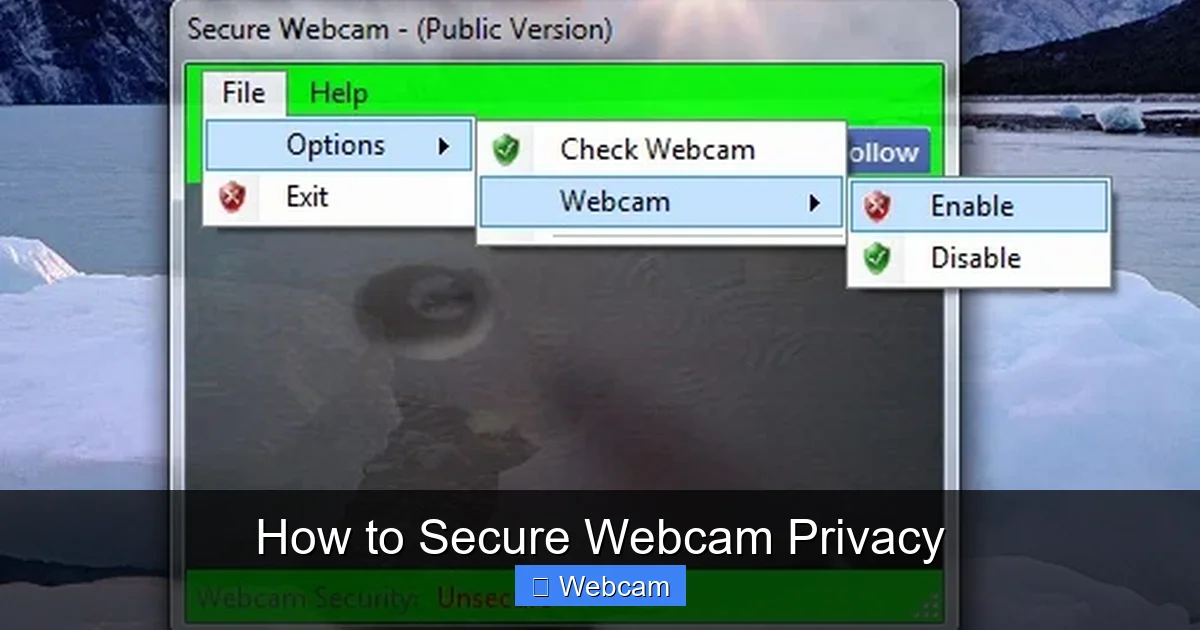
Securing your webcam privacy is crucial in today’s digital world. This comprehensive guide equips you with practical steps, from physical covers and robust software security to managing app permissions and identifying potential threats. Learn how to protect your personal space and ensure your camera remains under your control, safeguarding you from unauthorized access and maintaining peace of mind with enhanced webcam privacy.
How to Secure Webcam Privacy
In our increasingly connected world, webcams have become indispensable tools for work, learning, and staying in touch with loved ones. However, this convenience comes with a significant responsibility: maintaining your webcam privacy. The idea of someone watching you without your knowledge is unsettling, and unfortunately, it’s a very real threat. Malicious actors, often referred to as “webcam hackers” or “creepers,” can gain unauthorized access to your webcam, potentially using it for spying, blackmail, or identity theft.
The good news is that securing your webcam privacy doesn’t require advanced technical skills. By adopting a few practical habits and implementing some straightforward security measures, you can significantly reduce your risk. This comprehensive guide will walk you through everything you need to know to achieve robust secure webcam privacy, ensuring your personal space remains truly private.
Key Takeaways
- Physical Cover is Your First Line: Always use a physical cover (slider, tape, sticker) for your webcam. It’s the simplest, most effective, and foolproof defense against unauthorized visual access, ensuring your webcam privacy.
- Manage Software Permissions Diligently: Regularly review and restrict webcam access permissions for all applications and browsers on your operating system (Windows, macOS, mobile). Only grant access to apps you explicitly trust and genuinely need for enhanced secure webcam practices.
- Keep Systems Updated & Secure: Maintain up-to-date operating systems, applications, and robust antivirus/anti-malware software. This patches critical vulnerabilities that malicious actors could exploit to gain control of your webcam.
- Practice Digital Vigilance: Be extremely cautious of suspicious links, unsolicited email attachments, and unknown downloads. Phishing attacks and malware, especially Remote Access Trojans (RATs), are common vectors for webcam compromise, so protect your webcam privacy by being smart online.
- Utilize Strong Passwords & 2FA: Protect all your online accounts, especially those linked to device access, with strong, unique passwords. Enable two-factor authentication (2FA) wherever possible to add an extra layer of security, making it harder for unauthorized users to gain control.
- Regularly Audit Your Devices: Periodically check your device for unfamiliar programs, unusual activity (like the webcam indicator light turning on unexpectedly), or suspicious processes running in the background. These could be red flags indicating a security breach affecting your secure webcam.
Step 1: The Physical Cover – Your First Line of Defense
Let’s start with the simplest, yet most effective, method to ensure webcam privacy: physically covering your camera. It’s a low-tech solution to a high-tech problem, and it’s foolproof. If your camera is covered, no one can see through it, regardless of any software vulnerabilities or hacks.
Why a Physical Cover is Essential
- Absolute Certainty: Unlike software solutions, a physical cover offers 100% visual privacy. There’s no code to exploit, no settings to bypass.
- Simplicity: It requires no technical knowledge to implement.
- Cost-Effective: Most solutions are very inexpensive or even free.
Options for Physical Covers
- Webcam Sliders: These are small, adhesive covers with a sliding mechanism. You can easily slide them open when you need your webcam and slide them closed when you don’t. They are sleek and designed not to damage your device.
- Opaque Tape or Stickers: A piece of electrical tape, masking tape, or even a sticky note can do the trick. Just make sure it’s opaque enough to block the lens and doesn’t leave a sticky residue. Be gentle when removing it to avoid damaging the lens.
- Built-in Privacy Shutters: Some newer laptops and external webcams come with integrated privacy shutters. If your device has one, make sure to use it consistently.
Practical Tip: Make covering your webcam a habit. As soon as you finish a video call, slide the cover shut or apply your chosen physical barrier. This small action significantly boosts your secure webcam privacy.
Step 2: Software Security Best Practices
While a physical cover is crucial, it’s not the only piece of the puzzle. Robust software security is vital to prevent unauthorized access to your device in general, which can then be used to activate your webcam without your consent. To secure webcam privacy effectively, you need a multi-layered approach.

Visual guide about How to Secure Webcam Privacy
Image source: dignited.com
Keep Your Operating System and Applications Updated
Software developers constantly release updates that include security patches for newly discovered vulnerabilities. Running outdated software is like leaving a back door open for attackers.
- Operating System (Windows, macOS, Linux, iOS, Android): Enable automatic updates and install them promptly.
- Web Browsers (Chrome, Firefox, Edge, Safari): Keep your browser updated. Many browser-based attacks exploit vulnerabilities in older versions.
- Video Conferencing Apps (Zoom, Teams, Skype): Ensure these applications are always on their latest versions.
Use Reputable Antivirus and Anti-Malware Software
A good security suite can detect and remove malicious software, including Remote Access Trojans (RATs) that are often used to hijack webcams. Invest in a paid, reputable solution and keep its definitions updated.
- Regular Scans: Schedule full system scans to run automatically.
- Real-time Protection: Ensure real-time protection is always active to catch threats as they appear.
Configure Your Firewall
Your firewall acts as a barrier between your device and the internet, controlling what data goes in and out. Ensure it’s enabled and properly configured.
- Default Settings: For most users, the default firewall settings provided by your OS or router are sufficient.
- Review Rules: If you’re an advanced user, periodically review your firewall rules to ensure no unknown applications have unrestricted outbound access.
Step 3: Managing Webcam Permissions
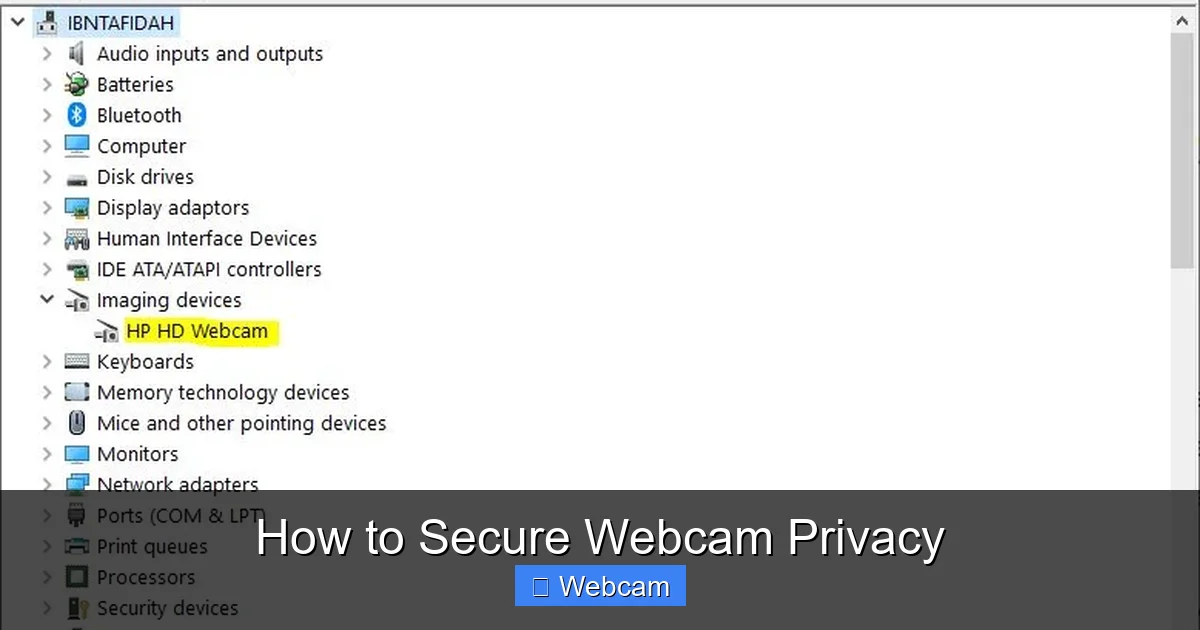
Modern operating systems and browsers offer granular control over which applications can access your webcam. This is a critical setting for maintaining webcam privacy, as it prevents legitimate apps from using your camera when they shouldn’t, and blocks malicious ones.
Visual guide about How to Secure Webcam Privacy
Image source: lh5.googleusercontent.com
Operating System Webcam Permissions
Each operating system has a central place to manage webcam access. Regularly check and revoke access for apps you don’t use or don’t trust.
For Windows Users:
- Go to Settings > Privacy & security > Camera.
- Under “Camera access,” make sure it’s turned on, but more importantly, scroll down to “Let apps access your camera.”
- You’ll see a list of desktop apps and Microsoft Store apps. Toggle off access for any app you don’t want to use your webcam.
For macOS Users:
- Go to System Settings > Privacy & Security > Camera.
- You’ll see a list of applications that have requested camera access.
- Uncheck the box next to any application that you don’t want to grant webcam access to.
For Mobile Devices (iOS & Android):
- iOS: Go to Settings > Privacy & Security > Camera. Toggle off access for apps you don’t trust.
- Android: Go to Settings > Apps > (Select an App) > Permissions > Camera. You can choose to “Allow only while using the app,” “Ask every time,” or “Don’t allow.”
Browser Webcam Permissions
Browsers also ask for permission when a website tries to access your webcam. It’s crucial to manage these permissions carefully.
- Always Say No by Default: When a website asks for webcam access, think carefully. Only grant access if you trust the site and genuinely need it for a specific task (e.g., a video call).
- Review Browser Settings:
- Chrome: Go to Settings > Privacy and security > Site Settings > Camera. You can see which sites are allowed or blocked and remove permissions.
- Firefox: Go to Settings > Privacy & Security > Permissions > Camera. You can manage exceptions for specific websites.
- Edge: Go to Settings > Cookies and site permissions > Camera.
Practical Tip: Periodically review all your app and browser permissions. It’s easy to grant access in the moment and forget about it later. Regular checks help maintain your secure webcam privacy.
Step 4: Using Strong Passwords and Two-Factor Authentication (2FA)
Many webcam compromises occur because an attacker gains access to one of your online accounts, which then provides a pathway to your device or linked services. Strong authentication is a fundamental layer of your overall digital security, which directly impacts your webcam privacy.
Visual guide about How to Secure Webcam Privacy
Image source: devx.com
Create Strong, Unique Passwords
- Complexity: Use a combination of uppercase and lowercase letters, numbers, and symbols.
- Length: Aim for at least 12-16 characters. Longer is generally better.
- Uniqueness: Never reuse passwords across different accounts. If one account is breached, others remain secure.
- Password Manager: Consider using a reputable password manager (e.g., LastPass, 1Password, Bitwarden) to generate and store strong, unique passwords securely.
Enable Two-Factor Authentication (2FA)
2FA adds an extra layer of security by requiring a second form of verification beyond just your password (e.g., a code sent to your phone, a fingerprint, or a hardware key). This makes it significantly harder for an attacker to gain access even if they manage to steal your password.
- Enable Everywhere: Activate 2FA on your email accounts, social media, banking, and any services linked to your computer or mobile devices.
- Authenticator Apps: Using an authenticator app (like Google Authenticator or Authy) is generally more secure than SMS-based 2FA.
Step 5: Be Wary of Suspicious Links and Downloads
Phishing and malware are common methods attackers use to gain control over your computer, which can then lead to webcam compromise. Maintaining your secure webcam privacy requires constant vigilance against these threats.
Recognize Phishing Attempts
Phishing emails, messages, or websites try to trick you into revealing personal information or downloading malicious software. Always be skeptical.
- Sender Verification: Double-check the sender’s email address. It might look legitimate at first glance but have subtle misspellings.
- Grammar and Spelling: Phishing attempts often contain poor grammar and spelling.
- Urgency and Threats: Be suspicious of messages that create a sense of urgency or threaten account closure.
- Hover Over Links: Before clicking, hover your mouse over a link to see the actual URL it leads to. If it looks suspicious, don’t click.
Avoid Suspicious Downloads
Malicious software, particularly Remote Access Trojans (RATs), can be disguised as legitimate programs, games, or media files. Once installed, they grant attackers control over your system, including your webcam.
- Only Download from Trusted Sources: Stick to official app stores and reputable websites for software downloads.
- Read Reviews: Before downloading anything, especially free software, read reviews and check the publisher’s reputation.
- Be Skeptical of “Free” Offers: If something seems too good to be true, it probably is.
Step 6: Regularly Audit Your Devices
Even with all the preventative measures, it’s wise to periodically check your devices for any signs of compromise. Regular audits contribute significantly to your long-term secure webcam privacy.
Look for Unusual Activity
- Webcam Indicator Light: Most webcams have a small LED light that turns on when the camera is active. If this light turns on unexpectedly when you’re not using your webcam, it’s a major red flag.
- Unknown Applications: Check your list of installed programs for anything you don’t recognize.
- Background Processes: Use your operating system’s task manager (Ctrl+Shift+Esc on Windows, Activity Monitor on macOS) to look for unusual processes consuming significant resources.
- Strange Files: Be wary of unexpected files appearing in your documents or desktop.
Run Full System Scans
Even if your real-time antivirus protection is active, a periodic full system scan can catch threats that might have slipped through or accumulated over time. Consider using a second-opinion scanner for an extra layer of detection.
Step 7: Understanding and Disabling Remote Access
Remote access tools, while legitimate for IT support or working from home, can be exploited if not properly secured. If an attacker gains remote access to your computer, they can potentially control your webcam. To secure webcam privacy, manage these tools carefully.
Limit Remote Desktop/Access
- Disable If Not Needed: If you don’t use remote desktop features (like Windows Remote Desktop or third-party tools like TeamViewer), disable them entirely.
- Secure When Used: If you need remote access, ensure it’s protected by strong passwords and 2FA. Limit the time it’s active and only enable it when absolutely necessary.
- Review Access Logs: Some remote access tools provide logs of who has connected and when. Review these periodically for any unauthorized activity.
Step 8: Consider External Webcams for Enhanced Control
For those who use their webcam frequently but are extra cautious, an external webcam can offer a distinct advantage in terms of secure webcam privacy.
Advantages of External Webcams
- Easy Disconnection: The simplest way to ensure your webcam isn’t active is to unplug it. An external webcam makes this incredibly easy – just pull the USB cable.
- Dedicated Use: You can keep it unplugged and stored away, only connecting it when you explicitly need it for a video call or recording.
- Higher Quality: Often, external webcams offer better video and audio quality than built-in laptop cameras.
Consideration: While an external webcam enhances control, remember to apply all other security measures (physical cover when plugged in, software permissions, etc.) to ensure complete webcam privacy.
Troubleshooting: What If You Suspect Your Webcam is Compromised?
If you notice any of the red flags – the webcam light turning on unexpectedly, strange recordings appearing, or unknown software trying to access your camera – act quickly.
- Disconnect from the Internet: Immediately disconnect your device from the internet (unplug Ethernet, turn off Wi-Fi). This can prevent the attacker from sending more commands or exfiltrating more data.
- Run a Full Antivirus/Anti-Malware Scan: Perform a deep scan with your reputable security software. Consider using a rescue disk or a second-opinion scanner for thoroughness.
- Change All Passwords: Change passwords for all your important accounts (email, banking, social media), especially if you suspect they might have been compromised. Use a different, secure device for this if possible.
- Review Installed Programs and Processes: Look for any unfamiliar software that was recently installed or unusual processes running in the background. Uninstall suspicious programs.
- Check Browser Extensions: Malicious extensions can also hijack your webcam. Review and remove any unfamiliar or suspicious browser extensions.
- Reinstall Your Operating System: If you cannot confidently remove the malware, or if the compromise is severe, a complete reinstall of your operating system (a “clean wipe”) is often the most reliable way to remove deeply embedded threats. Remember to back up your important data first.
- Seek Professional Help: If you’re unsure or uncomfortable performing these steps, seek assistance from a trusted IT professional.
Conclusion
Securing your webcam privacy is an ongoing process, not a one-time task. In an era where our digital and physical lives are increasingly intertwined, taking proactive steps to protect your personal space is more important than ever. By combining physical covers, robust software security, diligent permission management, strong authentication, and a healthy dose of digital vigilance, you can significantly enhance your secure webcam privacy.
Remember, your webcam is a window into your world. By taking control of that window, you empower yourself to navigate the digital landscape with confidence and peace of mind. Stay informed, stay vigilant, and enjoy the safety of your private space.



