


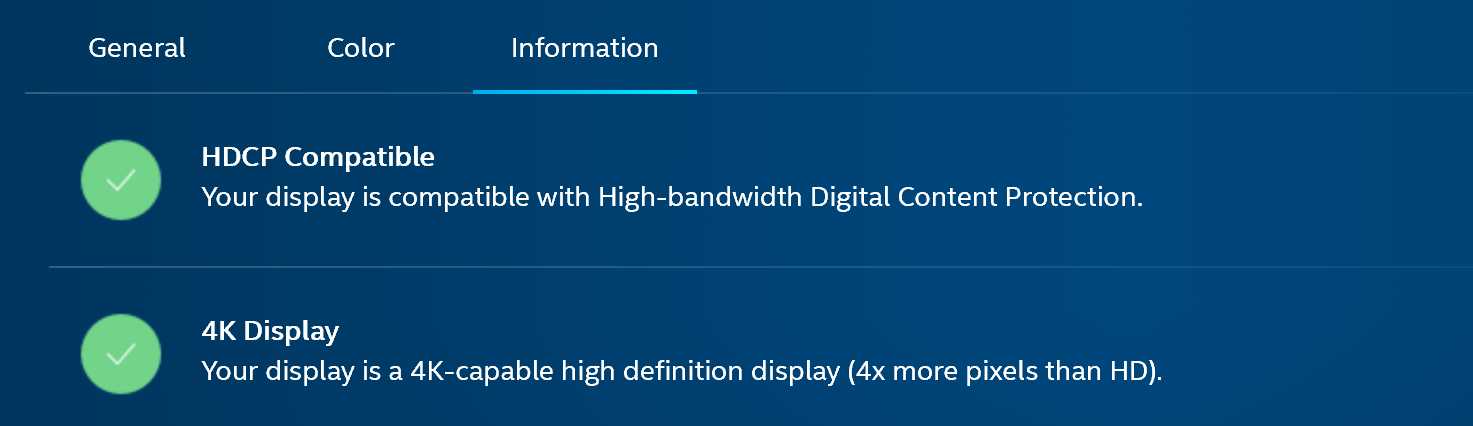
If you’re wondering whether your monitor is 4K, a quick way to check is by looking at the display settings on your computer. Right-click on your desktop, select “Display settings,” and see if the resolution listed is 3840 x 2160 pixels. If it is, congratulations—your monitor is indeed 4K! Beyond just checking the resolution, understanding the specs of your monitor can also help clarify its capabilities. With 4K monitors becoming more prevalent, knowing how to identify one can enhance your viewing experience, whether you’re gaming, streaming, or working on creative projects. Let’s dive deeper into the specifics of what makes a monitor 4K and how you can easily determine if yours meets the criteria.

How to Find Out if Your Monitor is 4K
Determining if your monitor is 4K is essential for enjoying the best viewing experience. A 4K monitor displays images at a resolution of 3840 x 2160 pixels, which is four times the resolution of 1080p. With this high resolution, you can enjoy breathtaking visuals and sharp details. Checking if your monitor supports 4K can be done in several simple ways.
Understanding Monitor Resolutions
Before diving into checking your monitor’s specifications, it’s crucial to understand what 4K means.
– **Resolution**: It refers to the number of pixels displayed on the screen.
– **Pixel Density**: Higher pixel density leads to clearer and sharper images.
4K resolution is often referred to as Ultra High Definition (UHD). Knowing this helps you understand the importance of resolution in your computing experience.
Check Your Monitor’s Model Number
One of the easiest ways to find out if your monitor is 4K is to check its model number.
1. **Locate the Model Number**: Usually found on the back of the monitor or its packaging.
2. **Search Online**: Input the model number in your favorite search engine.
Most manufacturers provide specifications online. You can usually find information regarding the resolution there.
Using Your Computer’s Display Settings
If you want to check your monitor’s resolution through your computer, it’s a straightforward process.
For Windows Users
1. **Right-click on the Desktop**: Select ‘Display settings’.
2. **Scroll Down to Display Resolution**: The dropdown menu will show your current resolution.
If you see 3840 x 2160, congratulations! You have a 4K monitor.
For macOS Users
1. **Click on the Apple Icon**: Select ‘About This Mac’.
2. **Go to Displays**: Here, you will find your screen resolution.
If the resolution matches 4K, you are all set!
Utilizing External Tools
There are various software tools available that can help you determine your monitor’s resolution.
– **Speccy**: A free tool that provides detailed information about your system, including monitor specs.
– **HWiNFO**: This tool gives insights into hardware components, including display capabilities.
These tools are user-friendly and can help you gather information about your monitor quickly.
Inspecting Monitor Specifications
If you have the original manual or box of the monitor, check the specifications listed there.
– Look for the resolution section.
– The specification should clearly indicate if it is a 4K monitor.
It’s always good to keep the manual for reference.
Using Online Resources
Many online resources can give you detailed specifications on popular monitor models.
– **Manufacturer’s Website**: They often provide detailed specs, including resolution.
– **Tech Review Websites**: Sites like CNET and TechRadar frequently review monitors and list specs.
Searching online with your monitor model can yield helpful results.
If All Else Fails, Look for the 4K Label
Another simple way to find out if your monitor is 4K is to look for labels.
– **Check the Packaging**: If you still have the box, look for ‘4K’ or ‘UHD’ on it.
– **Inspect the Monitor Itself**: Some monitors have a sticker or tag indicating its capabilities.
If you see any mention of 4K, you likely have a 4K monitor.
Understanding Display Cables
To utilize a 4K monitor fully, it’s important to use the right cables.
– **HDMI 2.0 or DisplayPort 1.4**: These are essential for achieving 4K resolution at high refresh rates.
– **Older Cables**: Using older HDMI cables might limit your resolution.
Always check the specifications of your cables to ensure compatibility with your 4K monitor.
Resolution Vs. Refresh Rate
It’s important to differentiate resolution from refresh rate.
– **Resolution**: Refers to how many pixels are displayed.
– **Refresh Rate**: Measures how many times the screen refreshes per second (measured in Hertz).
A higher refresh rate enhances the smoothness of motion, especially in gaming.
Performance Considerations
Having a 4K monitor is great, but it’s essential to have a powerful computer to back it up.
– **Graphics Card**: Ensure your graphics card supports 4K output.
– **Processing Power**: A powerful CPU and sufficient RAM will enhance your experience.
If your computer doesn’t have the right specifications, you may not enjoy the full capabilities of your 4K monitor.
Benefits of a 4K Monitor
Investing in a 4K monitor can elevate your visual experience significantly.
– **Stunning Image Quality**: The increased pixel density provides clearer and sharper images.
– **Better Multitasking**: With more screen real estate, you can work on multiple applications smoothly.
These benefits make 4K monitors a popular choice among professionals and gamers alike.
Common Misconceptions about 4K Monitors
While 4K monitors are fantastic, people often have misconceptions about them.
– **4K is only for gaming**: Many professionals in graphic design and video editing benefit from 4K.
– **4K is too expensive**: Prices have decreased significantly, making 4K monitors more accessible.
Understanding these misconceptions can help you make better purchasing decisions.
Determining if your monitor is 4K can be done easily by checking specifications, using your computer’s settings, and employing external tools. Don’t forget the accompanying hardware like cables and graphics cards, which are essential for a complete 4K experience. By verifying these aspects, you can ensure that your viewing experience meets your expectations and takes full advantage of all that a 4K monitor has to offer.
How to get 4k Option on Display if not showing up on Windows 10 or 11 PC (Fast Method)
Frequently Asked Questions
“`html
What resolution should I check to confirm my monitor is 4K?
To verify if your monitor is 4K, check the resolution settings in your operating system. A 4K monitor typically has a resolution of 3840 x 2160 pixels. You can find this information in the display settings on Windows or macOS. If your monitor displays this resolution, it is indeed a 4K monitor.
How can I determine the specifications of my monitor?
You can find your monitor’s specifications by checking the model number, usually located on the back of the monitor or in the user manual. Once you have the model number, visit the manufacturer’s website to access detailed specifications, including the resolution and whether it supports 4K.
Is there a way to check the monitor’s resolution using software?
Yes, software tools can help you check your monitor’s resolution. On Windows, you can use built-in tools like Display Settings or Advanced Display Settings. For macOS, go to System Preferences and select Displays. These settings display the current resolution and confirm if it’s set to 4K.
What can I do if my monitor does not support 4K?
If your monitor does not support 4K and you want to upgrade, consider purchasing a 4K monitor that meets your needs. Check compatibility with your graphics card and ensure that your system can handle 4K resolution for the best experience.
How do I know if my graphics card can drive a 4K monitor?
To determine if your graphics card can support a 4K monitor, check the specifications of the card. Look for output resolutions, and make sure it lists 3840 x 2160 pixels. You may also need to update drivers or adjust settings in your graphics control panel for optimal performance.
“`
Final Thoughts
To find out if your monitor is 4K, start by checking the display settings on your computer. Navigate to the resolution settings and see if it lists 3840 x 2160 pixels, which indicates a 4K resolution.
You can also consult the manufacturer’s specifications, either through the manual or the brand’s website. This information typically confirms whether your monitor is 4K.
Lastly, examine the monitor’s model number; a quick online search will reveal its specifications. Following these steps will clearly show how to find out if your monitor is 4k.



