


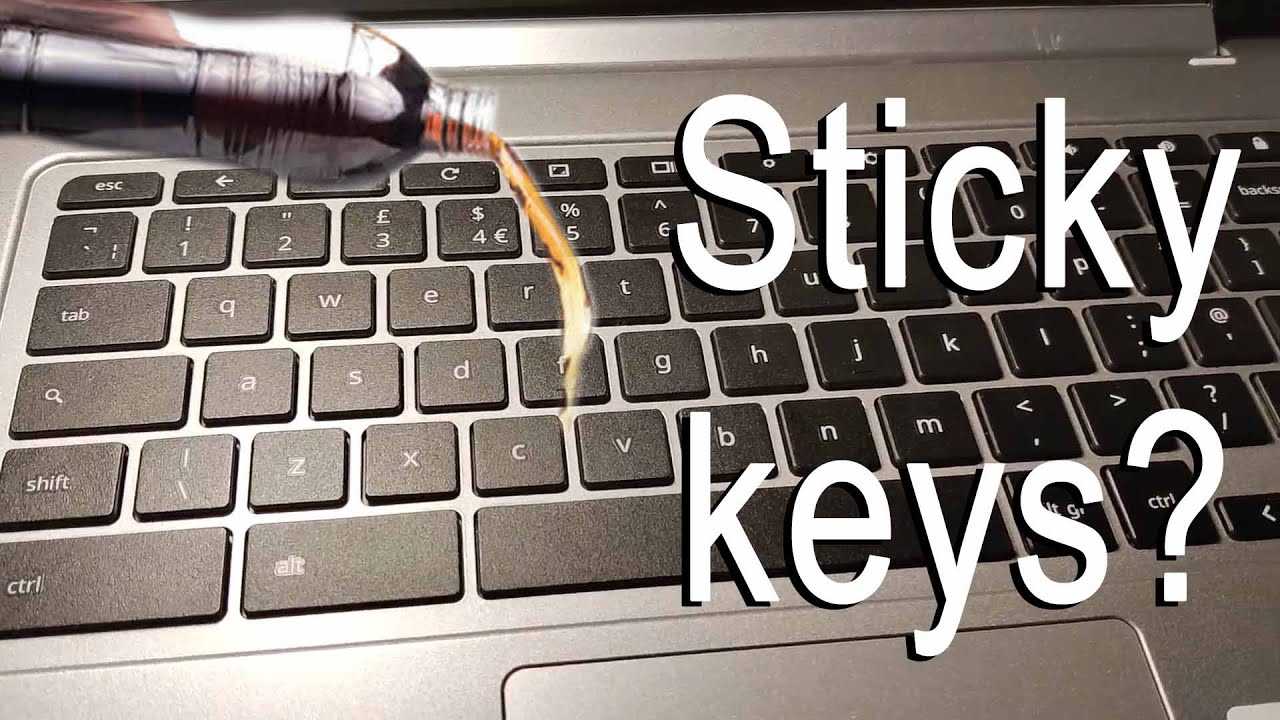
If your keyboard keys are sticking, don’t worry! The first step you can take is to clean your keyboard thoroughly. Begin by turning it upside down and gently shaking it to dislodge any debris. Then, use compressed air to blow out any dust or crumbs that might be causing the issue. If the problem persists, try removing the sticky keys carefully and cleaning underneath them with a damp cloth. It’s also a good idea to check if any software issues are affecting your keyboard’s performance. Regular maintenance can help keep your keyboard functioning smoothly, so make it a habit to clean it regularly.
Dealing with sticking keyboard keys can be frustrating, but it’s a common issue that many users face. Over time, keyboards can accumulate dust, crumbs, and other debris that can cause keys to stick or become unresponsive. This can hinder your typing experience, making it difficult to work efficiently. Understanding the root cause of the problem is essential in order to find an effective solution. In this article, we’ll explore various methods to troubleshoot and fix sticking keyboard keys, ensuring your typing experience returns to normal without having to replace your entire keyboard. Whether you’re using a laptop or a desktop, these tips will help restore your keyboard to its optimal functionality.

What to Do If Keyboard Keys Are Sticking
Have you ever found yourself typing away, only to be interrupted by a keyboard key that just won’t budge? Sticky keys can be frustrating, especially when you are in the middle of an important task. In this article, we will explore what causes keyboard keys to stick and provide some effective solutions to fix the problem.
Understanding Sticky Keys
Sticky keys are usually a sign that something is wrong with your keyboard. It could be dirt, debris, or even moisture affecting the keys. Understanding the causes can help you prevent this issue in the future.
- Dirt and Dust: Over time, keyboards can accumulate dirt and dust that can lead to sticking keys.
- Spills: Liquid spills can cause keys to become sticky or unresponsive.
- Wear and Tear: Continuous use can lead to the wear and tear of the keyboard components.
How to Diagnose the Problem
Before attempting to fix the sticky keys, it’s important to diagnose the problem. Here are a few steps you can take:
- Test All Keys: Check if multiple keys are sticking or just one.
- Visual Inspection: Look for any visible dirt or damage around the keys.
- Listen for Sounds: A sticky key may make a different sound when pressed compared to a normal key.
Cleaning the Keyboard
Cleaning is often the best first step to take. Here’s how to clean your keyboard safely:
Gather Your Supplies
You will need:
– Compressed air
– Cotton swabs
– Rubbing alcohol
– Microfiber cloth
– A small bowl for cleaning solution
Steps to Clean the Keyboard
1. **Turn Off the Device:** Always turn off your computer or laptop before cleaning.
2. **Remove Loose Debris:** Use the compressed air to blow out dirt and crumbs from between the keys.
3. **Soak a Cotton Swab:** Dip a cotton swab in rubbing alcohol and clean around the sticky keys. This helps dissolve any sticky residue.
4. **Wipe Down the Surface:** Use a microfiber cloth to wipe the entire keyboard after cleaning the keys.
Fixing Stuck Keys
If cleaning doesn’t solve the problem, there are additional steps you can take to fix stuck keys.
Removing and Replacing Keys
For some keyboards, you can remove keys to clean underneath them. Follow these steps:
1. **Check the Manufacturer’s Instructions:** Look online for instructions specific to your keyboard model.
2. **Carefully Pry Off the Key:** Use a flat tool to carefully pry off the keycap without damaging it.
3. **Clean Under the Key:** Clean the area under the key to remove any dust or debris.
4. **Replace the Key:** Snap the keycap back onto the switch.
Dealing with Spills
If you’ve spilled liquid on your keyboard, don’t panic. Follow these steps to mitigate damage:
- Immediately Turn Off the Power: Unplug the keyboard or turn off your laptop.
- Flip the Keyboard: Turn it upside down to drain any liquid.
- Dry It Out: Leave it flipped for at least 24 hours to let any remaining liquid evaporate.
Using Keyboard Shortcuts
While you are fixing sticky keys, you can also utilize keyboard shortcuts to continue working. Here are some common shortcuts that can help:
- Ctrl + C: Copy selected text.
- Ctrl + V: Paste copied text.
- Ctrl + Z: Undo an action.
When to Replace the Keyboard
If you have tried cleaning and fixing your keyboard but keys are still sticking, it might be time for a replacement. Here are some signs that indicate you need a new keyboard:
- Multiple Keys Are Sticking: If several keys stick, it may be a sign of deeper issues.
- Physical Damage: Any visible cracks or damage can affect functionality.
- Age of the Keyboard: If it’s very old, a new keyboard may simply work better.
Choosing the Right Keyboard
When shopping for a new keyboard, consider the following factors to ensure you find the right one for your needs:
- Type of Keyboard: Decide between membrane, mechanical, or wireless keyboards.
- Ergonomics: Look for a design that supports comfortable typing.
- Key Travel: Test how far each key can be pressed and how it feels while typing.
Preventative Measures
To avoid future sticky keys, consider implementing some preventative measures:
- Keep It Covered: Use a keyboard cover to protect against dust and spills.
- Regular Cleaning: Make a habit of cleaning your keyboard regularly to prevent debris buildup.
- Avoid Eating and Drinking: Try not to eat or drink near your keyboard to prevent spills.
Additional Tips for Keyboard Care
Maintaining a clean keyboard can extend its life and improve performance. Here are some extra tips:
- Avoid Using Harsh Chemicals: Stick to gentle cleaners like rubbing alcohol for best results.
- Use a Soft Brush: A soft brush can help dislodge dust trapped between keys.
- Store in a Cool, Dry Place: This helps prevent moisture buildup and protects electronic components.
If you follow these steps and tips, you can effectively manage sticky keys and keep your keyboard in great shape. Regular maintenance and careful use will help ensure that your keyboard remains functional and comfortable for years to come.
How to Clean Sticky Keys on Your Keyboard
Frequently Asked Questions
“`html
What cleaning methods can I use to fix sticking keyboard keys?
Use a soft brush or compressed air to remove debris between the keys. For a deeper clean, dampen a microfiber cloth with isopropyl alcohol and gently wipe the surface of the keys. Avoid soaking the cloth, as excess liquid can damage the keyboard.
How can I prevent my keyboard keys from sticking in the future?
Regularly clean your keyboard to prevent dust and crumbs from accumulating. Consider using a keyboard cover to protect against spills and debris. Also, maintain a clean workspace to minimize dust exposure.
Is it safe to remove keyboard keys to clean underneath them?
Yes, but proceed with caution. Gently pry up the keys using a tool like a flathead screwdriver or a keycap puller. Check your keyboard’s manual for guidance on key removal and reattachment to avoid damaging the mechanism.
What should I do if the keyboard keys still stick after cleaning?
If cleaning doesn’t resolve the issue, check for physical obstructions or misaligned keys. If the problems persist, consider replacing the keyboard or contacting technical support for further assistance.
Are there specific products designed for keyboard maintenance?
Yes, there are cleaning kits and sprays specifically made for electronics. Look for non-abrasive cleaners that are safe for electronics and follow the instructions on the product label for best results.
Can humidity affect my keyboard and cause keys to stick?
Yes, high humidity can lead to moisture buildup, which may cause the keys to stick. Store your keyboard in a dry environment and consider using silica gel packets in your workspace to absorb excess moisture.
“`
Final Thoughts
If keyboard keys are sticking, first try cleaning the keyboard with compressed air to remove any debris. You can also gently pry off the sticky keys and clean underneath them.
Apply a small amount of lubricant specifically designed for keyboards if the keys remain stuck.
If these steps don’t work, consider replacing the affected keys or the entire keyboard for a better typing experience. Always seek professional help if you’re unsure about the repairs.



