


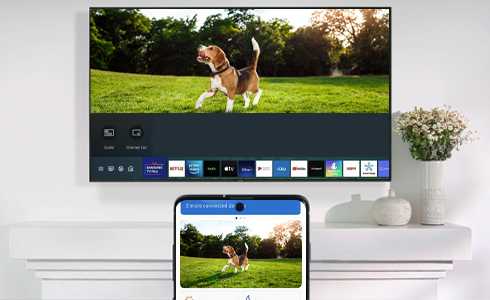
To instantly enjoy your favorite movies, photos, or presentations on a big screen, screen mirroring is the way to go. Whether you’re using a phone or a laptop, connecting to your TV has become easier than ever with various methods available—be it wired or wireless. Simply put, you can mirror your device’s screen using built-in features like Chromecast, AirPlay, Miracast, or via cables such as HDMI. This makes sharing content seamless, whether you’re relaxing at home or giving a presentation on the go. In this article, I’ll guide you through quick and straightforward steps to mirror your device effortlessly, so you can enjoy a larger-than-life experience right from your own device. No technical jargon needed—just simple, practical tips to connect and enjoy your content on the big screen.

How to mirror your phone or laptop screen to your TV
Understanding Screen Mirroring
Screen mirroring allows you to display your phone or laptop content directly onto your TV. This creates a larger viewing area, perfect for watching videos, sharing photos, or giving presentations. It’s a simple way to enhance your entertainment experience without needing extra cables or complicated setups.
Types of Screen Mirroring Technologies
There are several methods to mirror your device to your TV, each with its own requirements. The most common include wireless methods like Wi-Fi-based mirroring and wired options using HDMI cables. Choosing the right method depends on your device compatibility and convenience.
Wireless Mirroring Options
Wireless mirroring is popular because it’s easy and clutter-free. It typically uses Wi-Fi or Bluetooth connections. Common wireless solutions include:
- Wi-Fi Direct
- Miracast
- Chromecast
- Apple AirPlay
Each of these technologies requires specific hardware support on your TV and device.
Wired Mirroring Options
Wired connections tend to be more stable and offer higher quality. They use HDMI or other physical cables. You’ll need:
- HDMI cable
- Adapter (if necessary, based on your device port)
Wired options are often better for gaming or real-time video streaming.
Preparing Your TV for Mirroring
Before starting, ensure your TV is compatible and ready. For wireless methods, make sure your TV supports the needed technology such as Miracast, Chromecast, or AirPlay. For wired connections, verify that your TV has an available HDMI port.
Enable Necessary Settings on Your TV
Go into your TV’s menu settings and turn on features like Screen Mirroring, Miracast, or AirPlay. Some TVs may require a firmware update to support new mirroring options.
Check Your Device Compatibility
Confirm that your phone or laptop supports the mirroring technology you plan to use. For example, Apple devices use AirPlay, while Android often utilizes Miracast or Chromecast.
Step-by-Step Guide to Mirror Your Phone to Your TV
Using Chromecast
1. Connect your Chromecast device to your TV’s HDMI port and power it on.
2. Ensure your phone and Chromecast are connected to the same Wi-Fi network.
3. Open the Google Home app on your phone.
4. Tap the device you want to cast to.
5. Select “Cast screen” or “Screen mirror.”
6. Your phone screen will now be visible on your TV.
Using AirPlay with Apple Devices
1. Make sure your Apple device and Apple TV are on the same Wi-Fi network.
2. Swipe down from the top-right corner or up from the bottom, depending on your device model.
3. Tap the “Screen Mirroring” icon.
4. Select your Apple TV or AirPlay-compatible smart TV.
5. Enter the AirPlay code if prompted.
6. Your screen appears on the TV instantly.
Using Miracast on Android Devices
1. Turn on your TV’s Miracast or Screen Mirroring feature.
2. On your Android device, go to Settings > Connected devices or Display.
3. Select “Cast” or “Screen Mirroring.”
4. Find your TV in the list of devices.
5. Tap your TV’s name and wait for the connection to establish.
6. Your Android screen will now mirror on the TV.
How to Mirror Your Laptop Screen to Your TV
Using HDMI Cable
This is the most straightforward wired method. Just connect your laptop to the TV using an HDMI cable. Once connected:
- Switch your TV to the correct HDMI input.
- On your laptop, go to Display Settings.
- Select “Duplicate” or “Extend” display mode.
- Your screen will now appear on the TV.
This method provides a stable connection suitable for high-quality video.
Using Wireless Display on Windows
1. Make sure your Windows laptop and TV support Miracast.
2. Turn on Screen Mirroring on your TV.
3. On your laptop, press Windows + K or click the Action Center.
4. Choose your TV’s name from the list of devices.
5. Follow prompts to connect.
6. Your laptop screen will now show on your TV.
Using AirPlay on macOS
1. Connect your Mac and Apple TV or AirPlay-compatible smart TV to the same Wi-Fi.
2. Click the AirPlay icon in the menu bar.
3. Select your TV from the list.
4. Choose “Mirror Display.”
5. Your Mac screen will appear on the TV instantly.
Troubleshooting Common Mirroring Issues
Sometimes, connections may not work smoothly. Here are some tips:
- Ensure all devices are updated to the latest firmware or software.
- Check Wi-Fi connectivity if using wireless methods.
- Restart devices if the connection fails.
- Verify that the devices are compatible with each other’s mirroring technology.
- Use high-quality cables and adapters for wired connections.
Additional Tips for Better Mirroring Experience
To improve your mirroring experience:
- Keep devices close to each other to ensure a strong Wi-Fi signal.
- Close unnecessary apps to reduce lag or lagging video.
- Adjust display settings on your laptop or phone for optimal resolution.
- Use a dedicated app or software to manage screens if needed.
Related Topics
Explore further options like connecting smart TVs via apps, using third-party devices, or setting up multiple screens for presentations. You can also consider advanced options like casting from game consoles or using professional streaming hardware for high-quality output.
With the right tools and steps, mirroring your phone or laptop to your TV becomes an easy task. Whether you choose wireless or wired connections, understanding your device’s capabilities will help you enjoy your content on the big screen effortlessly.
Mirror Your iPhone Screen To Your TV?!
Frequently Asked Questions
What are the main methods to connect your phone or laptop to a TV for mirroring?
You can mirror your device screen using various methods, including wireless options like Wi-Fi Direct, Chromecast, or Apple AirPlay, as well as wired connections such as HDMI cables. The choice depends on your device compatibility and available ports. Wireless options offer convenience, while wired connections typically provide a more stable and high-quality display.
How do I set up screen mirroring using a Chromecast device?
To mirror your screen with Chromecast, first ensure your phone or laptop and Chromecast are connected to the same Wi-Fi network. Open the Google Home app on your device, select your Chromecast device, and tap on the “Cast my screen” option. Confirm the prompt to start sharing your screen, and it will appear on your TV almost instantly.
Can I mirror my screen using built-in features on my device without extra apps?
Yes, many devices include built-in screen mirroring features. For example, Android devices often support Miracast, which allows wireless sharing without additional apps. Apple devices use AirPlay, which is integrated into iOS and macOS. Check your device settings under display options or connections to find and activate the built-in mirroring feature.
What should I do if my screen doesn’t display correctly when I try to mirror?
If your mirror display isn’t working properly, ensure both devices are updated with the latest software. Restart your devices and check your Wi-Fi or cable connections. For wireless connections, verify that they are on the same network and within range. If problems persist, try reconnecting or resetting your mirroring devices and settings.
Is it possible to mirror my screen from a laptop to a smart TV without cables?
Yes, many smart TVs support wireless mirroring from laptops. Both devices should support technologies like Miracast or Wi-Fi Display. Enable screen mirroring or wireless display options on your laptop, then select your TV from the list of available devices. Make sure your TV is set to the correct input or mode for screen sharing.
Final Thoughts
To mirror your phone or laptop screen to your TV, start by checking your devices for compatible options like screen mirroring or casting. Connect both devices to the same Wi-Fi network to ensure smooth communication. Use built-in features or third-party apps to initiate the connection.
In conclusion, knowing how to mirror your phone or laptop screen to your TV helps you share content easily and effectively. Whether for entertainment or presentations, these simple steps make the process accessible.



