


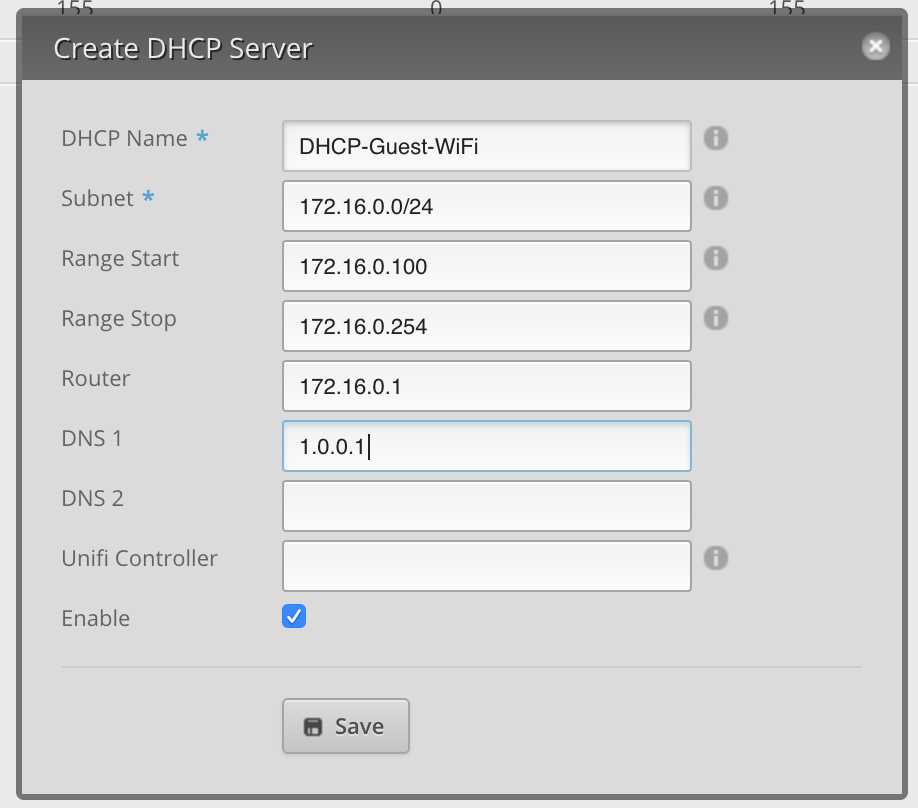
To isolate video traffic on a guest network, set up a separate Wi-Fi network specifically for your guests and configure Quality of Service (QoS) settings to prioritize video streaming while restricting access to your main network. Use VLANs or advanced router features to segment traffic effectively, ensuring smooth streaming experiences without compromising your primary network’s security. These steps help prevent congestion and safeguard your private data while allowing visitors to enjoy seamless video playback.
Establishing a dedicated guest network is an excellent way to keep your main network secure and maintain optimal video performance. By creating a separate Wi-Fi and configuring traffic management settings, you can isolate video traffic from other internet activities, providing a faster and more reliable streaming experience for both guests and your household. This process involves configuring your router’s settings to segment traffic and prioritize video data, ultimately enhancing your network’s overall efficiency and security.
Getting started with a guest network is straightforward. First, access your router’s admin panel and enable the guest network feature. Next, set up a different network name (SSID) and password for your guests. Then, tweak QoS settings to prioritize video streaming traffic, ensuring smooth playback even when multiple users are connected. For even better segmentation, consider using VLANs if your router supports them, which isolates guest traffic from your main network. With these steps, you’ll enjoy a secure, efficient, and buffer-free video experience for everyone.

How to set up guest networks to isolate video traffic
Understanding the Need for Guest Networks
Guest networks are separate Wi-Fi networks created specifically for visitors or devices that do not need full access to your main network. They help protect your private data while providing internet access to others. Isolating video traffic on a dedicated guest network can prevent streaming activities from slowing down your primary network. This setup improves overall network performance and maintains security standards.
Benefits of Isolating Video Traffic
Separating video streaming from other internet activities offers multiple advantages. It reduces buffering and lag for essential work-related or personal applications on your main network. It also avoids bandwidth congestion caused by multiple high-data-consuming devices streaming videos simultaneously. Additionally, isolating traffic enhances security by limiting the access of guest devices to sensitive information.
Prerequisites for Setting Up Guest Networks
Before configuring a guest network, ensure your router supports multiple SSIDs or guest network features. You need administrative access to your router’s settings panel and a stable internet connection. Confirm that the router firmware is up to date to access the latest security and configuration options.
Steps to Create a Guest Network
- Log into your router’s admin panel using its IP address, usually 192.168.1.1 or 192.168.0.1.
- Navigate to the Wi-Fi or Wireless Settings section.
- Look for an option labeled “Guest Network,” “Guest Access,” or similar.
- Enable the guest network feature.
- Set a unique SSID (network name) for the guest Wi-Fi to distinguish it from your main network.
- Choose a strong password to secure the guest network.
- Configure access restrictions ensuring the guest network cannot access your main network devices or shared files.
- Save settings and reboot the router if necessary.
Configuring Quality of Service (QoS) to Prioritize Main Network Traffic
QoS settings allow you to allocate bandwidth effectively, ensuring that video traffic on the guest network does not interfere with essential devices on your main network. Access your router’s QoS configuration page, then assign higher priority to specific applications or devices on your primary network. You can also limit the bandwidth available to the guest network to prevent it from consuming excessive resources.
Steps to Set Up QoS
- Log into the router’s admin panel.
- Find the QoS or Traffic Management section.
- Enable QoS if it isn’t already active.
- Identify devices that require high priority, such as work computers or smart home systems.
- Assign lower bandwidth limits or priority to the guest network to prioritize critical devices.
- Save settings and monitor network performance.
Segmenting Video Traffic with VLANs or Separate SSIDs
Using Virtual Local Area Networks (VLANs) or creating separate SSIDs helps isolate video traffic effectively. VLANs can segment network traffic at the hardware level, reducing interference or congestion. If your router supports VLANs, you can assign specific ports or wireless networks to different VLANs for better traffic management.
Implementing VLANs for Video Traffic
- Access your router’s network settings and locate VLAN options.
- Create a VLAN specifically for video streaming devices or applications.
- Assign relevant devices, like streaming boxes or cameras, to this VLAN.
- Configure firewall rules to restrict traffic between VLANs, maintaining device isolation.
- Apply the settings and verify traffic segregation through network monitoring tools.
Using Router Features for Traffic Management
Many modern routers include built-in features to manage network traffic effectively. Features like bandwidth throttling, scheduling, and device access controls help optimize how video traffic is handled. Explore your router’s capabilities to set bandwidth limits for guest networks or specific devices.
Bandwidth Throttling for Video Streams
Bandwidth throttling limits the data rate for devices or applications, ensuring that streaming activities do not monopolize your network. This can be done through QoS settings or dedicated traffic rules in the router. Set a maximum upload and download speed for guest devices that stream videos.
Additional Tips for Optimal Network Performance
- Regularly update your router’s firmware for security patches and improved features.
- Place your router in a central location to maximize Wi-Fi coverage.
- Use dual-band routers to separate high-bandwidth devices into different frequency bands.
- Disable unnecessary services or features to reduce network clutter.
- Monitor network traffic periodically to identify and resolve congestion points.
Related Topics for Better Network Management
- How to secure your Wi-Fi with strong passwords and encryption
- Best routers for streaming and guest network setup
- Understanding network bandwidth and how to measure it
- Tips for creating a Smart Home network without sacrificing speed
- Firewall configurations for added security
Summary of Key Points
Creating a dedicated guest network is essential for managing high-bandwidth activities like video streaming. Ensuring proper configuration of SSID, security, QoS, and VLANs helps isolate video traffic effectively. Regular maintenance and monitoring are crucial to keep your network running smoothly and securely.
This comprehensive approach ensures your network remains fast, secure, and capable of handling multiple devices streaming videos without affecting your primary online activities. Proper setup of guest networks and traffic management techniques provides a seamless internet experience for everyone in your home or office.
What Does a Guest Network Do?
Frequently Asked Questions
What are the steps to create a separate guest network for video devices?
To set up a guest network specifically for video devices, access your router’s admin panel and navigate to the wireless or guest network settings. Enable the guest network feature, choose a unique SSID, and set a secure password. Ensure that the guest network is isolated from your main network by activating the network isolation or client isolation option. This separation prevents video traffic from affecting your primary network’s performance.
How can I prioritize video traffic on a guest network?
Adjust Quality of Service (QoS) settings within your router to give priority to video traffic on the guest network. Locate the QoS menu, select the guest network interface, and assign higher bandwidth or priority rules to video streaming services. This approach helps ensure smooth video playback without interruption from other network activities.
Is it necessary to configure VLANs to isolate video traffic on guest networks?
Yes, configuring VLANs (Virtual Local Area Networks) offers a more advanced way to segment network traffic, including video streams. By assigning your guest network to a separate VLAN, you restrict video traffic to that VLAN, preventing it from consuming bandwidth on your primary network. This setup requires compatible hardware and some network configuration but greatly enhances traffic management and security.
What security considerations should I keep in mind when isolating video traffic on a guest network?
Always enable network isolation features on your router to prevent guests from accessing your main network resources. Use strong, unique passwords for your guest network and ensure firmware updates are current. Additionally, disable unnecessary services and monitor network activity to identify any unusual behavior. These steps help protect your private data while maintaining effective traffic separation.
How can I monitor network performance after setting up a guest network for video traffic?
Utilize your router’s built-in monitoring tools or third-party network management software to observe bandwidth utilization and traffic patterns. Regularly check performance metrics to identify any issues with video streaming quality. Adjust QoS settings as needed and keep your network updated to maintain optimal video traffic performance on your guest network.
Final Thoughts
Setting up guest networks to isolate video traffic enhances your network security and performance. Start by accessing your router’s admin panel and enabling the guest network feature. Assign a strong password and separate SSID to this network for better management.
Next, configure Quality of Service (QoS) settings to prioritize video streams on your main network. This step helps keep video traffic smooth without interference. Keep the guest network isolated to prevent access to your primary devices.
In conclusion, how to set up guest networks to isolate video traffic allows you to protect your main network while maintaining smooth video streaming. Proper configuration ensures both security and efficient bandwidth use.



