


To connect a sound box to your TV, simply identify the available audio output ports on your TV and your sound box, then use the appropriate cables—like HDMI, optical, or AUX—to establish the connection. Turn on both devices, select the correct input on your sound box, and enjoy improved audio quality. It’s a straightforward setup that can significantly enhance your viewing experience with minimal effort.
Connecting a sound box to your TV can dramatically improve your audio experience, turning your living room into a mini home theater. Whether you have a sleek soundbar, a powerful speaker system, or a compact sound box, getting connected is easier than you think. With the right cables and a few simple steps, you’ll be enjoying richer sound and clearer dialogue in no time. No need to fumble with complicated configurations—just follow these easy instructions to elevate your TV listening experience.

How to connect a sound box to your TV
Understanding the importance of connecting a sound box
Connecting a sound box to your TV can dramatically improve your listening experience. It makes dialogue clearer and enhances your TV’s overall sound quality. Whether you want deep bass or crisp treble, a sound box offers more immersive audio than the built-in speakers.
Types of sound boxes available
There are several types of sound boxes, each suited for different needs and setups. Common options include soundbars, home theater systems, and portable Bluetooth speakers. Your choice depends on your space, budget, and audio preferences.
Preparing your equipment before connecting
Before starting, check your TV’s available ports and your sound box’s inputs. Gather the necessary cables and accessories so the connection process goes smoothly. Make sure both devices are turned off during setup to prevent damage.
Connecting a sound box via HDMI ARC
One of the easiest and most effective ways to connect a sound box is through HDMI ARC. First, locate the HDMI ARC port on your TV, usually labeled “ARC”. Connect one end of an HDMI cable to this port and the other to your sound box’s HDMI ARC port. Turn on both devices and select the HDMI ARC input on your TV menu.
Benefits of HDMI ARC
Using HDMI ARC transmits high-quality audio and allows control features such as volume adjustments with your TV remote. It also supports advanced audio formats like Dolby Digital.
Connecting through Optical Cable
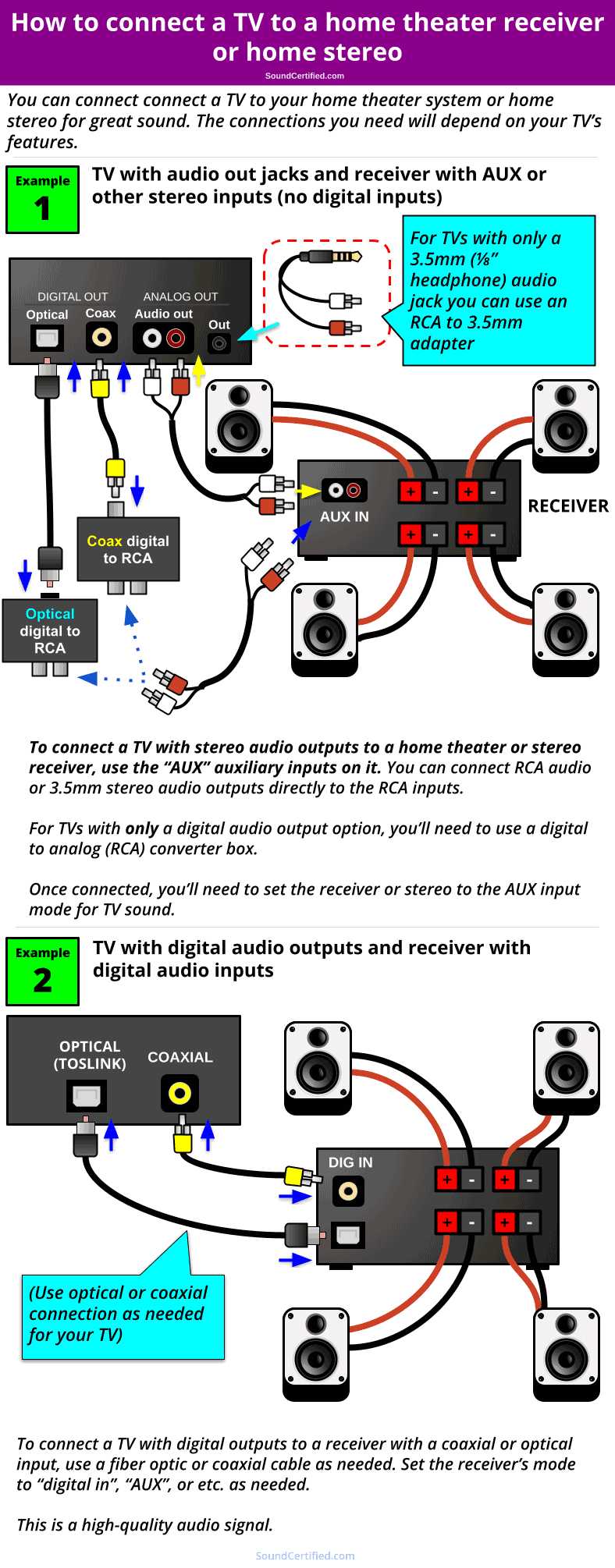
Optical cables are a popular choice if your TV and sound box both support this connection. Plug one end into your TV’s optical output port and the other into your sound box’s optical input. Once connected, go to your TV audio settings and select “Optical” as the sound output.
Advantages of optical connection
Optical provides excellent sound quality and is simple to set up. It doesn’t require an internet connection and is immune to electrical interference.
Using Bluetooth for wireless connection
Many modern sound boxes support Bluetooth pairing, offering a wire-free setup. Enable Bluetooth on your TV and set your sound box to pairing mode. On your TV, scan for Bluetooth devices, select your sound box, and confirm the pairing.
Tips for a successful Bluetooth connection
Ensure your devices are within close proximity, and minimize obstacles between them. Keep Bluetooth devices updated with the latest firmware for optimal performance.
Connecting with RCA cables
Older TVs and sound boxes often include RCA ports, identified by red and white jacks. Connect the red and white cables from your TV’s audio output to your sound box’s input. Then, adjust your TV audio settings to use external speakers.
Limitations of RCA connections
While simple, RCA connections offer lower sound quality compared to HDMI or optical. They are suitable for basic audio upgrades but may not support advanced sound formats.
Using the headphone jack for connection
If no other options are available, connect your sound box via the TV’s headphone output. Use a 3.5mm audio cable from the TV to the sound box’s input. Remember, this method typically uses only stereo sound and may require manual volume adjustments.
Considerations for this method
This connection is quick but may introduce some audio lag. It also disables your TV speakers when using the headphone jack.
Adjusting your TV audio settings after connection
Once the sound box is connected, navigate to your TV’s audio menu. Set the sound output to the connected device, such as HDMI ARC, optical, or Bluetooth. Disable built-in speakers if needed to prevent audio duplication.
Troubleshooting common connection issues
If sound isn’t coming through your sound box, first check all cable connections. Make sure your sound box is set to the correct input. Restart your TV and sound box and verify their compatibility.
Additional tips for troubleshooting
Consult your device manuals if problems persist. Check for firmware updates for your TV and sound box. Sometimes, resetting the connection or re-pairing Bluetooth devices solves the issue.
Enhancing your audio experience with additional settings
Adjust sound settings on your TV and sound box to optimize quality. Use sound modes like “movie” or “music” for better effects. Some sound boxes also have built-in equalizers for further customization.
Related accessories to improve connection quality
Consider using high-quality cables for optimal sound. HDMI cables with Ethernet support or optical cables with gold-plated connectors can enhance durability and performance. Wireless transmitters might also help if your devices are far apart.
Verifying compatibility before purchase
Before buying a sound box, check the supported connection types. Make sure your TV has the necessary ports or wireless features. Compatibility ensures easy setup and maximum enjoyment.
Summary and final thoughts
Connecting a sound box to your TV can be straightforward with the right tools and knowledge. Choose the method that fits your equipment and preferences, and always follow safety precautions. Proper setup will provide richer sound and a better viewing experience every time.
Soundbar Setup – How to Connect a Soundbar to a TV with HDMI, HDMI ARC, Optical, Bluetooth, etc.)
Frequently Asked Questions
What type of cable do I need to connect my sound box to the TV?
You can connect your sound box to your TV using various cables such as HDMI, optical (TOSLINK), RCA, or aux (3.5mm). The choice depends on the available ports on both your TV and sound box. HDMI and optical cables deliver high-quality audio, while RCA and aux cables are suitable for basic connections. Check your devices’ ports and select the appropriate cable for a seamless connection.
How can I connect my sound box to a Smart TV wirelessly?
If your Smart TV supports Bluetooth or Wi-Fi audio streaming, you can connect your sound box wirelessly. Enable Bluetooth on your TV and put your sound box into pairing mode. Search for available devices on your TV and select your sound box from the list. Follow prompts to complete the pairing process. For Wi-Fi-enabled sound systems, connect both devices to the same network and use the TV’s audio sharing options to establish the connection.
What should I do if my sound box isn’t producing audio after connecting to the TV?
First, verify that you have selected the correct audio output source on your TV settings. Ensure all cables are securely connected and undamaged. Check the sound box’s power and volume levels. If using a wireless connection, confirm that both devices are properly paired. Restart your TV and sound box if necessary. If issues persist, consult the user manuals or contact technical support for troubleshooting tips.
Can I connect multiple sound devices to my TV simultaneously?
Yes, many TVs allow you to connect multiple audio devices by using different outputs, such as HDMI, optical, and audio out ports. Some TVs also support audio multiplexing or have settings to send audio to multiple devices. Use a splitter or audio matrix if needed to route sound to multiple speakers or sound boxes. Always check the TV’s user manual for specific instructions on managing multiple audio outputs.
Is it possible to connect a sound box to a TV that lacks audio output ports?
Yes, if your TV doesn’t have dedicated audio output ports, you can use alternative methods such as connecting via Bluetooth if your sound box supports wireless pairing. Another option is using an HDMI ARC (Audio Return Channel) port if your TV and sound box support it, which allows audio transmission through a single HDMI cable. In some cases, you may need an external converter or adapter to facilitate the connection.
Final Thoughts
To connect a sound box to your TV, start by identifying the available input options on both devices. Use an HDMI ARC cable for high-quality audio, or opt for an optical cable for a simple connection. Ensure your TV and sound box are powered on and set to the correct input source.
Test the connection by playing audio from your TV to confirm sound output. Adjust the TV audio settings if needed for the best sound quality. Following these steps, you’ll easily connect a sound box to your TV for an enhanced audio experience.



