


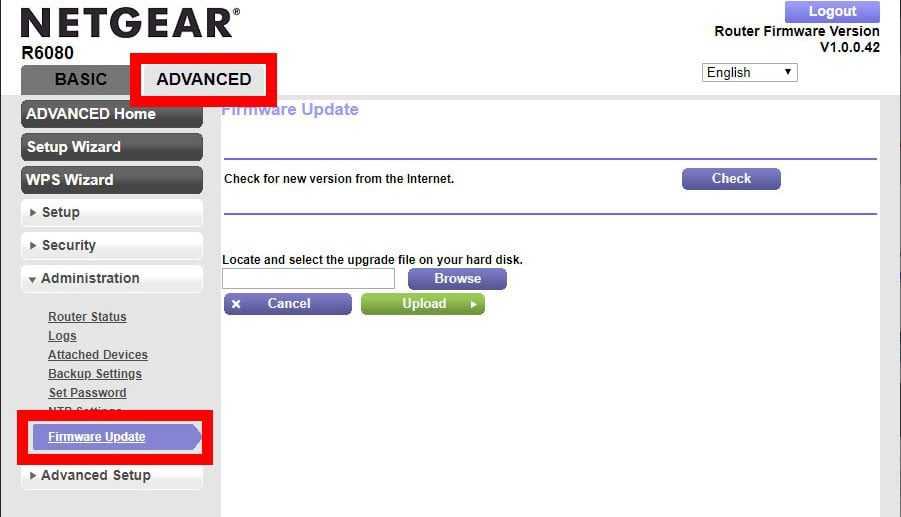
To update your router firmware quickly, access your router’s settings through a web browser, check for updates, and follow the prompts to install the latest version. Keeping your firmware up-to-date ensures your network stays secure and runs smoothly. Just a few clicks can improve performance and fix vulnerabilities, so don’t skip this simple maintenance step!
Updating your router firmware might seem technical, but it’s straightforward once you know the steps. Think of it as giving your home network a refresh—making sure it’s protected and performing at its best. In this guide, we’ll walk you through the easy process of updating your router’s firmware, from checking your current version to downloading and installing the latest updates. Whether you have a basic or advanced setup, keeping your firmware current is key to avoiding slow connections or security risks. So, roll up your sleeves and get ready to boost your Wi-Fi performance with just a few simple actions!

How to Update Router Firmware: A Step-by-Step Guide to Keep Your Network Secure and Fast
Updating your router firmware is an essential task to maintain a secure, stable, and fast internet connection. Firmware updates fix bugs, patch security vulnerabilities, and often add new features to improve performance. This guide will walk you through the process of updating your router firmware with clear instructions and helpful tips.
Understanding Router Firmware and Why It Matters
Router firmware is like the operating system for your router. It controls how your router communicates and manages network traffic. Keeping this software up to date ensures your device functions correctly and stays protected against threats.
Firmware updates can resolve common issues such as slow internet speeds, dropped connections, or device incompatibility. Manufacturers release updates periodically to improve the hardware’s overall performance and security.
Signs That Your Router Firmware Needs an Update
Knowing when to update your router firmware is crucial for optimal network health. Look out for these signs:
- Slow Internet Speeds: If your connection is lagging, a firmware update might help.
- Frequent Disconnections: Repeated Wi-Fi drops indicate outdated firmware.
- Security Concerns: Outdated firmware can leave your network vulnerable to attacks.
- New Features: You may want the latest options added through firmware updates.
- Manufacturer Notices: Check for alerts from your router maker about new updates.
Regularly checking for firmware updates is a good habit to ensure your network runs smoothly and safely.
Preparing to Update Your Router Firmware
Before starting the update process, some preparations are necessary. These steps help prevent issues during the upgrade:
- Backup Settings: Save your current router setup, including Wi-Fi names and passwords.
- Ensure Power Stability: Plug your router into a reliable power source to avoid interruptions.
- Connect via Ethernet: Use a wired connection if possible, for more stable communication during the update.
- Check the Current Firmware Version: Note your existing firmware version for reference, usually found in the router admin panel.
Having everything ready will make the update process smoother and safer.
How to Find Your Router’s Current Firmware Version
Knowing your current firmware version helps determine if an update is necessary. Follow these simple steps:
- Open a web browser and enter your router’s IP address, typically 192.168.1.1 or 192.168.0.1.
- Log in using your username and password. Default credentials are often “admin” / “admin” unless changed.
- Navigate to the Status or Firmware section within the admin panel.
- Note the current firmware version displayed there.
This information will help you compare against available updates on the manufacturer’s website.
How to Download the Correct Firmware File
Downloading the right firmware is crucial to avoid damaging your device. Follow these guidelines:
- Visit the official website of your router’s brand, such as Linksys, Netgear, TP-Link, or Asus.
- Locate the support or downloads section.
- Enter your router model number to find appropriate firmware files.
- Select the latest firmware version compatible with your device.
- Download the firmware file, usually in a .bin or .img format.
Always ensure you’re downloading from official sources to prevent malware risks.
Steps to Update Your Router Firmware
Once prepared, follow these steps to perform the update:
- Access your router’s admin panel through a web browser.
- Navigate to the Firmware Update or Upgrade section.
- Click the Browse or Choose File button and select the downloaded firmware file.
- Start the update process by clicking Update or Apply.
- Wait patiently; do not turn off or disconnect the router during this time.
- The router will reboot automatically once the update completes.
This process generally takes a few minutes but can vary depending on the device.
Common Troubleshooting Tips During Firmware Updates
Sometimes, issues happen during updates. Keep these tips in mind:
- Update Failures: If the update doesn’t complete, retry after restarting your router.
- Router Won’t Boot: Perform a hard reset or restore factory settings if the router becomes unresponsive.
- Compatibility Problems: Double-check that the firmware matches your router model exactly.
- Seek Support: Contact customer support if you encounter persistent issues.
Preventing problems involves following instructions carefully and ensuring stable power and internet connections.
How to Verify If the Firmware Update Was Successful
After completing the update, confirm the process worked:
- Log into the router’s admin panel again.
- Navigate to the Firmware Version section.
- Compare the displayed version with the latest one you downloaded.
- If they match, your update was successful.
- Test your network for stability and speed improvements.
Regularly verifying ensures your device runs the latest firmware and functions as intended.
Additional Tips for Maintaining Your Router
Keeping your router updated is just one part of good network maintenance. Consider these additional tips:
- Change default passwords to protect against unauthorized access.
- Place your router in a central location to improve Wi-Fi coverage.
- Regularly reboot your router to refresh connections.
- Update device drivers and firmware on connected devices when available.
- Disable unused features to minimize security risks.
A well-maintained router provides a more reliable and secure internet experience.
Related Topics to Explore
Looking to expand your knowledge? Here are some related topics that can help:
Network Security Best Practices
Learn how to protect your network from intruders by enabling WPA3 encryption, disabling WPS, and setting strong passwords.
Optimizing Wi-Fi Signal Strength
Explore ways to improve your Wi-Fi range, such as adjusting router placement, using mesh systems, or upgrading antennas.
Understanding Router Settings and Features
Get familiar with options like guest networks, parental controls, and QoS settings to customize your network according to your needs.
Upgrading Your Router
Decide when it might be time to replace an outdated device for better performance and security.
Common Router Problems and Solutions
Identify issues like slow speeds, IP conflicts, or firmware errors, and learn how to troubleshoot them effectively.
By staying informed and proactive, you can keep your home network running smoothly and safely for years to come.
How To Update Router Firmware
Frequently Asked Questions
How can I identify if my router requires a firmware update?
Check your router’s administration interface or settings page to see if a firmware update is available. Many routers notify you within their interface when a new version exists. Additionally, visit the manufacturer’s website and compare the current firmware version listed there with the version running on your device. Regularly reviewing these sources ensures you stay updated with the latest features and security patches.
What steps should I follow to safely update my router’s firmware?
Begin by backing up your current router settings in case you need to restore them later. Download the latest firmware version from the manufacturer’s official website. Access your router’s admin panel through a web browser, navigate to the firmware update section, and follow the prompts to upload and install the new firmware file. After the update completes, restart your router to finalize the process and verify the update was successful by checking the firmware version in the admin panel.
Are there risks associated with updating router firmware, and how can I minimize them?
Updating firmware involves some risks such as interruption during the process, which could corrupt your device’s software. To minimize these risks, ensure your router is connected to a stable power source and avoid interrupting the update. Double-check that you download the firmware from the official manufacturer’s website. Following the provided instructions carefully during the update process reduces the chance of encountering issues.
Final Thoughts
Updating router firmware is crucial for security and performance. First, identify your router model and visit the manufacturer’s website. Download the latest firmware version available for your device.
Next, access your router’s admin panel via a web browser. Locate the firmware update section, then upload the downloaded file. Confirm and wait for the process to complete without disconnecting.
In summary, how to update router firmware involves downloading the correct firmware and using your router’s settings. Regular updates keep your network safe and running smoothly.



