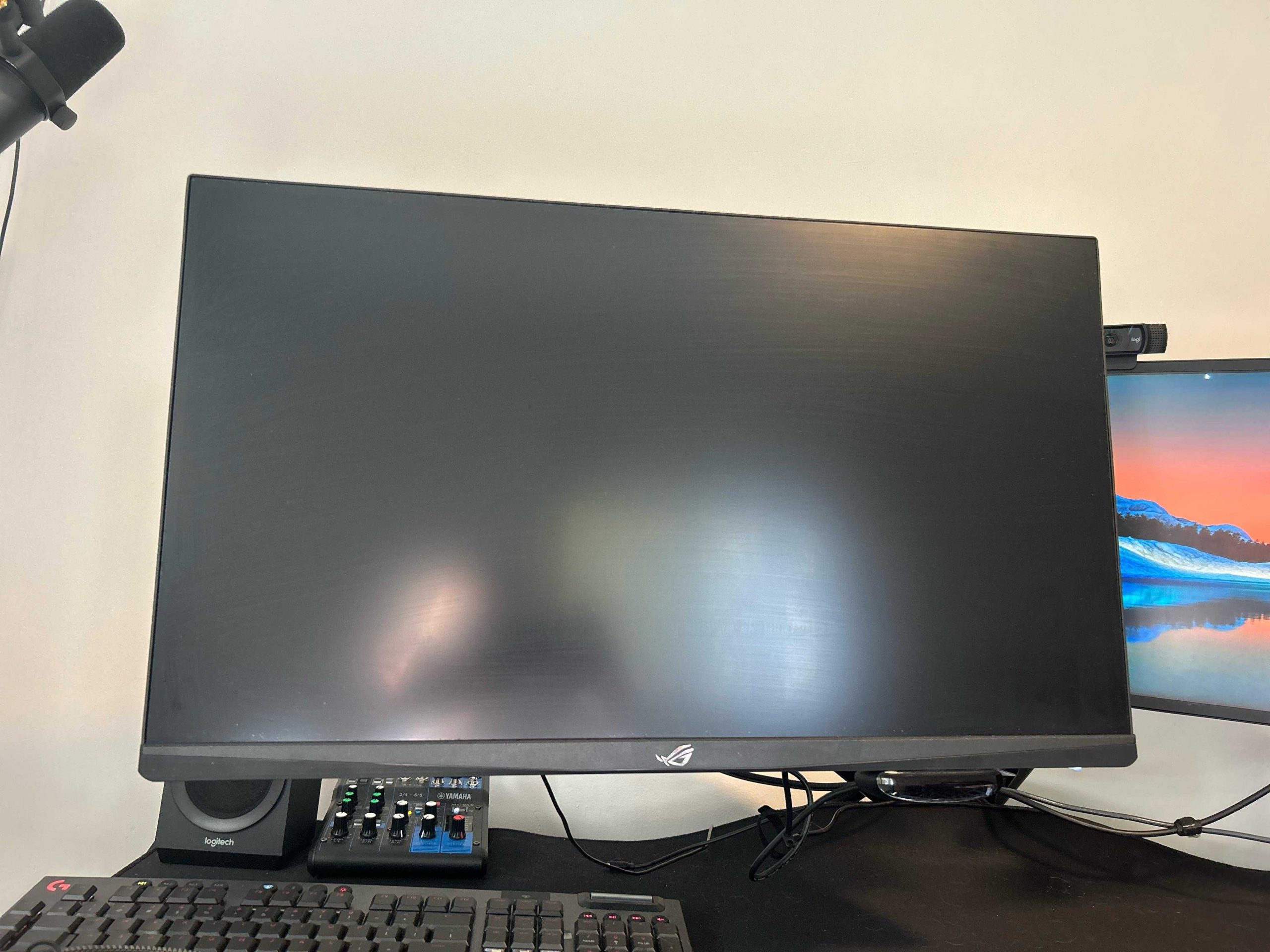
Is your monitor stubbornly refusing to turn on, leaving you puzzled and frustrated? Don’t worry—this is a common issue that can often be fixed quickly. A quick check of connections, power sources, and settings might just do the trick. If these don’t resolve the problem, deeper issues like faulty hardware or internal components could be the cause. In most cases, the fix is simple and doesn’t require professional help, so don’t panic!
A monitor not turning on is usually due to power issues, faulty cables, or incorrect input settings. First, ensure the monitor is properly plugged in and powered on. Check the cable connections and test with a different power outlet or cable if needed. Understanding the basics can help you troubleshoot efficiently and get your screen back in working order.
If your monitor isn’t turning on, start by confirming it’s plugged in securely and that the outlet works. Next, check the power cable and try a different socket or cable. If the power source and connections are fine, look into the monitor’s input settings or test it with another device. Common issues like loose cables, power supply problems, or incorrect input modes are often the culprits, and troubleshooting these steps can save you time and stress.

Why Is My Monitor Not Turning On? Understanding the Common Causes
If your monitor refuses to turn on, it can be frustrating and confusing. Often, the problem isn’t with the monitor itself but with other connected components or settings. This section will break down the main reasons your monitor might stay blank and how to troubleshoot each issue effectively.
Check Power Connections
The most common reason for a monitor not turning on involves power issues. Ensure that the power cable is plugged securely into both the monitor and the wall outlet or power strip. Sometimes, the power outlet might be faulty or there could be a loose connection.
If your monitor has a power switch, make sure it is turned on. Consider testing the outlet with another device to verify it supplies power. Using a different power cable can also help determine if the original cable is defective.
Inspect the Power Button and Indicator Lights
Many monitors have an LED light that indicates power status. If the light isn’t on, the monitor might not be receiving power. Press the power button firmly to ensure it’s engaged. If no light appears, this points to a power supply problem.
Sometimes, indicator lights can be faint or malfunctioning. Refer to your monitor’s manual to understand what each light signifies, which helps diagnose the issue more quickly.
Verify the Video Connection
A monitor may not turn on or display anything if it isn’t properly connected to the computer. Check that the video cable is securely plugged into both the monitor and the computer’s graphics card or motherboard.
Common connection types include HDMI, DisplayPort, DVI, and VGA. Make sure you are using the correct port and that the cable is not damaged. Test with a different cable if possible.
Test the Cable and Ports
- Try connecting the monitor using a different cable to rule out cable faults.
- Switch to another port on your computer or graphics card to identify port issues.
- Ensure the cable is fully inserted and locked in if it has locking mechanisms.
If the monitor still does not turn on after changing cables and ports, focus on other potential causes.
Confirm Display Settings and Input Source
Sometimes, the monitor is working but not displaying because it’s set to the wrong input source. Use the monitor’s menu buttons to check and select the correct input (HDMI, DisplayPort, VGA, etc.).
Also, verify that your computer’s display settings are set to output to the connected monitor. If you’re using a laptop, ensure it’s set to extend or mirror the display onto the external screen.
Adjust Display Settings
- On Windows, right-click the desktop and select Display Settings to detect and configure monitors.
- On Mac, navigate to System Preferences > Displays to manage external displays.
- If the monitor is not recognized, click “Detect” or restart the computer after connecting the monitor.
Troubleshoot Power Supply Issues
Power supply problems are a common reason why monitors do not turn on. If your monitor has an external power adapter, check for visible damage or loose connections. Consider testing with a different compatible power adapter.
Internal power supply failures can also cause issues, especially in older monitors. If no lights turn on despite proper connections, the internal power supply might need repair or replacement.
Test Different Power Sources
- Plug the monitor into a different wall outlet.
- Use a different power strip or surge protector.
- Remove any unnecessary devices sharing the power source to reduce overload.
Examine the Computer and Graphics Card
If the monitor appears to have power but no image, the issue could involve the computer or graphics hardware. Check if the computer is turned on and functioning properly.
Look for signs like fan noise, startup sounds, or blinking indicator lights on your PC. If the computer is on but there is no display, reset or re-seat the graphics card if possible.
Check for Hardware Failures
- Remove and re-insert the graphics card to ensure proper connection.
- Test the monitor with another computer to isolate the issue.
- Update graphics drivers to avoid software conflicts.
Test the Monitor Independently
If possible, connect your monitor to a different computer or device. This step helps determine whether the problem lies with the monitor or the original computer setup.
Using a known working device, see if the monitor displays images. If it doesn’t, the monitor itself might be faulty and need repair or replacement.
Perform a Factory Reset or Self-Test
- Many monitors have a self-test feature that displays test patterns. Refer to your manual to activate this mode.
- Reset the monitor to factory settings via the on-screen menu, if accessible.
Address Internal Hardware Failures
In some cases, the issue is inside the monitor, such as a faulty power board or backlight failure. These problems typically require professional repair.
If your monitor is under warranty, contact the manufacturer for service options. Avoid opening the monitor yourself to prevent further damage or safety risks.
Additional Tips for Troubleshooting
- Ensure all cables are tightly connected and undamaged.
- Look for any visible signs of damage like cracks, burns, or leaking components.
- Update your computer’s BIOS and drivers regularly to prevent compatibility issues.
- Keep your monitor in a well-ventilated area to prevent overheating.
When to Seek Professional Help
If none of the above steps resolve the problem, it’s time to consult a technician. Internal hardware failures often require specialized tools and knowledge.
Contact your monitor’s manufacturer or a trusted repair service for diagnosis and repair. Remember, attempting complex repairs yourself can void warranties or cause further damage.
Understanding why your monitor does not turn on involves systematic checking of power supplies, connections, settings, and hardware components. Carefully following these steps helps identify the problem and decide whether it’s an easy fix or needs professional attention. With patience and proper troubleshooting, you can often resolve monitor issues quickly and get back to your work or entertainment without unnecessary delays.
Do this to fix blank screen issue on windows
Frequently Asked Questions
What should I check if my monitor shows no signs of power despite being plugged in?
Ensure the power cable is securely connected to both the monitor and the power outlet. Try plugging the monitor into a different outlet to rule out a faulty socket. Verify that the power button is pressed completely and that any power indicators on the monitor are lit. If the monitor still remains unresponsive, test it with another power cable to rule out cable issues.
How can I determine if the issue lies with my graphics card or connection?
Connect your monitor to a different device or use a different video cable to see if the display works. If you have access to another monitor, connect it to your computer to check if it displays correctly. This helps identify whether the problem stems from the monitor itself or the graphics output of your computer. Additionally, inspect the video port for any damage or debris that could disrupt the connection.
What steps should I take if my monitor’s power indicator light is blinking or off?
A blinking or absent power indicator may indicate a hardware fault or power supply issue. First, unplug the monitor for a few minutes, then reconnect it and turn it on again. Check the user manual for specific blinking patterns that may signal particular errors. If the indicator remains inactive or blinking, consider testing the monitor with a different power or video cable, or consult a technician for further diagnosis.
Final Thoughts
If your monitor is not turning on, check the power connection first. Ensure the cable is securely plugged into both the monitor and the power outlet. Next, verify that the outlet works by testing it with another device. If everything seems in order, examine the monitor’s power button for any faults.
In many cases, the issue might stem from faulty hardware or loose connections. Addressing these simple steps can often resolve the problem quickly.
Why is my monitor not turning on? Addressing potential power issues or hardware faults can often resolve this common problem. Knowing these basics helps you identify the root cause swiftly and get back to work without frustration.

I specialize in process engineering and system optimization. I enjoy writing guides that simplify troubleshooting and help improve efficiency in everyday tech use.