
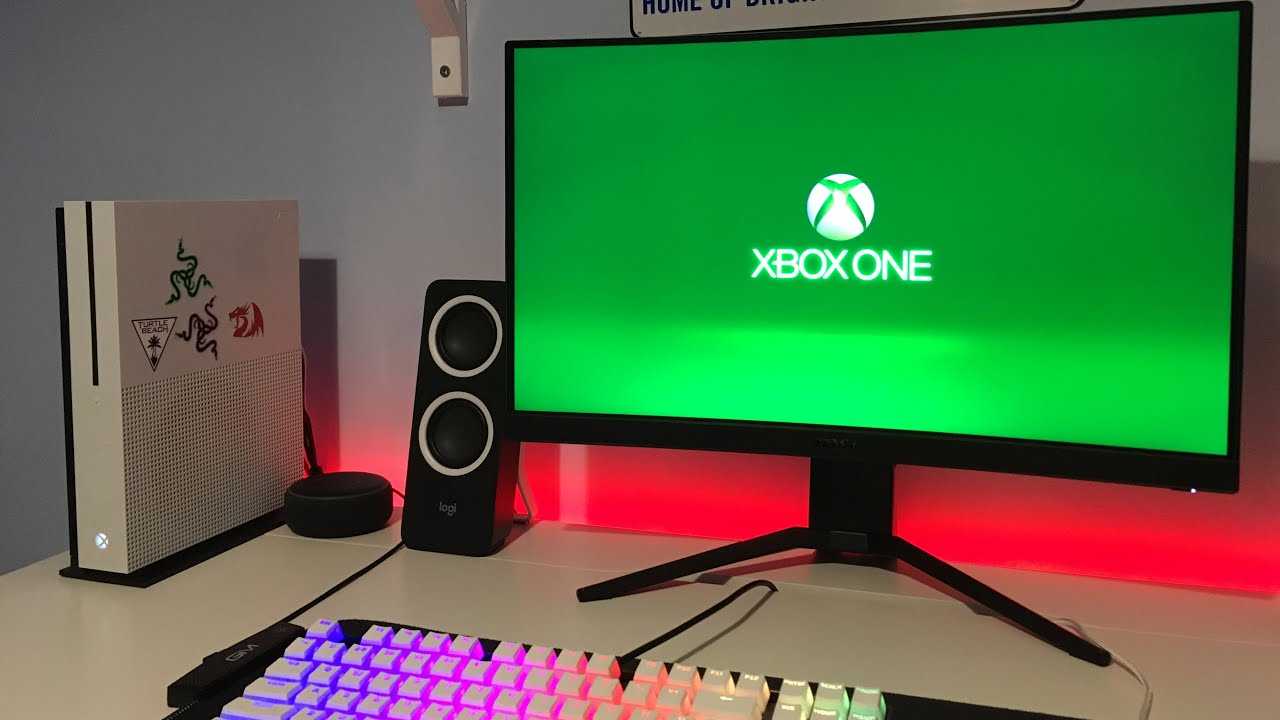
To connect your Xbox to a computer monitor quickly, use an HDMI cable—most modern monitors and Xbox consoles support this connection. Simply plug one end of the HDMI cable into your Xbox and the other into your monitor; switch your monitor’s input to HDMI, and you’re good to go! If your monitor doesn’t have an HDMI port, you might need an adapter such as HDMI to DisplayPort or HDMI to VGA, depending on your monitor’s inputs.
Connecting your Xbox to a computer monitor is a straightforward process that can significantly enhance your gaming experience. Whether you’re using a monitor with built-in speakers or need to connect external audio, there are simple steps to ensure everything works seamlessly. No need for complicated setups—just a compatible cable or adapter, and you’ll be gaming on your monitor in no time. This guide will walk you through all the options so you can enjoy your Xbox games with a clear, crisp display.

How Do I Connect Xbox to Computer Monitor
Connecting your Xbox to a computer monitor is a simple process, but it requires understanding the different options available. You want to enjoy gaming on a big screen, and using a monitor can be a great choice, especially if it has a fast refresh rate and good resolution. Here’s a step-by-step guide to help you connect your Xbox to your monitor easily and correctly.
Understanding the Compatibility of Your Monitor
Before starting, check what ports your monitor has. Most monitors come with different input options such as HDMI, DisplayPort, VGA, or DVI. The most common and recommended for Xbox is HDMI because it’s designed to carry high-definition video and audio signals. If your monitor has an HDMI port, connecting your Xbox will be straightforward.
If your monitor only has VGA or DVI inputs, you might need adapters to connect to your Xbox, which we’ll explore later. It’s essential to ensure your monitor supports the resolution and refresh rate you expect for gaming to get the best experience. A monitor with at least 1080p resolution (Full HD) and a 60Hz refresh rate is typical for gaming.
Connecting Your Xbox Using HDMI
Required Equipment
- Xbox console (Xbox Series X, Series S, or Xbox One)
- HDMI cable (included with your Xbox)
- HDMI-compatible computer monitor
Step-by-step Connection Process
- Power off your Xbox and monitor to avoid any electrical issues.
- Insert one end of the HDMI cable into the HDMI output port on your Xbox.
- Connect the other end of the HDMI cable into the HDMI input port on your monitor.
- Power on your monitor first, then turn on your Xbox.
- Check the monitor’s input source menu to ensure it is set to HDMI.
Once connected, your monitor should display the Xbox home screen. If it doesn’t, double-check all connections and input settings.
Using Other Video Outputs with Adapters
Connecting via DisplayPort or DVI
If your monitor lacks HDMI but has DisplayPort or DVI, adapters are necessary. For example, an HDMI to DisplayPort adapter or HDMI to DVI converter. Make sure the adapter supports audio if you want sound through your monitor’s speakers.
Note that some adapters may introduce latency or reduce image quality, so choose high-quality ones for better results. Connect your Xbox to the adapter, then plug the adapter into your monitor.
VGA Connections and Their Limitations
VGA is an older video connection and not recommended for gaming because it lacks digital quality. If your monitor only has VGA, you’ll need an HDMI to VGA converter. Keep in mind that VGA does not carry audio, so you’ll need a separate audio connection.
Addressing Sound Issues
Audio Output Options
- Monitor Built-in Speakers: If your monitor has built-in speakers, ensure the HDMI cable supports audio and your monitor’s volume is up.
- External Speakers or Headphones: Use an Xbox compatible headset or external speakers for better sound quality.
- Audio via HDMI: Most HDMI cables carry both video and audio. If audio isn’t working, check your Xbox settings.
Configuring Audio Settings on Xbox
- Navigate to Settings on your Xbox.
- Select “Display & Sound”.
- Choose “Volume” and verify the output is set to HDMI audio.
- Test the audio playback to confirm it’s working correctly.
Ensuring the Best Picture Quality
Adjusting Resolution and Refresh Rate
For an optimal gaming experience, ensure your Xbox and monitor are set to compatible resolution and refresh rate settings. You can change these in the Xbox display settings menu.
Set the resolution to match your monitor’s capabilities, ideally 1080p or higher for sharp images. If your monitor supports a higher refresh rate, like 120Hz, adjust the Xbox settings accordingly for smoother gameplay.
Enabling Game Mode and Other Settings
Many monitors have a game mode or similar setting that reduces input lag. Enable this mode for a more responsive gaming experience. Also, check for any picture mode adjustments to enhance contrast and colors.
Troubleshooting Common Connection Problems
No Signal or Blank Screen
Verify all cables are securely connected, and input sources are correctly selected. Restart your Xbox and monitor to reset the connection. Check for any display settings mismatches.
Poor Image Quality or Resolution Issues
Ensure your Xbox resolution settings match your monitor’s capabilities. Experiment with different resolutions and refresh rates to find the best combination.
Sound Not Working
Double-check your audio output settings on Xbox. Test the connection with another HDMI cable or port if needed. Confirm that your monitor or external speakers are functioning properly.
Additional Tips for a Better Gaming Experience
- Use a high-quality HDMI cable for better picture and sound.
- Keep your monitor’s firmware and drivers updated if applicable.
- Position your monitor in a well-lit, comfortable gaming area.
- Adjust monitor brightness, contrast, and color settings to your preference.
Alternative Solutions for Connecting Xbox to a Monitor
Using a Capture Card
If you want to record gameplay or stream directly from your Xbox to a computer monitor, a capture card can be useful. It captures the video output from your Xbox and displays it on your PC.
Wireless Connection Options
Some advanced monitors and TVs support wireless display features, allowing you to connect Xbox wirelessly via Miracast or similar technologies. Ensure your Xbox and monitor support these features and follow their pairing instructions.
Summary
Connecting your Xbox to a computer monitor is mainly about choosing the right cables and ensuring compatibility. HDMI remains the easiest and most effective connection type for most setups, providing both high-quality video and audio. Adapters can help when your monitor lacks HDMI, but always opt for high-quality products to prevent issues. Configuring your display and audio settings properly will give you a smooth gaming experience. Remember, troubleshooting common problems is straightforward by checking connections, settings, and compatibility.
How to Connect ANY Xbox to ANY Monitor 2024
Frequently Asked Questions
What cables do I need to connect my Xbox to a computer monitor?
You need an HDMI cable to connect your Xbox to the monitor. Ensure your monitor has an HDMI input. If your monitor lacks HDMI, you might need an adapter, such as HDMI to DVI or HDMI to VGA, depending on the available ports.
How can I set up the display settings after connecting my Xbox to the monitor?
Once connected, power on both devices. Go to your Xbox settings and select ‘Display & sound.’ Adjust the resolution and display format to match your monitor’s specifications for optimal picture quality. Check the monitor’s menu for any input or display settings that need adjustment as well.
Is it possible to play Xbox games on a computer monitor without a built-in speaker?
Yes, if your monitor doesn’t have speakers, connect external speakers or headphones to your Xbox controller or console. This setup ensures you can enjoy game audio clearly during your gaming sessions.
Can I connect an Xbox to a monitor with a DisplayPort instead of HDMI?
If your monitor only has a DisplayPort, you need an HDMI to DisplayPort adapter. Connect the Xbox to the adapter using an HDMI cable, then connect the adapter to the monitor’s DisplayPort. Keep in mind that not all adapters support audio transmission, so check compatibility beforehand.
What should I do if my monitor shows no image after connecting the Xbox?
Verify that all cables are securely connected. Make sure your monitor is set to the correct input source. Restart both the Xbox and the monitor. If the problem persists, test with a different HDMI cable or try connecting the Xbox to another monitor to rule out hardware issues.
Final Thoughts
To connect your Xbox to a computer monitor, first identify the input ports on your monitor and the output options on your Xbox. Use an HDMI cable, which is the most common method, and connect one end to the Xbox and the other to the monitor.
If your monitor lacks an HDMI port, consider using an HDMI to DisplayPort or VGA adapter, depending on available connections. Ensure your monitor is set to the correct input source for proper display.
In conclusion, how do I connect Xbox to computer monitor? Simply connect via HDMI or suitable adapters, then select the appropriate input on your monitor. This straightforward setup lets you enjoy your gaming experience seamlessly.

I’m passionate about hardware, especially laptops, monitors, and home office gear. I share reviews and practical advice to help readers choose the right devices and get the best performance.
