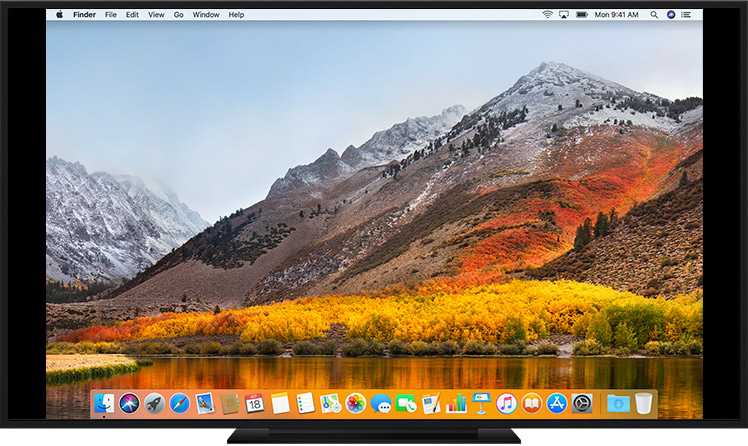
To fix monitor overscan, start by adjusting your display settings on both your monitor and your graphics card. You can also disable overscan through your TV or monitor’s menu or by changing resolution settings on your device. Sometimes, updating your graphics drivers or using specialized calibration tools can help achieve the perfect picture.
Overscan can ruin your viewing experience by cropping the edges of your screen or causing the picture to look stretched. The good news is that most issues are fixable with a few simple tweaks. Whether you’re using a computer, gaming console, or TV, adjusting your display settings can restore the full picture. In this guide, you’ll learn practical steps to eliminate overscan, ensuring you enjoy your content with crisp, edge-to-edge clarity. No fuss, just easy solutions to bring your display back to perfection.

How Do I Fix Monitor Overscan?
Overscan happens when your monitor shows parts of the image outside the visible screen area, leading to cut-off edges. Fixing this issue is important to get a clear and properly aligned display. Below, we’ll explore several ways to resolve monitor overscan with simple steps you can follow.
Understanding What Causes Monitor Overscan
Overscan is often caused by settings in your graphics card or monitor. It can also result from incompatible display modes or outdated drivers. Knowing the root cause helps you select the right fix for your setup.
How to Check If You Have Overscan
First, verify if your monitor is experiencing overscan. Look for edges of windows or images being cut off. Sometimes, adjusting the display settings reveals the full picture, confirming overscan.
Adjusting Settings on Your Monitor
Accessing the Monitor’s On-Screen Display (OSD)
Most monitors have buttons on the side or bottom to open the OSD menu. Use these to navigate through options like ‘Picture,’ ‘Display,’ or ‘Settings.’
Disabling Overscan or Dot-By-Dot Mode
Within the menu, find options like ‘Overscan,’ ‘Scaling,’ or ‘Aspect Ratio.’ Set these to ‘Off,’ ‘1:1,’ or ‘Just Scan’ to eliminate overscan. Refer to your monitor’s manual if needed.
Tips for Specific Monitor Brands
Many brands like Samsung, LG, or Dell have unique terminology. Search for ‘Screen Scaling’ or ‘Image Size’ in your user manual for guidance tailored to your model.
Adjusting Graphics Card Settings
Using Windows Display Settings
Right-click on your desktop and select ‘Display Settings.’ Under ‘Advanced display settings,’ choose your monitor and click ‘Display adapter properties.’ Then, open the ‘Intel Graphics Control Panel’ or ‘NVIDIA Control Panel.’
Configuring Scaling Options
In these control panels, locate display or scaling options. Set scaling mode to ‘Maintain Display Scaling’ or similar, and select ‘No scaling’ or ‘1:1’ for a perfect fit.
Applying the Changes
After adjusting, click ‘Apply’ to save changes. Your screen should now display without overscan or cut-off edges.
Updating or Reinstalling Graphics Drivers
Why Driver Updates Matter
Outdated drivers can cause display issues, including overscan. Keeping drivers current ensures compatibility and proper functioning of scaling features.
Steps to Update Drivers
- Visit your graphics card manufacturer’s website.
- Download the latest driver version compatible with your hardware.
- Run the installer and follow on-screen prompts.
- Restart your computer after installation.
Reinstalling Drivers if Needed
If updating doesn’t help, uninstall the current driver via Device Manager, then reinstall the latest version. This often resolves software conflicts causing overscan.
Using Third-Party Software
Screen Calibration Tools
Programs like ‘DisplayCAL’ or ‘Windows Calibration’ can help fine-tune display settings, including overscan adjustments.
Custom Graphics Settings
Some graphics drivers allow advanced customization. Explore options within control panels for pixel mapping and aspect ratio control to fix overscan.
Checking for Hardware or Connection Issues
Evaluating Cables and Ports
Faulty or loose cables can sometimes create display problems. Make sure HDMI, DisplayPort, or VGA cables are securely connected and undamaged.
Testing with Different Cables or Ports
Switch cables or ports to determine if the issue persists. A different cable or port can sometimes resolve overscan caused by hardware faults.
Understanding Different Display Modes
Native Resolution and Refresh Rate
Always set your monitor to its native resolution and recommended refresh rate. Mismatched settings can lead to overscan or blurry images.
Using Compatible Display Modes
Stick to standard modes like 1080p or 4K and avoid custom resolutions unless necessary. This helps prevent overscan issues caused by incompatible display modes.
Checking for Firmware Updates
Some monitors receive firmware updates that include improved scaling and image processing. Visit the manufacturer’s website for your model to see if updates are available.
Additional Tips and Troubleshooting
- Restart your computer after changing display settings for changes to take effect.
- Reset monitor settings to factory defaults to undo any misconfigurations.
- Use your monitor’s built-in test patterns to better identify overscan issues.
- If using a TV as a monitor, ensure its picture size settings are correctly set in the TV menu.
When to Seek Professional Help
If none of the above solutions fix your overscan problem, consider contacting technical support. Hardware issues or deep software conflicts might need expert attention.
Fixing monitor overscan involves a combination of settings adjustments, driver updates, and hardware checks. Following these steps can help you achieve a proper, clear display without parts of your image being cut off.
How to Fix Overscan in Windows 10 | Desktop overscaling and apps going out of the screen
Frequently Asked Questions
How can I adjust the display settings directly on my monitor to fix overscan?
Access your monitor’s on-screen menu using the physical buttons usually located on the side or bottom of the screen. Navigate to the display or image settings, then look for options such as ‘Overscan,’ ‘Scaling,’ or ‘Aspect Ratio.’ Change the setting from ‘Auto’ or ‘Overscan’ to ‘Just Scan,’ ‘Full,’ or a similar option that removes the overscan effect. Save your changes and verify if the image now fits the screen properly.
What steps should I take within my graphics card control panel to eliminate overscan?
Open your graphics card control panel, such as NVIDIA Control Panel or AMD Radeon Settings. Locate the display or screen adjustment section, then select the option to resize or adjust the desktop size. Set the scaling mode to ‘Full Panel’ or ‘Maintain Aspect Ratio,’ and disable any options related to overscan or image scaling. Apply the new settings and check if the image aligns correctly on your monitor.
How does updating my display drivers help fix overscan issues?
Outdated or incompatible drivers can cause improper display scaling, resulting in overscan. Download the latest drivers from your graphics card manufacturer’s website and install them following the provided instructions. After updating, restart your computer and adjust display settings if necessary. Updated drivers often include improved scaling features that can resolve overscan problems.
Can changing the resolution settings help reduce overscan on my monitor?
Yes, setting your display resolution to the monitor’s native resolution often improves image scaling and reduces overscan. Access your operating system’s display settings and select the recommended resolution listed as ‘native’ or ‘recommended.’ Applying the native resolution ensures the image fits the screen properly without cropping or excessive borders.
Is there a way to fix overscan through the TV or monitor’s firmware or software updates?
Some monitors or TVs may include firmware or software updates that enhance display compatibility and scaling features. Check the manufacturer’s website for any available updates for your specific model. Follow the update instructions carefully, then adjust your display settings afterward to see if the overscan issue improves. Keeping your device’s firmware current can resolve various scaling-related problems.
Final Thoughts
To fix monitor overscan, start by adjusting your display settings within your computer or graphics card control panel. Check for options labeled “Overscan” or “Scaling” and set them to 100% or “Auto.” If your monitor has physical buttons, use them to navigate menus and find picture size settings.
Sometimes, updating your graphics driver can resolve overscan issues, so ensure your drivers are current. If these steps don’t work, consult your monitor’s manual for specific instructions.
how do I fix monitor overscan? Focus on adjusting your display settings, updating drivers, and using the monitor’s built-in controls. These steps will help you eliminate overscan for a clearer, properly sized picture.

I specialize in process engineering and system optimization. I enjoy writing guides that simplify troubleshooting and help improve efficiency in everyday tech use.