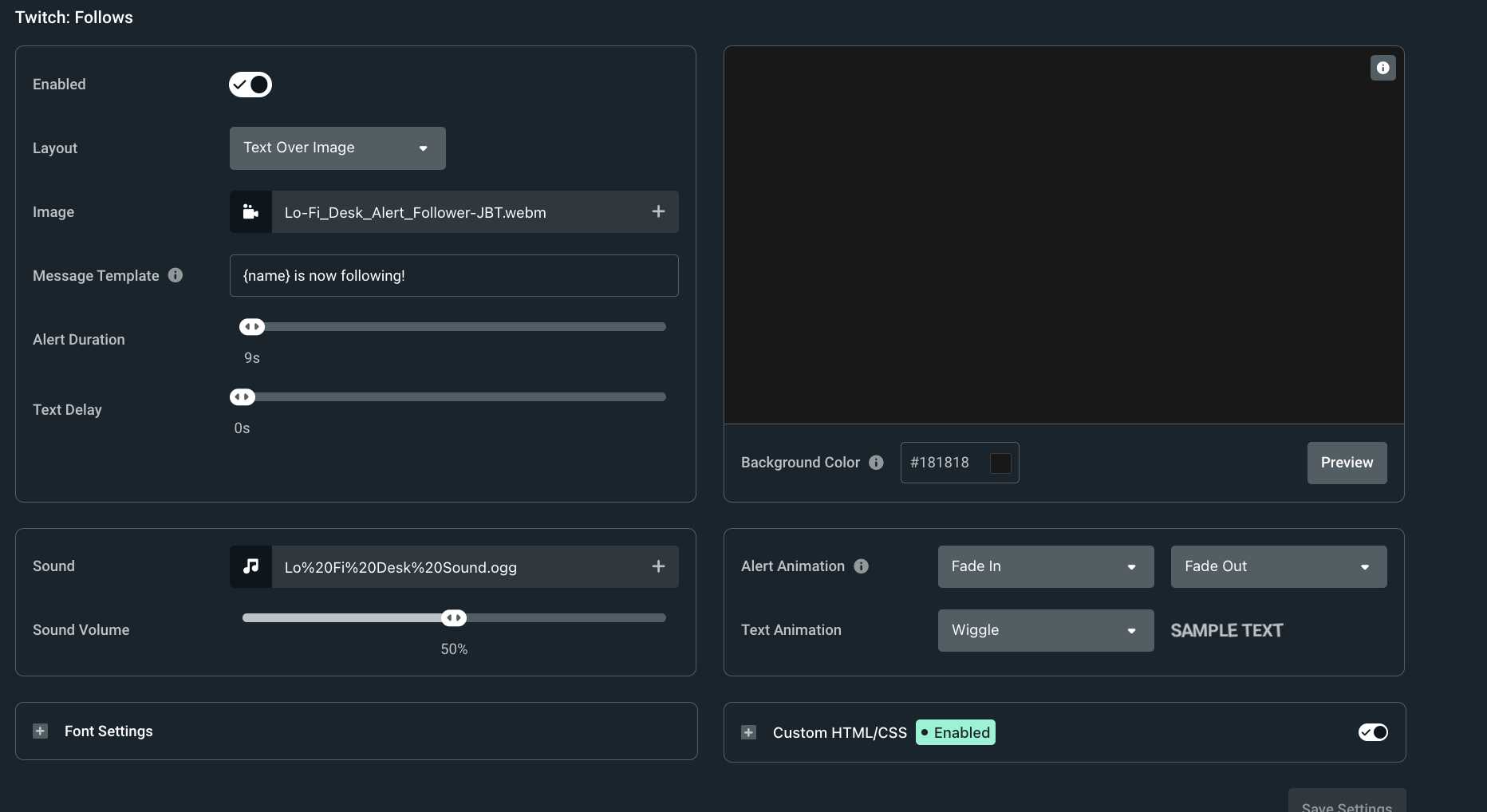
To add sound to an alert box, simply play an audio file using JavaScript’s `Audio()` object when the alert is triggered. This way, users get an audible cue along with the message, making alerts more noticeable.
In short, you can achieve this by creating an audio element and triggering it right before or after showing the alert box. This small addition enhances user experience, especially for important notifications or warnings. With a few lines of code, you can easily integrate sound into your existing alerts, making your website more engaging and interactive.
Ever wondered how to make your alert boxes stand out and grab attention instantly? Adding sound to alert boxes is a simple yet effective way to do just that. It’s perfect for alerting users to urgent messages, reminders, or important updates, especially when visual cues alone might be overlooked. Instead of just static pop-ups, the combination of a visual alert with an audible alert ensures your message hits home. Whether you’re developing a web app or adding finishing touches to a site, this quick trick can significantly improve your user interaction. Keep reading to learn how to seamlessly incorporate sound into your alert boxes, elevating your website’s alert system to the next level.

How to Add Sound to Alert Box: A Step-by-Step Guide
Understanding the Basics of Alert Boxes
Alert boxes are pop-up messages that appear on a webpage to notify or warn users. They are essential for drawing attention to important information, errors, or updates. By default, these alerts do not include sound, which can make them less noticeable.
Why Add Sound to Alert Boxes?
Adding sound enhances user experience by providing an immediate auditory cue. It helps ensure users recognize the alert even if they are not actively looking at their screen. Sound alerts are especially useful for critical notifications or when multiple alerts might be displayed.
Methods to Add Sound to Alert Boxes
There are mainly two approaches to embed sound with alert boxes: using HTML and JavaScript methods, or leveraging third-party libraries. Each method has its advantages and suits different project requirements.
Using HTML and JavaScript for Custom Alert Boxes with Sound
This method involves creating custom modal windows that resemble alert boxes and integrating sound effects. It offers full control over appearance and behavior.
Step-by-Step Implementation
- Create the HTML structure: Use
<div>elements to build the alert box and include a button to dismiss it. - Add an audio element: Embed an
<audio>tag within your HTML, specifying the sound file source. - Write JavaScript functions: Develop functions to show the alert box and play the sound simultaneously.
- Trigger the alert: Call your function based on user actions or specific events.
Example Code Snippet
<div id="customAlert" style="display:none; border: 2px solid black; padding: 20px; background-color: #f8f8f8;">
  <p>This is an alert message!</p>
  <button onclick="hideAlert()">OK</button>
</div>
<audio id="alertSound" src="alert.mp3" preload="auto"></audio>

<script>
function showAlert() {
  document.getElementById('customAlert').style.display = 'block';
  document.getElementById('alertSound').play();
}
function hideAlert() {
  document.getElementById('customAlert').style.display = 'none';
}
</script>
Choosing the Right Sound Files
Selecting audio clips that are clear and not too disruptive is key. Common formats include MP3 and WAV, with MP3 being widely supported across browsers. Ensure your sound files are optimized for web use to prevent longer load times.
Best Practices for Sound Files
- Keep files small to reduce load times.
- Use non-intrusive sounds to avoid disturbing users.
- Implement fallback options in case sound does not load or autoplay is blocked.
Handling Browser Compatibility and Restrictions
Modern browsers often limit autoplay of sounds for user experience reasons. To ensure your sound alert works well, consider the following tips.
Enabling User-Initiated Sound Playback
Most browsers allow sound playback only after a user interacts with the page. Incorporate event listeners such as clicks or key presses to trigger sounds.
Using the Promise-Based Play Method
Modern JavaScript recommends handling the play() method with promises to catch errors and manage user permission issues:
const sound = document.getElementById('alertSound');
sound.play().catch(function(error) {
  console.log("Sound playback was blocked by the browser.", error);
});
Enhancing Accessibility
Adding sound to alert boxes can improve accessibility but should be implemented thoughtfully. Ensure users can turn off sounds if they prefer a silent experience.
Providing Accessibility Controls
Include options such as volume control, mute buttons, or alternative visual cues for users with hearing impairments.
Using ARIA Roles and Live Regions
Combine sound alerts with ARIA attributes for users relying on screen readers, ensuring inclusive accessibility.
Integrating Sound with Popular JavaScript Libraries
Frameworks like Bootstrap or jQuery UI can be extended to include sound alerts easily. You can customize modal dialogs or toast notifications with sound effects.
Example with Bootstrap Modal
Attach an event listener to trigger sound playback when a Bootstrap modal opens:
$('#myModal').on('shown.bs.modal', function () {
  document.getElementById('alertSound').play();
});
Advanced Tips for Sound Alerts
For an engaging user experience, consider adding:
– Multiple sound options for different alert types
– Visual cues synchronized with sound
– Context-aware alert sounds based on priority
Creating a Notification System with Sound
Build a notification system that plays different sounds based on the severity or type of alert, such as warning or success messages.
Implementing Volume Control
Allow users to customize volume levels or mute sounds through user settings, enhancing user control.
Testing Your Sound Alerts Across Devices
Ensure your sound alerts function on desktops, tablets, and smartphones. Test on various browsers and operating systems for consistency.
Tips for Testing
- Check autoplay restrictions in mobile and desktop browsers.
- Ensure sound files play correctly with different volume levels.
- Confirm that alerts appear timely and are accompanied by the sound.
Summary
Adding sound to alert boxes boosts visibility and user engagement. Using a combination of custom HTML, JavaScript, and thoughtful design practices, you can create alerts that are both effective and considerate of user preferences. Remember to check compatibility, optimize audio files, and provide options for users to control sound settings for the best experience.
This comprehensive approach ensures your alert system is both functional and engaging, making your website or application stand out while respecting user accessibility and device limitations.
ULTIMATE Sound Alerts Beginners Guide | Bits, Channel Points, Follows & more [2023]
Frequently Asked Questions
How can I include a sound file in my alert box using JavaScript?
To play a sound when an alert box appears, first select the audio file you want to use, such as an MP3 or WAV. Create an <audio> element in your HTML or generate it dynamically in your JavaScript. When triggering the alert, call the play() method on the audio element just before or after showing the alert box. This approach ensures the sound plays in sync with the alert display.
What are the best practices for adding sound effects to alert boxes?
Use lightweight audio files to prevent delays in playback. Always test the sound on different browsers and devices to ensure compatibility. Keep the volume at a suitable level so it doesn’t startle users. Also, consider providing users with an option to disable sounds if they prefer a quieter experience. Properly synchronize the sound with the alert display to avoid mismatched timing issues.
Can I trigger a sound with custom styles when an alert box appears?
Yes, you can style your alert box with CSS and trigger a sound simultaneously with JavaScript. Use event listeners or functions that activate both the alert and sound at the same time. For example, create a function that plays your sound file and then displays a styled modal or custom alert box, ensuring users receive both visual and auditory cues together.
How do I handle multiple alert boxes with different sounds in my webpage?
Assign each alert box a unique identifier and associate a specific sound file with each one. When triggering an alert, run a function that loads and plays the corresponding sound before or after showing the alert box. Keep in mind to manage the timing so sounds do not overlap excessively, and consider queuing or limiting alerts if multiple are set to appear in quick succession.
Is it possible to add sound notifications to native alert boxes in browsers?
Native alert boxes provided by browsers do not support additional features such as sound. To include sound notifications, you need to replace the standard alert with custom modal dialogs or notifications created with HTML, CSS, and JavaScript. These custom solutions allow you to integrate sound and customize their appearance and behavior to fit your needs.
Final Thoughts
Adding sound to an alert box enhances user experience by grabbing attention effectively. To achieve this, you can incorporate JavaScript code that plays an audio file when the alert triggers. Simply create an audio element and call its play method before or after the alert.
Remember, it’s important to ensure the sound is not intrusive and works smoothly across browsers.
In conclusion, understanding how to add sound to alert box helps you create more engaging interfaces. Just include the audio trigger in your alert logic, and your alerts will be more noticeable.

I follow the latest trends in smart devices, portable monitors, and gaming accessories. My goal is to provide real-world insights that help readers make smarter tech decisions.