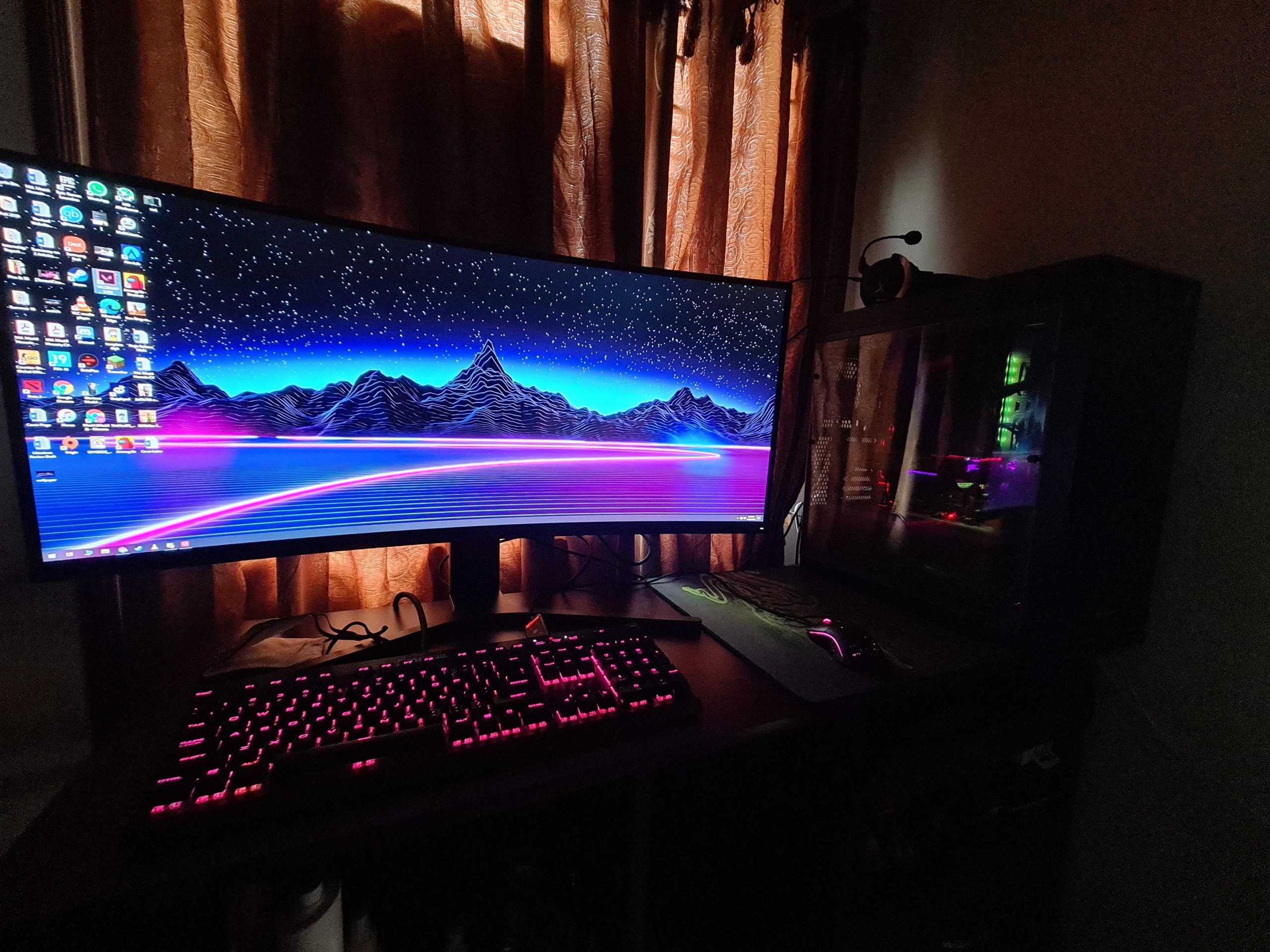
To calibrate your curved gaming monitor effectively, start by using built-in calibration tools or third-party calibration software to adjust brightness, contrast, and color settings. Fine-tune these parameters to match your gaming environment and personal preferences, ensuring vibrant visuals and smooth performance.
Calibrating a curved gaming monitor is essential for achieving optimal picture quality and an immersive gaming experience. It involves adjusting various display settings to ensure colors are accurate, contrast levels are perfect, and brightness is comfortable for long gaming sessions. Proper calibration not only enhances visual detail but also reduces eye strain, making your gaming sessions more enjoyable. Whether you’re a casual gamer or a competitive player, taking a few minutes to calibrate your monitor can significantly improve your overall experience. Keep reading to discover simple, effective steps to get your curved gaming monitor perfectly calibrated for every game you play.

How to Calibrate Curved Gaming Monitor for Perfect Visuals
Why Calibration Matters for Curved Gaming Monitors
Calibration makes sure your monitor displays colors, brightness, and contrast accurately. A well-calibrated screen helps you see game details better and reduces eye strain. Since curved monitors have unique shapes, proper calibration becomes even more important to get the best experience.
Understanding the Unique Features of Curved Gaming Monitors
Curved screens wrap around your eyes, creating a more immersive gameplay experience. The curve also impacts how colors and brightness appear at different angles. Recognizing these features helps you adjust your monitor more precisely.
Preparing Your Environment for Calibration
Before starting calibration, set up a consistent environment. Turn off bright lights and close curtains to prevent reflections. Use a neutral, non-reflective surface for your monitor and ensure your room lighting remains steady during calibration.
Gathering Necessary Tools and Software
You will need calibration tools like a colorimeter or spectrophotometer for accurate results. Additionally, use calibration software such as DisplayCal, CalMAN, or built-in monitor tools. These tools analyze your screen’s output and guide you through adjustments.
Steps to Calibrate Your Curved Gaming Monitor
1. Reset Monitor Settings to Default
Start by restoring your monitor to factory settings. This provides a clean baseline, avoiding conflicts with previous adjustments. Most monitors have a reset option in their menu settings.
2. Adjust Brightness and Contrast
Set brightness to a comfortable level, typically around 120-140 cd/m², depending on your environment. Adjust contrast so that whites are bright without losing detail, with the goal of achieving a balanced image.
3. Configure Color Temperature
Use the preset modes or manually set the color temperature to 6500K, which is standard for most gaming and general use. This offers a natural, balanced color output.
4. Use Calibration Software for Fine-Tuning
Connect your calibration device and run the calibration software. Follow the onscreen instructions to measure and adjust colors, gamma, and white balance. These tools provide precise adjustments beyond manual controls.
5. Adjust Gamma Settings
Gamma affects how tonal gradations appear. Use your calibration software to set gamma between 2.2 and 2.4 for optimal detail in shadows and highlights, especially in dark game scenes.
6. Fine-Tune Color Accuracy
Focus on achieving accurate reds, greens, and blues. The calibration software will display test patterns and suggest adjustments to match standard color values.
Special Considerations for Curved Monitors
Curved monitors may display color and brightness inconsistently across the screen. Use calibration tools to check color uniformity from different angles. Make display adjustments accordingly to ensure even performance.
Calibrating for Gaming Specific Needs
For gaming, prioritize high contrast and vivid colors for better immersion. Slightly increasing contrast can make in-game objects pop, but avoid overdoing it to prevent loss of detail.
Maintaining Your Calibration Setup
Calibration isn’t a one-time task. Repeat the process every few months or after software updates. Regular calibration ensures consistent image quality as your monitor ages.
Additional Tips for Better Calibration Results
- Use a gray background or neutral test images during calibration for more accurate results.
- Enable any monitor-specific calibration modes, like sRGB or custom color profiles.
- Adjust your graphics card settings to complement monitor calibration, ensuring colors are consistent across devices.
- Keep your graphics drivers up to date for optimal compatibility and performance.
Common Calibration Mistakes to Avoid
Avoid setting overly bright or dark levels, as they distort colors and details. Resist the urge to rely solely on built-in presets; instead, use calibration tools for precision. Do not forget to calibrate in a dim, neutral environment and check results periodically.
Using Hardware and Software Together for Best Results
Combine physical calibration devices with software adjustments for the most accurate setup. Hardware tools measure real colors and luminance, while software guides you through optimal adjustments based on those measurements.
Benefits of Proper Calibration for Gamers
A properly calibrated monitor enhances visual clarity, improves reaction times, and increases immersion. It ensures you see game details as intended by developers, giving you a competitive edge.
Final Thoughts on Calibrating Your Curved Gaming Monitor
Calibration is essential for achieving the best visual experience on your curved gaming monitor. It involves setting up the environment, using proper tools, and making precise adjustments. With patience and proper technique, your monitor will display stunning, accurate visuals that elevate your gaming sessions.
Here’s how to make your monitor colors crispy #gaming #computertips #pc #monitor #monitorcolors
Frequently Asked Questions
What steps should I follow to adjust the color settings on my curved gaming monitor?
Begin by accessing the monitor’s on-screen display (OSD) menu using the buttons on the monitor. Navigate to the color settings or calibration option. Adjust primary colors such as red, green, and blue to balance the display according to your preference. You can also use calibration software or profiles designed for gaming monitors to fine-tune color accuracy, ensuring vibrant and true-to-life visuals during gameplay.
How do I correct brightness and contrast levels for optimal gaming visuals?
Start by opening the monitor’s OSD menu and locating the brightness and contrast settings. Adjust brightness so that dark scenes are visible without washing out details, and set contrast to enhance differentiation between light and dark areas. Test these settings with different game scenes to find a balance that provides clarity without causing eye strain. Using calibration tools can help achieve precise adjustments tailored to your environment.
What is the best way to set up grey scale and gamma for a smoother gaming experience?
Access the monitor’s calibration options or use calibration software to adjust grey scale and gamma settings. Set the gamma to a standard value, such as 2.2, to ensure consistent brightness across all shades. Fine-tune grey scale to eliminate color tints and ensure neutral tones appear natural. These adjustments help create balanced visuals, reducing eye fatigue and improving the overall gaming experience.
Can I calibrate my curved monitor using built-in tools, or should I use external software?
Many curved monitors come with built-in calibration tools accessible through the OSD menu. These tools work well for basic adjustments like brightness, contrast, and color temperature. However, for more precise calibration, especially if you want accurate color reproduction, using external calibration software and a colorimeter provides superior results. Combining both methods ensures optimal visual quality tailored to your gaming needs.
How frequently should I recalibrate my curved gaming monitor to maintain optimal performance?
It is advisable to recalibrate your monitor every few months or whenever you notice changes in color accuracy or display quality. Environmental factors like lighting conditions or prolonged usage can affect display settings. Regular calibration helps maintain consistent visual quality, ensuring that your gaming experience remains crisp, vibrant, and accurate over time.
Final Thoughts
To calibrate a curved gaming monitor effectively, start by adjusting brightness and contrast settings to suit your environment. Use dedicated calibration tools or built-in display settings for precise control. Fine-tune color temperature and gamma to ensure optimal visuals.
Remember that proper calibration enhances your gaming experience through clearer images and more accurate colors. Focus on consistent adjustments to achieve balance across your screen. Ultimately, knowing how to calibrate curved gaming monitor ensures you get the most out of your setup.

With experience in IT support and consumer technology, I focus on step-by-step tutorials and troubleshooting tips. I enjoy making complex tech problems easy to solve.