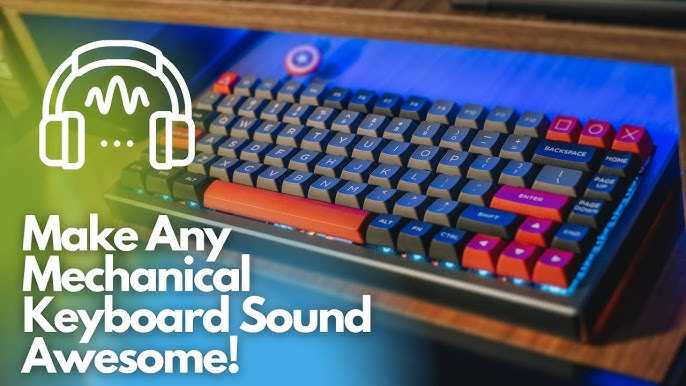
To connect a wireless keyboard to your computer, turn on the keyboard, ensure Bluetooth is enabled on your device, and then pair the two by selecting the keyboard from your Bluetooth device list. Sometimes, it’s as simple as pressing a button, but other times you might need to install drivers or follow specific pairing procedures.
In short, you need to power on the keyboard, enable Bluetooth on your computer, and complete the pairing process. Once connected, your keyboard should be ready to use without any hassle.
Getting a wireless keyboard up and running is quick and straightforward. Whether you’re replacing an old device or setting up a new one, pairing your wireless keyboard involves just a few simple steps, making your workspace cleaner and more comfortable. With wireless tech becoming increasingly common, knowing how to connect your keyboard effortlessly enhances your overall computer experience and productivity.

How to connect a wireless keyboard to your computer
Connecting a wireless keyboard to your computer can be simple once you understand the process. This guide will walk you through each step to ensure your keyboard works smoothly with your device. Whether your keyboard uses Bluetooth or a wireless receiver, you’ll find clear instructions here.
Understanding the types of wireless keyboards
Wireless keyboards typically fall into two categories: Bluetooth keyboards and those that use a wireless receiver, often called a USB dongle. Knowing which type you have helps determine the right connection process. Both types offer flexibility and eliminate the clutter of wires, making your workspace cleaner and more organized.
Bluetooth wireless keyboards
Bluetooth keyboards connect directly to your computer’s Bluetooth feature. These keyboards usually pair easily and are compatible with most modern computers, laptops, and even tablets. Ensure your device has Bluetooth capabilities before trying to connect.
Wireless keyboards with a USB receiver
This type comes with a small USB dongle that you insert into your computer’s USB port. The keyboard communicates with the receiver via radio frequency signals. These keyboards often have a longer range and are known for a stable connection.
Preparing your computer for connection
Before pairing your wireless keyboard, make sure your computer is ready. Check your device’s Bluetooth settings or USB ports. A quick restart can sometimes solve connection issues.
Checking Bluetooth compatibility
Navigate to your computer’s settings menu. On Windows, go to Settings and select Devices then Bluetooth & other devices. On Mac, open System Preferences and click on Bluetooth. Verify that Bluetooth is turned on and your device detects other Bluetooth devices.
Ensuring USB ports are functional
Insert your USB wireless receiver into an available USB port. If your keyboard uses a Bluetooth connection, this step isn’t necessary. Make sure your USB ports are working by connecting other peripherals if needed.
Connecting a Bluetooth wireless keyboard
Pairing a Bluetooth keyboard involves a few easy steps. Your keyboard must be in pairing mode to be discoverable by your computer. This process can vary slightly depending on the brand and model.
Steps to pair your Bluetooth keyboard
- Turn on your Bluetooth keyboard. Usually, there’s a power switch or button.
- Activate pairing mode. Often, this involves pressing and holding a dedicated Bluetooth or pairing button until an LED indicator flashes.
- On your computer, access Bluetooth settings. Click on ‘Add a Bluetooth device’ or similar option.
- Wait for your keyboard to appear in the list of available devices. It may show as the brand or model name.
- Select your keyboard. Your computer may prompt you to enter a PIN or passkey.
- Follow on-screen instructions. Type the displayed code on your keyboard if needed and press Enter.
- Once paired, your keyboard should be ready to use.
Troubleshooting Bluetooth pairing issues
If your device isn’t discovering the keyboard, ensure it’s in pairing mode and close enough to your computer. Restart Bluetooth services or restart your computer to refresh connections. Updating your Bluetooth driver can also resolve persistent issues.
Connecting a wireless keyboard with a USB receiver
This process is generally stream-lined. Simply plug in the USB dongle, and most keyboards are ready for use instantly. Some models might require additional setup or drivers.
Steps for connection using the USB receiver
- Insert the USB wireless receiver into an available USB port on your computer.
- Turn on your wireless keyboard. Usually, there’s an on/off switch located on the side or underneath the device.
- The computer automatically detects the receiver and installs necessary drivers. Wait for the notification indicating it’s ready for use.
- Test your keyboard by typing in a document or search bar.
Additional setup for wireless keyboards with special features
Some keyboards have extra functions such as media controls or programmable keys. These may require specific software from the manufacturer. Download and install this software from the manufacturer’s website to customize your experience.
Testing your connection and troubleshooting common issues
After pairing your keyboard, always test it to confirm it’s working properly. If typing doesn’t register or connection drops, try some simple troubleshooting steps.
Steps to test your wireless keyboard
- Open a text editor or word processing program.
- Type some text to check responsiveness and accuracy.
- Test all keys to ensure they work as expected.
- Move away from your computer to test the wireless range.
Addressing common problems
If your keyboard isn’t responding, check batteries or rechargeables. Ensure there are no obstructions or interference from other wireless devices. Re-pair your keyboard if necessary, and confirm you’re within the effective range.
Maintaining and optimizing your wireless keyboard connection
To keep your wireless keyboard functioning well, perform regular maintenance. Proper placement and updates help maintain a stable connection.
Battery care tips
- Replace batteries when they are low to prevent connectivity issues.
- Use high-quality batteries to ensure longer life.
- Rechargeable batteries are convenient and eco-friendly.
Keeping your device drivers updated
Drivers ensure your computer communicates correctly with your keyboard. Check your manufacturer’s website or Windows Update for the latest drivers.
Optimizing wireless range and performance
- Place your computer and keyboard within the recommended range specified by the manufacturer.
- Avoid placing other electronic devices between your keyboard and receiver.
- Use a USB extension cable for the receiver if needed to improve signal reception.
Related topics to enhance your wireless setup
- Choosing the right wireless keyboard: Factors include size, layout, battery type, and special features.
- Best wireless keyboard brands: Popular options include Logitech, Microsoft, and Corsair.
- Accessories for wireless keyboards: Keyboard covers, stand holders, and rechargeable batteries.
- Compatibility considerations: Ensure the keyboard is compatible with your operating system and device type.
Connecting a wireless keyboard doesn’t need to be complicated. By understanding the type of keyboard you have, preparing your device, and following the simple pairing steps, you can enjoy a tidy workspace with a fully functional wireless setup. Regular maintenance and troubleshooting will keep your keyboard working smoothly for a long time.
How To Connect Wireless Keyboard To PC or Laptop – Full Guide
Frequently Asked Questions
What are the initial steps to pair a wireless keyboard with my computer?
To begin, ensure your wireless keyboard has fresh batteries and is powered on. Then, activate the pairing mode on the keyboard, often by pressing and holding a specific button or combination. Next, open your computer’s Bluetooth settings, turn on Bluetooth if it’s not already active, and search for available devices. When you see your keyboard listed, select it to establish the connection. Follow any additional prompts that may appear to complete the pairing process.
How do I troubleshoot connection issues between my wireless keyboard and computer?
If your wireless keyboard isn’t connecting properly, check that the batteries are functioning and replace them if necessary. Confirm that Bluetooth is enabled on your computer and that the keyboard is in pairing mode. Remove any existing pairings with the keyboard from your device list and attempt re-pairing. Restart your computer and the keyboard to refresh their connection. Additionally, ensure that no other devices are interfering with the Bluetooth signal and that your computer’s Bluetooth drivers are up to date.
Can I connect a wireless keyboard without Bluetooth, and if so, how?
Yes, some wireless keyboards use a USB receiver instead of Bluetooth. To connect such a keyboard, insert the provided receiver into an available USB port on your computer. Turn on the keyboard, and it should automatically connect to the receiver. If it doesn’t, press the connect or pairing button on the keyboard or receiver as indicated in the user manual. Once connected, your keyboard should be ready to use without additional setup.
Is it necessary to install drivers to use a wireless keyboard?
Most modern wireless keyboards are plug-and-play and do not require manual driver installation. When you connect via Bluetooth or insert the receiver, your operating system automatically detects the device and installs any necessary drivers. However, for advanced features or specific models, you might need to visit the manufacturer’s website to download updated drivers or software. Always consult the user manual for specific instructions related to your keyboard model.
Final Thoughts
Connecting a wireless keyboard to your computer is simple and quick. First, ensure your keyboard has fresh batteries and is turned on. Enable Bluetooth on your computer and put your keyboard into pairing mode.
Next, search for available devices on your computer and select your keyboard from the list. Confirm any prompts to complete the pairing process. Once connected, you can start using your wireless keyboard immediately.
In summary, how to connect a wireless keyboard to your computer involves enabling Bluetooth, selecting the device, and confirming the pairing. This straightforward process ensures your keyboard is ready for use without hassle.

I’m passionate about hardware, especially laptops, monitors, and home office gear. I share reviews and practical advice to help readers choose the right devices and get the best performance.