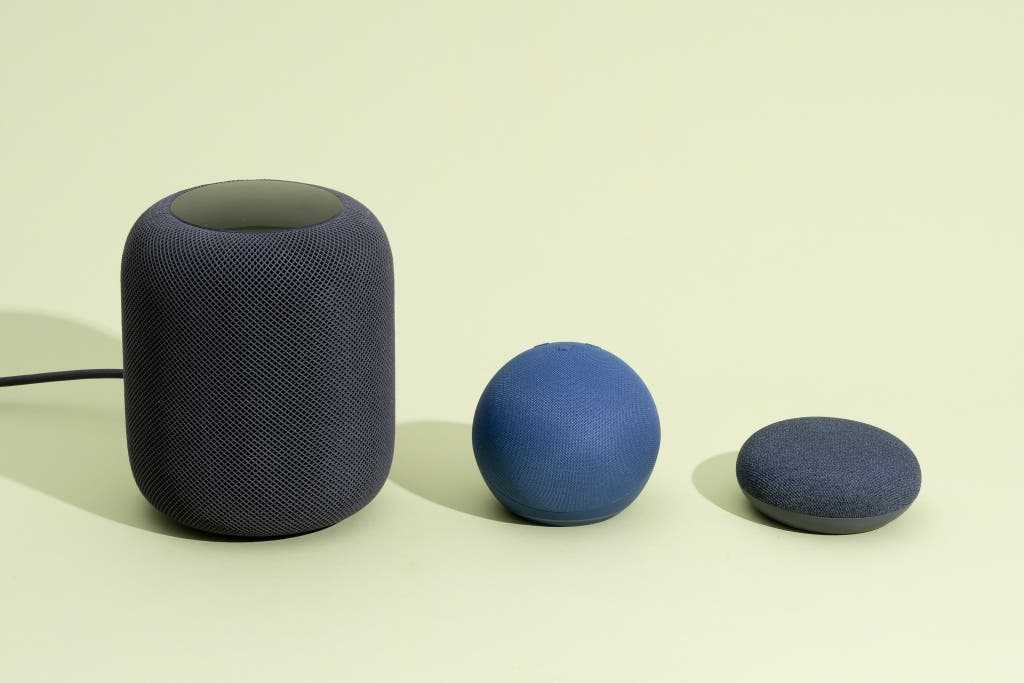
To connect your AI sound box with the Alexa app seamlessly, just open your app, put your sound box into pairing mode, and follow the prompts to add a new device. Within minutes, you’ll enjoy a smart, synchronized experience! The key is ensuring Bluetooth or Wi-Fi compatibility and following a simple setup process. Once connected, you can control your sound box with voice commands through Alexa, stream music effortlessly, and integrate it into your smart home ecosystem.
Getting your AI sound box to work with the Alexa app is easier than you think. Whether you want to use Alexa to control your sound system or simply stream music, a few quick steps will do the trick. First, ensure your sound box is compatible and powered on. Then, open the Alexa app on your phone or tablet, navigate to the Devices section, and select “Add Device.” Follow the prompts to find your sound box, put it into pairing mode if needed, and connect via Bluetooth or Wi-Fi. This straightforward process transforms your setup into a smart, voice-controlled experience in no time.

How to Connect AI Sound Box with Alexa App
Connecting an AI sound box with the Alexa app allows you to control your device easily and enjoy seamless integration. This step-by-step guide will help you set up your sound box quickly and ensure it works perfectly with Alexa. Whether you are a beginner or have some experience, this process is simple and straightforward.
Understanding Compatibility Between AI Sound Box and Alexa
Before starting the connection process, it is essential to check if your AI sound box supports Alexa integration. Not all sound boxes are compatible, so verify this in the user manual or product specifications.
- Look for the Alexa logo on your sound box or its packaging.
- Visit the manufacturer’s website to verify compatibility features.
- Ensure your AI sound box supports smart home protocols like Wi-Fi or Bluetooth, which are necessary for connection with Alexa.
Preparing Your Devices for Connection
Ensure Your Devices Are Up-to-Date
Update your AI sound box firmware and the Alexa app to the latest versions. Software updates fix bugs and add new features that improve connectivity.
Connect Your Devices to Wi-Fi
Make sure both your sound box and smartphone or tablet are connected to the same Wi-Fi network. This is crucial for successful communication between the devices.
Power On Your AI Sound Box
Turn on your sound box and wait until it is fully operational. Many devices have indicator lights to confirm they are ready for pairing.
Download and Install the Alexa App
If you haven’t already, download the Alexa app from Google Play Store or Apple App Store. Install and open the app on your device.
- Sign into your Amazon account or create a new one.
- Allow necessary permissions for the app to function correctly.
- Ensure your app is updated to support all latest features.
Connecting AI Sound Box to Alexa App
Enable the Alexa Skill for Your Sound Box
Many sound boxes require enabling a specific skill within the Alexa app. Search for your device’s brand or model in the Skills & Games section.
- Open the Alexa app and tap the menu icon.
- Select ‘Skills & Games.’
- Use the search bar to find your sound box’s skill.
- Tap ‘Enable’ to add the skill to your Alexa account.
Link Your Sound Box to Alexa
Follow the prompts to log into your sound box account or connect via your device’s pairing mode. This process links the sound box with the Alexa app.
Discover Devices in the Alexa App
Once linked, Alexa needs to recognize your sound box. Use the ‘Discover Devices’ feature in the app to scan for new compatible devices.
- Tap the Devices icon at the bottom of the Alexa app.
- Select ‘Add Device.’
- Choose ‘Speaker’ or ‘Other’ based on your device category.
- Wait for Alexa to find your sound box and follow on-screen instructions.
Configuring and Controlling Your Sound Box
Assign the Device to a Group
Organize your smart devices into groups for easy control. For example, add your sound box to a ‘Living Room’ group.
- In the Alexa app, go to ‘Devices.’
- Select ‘Create Group’ or choose an existing one.
- Add your sound box to the group for centralized control.
Setting Up Voice Commands
You can use Alexa voice commands to control your sound box. Common commands include:
- ‘Alexa, play music on my sound box.’
- ‘Alexa, volume up on the sound box.’
- ‘Alexa, pause the sound box.’
Troubleshooting Tips During Connection
If your sound box isn’t detected or responding, try these troubleshooting steps:
- Ensure both devices are on the same Wi-Fi network.
- Restart your sound box and the Alexa app.
- Reset your sound box to factory settings and try again.
- Check for firmware updates for both devices.
Additional Tips for Optimal Performance
Secure Your Wi-Fi Connection
A strong and stable Wi-Fi connection improves device performance. Use a 2.4 GHz band if possible, as some smart devices perform better on this frequency.
Manage Alexa Skills Regularly
Keep your Alexa skills updated to ensure compatibility and access to new features.
Use Voice Profiles for Better Control
Creating voice profiles allows Alexa to recognize your commands more accurately, especially if multiple users in your household use the sound box.
Integrating Additional Smart Home Devices
Once your AI sound box is connected with Alexa, you can integrate other smart devices like smart lights or thermostats for a more interconnected home experience.
| Device Type | Integration Method | Benefits |
|---|---|---|
| Smart Lights | Alexa Skills / Smart Home Hub | Voice-controlled lighting, scene setting |
| Thermostats | Alexa Skills / Compatibility | Temperature control via voice commands |
Final Thoughts on Connecting Your AI Sound Box with Alexa
Proper setup and configuration of your AI sound box with the Alexa app can dramatically enhance your smart home experience. Carefully follow each step, ensure compatibility, and perform regular updates for the best performance. With your devices connected, enjoy hands-free control and a more connected living space that responds easily to your voice commands and preferences.
Amazon Alexa Bluetooth Speaker for just ₹2399/-
Frequently Asked Questions
What are the initial steps to set up my AI sound box with the Alexa app?
Begin by turning on your AI sound box and ensuring it is in pairing mode. Then, open the Alexa app on your smartphone or tablet. Navigate to the Devices tab, tap on the ‘+’ icon, and select ‘Add Device.’ Choose your device type, follow the prompts to connect to your Wi-Fi network, and select your AI sound box from the list of available devices. Once connected, the app confirms the setup is complete.
How can I troubleshoot if my AI sound box isn’t appearing in the Alexa app?
If your device isn’t showing up, ensure that your AI sound box is powered on and in pairing mode. Check that your smartphone or tablet is connected to the same Wi-Fi network as the sound box. Restart both the device and the Alexa app, then refresh the device list. If the issue persists, reset your AI sound box and repeat the setup process from the beginning.
Is it necessary to update the firmware of my AI sound box for proper connection?
Yes, keeping your AI sound box’s firmware current helps ensure compatibility and a smooth connection process. After initial setup, check the device settings within the Alexa app for any available updates. Installing the latest firmware can resolve bugs, enhance performance, and provide new features that improve your overall experience.
Can I connect multiple AI sound boxes to my Alexa app simultaneously?
Absolutely. You can add multiple AI sound boxes within the Alexa app. Once each device is connected, you can group them into rooms or zones for synchronized playback. This setup allows you to control multiple speakers with commands, creating a comprehensive audio environment throughout your home.
What should I do if I want to switch the AI sound box to a different Wi-Fi network?
To change the Wi-Fi network, first disconnect the sound box from the current network through the device settings in the Alexa app. Then, put the AI sound box back into pairing mode and follow the initial setup steps to connect it to the new Wi-Fi network. Make sure your smartphone is also connected to the same new network during this process.
Final Thoughts
To connect AI sound box with Alexa app, start by ensuring your device is powered on. Open the Alexa app and navigate to the ‘Devices’ tab. Select ‘Add Device’ and choose your AI sound box model from the list. Follow the on-screen instructions to complete the pairing process. Once connected, you can control your sound box seamlessly through Alexa.
In summary, knowing how to connect AI sound box with Alexa app allows you to enjoy a more integrated smart home experience with ease.

I follow the latest trends in smart devices, portable monitors, and gaming accessories. My goal is to provide real-world insights that help readers make smarter tech decisions.