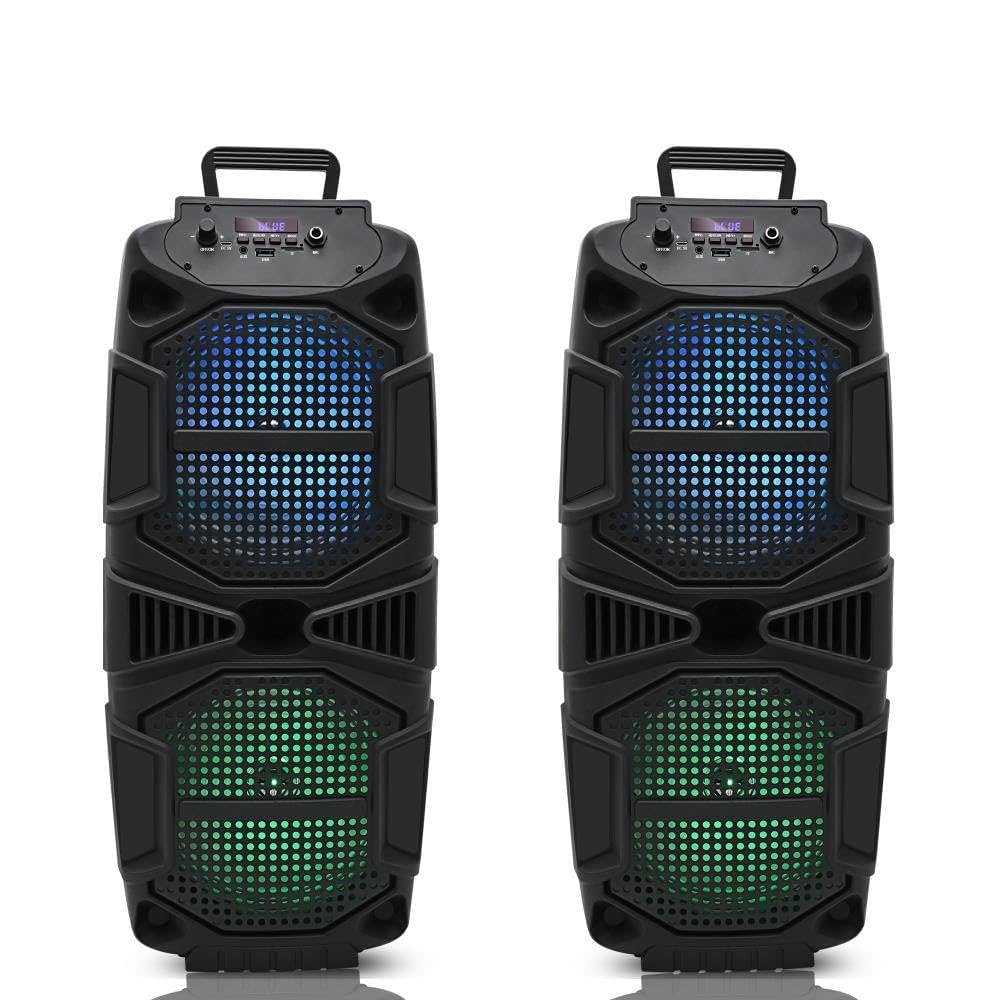
To connect your Bluetooth sound box for karaoke night quickly, turn on your speaker and enable Bluetooth pairing mode, then select the speaker from your device’s Bluetooth list. Make sure both are close together and properly paired, so you’re ready to sing in no time!
In just a few simple steps, you can sync your Bluetooth sound box with your device and set the stage for an unforgettable karaoke night. No complicated setup or wiring needed—just a few taps, and your speaker will be ready to blast your favorite tunes. Whether you’re using a smartphone, tablet, or laptop, connecting your Bluetooth sound system is quick and straightforward, ensuring your party starts smoothly and keeps the energy high all night long. Let’s walk through the easiest way to get your sound box linked up and ready to turn your living room into a karaoke stage!

How to Connect Bluetooth Sound Box for Karaoke Night
Setting up your Bluetooth sound box for karaoke can seem confusing at first, but it’s quite simple once you know the steps. This guide will help you connect your device seamlessly, ensuring you’re ready to sing your heart out. Whether you’re using a smartphone, tablet, or computer, the process is similar and easy to follow.
Understanding the Basics of Bluetooth Connection
Bluetooth is a wireless technology that allows devices to communicate over short distances. Most sound boxes are equipped with Bluetooth, making it easy to connect without cables. Before starting, ensure your sound box is compatible with your device and supports Bluetooth connectivity.
Check Bluetooth Compatibility
Look at your sound box’s manual or packaging to confirm it supports Bluetooth. Also, verify that your device has Bluetooth turned on and is compatible with your sound system. Modern smartphones, tablets, and computers typically support Bluetooth without issues.
Ensure Proper Power and Settings
Make sure your Bluetooth sound box is charged or plugged in. Turn it on and activate Bluetooth mode, often indicated by a blinking light or a dedicated button. For your device, access the Bluetooth settings from the menu and ensure Bluetooth is enabled.
Preparing Your Bluetooth Sound Box for Connection
Preparatory steps are essential for a smooth pairing process. Proper setup prevents connection failures and ensures sound quality during your karaoke night. Follow these steps to prepare your sound box for pairing.
Enable Pairing Mode on the Sound Box
Most sound boxes have a dedicated button for pairing. Press and hold this button until the indicator light flashes rapidly, signaling the device is discoverable. Consult your device’s manual if you’re unsure about this process.
Resetting the Sound Box
If your sound box has trouble connecting, consider resetting it to factory settings. This can clear previous pairings and help establish a new connection. Usually, reset options are listed in the user manual or achieved by pressing specific buttons.
Connecting Your Device to the Bluetooth Sound Box
This is the core step of the process. Once the sound box is in pairing mode, connect your device to it via Bluetooth. The process is similar across all devices, but small differences may exist depending on the operating system.
Connecting on a Smartphone or Tablet
- Navigate to the device’s Bluetooth settings menu.
- Wait for the device to scan for nearby Bluetooth devices.
- Find your sound box’s name listed among available devices.
- Tap on the device name to connect.
- Once connected, a confirmation sound or message will appear.
Connecting on a Windows Computer
- Open the ‘Settings’ menu and go to ‘Devices’.
- Select ‘Bluetooth & other devices’.
- Click ‘Add Bluetooth or other device’.
- Choose ‘Bluetooth’ from the options.
- Select your sound box from the list of devices.
- Click ‘Connect’ and wait for confirmation.
Connecting on a Mac Computer
- Open ‘System Preferences’ and select ‘Bluetooth’.
- Ensure Bluetooth is turned on.
- Wait for your sound box to appear in the device list.
- Click on the device name and select ‘Connect’.
- Follow any prompts if necessary.
Testing the Connection Before Karaoke
After connecting, play some audio to ensure the sound is coming from the sound box. Adjust the volume and check for any audio delays or issues. Proper testing ensures your karaoke session will run smoothly.
Adjusting Audio Settings
Use your device or sound box controls to set the volume. Keep the volume at a comfortable level to avoid distorting the sound during singing. Some sound boxes also allow you to adjust bass, treble, and other sound parameters.
Troubleshooting Common Connection Issues
If you encounter problems, don’t worry. Many connection issues are easy to fix with simple steps. Common problems include devices not showing up, failed pairing, or poor sound quality.
Device Not Discoverable
Ensure your sound box is in pairing mode. Sometimes turning the sound box off and on again helps refresh its discoverability. Also, make sure no other device is currently connected to it.
Connection Fails or Drops
Move devices closer to each other to improve signal strength. Remove unnecessary Bluetooth devices from your device’s memory to prevent confusion. Restart both devices and try connecting again.
Sound Quality Issues
Check volume levels on both your device and sound box. If sound is distorted, decrease the volume slightly. Ensure there are no obstructions between the devices, and try reconnecting if necessary.
Optimizing Your Karaoke Setup
For the best karaoke experience, consider additional setup tips. Proper placement of the sound box, quality microphones, and good acoustics can make a big difference during your karaoke night.
Placement of the Sound Box
Place the sound box in a central location, away from walls or objects that could muffle sound. Elevate the sound box slightly for better sound distribution. Keep it away from sources of interference like Wi-Fi routers or other electronics.
Connecting Microphones
If your sound box supports microphone input, connect your microphones securely. Test microphone levels and adjust volume to avoid feedback. Use wireless microphones if available for added flexibility.
Using Additional Equipment
Consider connecting external speakers or amplifiers for larger groups. Use a mixer or audio interface if you want to connect multiple sound sources for a more professional karaoke experience. Ensure all equipment is compatible and properly configured.
Related Topics for Better Karaoke Nights
- Choosing the Best Bluetooth Sound Box: Factors to consider include battery life, sound quality, connectivity range, and durability.
- Creating a Karaoke Playlist: Use streaming apps or local files to build a playlist with your favorite songs. Make sure the audio format is compatible with your device and sound system.
- Enhancing Sound Quality: Use equalizers and sound effects to improve your karaoke experience. Adjust settings for the best vocal clarity and music balance.
- Maintaining Your Bluetooth Equipment: Keep devices clean and stored properly. Update firmware regularly to fix bugs and improve performance.
Connecting your Bluetooth sound box for karaoke night is straightforward once you understand each step. Proper setup, troubleshooting, and placement can ensure a fun and enjoyable singing session for everyone. Remember to test everything beforehand and prepare your playlist for a smooth experience. Now, get ready to sing your favorite songs with clear sound and confidence!
How Do I Connect My Karaoke System To My TV? – Nightlife Experiences
Frequently Asked Questions
What steps should I follow to pair my Bluetooth sound box with a smartphone for karaoke?
Turn on your Bluetooth sound box and enable Bluetooth on your smartphone or device. Search for available devices in your device’s Bluetooth settings. When the name of your sound box appears, select it to initiate pairing. Confirm any prompts if necessary, and once paired, your sound box will be ready for use during karaoke.
How can I troubleshoot if my Bluetooth sound box doesn’t connect during karaoke setup?
First, ensure your sound box is in pairing mode and within close proximity to your device. Restart both devices to refresh their Bluetooth connections. Remove or forget the device from your smartphone’s Bluetooth list and try pairing again. Also, verify that your sound box’s battery is sufficiently charged, and update your device’s Bluetooth software if needed.
Is it important to set the Bluetooth sound box as the default audio output before starting karaoke?
Yes, setting your Bluetooth sound box as the default audio output ensures the sound streams directly to it. On most devices, you can select the sound box from the audio output options or change your sound settings to prioritize it. This step helps prevent audio from playing through your device speakers or other connected devices.
Can I connect multiple devices to the Bluetooth sound box for karaoke sessions?
It depends on your sound box model. Some Bluetooth sound boxes support multiple device connections simultaneously, allowing different users to switch between devices without disconnecting. Check your sound box’s user manual or specifications to confirm this feature. If it only supports one device at a time, disconnect the current device before pairing a new one.
How do I disconnect my Bluetooth sound box after karaoke night?
To disconnect your sound box, turn off the Bluetooth feature on the device you are using, or manually disconnect via Bluetooth settings. Alternatively, you can turn off or disable the sound box itself. Some sound boxes automatically disconnect from devices when powered off, making it easy to end the connection after use.
Final Thoughts
To connect a Bluetooth sound box for karaoke night, turn on the device and enable its pairing mode. Next, activate Bluetooth on your smartphone or tablet and select the sound box from available devices. Confirm the connection if prompted.
Once paired, play your karaoke tracks, ensuring the sound output is set to the Bluetooth device. Test the connection by speaking or singing to check audio clarity and volume.
Connecting a Bluetooth sound box for karaoke night is straightforward and ensures your setup runs smoothly. Follow these simple steps, and you’ll enjoy a seamless karaoke experience.

I follow the latest trends in smart devices, portable monitors, and gaming accessories. My goal is to provide real-world insights that help readers make smarter tech decisions.