To connect an OLED monitor to your graphics card, simply match the monitor’s input port with the appropriate output port on your graphics card—usually HDMI or DisplayPort—and then select the correct input source on your monitor. Ensure your graphics card has the necessary ports and that your drivers are up to date for smooth setup and performance.
The quickest way is to use a compatible cable between your graphics card and OLED monitor, then adjust display settings on your computer to recognize the new screen. No complicated steps are necessary if you have the right cables and updated drivers; just plug in, select the input source, and enjoy stunning visuals.
Getting your OLED monitor up and running with your graphics card doesn’t have to be a hassle. It’s all about ensuring compatibility and proper connections. When you’re ready, plug in the right cable—whether HDMI or DisplayPort—and switch your monitor input to the correct source. Once connected, your computer should automatically detect the display; if not, a quick update to your graphics driver or a restart usually does the trick. With OLED screens offering vibrant colors and deep blacks, pairing them properly with your graphics card guarantees you’ll get the best out of your visual experience.

How to Connect OLED Monitor to Graphics Card
Understanding the Basics of OLED Monitors and Graphics Cards
Connecting an OLED monitor to a graphics card starts with understanding what each component does. The **OLED monitor** uses organic light-emitting diodes for vibrant colors and deep blacks, providing a superior visual experience. The **graphics card** processes images and videos, sending the signal to your monitor. To connect these two, you need compatible ports, appropriate cables, and sometimes additional settings adjustments.
Identifying the Ports on Your OLED Monitor and Graphics Card
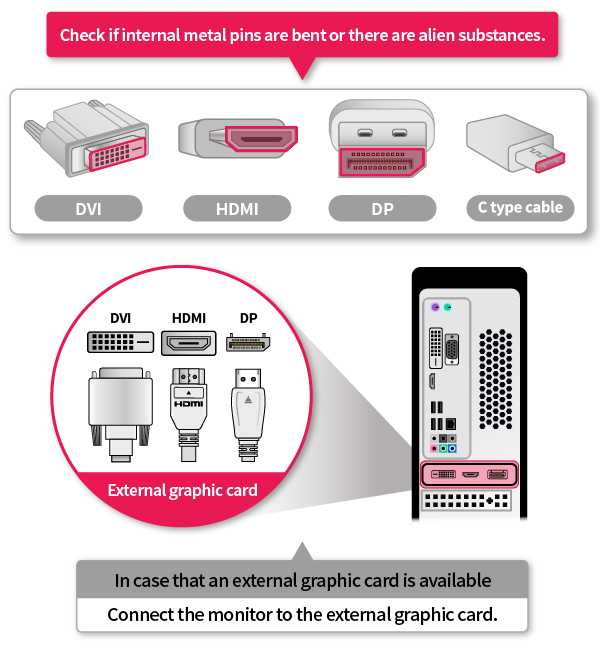
Before making any connections, check the available ports on both devices. Modern **OLED monitors** often feature ports such as HDMI, DisplayPort, or USB-C. Your **graphics card** may have matching ports or a combination of HDMI, DisplayPort, or DVI.
| Port Type | Commonly Used For | Compatible with OLED Monitors? |
|————|——————-|——————————|
| HDMI | Video and audio | Yes |
| DisplayPort | High-definition video | Yes |
| USB-C | Video, data, power | Yes |
Ensure both the monitor and the graphics card support the same port type for a smooth connection.
Selecting the Right Cable for Your Connection
Choosing the correct cable is crucial for optimal display quality. For most OLED monitors, **HDMI 2.0 or higher** and **DisplayPort 1.4 or higher** are recommended.
- HDMI Cables: Ideal for straightforward connections, supporting high resolutions and refresh rates.
- DisplayPort Cables: Preferred for higher refresh rates and adaptive sync features, such as G-Sync or FreeSync.
- USB-C Cables: Useful if your monitor and graphics card support video over USB-C, reducing cable clutter.
Make sure to use high-quality cables from reputable brands to avoid signal loss or degraded image quality.
Connecting Your OLED Monitor to the Graphics Card
Once you have the correct port and cable, follow these steps:
- Turn off your computer and monitor before connecting to prevent any electrical issues.
- Connect one end of the cable (HDMI, DisplayPort, or USB-C) to the monitor’s port.
- Plug the other end into the corresponding port on your graphics card.
- Power on the monitor first, then turn on your PC.
After powering on, the monitor should detect the signal automatically. If not, proceed to the display settings adjustment.
Configuring Display Settings for OLED Monitors
Proper configuration ensures you get the best picture from your OLED display. Start by checking your display settings in the operating system.
Adjusting Resolution and Refresh Rate
Use your computer’s display settings to set the resolution to the monitor’s native resolution for sharp images. For most OLED monitors, this will be 4K (3840 x 2160) or other high resolutions.
To change these settings:
- Open your system’s display settings.
- Select your OLED monitor from the list of displays.
- Adjust the resolution to the native setting recommended by the manufacturer.
- Set the refresh rate to the maximum supported, often 60Hz, 120Hz, or higher.
Enabling HDR for Vibrant Colors
High Dynamic Range (HDR) enhances color and contrast on OLED screens. To enable HDR:
- Access your display or graphics card control panel.
- Find the HDR or color settings.
- Enable HDR if your monitor and graphics card support it.
This will significantly improve visual quality, especially in HDR-compatible games and videos.
Adjusting Graphics Card Settings for Optimal Performance
For further optimization, delve into your graphics card’s control panel to customize settings.
NVIDIA Control Panel / AMD Radeon Settings
Navigate to your graphics driver’s control software for advanced options:
- Set the preferred display resolution and refresh rate.
- Enable or disable G-Sync or FreeSync based on your monitor’s features.
- Adjust color calibration for accurate hues.
- Configure scaling options to prevent distortion.
Properly configuring these settings ensures smooth visuals and minimizes issues like flickering or input lag.
Dealing with Common Connection Problems
Sometimes, connection issues may arise. Here are typical problems and solutions:
No Signal Detected
Check all cable connections and ensure the monitor is set to the correct input source. Also, verify that the graphics card is seated properly in its slot.
No Display or Low Resolution
Ensure the cable is functioning correctly and that your graphics driver is up to date. Update drivers via the manufacturer’s website or device manager.
Color or Brightness Issues
Adjust color calibration settings, or enable HDR if supported. Reset display settings if necessary.
Additional Tips for Connecting OLED Monitors to Graphics Cards
To enhance your experience, consider these extra tips:
- Keep your graphics drivers updated for compatibility and performance improvements.
- Use certified high-quality cables to prevent signal dropouts.
- Check your monitor’s manual for recommended settings and supported features.
- Experiment with different refresh rates and color settings for best visual quality.
- Ensure your power supply can support the monitor’s power requirements, especially for ultra-high resolutions.
Related Topics to Explore
While connecting your OLED monitor, you might also want to learn about:
- Best graphics cards for OLED screens
- How to calibrate colors on OLED displays
- Understanding refresh rates and response times
- The benefits of adaptive sync technologies like G-Sync and FreeSync
- Optimal PC settings for gaming or content creation on OLED monitors
Getting your OLED monitor connected to your graphics card involves checking compatibility, choosing the right cables, proper physical connection, and fine-tuning display settings. Always prioritize using quality components and update your drivers regularly to ensure a seamless experience.
Here’s Why GPUs Prefer DisplayPort Over HDMI
Frequently Asked Questions
What type of cable is needed to connect an OLED monitor to a graphics card?
To connect an OLED monitor to your graphics card, you need a compatible video cable such as HDMI or DisplayPort. Ensure that your graphics card has the appropriate output port, and verify that the cable supports the monitor’s resolution and refresh rate to deliver optimal display quality.
How can I configure my display settings after connecting the OLED monitor?
Once you connect the monitor, open your operating system’s display settings. Adjust the resolution, refresh rate, and color settings to match the monitor’s specifications. For best performance, set the display to its native resolution and enable any advanced features like HDR if supported.
What should I do if my OLED monitor isn’t recognized after connection?
If your monitor isn’t detected, double-check all cable connections for secure attachment. Ensure your graphics driver is up to date and compatible with your hardware. Restart your computer and revisit the display settings. If the problem persists, test the monitor with a different cable or port to identify potential hardware issues.
Are there specific settings I should optimize in the graphics card control panel for OLED monitors?
Yes, access your graphics card control panel and set the output resolution to match the monitor’s native resolution. Enable high refresh rates and adjust color profiles to enhance image quality. If available, turn on features like G-SYNC or FreeSync to reduce tearing and improve motion clarity.
Can I connect more than one monitor to my graphics card using OLED displays?
Many modern graphics cards support multiple displays simultaneously. Connect each OLED monitor using available ports and configure the display arrangement in your operating system’s settings. Make sure your graphics card can handle the combined resolution and refresh rate for seamless multi-monitor setup.
Final Thoughts
Connecting an OLED monitor to a graphics card involves selecting the right cable and port. Ensure your graphics card has an HDMI, DisplayPort, or USB-C port compatible with your monitor. Use the appropriate cable to connect these ports securely. Once connected, turn on your monitor and adjust display settings if needed.
Summing up, knowing how to connect OLED monitor to graphics card helps optimize your display quality efficiently. Confirm connections are firm and settings are correctly configured for best performance.

With experience in IT support and consumer technology, I focus on step-by-step tutorials and troubleshooting tips. I enjoy making complex tech problems easy to solve.