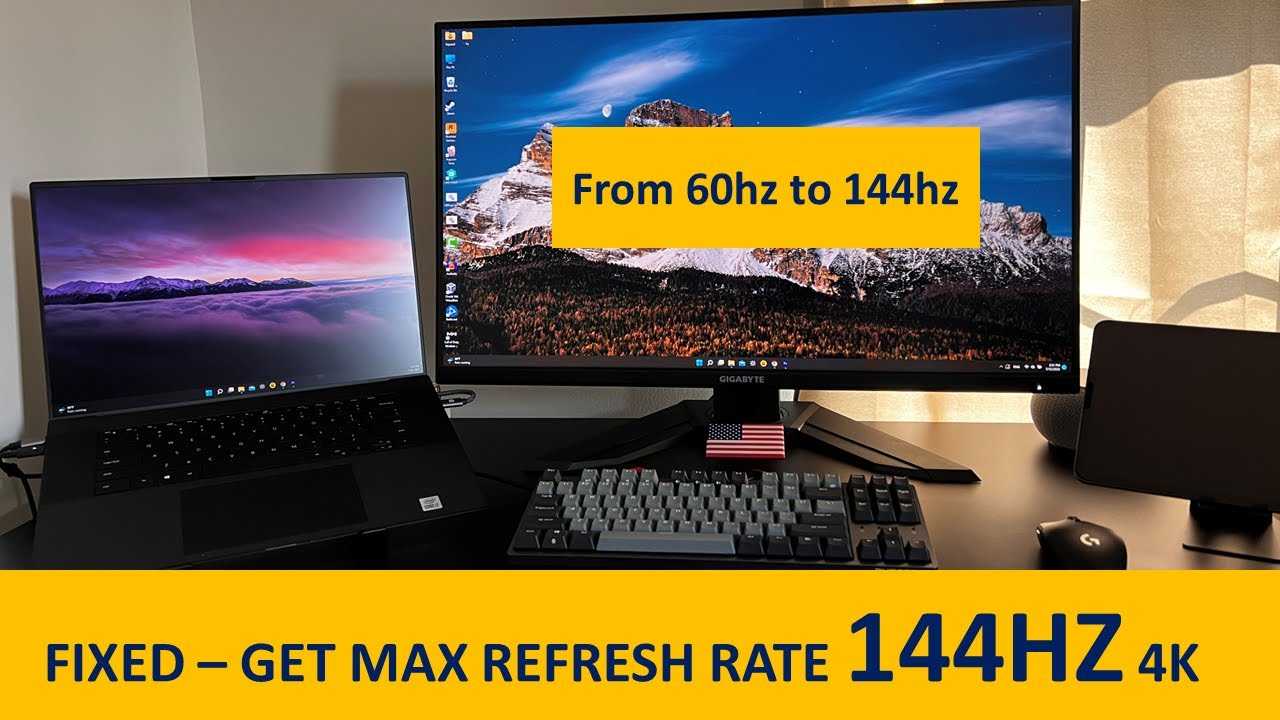
To enable 144Hz on your laptop with a monitor, just connect the monitor using a compatible cable like DisplayPort or HDMI 2.0, then access your display settings to select the 144Hz refresh rate. Make sure your graphics drivers are up to date, and check that your monitor’s settings support 144Hz. With the right setup, you’ll enjoy smoother visuals and a more responsive experience.
Enabling 144Hz on your laptop with an external monitor can significantly improve your visual experience, especially for gaming and fast-paced activities. The key is to ensure your monitor supports 144Hz, use the correct connection, and adjust your display settings properly. This quick guide will walk you through the essential steps to get the most out of your monitor and enjoy ultra-smooth performance. Whether you’re a gamer or simply want a more fluid display, setting up 144Hz can be straightforward when you know what to do.

How to Enable 144Hz on Laptop with Monitor
Understanding 144Hz Refresh Rate
Before diving into the steps to enable 144Hz on your laptop, it’s important to understand what a refresh rate is. The refresh rate measures how many times your monitor updates its image each second, measured in Hertz (Hz). A 144Hz refresh rate delivers smoother visuals, especially during fast-paced activities like gaming or video editing.
Checking Your Laptop’s Compatibility
Not all laptops can support a 144Hz display. Start by verifying your laptop’s specifications. Look for details about your graphics card and display output ports.
- Graphics Card: Ensure your GPU can handle 144Hz output, commonly supported by GTX 10 series, RTX series, or newer integrated graphics.
- Display Outputs: Confirm that your laptop has an HDMI 2.0, DisplayPort, or USB-C port capable of supporting high refresh rates.
- Built-in Display vs External Monitor: Most laptops have a built-in display with fixed refresh rates, so the upgrade usually involves an external monitor.
Choosing the Right Monitor for 144Hz
To enjoy 144Hz smoothly, your monitor must also support this refresh rate. When shopping for an external display, look for these specifications:
- Refresh Rate: Confirm it supports 144Hz or higher.
- Resolution: Decide if you want Full HD (1080p), Quad HD (1440p), or 4K, depending on your needs and GPU capability.
- Connectivity: Ensure it has compatible ports like HDMI 2.0, DisplayPort, or USB-C.
- Adaptive Sync: Features like FreeSync or G-Sync eliminate tearing during gameplay.
Connecting Your Laptop to a 144Hz Monitor
Proper connection is key to enable 144Hz. Use high-quality cables suited for high-refresh-rate signals.
Choosing the Correct Cable
- Use HDMI 2.0 or DisplayPort cables to support 144Hz at higher resolutions.
- Avoid older HDMI or DVI cables that may not handle higher refresh rates.
- Check cable specifications for bandwidth capabilities matching your desired refresh rate.
Connecting the Hardware
Ensure your monitor is powered on before connecting your laptop. Connect the cable securely to both devices.
- Open display settings on your laptop.
- Select the external monitor as the primary display if necessary.
- Adjust the display resolution to match the monitor’s native resolution for optimal clarity.
Configuring Display Settings for 144Hz
Once connected, you’ll need to set the refresh rate manually in your system settings.
Windows Settings
- Right-click on your desktop and select “Display settings”.
- Scroll down and click “Advanced display settings”.
- Find your external monitor and click “Display adapter properties”.
- Go to the “Monitor” tab and select “Screen refresh rate”.
- Choose 144Hz from the list and click “Apply”.
Mac Users
Mac users should navigate to “System Preferences” > “Displays”.
- Hold the Option key and click “Scaled” to reveal refresh rate options.
- Select 144Hz if available.
- Ensure that your monitor supports this refresh rate to avoid display issues.
Troubleshooting Common Issues
If you experience problems enabling 144Hz, check these common issues:
Driver Updates
Ensure your graphics drivers are current. Visit the GPU manufacturer’s website to download the latest version.
Incorrect Cable or Port
Verify you’re using cables and ports that support high refresh rates. Replace outdated or incompatible cables if necessary.
Monitor Settings
Many monitors have built-in menus for refresh rate settings. Access the monitor’s on-screen menu to confirm it’s set to 144Hz.
Resolution Compatibility
Lower resolutions often support higher refresh rates more easily. If 144Hz isn’t working at a high resolution, try reducing the resolution temporarily.
Additional Tips for Optimizing 144Hz Performance
To get the best experience, consider these tips:
- Disable V-Sync if you want to minimize input lag, but be aware it may cause tearing.
- Adjust in-game graphics settings for smoother gameplay at 144Hz.
- Check your power settings and ensure the GPU is running at full performance.
- Use monitor-specific software to tweak refresh rate and display options.
Other Related Topics
You might also explore these related areas:
How to Enable G-Sync or FreeSync on Your Monitor
This technology aligns your GPU’s frame rate with your monitor’s refresh rate, reducing artifacts. Ensure your monitor and GPU support these features before enabling them.
Upgrading Graphics Drivers for Better Compatibility
Regularly updating your drivers ensures optimal performance and compatibility with high refresh rates. Use official sources like NVIDIA, AMD, or Intel.
Using External GPUs to Support Higher Refresh Rates
External GPU docks can boost your system’s graphics capabilities, allowing support for 144Hz and higher resolutions on laptops with weaker internal GPUs.
Enabling 144Hz on your laptop with an external monitor involves verifying compatibility, choosing the correct hardware, connecting properly, and configuring settings. Following these steps can significantly improve the smoothness and responsiveness of your display. Make sure to keep your drivers updated and troubleshoot any issues promptly to enjoy the full benefit of a high refresh rate display.
How to Increase Monitor Refresh Rate MORE FPS
Frequently Asked Questions
How can I check if my laptop supports a 144Hz refresh rate?
To verify if your laptop is capable of running at 144Hz, first check the specifications user manual or the manufacturer’s website. You can also right-click on your desktop, select Display Settings, then click on Advanced Display Settings. Here, look for the supported refresh rates listed for your display. If 144Hz appears as an option, your laptop hardware supports it. Additionally, ensure your graphics card driver is up-to-date, as outdated drivers may limit available refresh rates.
What settings should I adjust to enable 144Hz on my external monitor?
Connect your monitor to your laptop using the appropriate cable, such as HDMI or DisplayPort. Open your display settings, select the external monitor, and access its advanced properties. Change the refresh rate to 144Hz from the drop-down menu. Confirm the changes and apply them. Keep in mind that some monitors may require specific driver installation or software from the manufacturer to properly support higher refresh rates. Ensure your graphics driver is current for optimal performance.
Why does my monitor not display at 144Hz even after selecting it in settings?
If your monitor doesn’t display at 144Hz despite selecting it, check the cable connections to ensure they support high refresh rates. Use a high-quality HDMI, DisplayPort, or other compatible cable capable of transmitting 144Hz signals. Also, verify your graphics driver is updated, as outdated drivers might not recognize higher refresh options. Sometimes, the monitor’s internal settings need adjustment; access your monitor’s menu and ensure it’s set to support 144Hz or a similar high-performance mode.
Are there any specific graphics card requirements to run a 144Hz display?
Yes, to run a 144Hz display smoothly, your graphics card must support high refresh rates at the resolution you use. Check your GPU specifications to confirm it supports 144Hz output at your desired resolution. Most modern dedicated graphics cards from NVIDIA or AMD support 144Hz for common resolutions like 1080p and above. Integrate the latest drivers to avoid compatibility issues and ensure your hardware can handle the increased refresh rate effectively.
What common issues might prevent enabling 144Hz on my laptop and monitor?
Common issues include incompatible cables, outdated graphics drivers, or incorrect display settings. Some laptops or monitors may have hardware limitations that restrict refresh rates. Make sure your monitor and cables support 144Hz, update your graphics drivers regularly, and double-check your display configuration. Additionally, certain power-saving modes or display configurations might limit refresh rate options, so disable these modes if necessary and set the refresh rate manually in your display settings.
Final Thoughts
To enable 144hz on laptop with monitor, start by checking your graphics card specifications to ensure compatibility. Update your display drivers to the latest version for optimal performance. Access your display settings through the control panel or right-click menu, then select the monitor and set the refresh rate to 144Hz.
Ensure your monitor supports 144Hz and connect it using the appropriate cable, such as HDMI or DisplayPort. Adjust the resolution if needed to improve compatibility.
In conclusion, to enable 144hz on laptop with monitor, verify your hardware and update drivers, then set the refresh rate in display settings. This process guarantees you experience smoother visuals and enhanced gaming or work sessions.

With experience in IT support and consumer technology, I focus on step-by-step tutorials and troubleshooting tips. I enjoy making complex tech problems easy to solve.