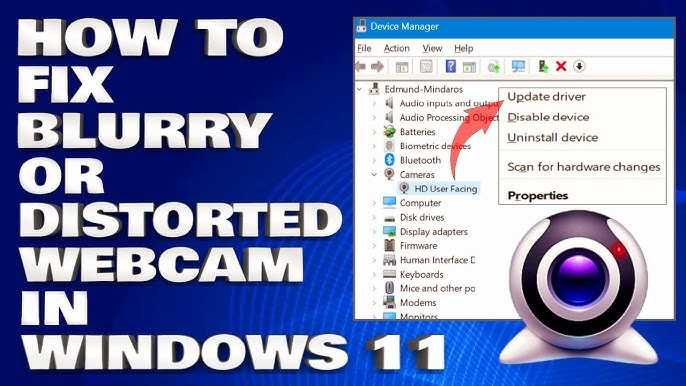
To fix blurry text behind your webcam, try adjusting your camera settings for sharper focus, ensure your lighting is sufficient, and clear any obstructions that may be causing the blur. Using software to enhance image quality or updating your webcam drivers can also make a big difference. These simple steps can dramatically improve clarity and make your video calls much more professional and enjoyable.
If your text appears blurry behind your webcam, the solution is to optimize your camera focus, improve lighting conditions, and keep your software updated. Sometimes, cleaning your webcam lens or adjusting the position can also help achieve a clearer picture. By taking these easy actions, you’ll notice an immediate improvement in the sharpness of your video feed, making your communication clearer and more engaging.
Blurry text behind a webcam can be frustrating, especially when you’re trying to appear professional during video calls or recordings. Often, the problem stems from the camera’s focus settings or poor lighting, which can cause the image to look fuzzy and unsharp. Whether you’re working from home, making tutorials, or just catching up with friends, having a crisp and clear visual makes a huge difference. Luckily, fixing this issue is straightforward—most commonly by refining focus, enhancing your environment with better lighting, or updating your camera’s drivers. In this article, we’ll guide you through simple, effective steps to eliminate blurry text and give your webcam feed the clarity it deserves.

How to Fix Blurry Text Behind Webcam
Understanding Why Text Appears Blurry Behind Your Webcam
Blurry text behind your webcam often happens because of focus issues or poor lighting conditions. Cameras are designed to focus on objects directly in front, not on backgrounds. If your text is out of focus, it will appear blurry and hard to read. Additionally, low light can make it difficult for the camera to capture sharp details. Recognizing the main cause helps determine the best way to fix the problem promptly.
Adjusting Your Camera Focus
Focus problems are a common reason behind blurry text. Many webcams have a manual or auto-focus feature. If your camera has auto-focus, ensure it is enabled and functioning correctly. Sometimes, the autofocus may struggle in low light or with certain backgrounds.
How to Enable or Improve Autofocus
To make sure autofocus works effectively:
- Open your webcam settings via your computer or video conferencing app.
- Look for an option labeled ‘Auto Focus’ or similar and turn it on.
- If autofocus is enabled but still not sharp, try restarting the camera.
Some webcams have a dedicated lens adjustment ring—gently turning this can improve focus manually. Avoid excessive twisting, as it may damage the lens.
Manual Focus Adjustment
If your webcam has a manual focus ring:
- Locate the focus ring on the lens.
- Slowly turn the ring while watching the text behind you.
- Stop adjusting once the background text appears sharp.
Manual focusing ensures you get a clear image when autofocus isn’t enough. Make small adjustments and test repeatedly to find the perfect focus point.
Optimizing Lighting Conditions
Poor lighting can cause your camera to struggle with clarity, making text blurry. Bright, even lighting helps your camera focus better and captures sharp images.
Lighting Tips for Clearer Text
- Ensure the area behind you is well-lit, avoiding harsh shadows.
- Use natural light during daytime or add a desk lamp with adjustable brightness.
- Avoid strong backlighting, which can cause the text to appear darker and blurry.
- If possible, add soft diffused lighting to reduce glare and shadows.
Good lighting improves contrast, making text more readable and sharp in the camera feed.
Adjusting Camera Settings for Better Clarity
Most webcams allow you to tweak settings manually for improved image quality.
Key Camera Settings to Adjust
| Setting | Recommended Adjustment |
|---|---|
| Resolution | Select the highest available resolution for sharper images. |
| Focus Mode | Switch between auto-focus and manual focus based on what works best. |
| Brightness | Increase brightness if the background appears dark or blurry. |
| Contrast | Adjust contrast to make the text stand out more clearly. |
| Saturation | Set saturation to ensure colors are vivid but natural. |
Tuning these settings enhances clarity and helps make background text more legible behind your webcam.
Using Software Tools to Improve Image Sharpness
Advanced video conferencing apps and webcam software often include features to counteract blurry images.
Dedicated Webcam Software
Many webcams come with their own software that allows manual adjustments, including:
- Focus control
- Exposure settings
- Image stabilization
Access these tools through your webcam manufacturer’s website or app, and fine-tune settings for the clearest results.
Post-Processing with Video Editing Tools
If blurry text remains, consider editing the video feed:
- Use software like OBS Studio or ManyCam to enhance sharpness.
- Apply filters such as sharpening and contrast improvements.
- Test changes in real-time to find optimal settings.
While this doesn’t fix the live issue, it can improve the overall clarity during a session.
Testing Different Webcam Positions and Angles
Sometimes, the placement of your webcam affects focus and image quality.
Best Practices for Webcam Placement
- Position the webcam at eye level for better focus.
- Avoid placing the camera too close or too far from the text.
- Keep the background steady; sudden movements can cause focus to shift.
- Use a stable surface to prevent shaky video, which can blur the image.
Experiment with angles to achieve the clearest view of the background text behind you.
Ensuring Your Hardware Is Up to Date
Outdated drivers or firmware can cause focus and image quality issues.
Updating Webcam Drivers
Follow these steps:
- Visit the manufacturer’s website and download the latest driver software.
- Install updates and restart your computer.
- Test your camera to check if the text appears clearer.
Keeping firmware current ensures your webcam functions correctly and may resolve blurriness issues.
Checking for Firmware Updates
Some webcams offer firmware updates:
- Access the manufacturer’s support page.
- Download and install the latest firmware.
- Reboot the device and verify improvements.
This process can fix bugs affecting image focus and clarity.
Additional Tips and Troubleshooting
If you’ve tried everything and text remains blurry, consider these extra steps.
Test with Different Apps or Devices
Try using your webcam with different software or devices to identify if the problem is hardware or software related. If the issue persists across programs, the webcam hardware might need servicing.
Check for Physical Obstructions and Damage
Inspect your webcam lens for smudges, dust, or scratches. Clean the lens with a soft, lint-free cloth. Damaged lenses may require professional repair or replacement.
Reset Your Webcam Settings
Resetting settings to default can sometimes resolve focus issues. Look for a reset option within your camera software or manual controls.
Fixing blurry text behind your webcam involves a mix of adjusting focus, optimizing lighting, tweaking settings, and maintaining your hardware. Applying these steps improves clarity and ensures your background text is sharp and easy to read during video calls. Regularly checking your equipment and environment will help avoid future issues with blurry images.
This is why your text is Still BLURRY in OBS Studio
Frequently Asked Questions
What are the common causes of blurry text appearing behind my webcam?
Blurry text behind your webcam often results from poor lighting conditions, incorrect camera focus settings, or background distractions. Additionally, low-resolution displays or misconfigured camera drivers can contribute to the problem. Ensuring good lighting, proper focus, and updated drivers helps improve text clarity in your webcam feed.
How can adjusting my webcam’s focus improve text clarity?
Many webcams have adjustable focus settings. Manually tweaking the focus allows you to sharpen the image and make text behind the camera more legible. If your webcam lacks manual focus options, ensure it is set to autofocus and give it time to adjust. Restart your camera software after changing focus settings for optimal results.
What role does lighting play in reducing blurry text behind the webcam?
Proper lighting improves image sharpness by reducing shadows and enhancing contrast. Bright, even lighting helps your webcam accurately focus on the text behind it. Avoid harsh backlighting or dim environments, as these can cause glare or blurry images. Using a dedicated light source directed at the text area can significantly improve clarity.
How can updated camera drivers aid in fixing blurry text issues?
Updating your webcam drivers ensures compatibility with your system and fixes bugs that may cause blurriness. Visit the manufacturer’s website or use your device manager to check for the latest driver updates. Installing the most recent drivers improves focus, image quality, and overall stability of your webcam feed.
Are there specific software settings that can help clarify text behind the camera?
Yes, many webcam applications include settings to enhance image sharpness, contrast, and exposure. Adjusting these parameters can make text behind your webcam more visible. Some software also offers features like background blur or sharpening filters, which can help improve text clarity without changing hardware settings.
Final Thoughts
To fix blurry text behind webcam, start by cleaning the camera lens to remove dust and smudges, ensuring clear image capture. Adjust your webcam settings, focusing on the sharpness and resolution options available. If needed, update your camera drivers to fix any software glitches.
In conclusion, fixing blurry text behind webcam involves cleaning the lens, adjusting settings, and updating drivers. These simple steps make a significant difference in image clarity. Addressing these key areas ensures your webcam captures crisp, clear text every time.

I follow the latest trends in smart devices, portable monitors, and gaming accessories. My goal is to provide real-world insights that help readers make smarter tech decisions.