
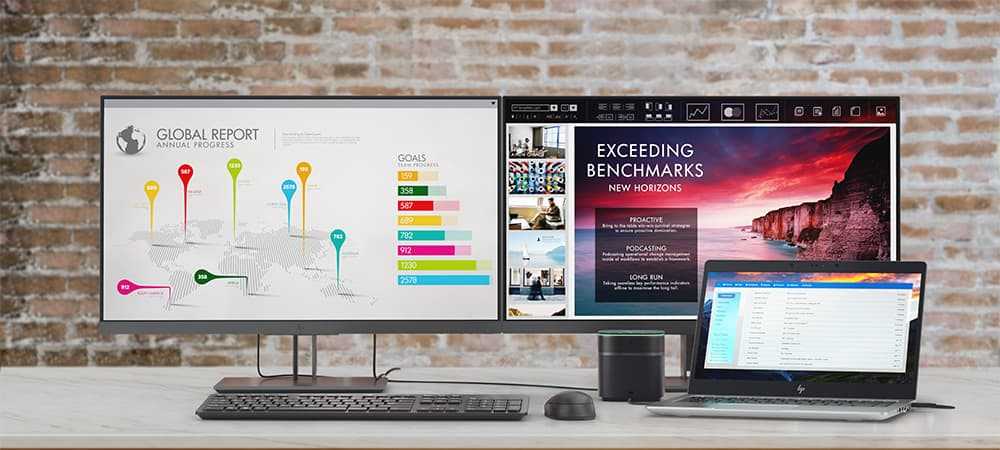
To set up a dual monitor with your laptop quickly, connect your second display using an HDMI, DisplayPort, or VGA cable, then configure your display settings to extend your desktop across both screens. With a few simple connections and settings adjustments, you can enjoy increased productivity and a seamless multi-screen experience.
Setting up a dual monitor with your laptop is easier than you might think, and it can significantly boost your workflow. Whether you’re working on multiple projects or just want more space for your browser and applications, adding a second screen is a game-changer. Modern laptops usually support multiple displays, and with the right cables and settings, you can turn your single screen setup into a powerful multi-tasking station. In this guide, I’ll walk you through the steps to connect your laptop to an additional monitor, ensuring you get the most out of your workspace in a simple, straightforward way.

How to Make Dual Monitor with Laptop: A Step-by-Step Guide
Understanding the Benefits of Dual Monitors
Using two monitors with your laptop can greatly improve your productivity. It allows you to multitask more efficiently by having multiple applications open side by side. Whether you’re working, gaming, or creating content, dual monitors give you extra screen space that can make tasks easier and faster.
Checking Your Laptop’s Compatibility
Before setting up a dual monitor, you need to verify if your laptop can support an additional screen. Most modern laptops have the necessary hardware, but some older models might require extra adapters. Look for the following ports on your laptop:
- HDMI port
- DisplayPort
- USB-C port with DisplayPort support
- VGA port (less common on newer models)
If your laptop lacks these ports, you may need to consider alternative methods such as USB adapters.
Gathering the Necessary Equipment
To set up a dual monitor system, you need a few essential items:
- Second monitor (preferably matching your current screen size or resolution)
- appropriate video cables (HDMI, DisplayPort, VGA, or USB-C)
- Adapter cables if your ports don’t match (for example, USB-C to HDMI)
- Optional: a docking station or port replicator for multiple connections
Choosing the right monitor is key; consider factors like size, resolution, and refresh rate to match your needs.
Connecting Your Second Monitor
Start by turning off your laptop for easier connection. Plug the video cable into your monitor and the appropriate port on your laptop. For USB-C ports, you may need a USB-C to HDMI or DisplayPort adapter. Once connected, turn on the monitor before powering up the laptop.
Configuring Display Settings in Windows
After powering on, right-click on your desktop and select ‘Display settings’. You will see both monitors detected automatically. To enable extended display:
- Scroll down to the ‘Multiple displays’ section.
- Select ‘Extend these displays’ from the dropdown menu.
- Click ‘Apply’ to save changes.
You can also drag and rearrange the monitor icons to match their physical setup.
Configuring Display Settings in macOS
For Mac users, open ‘System Preferences’ and click on ‘Displays’. Under the ‘Arrangement’ tab, you will see a visual layout of your monitors. Drag the displays to match your physical arrangement. Check ‘Mirror Displays’ only if you want the same image on both screens.
Adjusting Resolution and Orientation
Make sure both screens have optimal resolution settings for clarity. In Windows, under ‘Display settings’, select each monitor and choose the recommended resolution. Adjust the scaling if text or icons appear too small or large. On Mac, resolution adjustments are available within ‘Displays’ preferences.
Using Dual Monitors Effectively
Once configured, learn to use your dual monitors efficiently:
- Keep primary tasks on your main screen.
- Use the second screen for reference materials or secondary applications.
- Arrange applications using drag-and-drop to improve workflow.
- Set wallpapers or backgrounds specific to each monitor for aesthetic appeal.
Troubleshooting Common Issues
If your second monitor isn’t working:
- Check all cable connections for secure fit.
- Ensure your graphics driver is up to date.
- Try a different cable or port to identify hardware issues.
- Restart your laptop to refresh hardware detection.
- Verify that your graphics card supports multiple displays.
Using Additional Accessories for Better Setup
For a cleaner, more stable setup, consider:
- A docking station that offers multiple video outputs and easier cable management.
- USB hubs or adapters that provide extra ports.
- Monitor stands or mounts to position screens ergonomically.
These accessories can simplify connecting and positioning multiple displays.
Optimizing Your Workspace for Dual Monitors
Arrange your monitors to reduce strain and increase efficiency:
- Position the monitors at eye level to avoid neck strain.
- Align screens evenly to prevent sudden eye movements.
- Ensure good lighting to reduce glare and eye fatigue.
- Use ergonomic chairs and desks to support comfort during long work sessions.
Additional Tips for Seamless Dual Monitor Use
Maximize your dual monitor experience with these tips:
- Learn keyboard shortcuts to switch between applications quickly.
- Use window snap features to organize windows efficiently.
- Customize display profiles for different tasks or projects.
- Regularly update your graphics drivers for compatibility and performance.
Related Topics to Explore
While setting up dual monitors, you might also consider:
Using Dual Monitors for Gaming
Maximize gaming immersion with multiple screens, but ensure your laptop’s graphics card can handle the increased load.
Extending Your Workspace with Multiple Devices
Connect additional devices like tablets or external keyboards for a multi-device setup.
Tips for Maintaining Your Dual Monitor Setup
Keep cables organized, clean your screens regularly, and check connections periodically for a smooth experience.
This detailed guide ensures you understand every step of how to make dual monitor with laptop. From hardware choices to troubleshooting and workspace optimization, each part plays a role in creating an efficient multi-screen environment. Proper setup can significantly enhance your productivity and comfort whether you work, browse, or entertain.
Dual Monitor Setup: How to Connect Two Monitors to One Laptop
Frequently Asked Questions
What types of ports are necessary on my laptop to set up a dual monitor system?
Most laptops require available video output ports such as HDMI, DisplayPort, USB-C, or VGA to connect an external monitor. Check your laptop’s specifications to identify which ports are present. If your laptop lacks the needed port, consider using adapters or docking stations that convert existing ports to the desired connection type, enabling you to connect additional monitors effectively.
How can I select the best display settings for two monitors on my laptop?
After connecting the monitors, go to your display settings to configure resolution, orientation, and display mode. Choose whether to extend or duplicate your screens based on your workflow. Adjust each monitor’s resolution to match its native resolution for optimal clarity. Properly arranging the position of the monitors within the settings ensures smooth cursor movement and an efficient workspace.
Are there specific graphics cards required for running dual monitors smoothly?
While most modern laptops come with integrated graphics capable of supporting dual monitors, high-resolution displays or multiple extended screens may benefit from dedicated graphics cards. Check your laptop’s GPU specifications to confirm its support for multiple displays. If performance issues arise, consider upgrading your graphics hardware or optimizing your display settings to improve the overall experience.
What should I do if my external monitor isn’t detected after connecting it to my laptop?
If your laptop doesn’t recognize the external monitor, verify that all cables are securely connected and that the monitor is powered on. Access your display settings to manually detect new displays. Updating your graphics driver or restarting your laptop can also resolve detection issues. For persistent problems, test the monitor with another device or replace cables to identify any hardware faults.
Can I connect more than two monitors to my laptop, and what additional equipment might I need?
Connecting more than two monitors depends on your laptop’s hardware capabilities and available ports. If your laptop supports multiple outputs, you can connect additional monitors directly. Otherwise, you might need a docking station or external graphics adapter that provides extra video outputs. Ensure that your laptop’s GPU and hardware support multiple displays before attempting to expand your setup.
Final Thoughts
Making a dual monitor with a laptop enhances productivity and multitasking. First, check your laptop’s video output ports, such as HDMI or DisplayPort. Connect the second monitor using the appropriate cable and power it on.
Adjust display settings in your operating system to extend or mirror your screen as needed. This setup allows for efficient workflow and easier navigation between tasks.
In conclusion, knowing how to make dual monitor with laptop simplifies your work setup. It boosts efficiency and makes multitasking more manageable.

I’m passionate about hardware, especially laptops, monitors, and home office gear. I share reviews and practical advice to help readers choose the right devices and get the best performance.
