
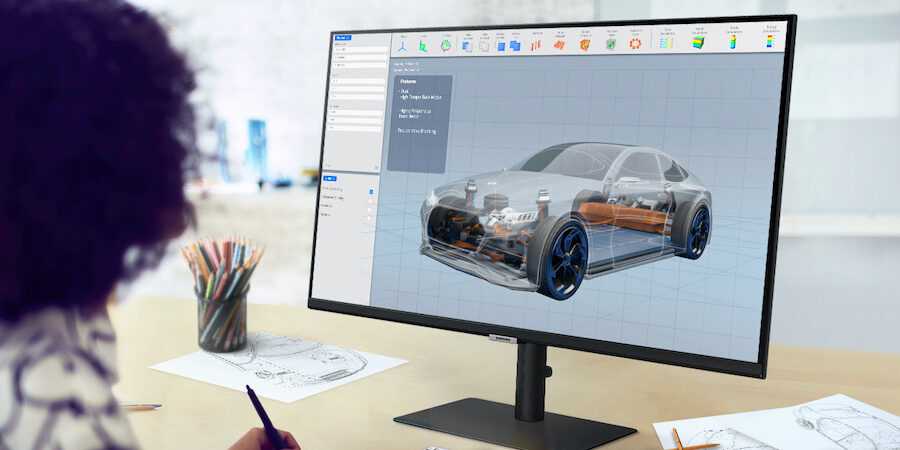
To reduce glare on creative monitors effectively, consider adjusting your monitor’s position, using an anti-glare screen protector, and optimizing your ambient lighting. These simple steps can make a huge difference in easing eye strain and enhancing your viewing experience.
In short, reducing glare involves positioning your monitor correctly, controlling the lighting environment, and utilizing anti-glare accessories. These strategies help minimize reflections and improve visibility, allowing you to focus better on your creative work without discomfort.
Bright screens and reflective surfaces can turn your creative space into a glare-filled zone, causing eye fatigue and decreasing productivity. If you spend hours on design, editing, or digital artwork, glare can be a serious obstacle. Fortunately, there are practical, easy-to-implement solutions that can make your workspace more comfortable and your visuals clearer. Whether through adjusting your monitor’s angle, incorporating proper lighting, or adding anti-glare films, keeping glare at bay is achievable and essential for maintaining focus and eye health.

How to Reduce Glare on Creative Monitors
Glare on your creative monitor can make working difficult and strain your eyes. It’s important to find ways to minimize reflections and brightness that interfere with your work. This guide will walk you through effective strategies to reduce glare and make your workspace more comfortable.
Understanding Glare and Its Causes
Glare occurs when bright light reflects off your monitor surface, creating a distracting or blinding effect. It often results from external light sources like sunlight or artificial lighting. Different monitor surfaces and placement can also influence how much glare you experience.
Choosing the Right Monitor with Anti-Glare Coating
Many creative monitors come with an anti-glare coating designed to diffuse light and reduce reflections. Look for models labeled with “matte finish” or “anti-glare” features. These coatings make it easier to view your screen comfortably, especially in well-lit rooms.
Opt for monitors with a matte screen rather than glossy finishes, as they tend to minimize reflections. Keep in mind that anti-glare coatings may slightly dull colors, but they significantly improve overall visibility.
Proper Monitor Placement to Minimize Glare
Position Your Monitor Correctly
Place your monitor so that it is perpendicular to windows or bright light sources. Avoid positioning your screen directly facing a window or bright lights that can cause reflections.
The ideal setup involves placing the monitor at a slight angle to windows, reducing direct glare while maintaining a comfortable viewing position.
Adjust the Height and Angle
Position your monitor so that the top of the screen is at or slightly below eye level. Tilt the monitor downward slightly to avoid reflections from overhead lights and improve focus.
Experiment with different angles to find the position that minimizes glare while keeping your view comfortable.
Controlling Ambient Lighting
Use Curtains or Blinds
Closing curtains or blinds can block direct sunlight, reducing glare significantly. This is especially useful during daylight hours when sunlight is strongest.
Deploy Task Lighting
Instead of bright overhead lights, opt for softer, directed lighting near your workspace. Use desk lamps with adjustable brightness to illuminate your area without causing reflections on the monitor.
Adjust the Brightness and Contrast
Match your monitor’s brightness to the ambient light in your room. Too high brightness can intensify glare, so lower it to comfortable levels for your environment.
Utilizing Monitor Settings for Better Visibility
Enable Anti-Glare Features
Check your monitor’s menu for anti-glare settings or preset modes designed to reduce reflections. Adjust these settings according to your needs for optimal clarity.
Use Blue Light Filters and Night Mode
Blue light filters reduce eye strain and can also diminish perceived glare. Night mode settings can make your screen easier to view in low-light conditions.
Applying Physical Accessories to Reduce Glare
Install a Monitor Hood or Shade
A monitor hood or shade can block incoming light from the sides and top, reducing glare and reflections. Custom or DIY hoods can be made from cardboard or purchased to fit specific monitor sizes.
Use an Anti-Glare Screen Protector
Applying a matte screen protector or overlay can diffuse reflections and improve visibility. These accessories are easy to install and can be replaced if scratched or damaged.
Additional Tips for Enhancing Comfort
- Use a matte screen filter to diffuse reflections further.
- Keep your workspace clean to prevent dust and fingerprints, which can add to glare issues.
- Try rearranging your desk to minimize direct light hitting your screen.
By combining these strategies, you can create a workspace that reduces glare and makes your creative work more comfortable. Consistently adjusting your environment and monitor settings ensures prolonged comfort and better productivity.
Stop your Lights from Reflecting in Your Glasses 🤓
Frequently Asked Questions
What are effective ways to reduce glare caused by ambient lighting around a monitor?
Adjust the placement of lights in your workspace to prevent direct reflections on the screen. Use curtains or blinds to control natural light entering the room. Position your monitor perpendicular to windows or light sources, so glare does not bounce directly onto the screen. Incorporating adjustable task lighting can also help maintain consistent illumination without causing reflections.
How can screen settings help minimize glare on creative monitors?
Reduce the monitor’s brightness to a comfortable level that balances visibility without causing strain. Adjust contrast settings to improve clarity and reduce reflections. Some monitors include anti-glare or matte display modes that diffuse reflections, making glare less noticeable. Fine-tuning these settings can significantly improve your viewing experience in bright environments.
What physical accessories can I use to avoid glare during creative work?
Use an anti-glare screen filter or matte screen protector to diffuse reflected light. Upgrade to an monitor hood or shading shield that blocks excess ambient light from hitting the screen. Positioning a desk lamp with a matte shade can provide additional illumination without creating glare. These accessories effectively reduce reflections and enhance visual comfort.
Are there specific monitor features that help reduce glare naturally?
Look for monitors equipped with anti-reflective coatings or matte screens designed to diffuse light. Features such as adjustable stands allow you to tilt or rotate the screen to find the best angle, minimizing reflections. Some high-quality creative monitors come with built-in anti-glare technology, which significantly diminishes unwanted reflections during work.
What can I do to improve my workspace environment for better screen visibility?
Create a workspace layout that minimizes reflective surfaces behind or around your monitor. Use neutral-colored walls and furniture to prevent color reflections that can add to glare. Regularly clean your screen to remove dust and fingerprints that can exacerbate glare issues. Position your monitor to face away from direct light sources to achieve optimal viewing conditions.
Final Thoughts
Reducing glare on creative monitors enhances visual comfort and accuracy. Start by adjusting the monitor’s brightness and contrast to match ambient lighting. Use anti-reflective screen filters to minimize reflections. Position the monitor away from direct light sources and consider using curtains or blinds. Proper lighting setup and screen settings significantly improve viewing quality and reduce eye strain.

I’m passionate about hardware, especially laptops, monitors, and home office gear. I share reviews and practical advice to help readers choose the right devices and get the best performance.
