
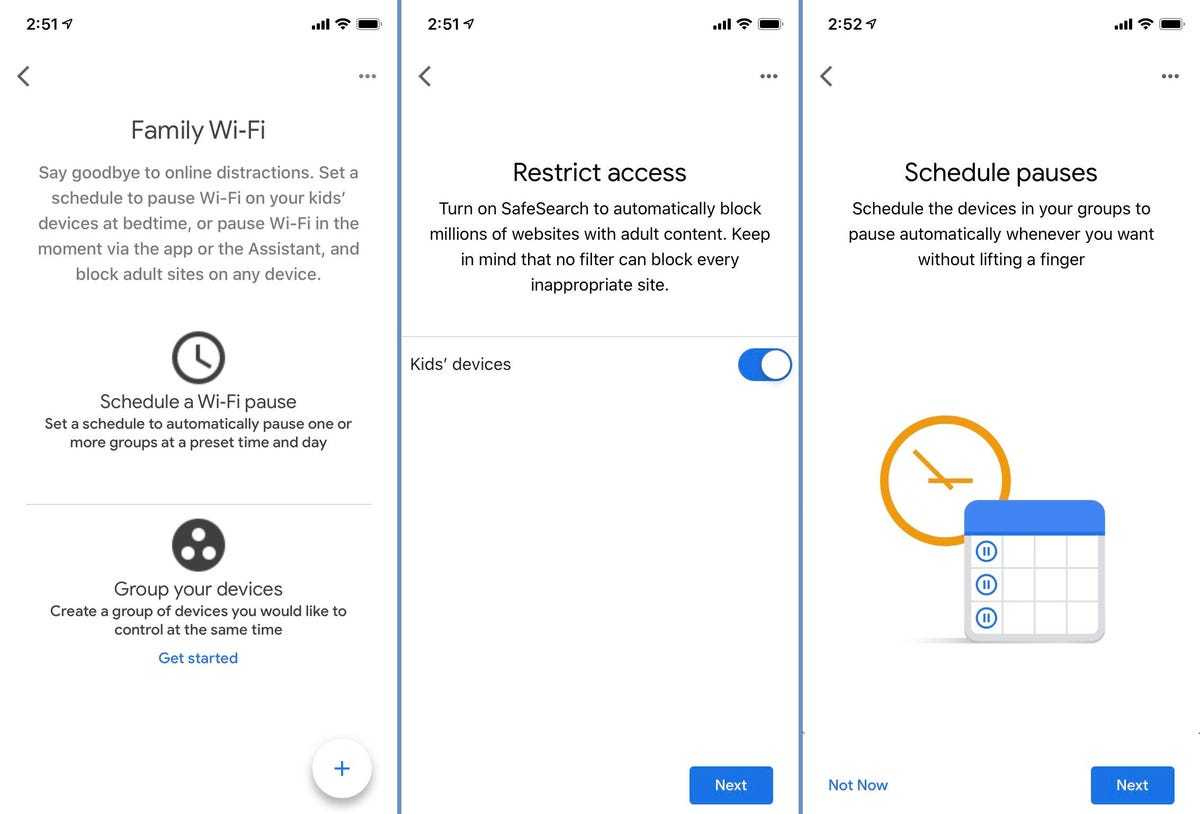
To quickly set up parental controls on your home network, access your router’s settings, enable the parental controls feature, and customize filters for specific devices or content categories. You can also use third-party apps or device-specific settings for more targeted control. Regularly review and update these controls to keep your kids safe online.
Setting up parental controls on your home network is a straightforward way to protect your children from inappropriate content and manage their screen time. With a little bit of digging into your router’s settings or investing in dedicated parental control tools, you can create a safer online environment for your family. It’s easier than you think, and doing so gives you peace of mind knowing you’re actively monitoring and guiding your children’s digital activities. Whether you’re tech-savvy or just starting, this guide will walk you through simple steps to establish effective controls, ensuring the internet remains a safe space for everyone in your household.

How to set up parental controls on your home network
Understanding the importance of parental controls
Parents want to protect their children from inappropriate content and online dangers. Parental controls help manage what kids can access on the internet and how much time they spend online. Setting these controls wisely creates a safer digital environment for your family.
Types of parental controls available
There are different ways to implement parental controls on your home network. These include router-based controls, device-specific controls, and third-party applications. Each type offers unique features, so choosing the right mix depends on your family’s needs.
Router-based controls
Most modern routers come with built-in parental control features. These controls allow you to manage all devices connected to your home Wi-Fi from a single interface. They are great for overall management and easy to set up.
Device-specific controls
Many devices like smartphones, tablets, and computers have parental control settings. These controls enable detailed management of content and usage directly on each device. They are useful for more personalized restrictions.
Third-party applications
Dedicated parental control apps such as Qustodio, Net Nanny, or Norton Family offer advanced features. These include activity reports, screen time limits, and content filtering. They often work across multiple devices and platforms for comprehensive management.
Preparing your network for parental controls
Before setting controls, make sure your home network is ready. This involves updating your router firmware, understanding your network setup, and possibly creating separate profiles for children. Preparation ensures a smooth setup process.
Updating your router firmware
Check your router manufacturer’s website for the latest firmware updates. Updating firmware can unlock new features and fix security issues. Always follow the manufacturer’s instructions carefully.
Understanding your network setup
Identify all devices connected to your network, including smart home gadgets, gaming consoles, and computers. Knowing your network’s layout helps in designing effective control measures.
Creating separate user profiles
Set up different Wi-Fi networks or user profiles for children. This segregation helps in applying tailored restrictions and monitoring their activity more easily.
Setting up parental controls on your router
Router controls are a powerful way to manage your entire network. Accessing your router’s admin panel is the first step.
Accessing the admin panel
Connect your device to the home Wi-Fi network, then open a web browser. Enter your router’s IP address, usually something like 192.168.1.1 or 192.168.0.1. Log in using your administrator credentials.
Enabling parental controls
Once logged in, look for settings labeled “Parental Controls,” “Access Restrictions,” or similar. Enable these features and follow the prompts to configure.
Creating access schedules
Set specific times when the internet is accessible for each device or user profile. Schedules help limit screen time and prevent late-night internet use.
Filtering content and websites
Use the router’s filtering options to block access to categories like adult content or social media. You can also add specific websites to a blacklist or whitelist.
Implementing device-specific parental controls
Controlling individual devices allows for more detailed restrictions. Here’s how to do it on popular platforms.
Setting controls on Windows computers
Navigate to the Windows Settings menu, select “Accounts,” then “Family & Other Users.” Add a family member account and set restrictions under “Family Safety” options.
Configuring controls on Macs
Open “System Preferences,” then “Screen Time.” Create a family account, set app limits, and restrict web content as needed.
Using parental controls on iOS devices
Go to “Settings,” then “Screen Time.” Turn on “Content & Privacy Restrictions,” and customize app, content, and web access limits.
Managing controls on Android devices
Access “Settings,” then “Digital Wellbeing & Parental Controls.” Set app timers, content filters, and restrictions for age-appropriate content.
Using third-party parental control apps
Third-party apps can provide centralized management across multiple devices. Here’s how to choose and set them up.
Choosing the right app
Research features, compatible devices, and user reviews. Popular options include Qustodio, Net Nanny, and Norton Family.
Installing and configuring the app
Download the app from official sources. Follow the setup instructions, create user profiles, and define restrictions such as screen time limits, content filters, and activity reports.
Monitoring activity and adjusting settings
Regularly review activity logs and reports. Adjust restrictions based on your child’s maturity level and changing needs.
Additional tips for effective parental control management
Parental controls are most effective when combined with open communication. Keep your children informed about why restrictions are in place.
Encouraging healthy online habits
Teach children about safe internet use, responsible sharing, and privacy protection. Set a good example by practicing balanced technology habits yourself.
Performing regular reviews
Periodically check your controls and adjust them as your children grow or as new threats emerge. Staying proactive keeps your network secure.
Creating a family tech agreement
Write down rules about internet use, screen time, and acceptable behavior online. Review this agreement regularly with your children to reinforce safety measures.
Common challenges and troubleshooting
Sometimes, controls may not work as expected. Common issues include devices bypassing restrictions or outdated firmware.
Overcoming device bypass
Ensure restrictions are applied at the network level too, not just on individual devices. Use strong passwords on your router and control apps.
Dealing with technical issues
Restart your router and devices after updates. Contact customer support if parental controls do not activate or function properly.
Keeping controls effective amidst updates
Update all devices and apps regularly. New software versions can bring security patches and improved controls.
Related topics to consider
While setting up parental controls, explore related areas such as creating digital literacy lessons for kids, setting device usage limits, and using internet security tools.
Digital literacy education
Teaching children about online safety complements parental controls and helps them make better choices.
Screen time management
Use tools to establish healthy limits that prevent excessive device use and promote outdoor activities and family time.
Cybersecurity basics for families
Install security software, enable two-factor authentication, and educate children about online threats like phishing and malware.
By thoroughly implementing these steps, you can create a safer online environment for your children while maintaining control over your home network. Proper setup, regular review, and open communication are key to making parental controls effective and family-friendly.
How To Setup Parental Controls – Internet
Frequently Asked Questions
What steps are involved in configuring parental controls on your Wi-Fi router?
To set up parental controls on your Wi-Fi router, start by accessing the router’s admin panel through your browser. Log in using your admin credentials, then locate the parental control or access restrictions section. Enable the feature and specify the devices or IP addresses you want to monitor. You can set time limits, restrict access to certain websites or categories, and save your settings. Remember to apply the changes and restart your router if necessary to ensure the controls are active.
How can I restrict specific websites or online content for devices on my network?
Most routers offer options to block specific websites or content categories. Navigate to the parental controls or security settings in your router’s interface. Enter the URLs or keywords associated with the websites you want to restrict. You can often create profiles for different devices to apply these restrictions selectively. Save the settings, and they will prevent access to those sites when devices connect to your network.
What tools can I use to monitor or limit internet usage across multiple devices?
You can utilize built-in parental control features on your router, which usually include usage monitoring and time scheduling. There are also third-party applications and services compatible with your Wi-Fi network that provide detailed activity logs and usage limits. These tools let you set daily time caps or specific hours during which devices can access the internet, helping manage overall usage effectively.
How do I ensure that parental controls remain active after firmware updates or device resets?
<
After updating your router’s firmware or resetting it, revisit the parental control settings to verify they are still enabled. It’s a good idea to document your configurations beforehand or save backup files if your router allows. Regularly check the controls to ensure they continue functioning as intended, and reapply settings if needed to maintain your restrictions.
Can I set up different levels of restriction for various family members or devices?
Yes, many routers allow you to create separate profiles or user groups. Assign specific restrictions — such as website access limits, usage times, or content filters — based on profiles. Apply these profiles to individual devices or user accounts. This setup helps provide tailored access, giving younger children stricter controls while allowing older users more flexibility.
Final Thoughts
Setting up parental controls on your home network ensures a safer online environment for your children. Begin by accessing your router’s settings through its IP address, usually found on the device or in the manual. Enable parental control features and set restrictions based on age-appropriate content.
Next, customize filtering options such as blocking specific websites or limiting internet access during certain hours. Regularly update these settings to adapt to your family’s needs.
In conclusion, how to set up parental controls on your home network offers a straightforward way to manage online activity. Implement these steps to protect your children and promote responsible internet use.

I’m passionate about hardware, especially laptops, monitors, and home office gear. I share reviews and practical advice to help readers choose the right devices and get the best performance.
