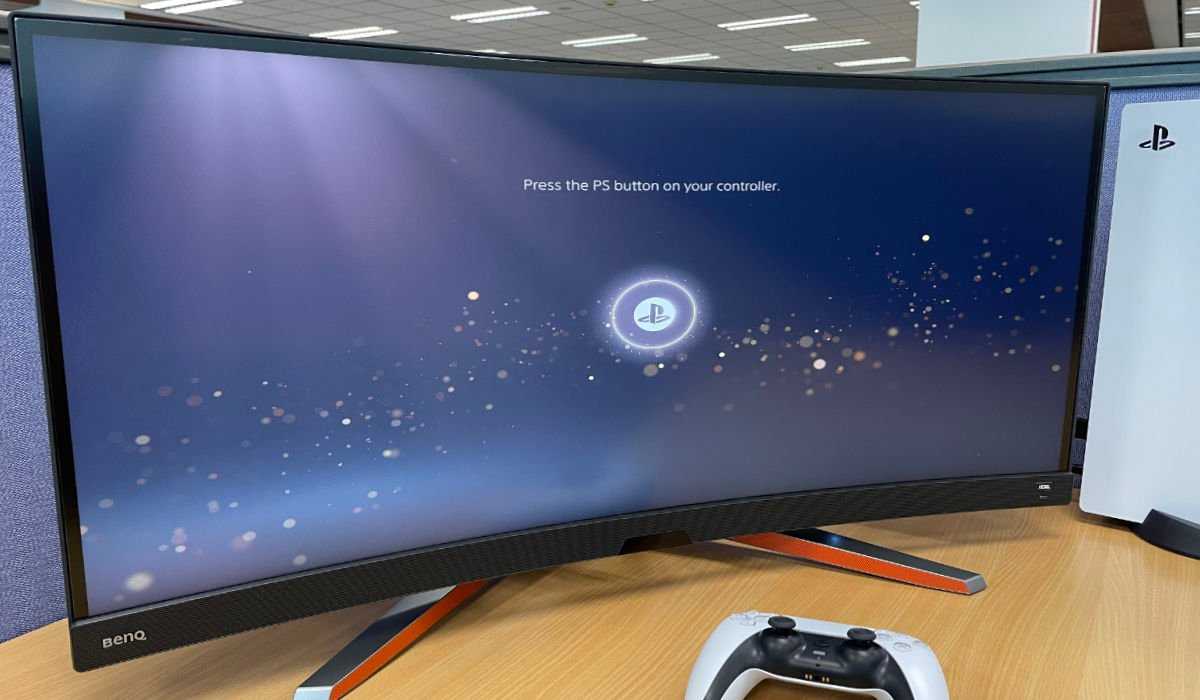
To get the most out of your curved gaming monitor with your PS5, ensure it supports the right resolution and refresh rate, connect it via HDMI 2.1 for optimal performance, and tweak the display settings for immersive gameplay. Using a curved monitor can elevate your gaming experience by providing a wider field of view and more immersive visuals, but compatibility and settings are key.
For seamless use of a curved gaming monitor with your PS5, check the monitor’s specifications for 4K resolution and at least a 120Hz refresh rate, connect through an HDMI 2.1 port, and adjust display settings on both the monitor and console to maximize visual quality. This setup enhances your gaming immersion with vibrant, smooth visuals.
Jumping into gaming on a curved monitor paired with your PS5 offers a stunning visual upgrade, but it requires some setup to ensure everything runs smoothly. Not all monitors are automatically compatible, so it’s essential to confirm your display supports 4K and high refresh rates. Using an HDMI 2.1 cable is vital for getting the best graphics and faster response times. Once connected, fine-tune your PS5 display settings, like enabling 4K resolution and VRR (Variable Refresh Rate), to make the most of your gaming sessions. With these simple steps, you’ll enjoy incredible visuals that pull you right into the game world, making every moment more immersive and exciting.

How to Use Curved Gaming Monitor with PS5
Understanding the Benefits of a Curved Gaming Monitor for PS5
A curved gaming monitor offers an immersive gaming experience by wrapping the visuals around your peripheral vision. The curve helps reduce eye strain during long gaming sessions and enhances the depth perception of images. When paired with a PS5, a curved monitor can make games feel more realistic and engaging.
Choosing the Right Curved Monitor for Your PS5
Not all curved monitors are suitable for PS5 gaming. Focus on selecting a monitor with at least a 27-inch screen size and a curvature radius that complements your viewing distance, typically between 1800R to 3000R. Look for models that support 4K resolution or Quad HD (QHD) to match the PS5’s capabilities for sharp visuals.
Key Features to Consider
- Refresh Rate: Aim for a monitor with a minimum of 120Hz for smooth gameplay.
- Response Time: Choose a monitor with 4ms or lower to reduce motion blur.
- HDR Support: High Dynamic Range enhances color accuracy and contrast.
- Connectivity: Ensure the monitor has HDMI 2.1 ports for optimal performance with PS5.
Connecting Your Curved Monitor to PS5
Connecting your PS5 to a curved monitor is straightforward if you follow the right steps. First, identify the available HDMI port on your monitor. PS5 supports HDMI 2.1 but is compatible with HDMI 2.0 as well.
Recommended Cables and Adapters
- High-Speed HDMI Cable: Use an HDMI 2.1 compatible cable for the best experience, especially for 4K at 120Hz.
- HDMI Switch or Splitter: If your monitor lacks multiple HDMI ports, consider these accessories to connect multiple devices.
Optimizing PS5 Settings for a Curved Monitor
Adjusting your PS5 settings ensures you get the best picture quality on your curved monitor.
Display Resolution and Refresh Rate
Set your PS5 to output at 4K resolution or the maximum supported resolution of your monitor. Navigate to Settings > Screen and Video to select 120Hz refresh rate if your monitor supports it.
HDR Settings
Enable HDR in PS5 settings under Settings > Screen and Video > Video Output and adjust the HDR options to match your monitor’s capabilities.
Color Calibration
To achieve accurate colors, calibrate your display via Settings > Screen and Video > Video Output. Adjust contrast, brightness, and color profile for optimal gaming visuals.
Positioning and Ergonomics of a Curved Gaming Monitor
Proper positioning enhances comfort and gameplay experience. Place your monitor at eye level, about an arm’s length away, to avoid neck strain.
Adjusting the Curvature
Ensure the monitor’s curve aligns with your natural line of sight. Too steep a curve can distort images at the edges, so choose a curve that offers a balanced viewing experience.
Securing Your Monitor
Use a sturdy monitor stand or wall mount to prevent wobbling. Tilt and swivel options help customize the viewing angle for maximum comfort.
Using Additional Accessories for Enhanced Gaming
Consider accessories that complement your curved monitor setup. A gaming keyboard and mouse, or a controller customizations, can improve overall gaming.
Sound Systems
While some curved monitors include built-in speakers, investing in quality external speakers or a gaming headset adds richer sound quality and reduces distractions.
Lighting and Ambiance
Adding bias lighting behind the monitor can reduce eye strain and create a more immersive environment. Use RGB LED strips compatible with your gaming setup.
Troubleshooting Common Issues
Sometimes, you may encounter issues like input lag or image distortion. Make sure your HDMI cables are high quality and support the necessary bandwidth.
Dealing with Input Lag
Reduce input lag by enabling Game Mode on your monitor if available, and turn off any unnecessary display enhancements.
Fixing Resolution or Compatibility Problems
Ensure your monitor supports the resolution and refresh rate settings configured on your PS5. Update monitor firmware if required.
Additional Tips for a Better Gaming Experience
Keep your gaming space tidy and well-lit to prevent eye fatigue. Regularly clean your monitor to maintain clear visuals.
Updating Firmware and Drivers
Check for firmware updates from the monitor manufacturer periodically. Keep your PS5 system software up to date as well for optimal compatibility.
Monitoring for Overheating
Ensure your monitor has good ventilation, especially during extended gaming sessions. Overheating can affect display quality over time.
Related Topics
Besides connecting a curved monitor to PS5, explore topics like best gaming monitors for PS5, settings for 4K gaming, and DIY gaming setup tips. These can help you further enhance your gaming environment.
This detailed approach to using a curved gaming monitor with PS5 covers everything from choosing the right monitor to optimizing settings and positioning. With the proper equipment and setup, you can enjoy immersive, smooth, and visually stunning gaming experiences every time.
PS5 on a Ultrawide Monitor?
Frequently Asked Questions
What settings should I adjust on my PS5 to optimize display on a curved gaming monitor?
To enhance your gaming experience, go to the PS5 settings menu and navigate to the Display and Video output section. Set the resolution to match your monitor’s native resolution, usually 4K or Full HD. Adjust the refresh rate if your monitor supports higher rates, such as 120Hz, for smoother gameplay. Enable HDR if your monitor supports it to improve color and contrast. Additionally, disable any motion smoothing settings on the PS5 for a more authentic gaming experience.
Can I connect my PS5 to a curved monitor using HDMI? Are there specific cables I should use?
Yes, connecting your PS5 to a curved monitor is straightforward using an HDMI cable. Use an HDMI 2.1 cable if your monitor supports higher refresh rates and resolutions for optimal performance. Make sure your monitor has an HDMI 2.1 port to fully utilize features like 4K at 120Hz. Using a high-quality, certified HDMI cable ensures stable signal transmission and reduces the risk of input lag or connection issues.
Does the curvature of the monitor affect the gaming experience when using a PS5?
The curved design of your monitor provides a more immersive gaming experience by wrapping the display around your field of view. It reduces distortion near the edges and offers consistent viewing angles, which helps in fast-paced games. However, ensure that the curvature matches your seating position and monitor size; otherwise, it might cause some visual discomfort or distortions during gameplay.
Are there any compatibility concerns between PS5 and curved monitors regarding resolution and aspect ratio?
Most modern curved monitors support resolutions and aspect ratios compatible with the PS5, such as 4K at 16:9 or ultrawide formats like 21:9. Check your monitor specifications to ensure compatibility. The PS5 is primarily optimized for 16:9 displays, so using a monitor with a different aspect ratio may require adjusting display settings or black bars to avoid stretching or letterboxing during gaming sessions.
How can I reduce input lag when using my PS5 with a curved monitor?
To minimize input lag, select the “Game Mode” or similar setting on your curved monitor, which disables unnecessary processing features. Use a high-quality, low-latency HDMI cable and ensure your monitor is set to the highest refresh rate supported by the PS5. Keep your monitor’s firmware updated if available. Additionally, avoid running other applications or background processes that could interfere with your gaming experience.
Final Thoughts
Using a curved gaming monitor with PS5 offers an immersive experience, but proper setup is crucial. Connect your monitor via HDMI 2.1 for the best 4K, 120Hz performance. Adjust the display settings on both the PS5 and the monitor for optimal visuals.
Calibrate the monitor’s settings to match your gaming preferences and ensure smooth gameplay. For seamless use, verify that your PS5’s output matches the monitor’s capabilities.
To conclude, understanding how to use curved gaming monitor with PS5 helps maximize gaming enjoyment. Proper connections and settings ensure you get the most out of your setup.

With experience in IT support and consumer technology, I focus on step-by-step tutorials and troubleshooting tips. I enjoy making complex tech problems easy to solve.