Quick Answer: To watch Netflix on your TV from your iPhone, you can use various methods, including Apple AirPlay, HDMI cable, or a smart TV with a built-in Netflix app. In this article, we will explore these options and guide you step-by-step on how to connect your iPhone to your TV to enjoy your favorite Netflix shows and movies on a bigger screen.
Introduction:
Welcome to our blog article on how to watch Netflix on TV from your iPhone. With the rise in popularity of streaming services, such as Netflix, many people prefer to watch their favorite shows and movies on a larger screen. Thankfully, there are several methods available to stream Netflix from your iPhone to your TV, allowing you to fully immerse yourself in the entertainment experience.
In this guide, we will walk you through the different options you have to connect your iPhone to your TV and enjoy Netflix. Whether you own an Apple TV, a smart TV, or even an older TV with an HDMI port, we have got you covered. So, let’s dive in and explore the various ways to watch Netflix on your TV from your iPhone.

How to Watch Netflix on TV from iPhone
Introduction
Connecting your iPhone to your TV in order to watch Netflix can offer a more immersive viewing experience. Whether you want to enjoy your favorite shows and movies on a bigger screen or simply share the content with friends and family, this guide will walk you through the steps to watch Netflix on your TV from your iPhone.
Methods to Connect iPhone to TV
There are several methods you can use to connect your iPhone to your TV and stream Netflix. Each method offers its own advantages and compatibility, so you can choose the one that suits your needs best. Here are the most common options:
1. HDMI Cable Connection
Using an HDMI cable is one of the simplest ways to connect your iPhone to your TV. Follow these steps:
- Check if your TV has an HDMI port. Most modern TVs have at least one.
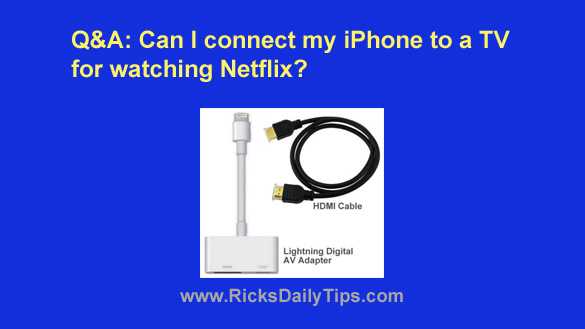
- Purchase an HDMI cable that is compatible with your iPhone and TV. For newer iPhones, you may need an HDMI adapter.
- Connect one end of the HDMI cable to the iPhone or adapter, and the other end to the HDMI port on your TV.
- Use your TV remote to select the HDMI input where your iPhone is connected.
- On your iPhone, open the Netflix app and select the content you want to watch. It will now appear on your TV screen.
2. Apple TV
Apple TV offers a seamless streaming experience for Netflix and other streaming services. Here’s how to connect your iPhone to your TV using Apple TV:
- Ensure your iPhone and Apple TV are using the same Wi-Fi network.
- Connect your Apple TV to your TV using an HDMI cable.
- On your iPhone, swipe up from the bottom of the screen to open the Control Center.
- Tap on “Screen Mirroring” and select your Apple TV from the list of available devices.
- Enter the AirPlay code shown on your TV screen if prompted.
- Open the Netflix app on your iPhone and start playing the content you want to watch. It will be mirrored on your TV through Apple TV.
3. Chromecast
If you have a Google Chromecast device, you can easily stream Netflix from your iPhone to your TV. Here’s how:
- Connect your Chromecast to an available HDMI port on your TV.
- Download and open the Google Home app on your iPhone.
- Follow the in-app instructions to set up your Chromecast and connect it to the same Wi-Fi network as your iPhone.
- Open the Netflix app on your iPhone and select the content you want to watch.
- Tap on the Cast icon, usually located at the top or bottom of the Netflix player screen.
- Select your Chromecast device from the list of available devices.
- The Netflix content will now play on your TV through Chromecast.
Troubleshooting Tips
While the above methods should work smoothly, there may be occasions when you encounter connection issues. Here are some troubleshooting tips to help you resolve common problems:
1. Ensure Wi-Fi Connection
Make sure both your iPhone and TV are connected to the same Wi-Fi network. If they are not, you may experience difficulties when trying to stream Netflix.
2. Update Firmware and Apps
Keep your iPhone, TV, and streaming apps updated to the latest firmware and versions. This will ensure compatibility and fix any known bugs or issues.
3. Restart Devices
If you’re experiencing connectivity problems, try restarting both your iPhone and TV. Sometimes a simple reboot can resolve temporary glitches.
4. Check HDMI Connections
If you’re using an HDMI cable or adapter, ensure they are securely connected to both your iPhone and TV. Loose connections can cause a lack of signal or poor video quality.
5. Troubleshoot Apple TV or Chromecast
If you’re encountering issues specific to Apple TV or Chromecast, consult the respective manufacturer’s support documentation for troubleshooting steps.
By following the methods outlined in this guide, you can easily watch Netflix on your TV from your iPhone. Whether you prefer a wired connection with an HDMI cable, opt for the convenience of Apple TV, or utilize Chromecast, these methods provide a simple way to enjoy your favorite Netflix content on the big screen. Experimenting with the different options can help you find the most suitable solution for your setup. Now grab some popcorn, sit back, and enjoy your Netflix binge-watching experience on your TV!
How To Mirror Netflix From iPhone To TV
Frequently Asked Questions
How can I watch Netflix on my TV from my iPhone?
To watch Netflix on your TV from your iPhone, you have a few options:
Can I use AirPlay to watch Netflix on my TV from my iPhone?
Yes, you can use AirPlay to stream Netflix from your iPhone to an Apple TV or any compatible Smart TV. Simply make sure both devices are connected to the same Wi-Fi network, open the Netflix app on your iPhone, and tap the AirPlay icon. Select your TV from the list of available devices, and the Netflix content will be mirrored onto your TV screen.
Is there a way to connect my iPhone to my TV with an HDMI cable for Netflix?
Yes, if your TV has an HDMI port, you can connect your iPhone to it using an HDMI cable and watch Netflix on a bigger screen. You’ll need an HDMI adapter or a Lightning Digital AV Adapter, which can be purchased from Apple or third-party retailers. Simply plug one end of the HDMI cable into the adapter, connect the other end to your TV’s HDMI port, and plug the Lightning connector into your iPhone. Switch your TV’s input to the corresponding HDMI port, and you should see your iPhone screen on the TV. Now, open the Netflix app on your iPhone and enjoy your favorite shows and movies on the big screen.
Is it possible to watch Netflix on my TV without an Apple TV or HDMI cable?
Absolutely! If you own a Smart TV that has built-in Netflix support, you can directly download the Netflix app onto your TV and stream content without the need for additional devices. Some Smart TVs even have a dedicated Netflix button on their remote controls for easy access. Simply launch the Netflix app on your TV, sign in to your account, and start streaming. If your TV doesn’t have built-in Netflix support, you can consider using a media streaming device such as Chromecast or Roku, which can be connected to your TV’s HDMI port and allow you to stream Netflix from your iPhone to the TV.
Can I watch Netflix on my TV using a Lightning to HDMI cable?
No, you cannot watch Netflix on your TV using just a Lightning to HDMI cable. While a Lightning to HDMI cable can physically connect your iPhone to the TV, Netflix and other streaming apps often have copyright protection measures in place that prevent video playback through this method. Therefore, it’s recommended to use AirPlay or a Smart TV with built-in Netflix support for a seamless streaming experience.
Final Thoughts
To watch Netflix on TV from your iPhone, simply follow these steps. Firstly, ensure that your iPhone and TV are connected to the same Wi-Fi network. Next, launch the Netflix app on your iPhone and sign in to your account. Then, tap on the Cast icon located at the top-right corner of the screen. Select your TV from the list of available devices, and voila! Your iPhone screen will now be mirrored on your TV, allowing you to enjoy your favorite Netflix shows and movies on the big screen. Watching Netflix on TV from your iPhone has never been easier!

I follow the latest trends in smart devices, portable monitors, and gaming accessories. My goal is to provide real-world insights that help readers make smarter tech decisions.