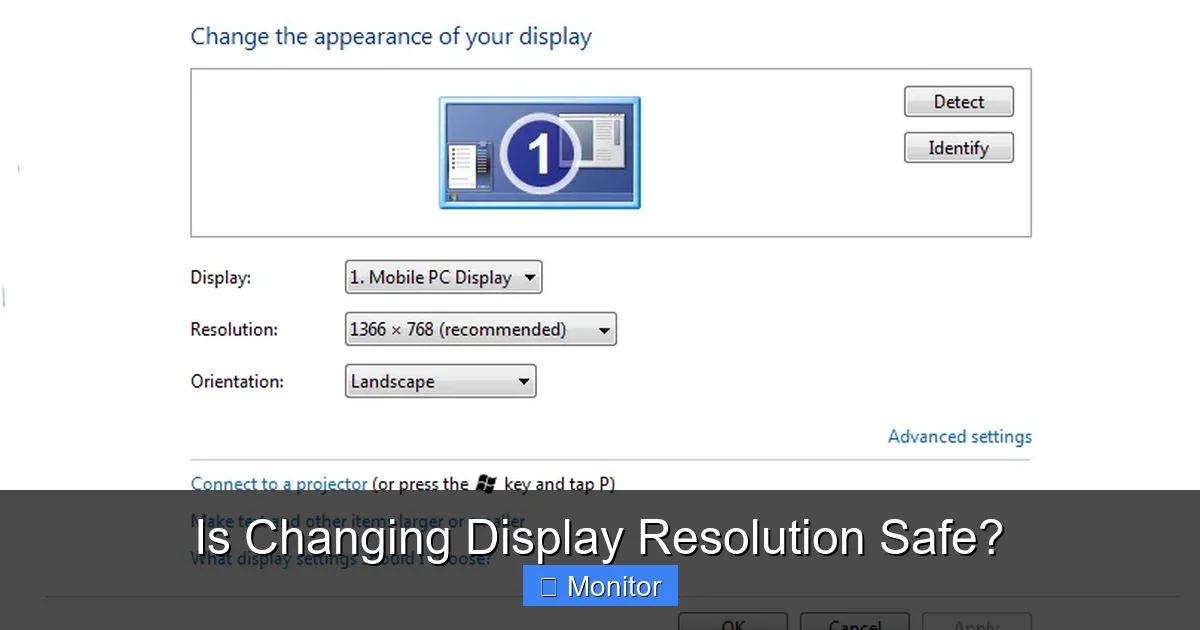
Changing display resolution is generally safe for your monitor hardware, especially when sticking to its native or supported resolutions. The primary impact is on visual clarity and user experience, which can affect eye comfort. Understanding native resolution and proper scaling ensures optimal visuals and protects against potential eye strain.
Is Changing Display Resolution Safe?
Have you ever found yourself staring at your computer screen, contemplating whether to tinker with its resolution settings? Perhaps you’re trying to make text larger, fit more content on the screen, or squeeze out a few more frames per second in your favorite video game. It’s a common thought, often followed by a nagging worry: “Is changing display resolution safe? Could I damage my monitor, or even my eyes?”
It’s a valid concern, and one that many users share. The world of display settings can seem a bit mysterious, filled with numbers and technical terms like “native resolution” and “scaling.” But don’t worry! This article is here to demystify the process and assure you that for the vast majority of users, **changing display resolution** is not only safe but can actually enhance your computing experience when done correctly. We’ll explore what resolution really means, its impact on your hardware and your vision, and how to make adjustments wisely.
So, let’s dive in and put those worries to rest. By the end of this read, you’ll have a clear understanding of display resolution, feel confident in making adjustments, and know exactly how to optimize your screen for comfort and clarity, all while keeping your monitor perfectly safe.
Key Takeaways
- Hardware Safety: Changing resolution is almost always safe for your monitor itself, as modern monitors are designed to handle various resolutions.
- Native Resolution is Key: For the sharpest image and best visual quality, always try to use your monitor’s native (recommended) resolution.
- Impact on Clarity: Using non-native resolutions can lead to blurriness, pixelation, or distorted text due to imperfect pixel mapping.
- Eye Strain & Comfort: Incorrect resolutions or poor scaling can cause eye strain and fatigue, making readability difficult and reducing overall comfort.
- Practical Uses: Changing resolution can be beneficial for specific tasks like gaming (for performance), accessibility (larger text), or multi-monitor setups.
- Proper Scaling: If you need to use a non-native resolution, ensure your operating system’s scaling settings are adjusted correctly to maintain readability and minimize blur.
- Troubleshooting: If your screen goes black or shows an “out of range” error, don’t panic. Your monitor or OS usually reverts to a safe mode, or you can restart in safe mode to correct it.
Quick Answers to Common Questions
Is it bad to run a monitor at non-native resolution?
While not “bad” for the monitor’s hardware, running at non-native resolution can degrade image quality, making text blurry and images less sharp, which might lead to eye strain over long periods.
Can changing resolution damage my GPU?
No, changing display resolution itself cannot damage your Graphics Processing Unit (GPU). The GPU is designed to output various resolutions, and operating at different resolutions is a normal function of the card.
Why does my screen look blurry after changing resolution?
Blurriness typically occurs because you’ve moved away from your monitor’s native resolution. When this happens, the monitor or GPU has to scale the image, which involves interpolation and can lead to a less sharp, more pixelated appearance.
Should I use display scaling or lower resolution for larger text?
For larger text and icons, using display scaling (DPI scaling) is generally preferred over lowering the resolution. Scaling keeps the image sharp by rendering elements larger without changing the native pixel output, thus avoiding blurriness.
What if my screen goes black after changing resolution?
If your screen goes black, it usually means you’ve selected a resolution or refresh rate that your monitor cannot support. Wait a few seconds for the system to automatically revert, or restart your computer, possibly in Safe Mode, to reset the display settings.
📑 Table of Contents
Understanding Display Resolution: What It Really Means
Before we talk about safety, let’s make sure we’re all on the same page about what display resolution actually is. In simple terms, your display resolution refers to the number of individual pixels that your screen can display, both horizontally and vertically. It’s usually expressed as two numbers, like 1920×1080 (Full HD) or 3840×2160 (4K Ultra HD). The first number represents the width in pixels, and the second represents the height.
Pixels and Pixel Density
Every image you see on your screen, every letter of text, is made up of these tiny square dots called pixels. The more pixels you have packed into a given physical screen size, the sharper and more detailed the image will appear. This concept is known as pixel density, often measured in Pixels Per Inch (PPI). A higher PPI means a crisper image, assuming you’re viewing it at its optimal resolution.
The Importance of Native Resolution
Every monitor has what’s called a “native resolution.” This is the physical resolution of the LCD panel itself – the exact number of horizontal and vertical pixels built into the screen by the manufacturer. Think of it as the monitor’s sweet spot. When your computer’s display output matches the monitor’s native resolution, each pixel from your computer’s graphics card maps perfectly to a single physical pixel on the screen. This “one-to-one” mapping results in the sharpest, clearest image possible.
When you use a resolution other than your monitor’s native resolution, the monitor or your graphics card has to “scale” the image to fit. This scaling process involves mathematical interpolation, where the system tries to create new pixels or merge existing ones to fit the display grid. This can lead to a less sharp image, blurriness, or text that appears jagged or soft.
Is Changing Resolution Harmful to Your Monitor?
This is often the primary concern for users, and the good news is that the answer is almost always **no, changing display resolution will not harm your monitor’s hardware.**
Modern Monitors Are Robust
Modern LCD, LED, and OLED monitors are designed to be quite robust and versatile. They come with internal circuitry that can handle a wide range of input resolutions. When you select a non-native resolution, your monitor doesn’t struggle; instead, it uses its built-in scaler to adjust the incoming signal to fit its physical pixel grid. The worst that usually happens is that the image quality degrades, but the monitor itself remains perfectly safe.
“Out of Range” Messages and Black Screens
In rare cases, if you select an extremely high or low resolution that your monitor genuinely cannot support, or a refresh rate that is too high, you might see an “out of range” message or a black screen. This might seem alarming, but it’s actually a safety mechanism. The monitor simply cannot display the signal it’s receiving.
Most operating systems are smart enough to recognize this and will automatically revert to the previous working resolution after a few seconds if you don’t confirm the new setting. If it doesn’t revert, a simple restart of your computer, often in Safe Mode, will allow you to access the display settings and choose a supported resolution. You’re not “breaking” the monitor; you’re just giving it instructions it can’t quite execute perfectly.
Impact on User Experience and Eye Health
While your monitor’s hardware is generally safe, the real impact of **changing display resolution** lies in how it affects your user experience and, potentially, your eye health.
Clarity and Readability
As mentioned earlier, using a non-native resolution almost always results in a less clear image. Text might look fuzzy or pixelated, and images might lose their sharpness. For tasks that involve a lot of reading or detailed graphical work, this can be incredibly frustrating. Imagine trying to read a blurry book all day – it’s not pleasant!
Potential for Eye Strain and Fatigue
When the image on your screen isn’t sharp, your eyes have to work harder to interpret what they’re seeing. They might constantly try to “focus” on an image that isn’t perfectly in focus, leading to muscle fatigue in your eyes. Prolonged exposure to blurry or pixelated content can contribute to:
- Eye strain
- Headaches
- Blurred vision (temporary)
- Dry eyes (due to reduced blinking when concentrating)
This doesn’t mean changing resolution will *definitely* cause eye problems, but consistently working with a sub-optimal display can certainly contribute to discomfort over time. It’s about maintaining a comfortable and efficient viewing experience.
The Role of Display Scaling
Modern operating systems have introduced “display scaling” or “DPI scaling” to help bridge the gap between resolution and readability, especially with high-resolution monitors (like 4K on a smaller screen). Instead of lowering the resolution (which causes blur), scaling effectively makes elements like text, icons, and windows appear larger without changing the native pixel count. This keeps the image sharp while improving readability. If you have a high-resolution monitor and things look too small, adjusting scaling is usually a better solution than lowering the resolution.
When and Why You Might Change Resolution
Despite the warnings about non-native resolutions, there are legitimate and sometimes beneficial reasons for **changing display resolution**.
1. Gaming Performance
This is one of the most common reasons. Modern games can be very demanding on your computer’s graphics card. If your frame rate (how smoothly the game runs) is too low at your monitor’s native resolution, lowering the resolution in the game settings can significantly boost performance. While the image might look a bit softer, the trade-off for smoother gameplay is often worth it for many gamers. Most games allow you to change their internal resolution independently of your desktop resolution.
2. Accessibility and Readability
For users with visual impairments, or simply those who prefer larger text and icons, increasing the size of elements on the screen is crucial. While display scaling is generally the preferred method (as discussed), sometimes lowering the overall resolution can be a quick and effective way to make everything on screen larger and more readable, especially on older systems or specific applications that don’t scale well.
3. Multi-Monitor Setups
If you have multiple monitors with different native resolutions, you might adjust one to better match the perceived size of elements on the other, even if it means running one at a non-native resolution temporarily. This is less about visual quality and more about workflow consistency across screens.
4. Specific Applications or Legacy Software
Some older applications or specialized software might have specific resolution requirements to function correctly or display their interface without issues. In such cases, temporarily adjusting your resolution might be necessary to use the software.
5. Troubleshooting Display Issues
If you’re experiencing display glitches, flickering, or other visual anomalies, changing the resolution (and then changing it back) can sometimes reset the display driver and resolve the issue. It’s a common troubleshooting step.
How to Safely Change Display Resolution
Changing your display resolution is a straightforward process in both Windows and macOS. Here’s a quick guide:
On Windows:
- Right-click on an empty area of your desktop.
- Select “Display settings” from the context menu.
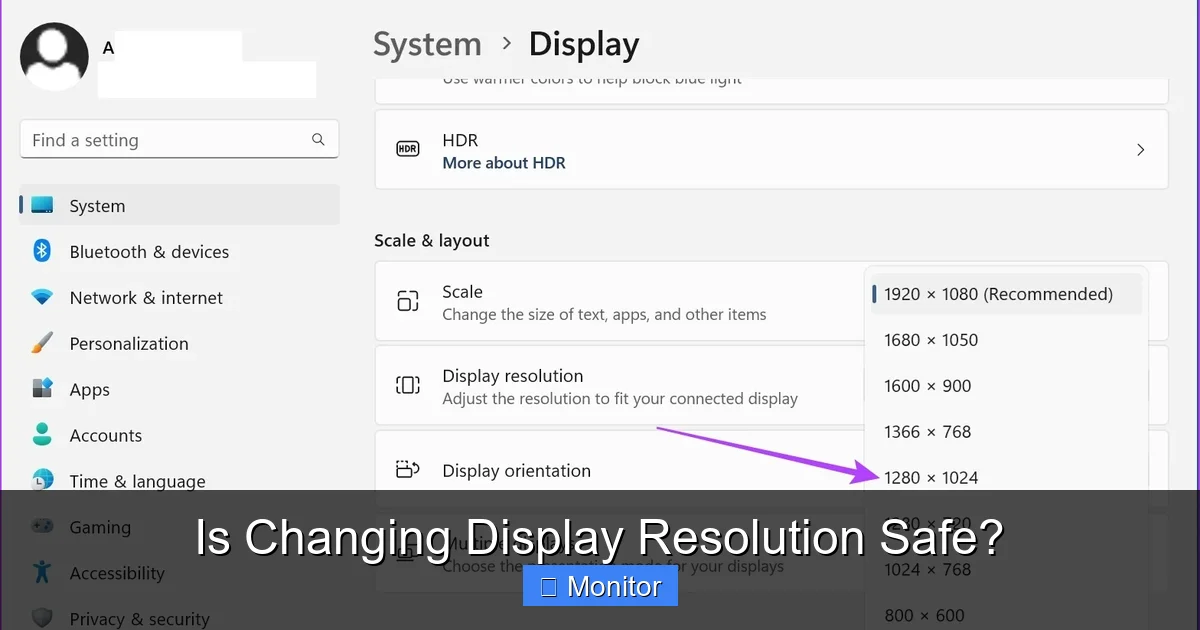
- Scroll down to the “Scale and layout” section.
- Under “Display resolution,” click the dropdown menu.
- Choose the resolution you want. Windows will usually indicate the “Recommended” (native) resolution.
- You’ll get a prompt to keep or revert the changes. If you don’t confirm within a few seconds, it will automatically revert.
Pro Tip: If elements look too small on a high-resolution screen, use the “Change the size of text, apps, and other items” dropdown (under “Scale and layout”) to adjust scaling first, instead of lowering the resolution.
Visual guide about Is Changing Display Resolution Safe?
Image source: i.stack.imgur.com
Visual guide about Is Changing Display Resolution Safe?
Image source: i.stack.imgur.com
Visual guide about Is Changing Display Resolution Safe?
Image source: guidingtech.com
On macOS:
- Click the Apple menu in the top-left corner of your screen.
- Select “System Settings” (or “System Preferences” on older macOS versions).
- Click “Displays” in the sidebar.
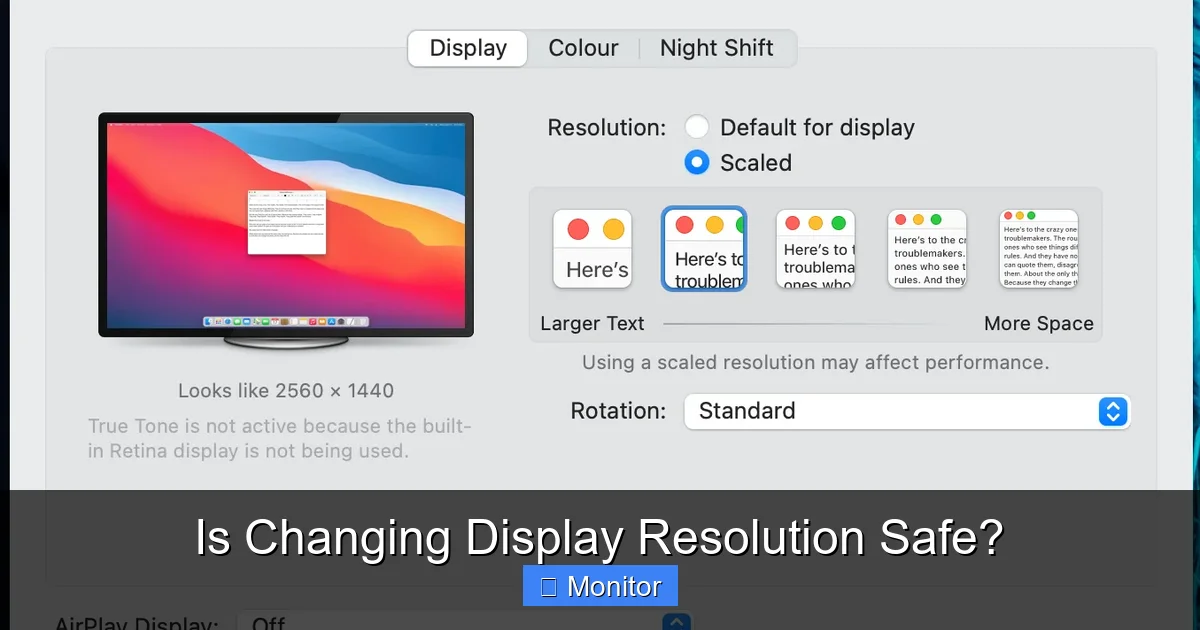
- You’ll see a section for “Resolution.” You might see options like “Default for display” (this is the native resolution) and “Scaled.”
- If you click “Scaled,” you can choose from a list of resolutions. macOS often shows icons representing “Larger Text” or “More Space,” indicating how the scaling affects element size rather than just pixel count.
Pro Tip: macOS is generally very good at handling scaling and making different resolutions look decent. Often, choosing a “Scaled” option that gives you “More Space” or “Larger Text” is preferable to picking a distinct lower resolution number.
What if Your Screen Goes Black?
If you select a resolution that your monitor cannot display, the screen might go black, or show an “out of range” error. Don’t panic!
- Wait: On Windows, if you don’t confirm the change, it will automatically revert after about 15 seconds.
- Restart: If it doesn’t revert, simply restart your computer. During startup, your system usually defaults to a basic, compatible resolution, allowing you to get back into the OS and adjust settings.
- Safe Mode: If a regular restart doesn’t work, try starting your computer in Safe Mode. In Safe Mode, Windows loads with minimal drivers and a very basic resolution, which should allow you to access display settings and reset them.
Conclusion: Empowered and Safe Adjustments
So, let’s circle back to our original question: **Is changing display resolution safe?** The resounding answer is yes, it is overwhelmingly safe for your monitor’s hardware. Modern displays are designed to be flexible and resilient, capable of handling various input resolutions without damage.
The real consideration when **changing display resolution** is its impact on your viewing experience and potential eye strain. Prioritizing your monitor’s native resolution for everyday tasks ensures the sharpest image and most comfortable viewing. However, don’t shy away from adjusting resolution for specific needs like gaming performance or accessibility, as long as you understand the potential trade-offs in clarity.
By understanding how resolution works, how to properly use scaling, and knowing how to troubleshoot minor hiccups, you can confidently take control of your display settings. Your monitor will thank you for using it optimally, and your eyes will thank you for a clear, comfortable viewing experience. So go ahead, experiment thoughtfully, and customize your digital world to perfectly suit your needs!
Frequently Asked Questions
Can changing resolution reduce my monitor’s lifespan?
No, changing resolution does not typically reduce your monitor’s lifespan. The internal components are built to handle various resolutions and scaling operations without added wear and tear that would shorten its life. Modern monitors are very durable in this regard.
Is a higher resolution always better?
A higher resolution generally means a sharper image with more detail, but it’s not always “better” in all contexts. For instance, in gaming, a lower resolution might provide better performance (higher frame rates), and for some users, extremely high resolutions on smaller screens can make text too small to read without scaling.
Can incorrect resolution settings cause screen flickering?
While less common with resolution changes, incorrect refresh rate settings that are often linked with resolution adjustments can definitely cause screen flickering. Ensure your refresh rate is set to a value supported by your monitor and graphics card, usually 60Hz or higher.
What is the “recommended” resolution option?
The “recommended” resolution option in your display settings refers to your monitor’s native resolution. This is the optimal setting where each pixel sent by your computer perfectly aligns with a physical pixel on your screen, providing the sharpest and clearest image.
Does changing resolution affect my internet speed or computer performance?
No, changing display resolution has no impact on your internet speed. It can affect your computer’s *graphics* performance, especially in demanding applications like games, because your graphics card has to render more or fewer pixels, but it doesn’t affect the overall speed of your CPU or RAM for general tasks.
How do I find my monitor’s native resolution?
You can usually find your monitor’s native resolution in a few ways: check the display settings on your computer (it’s often labeled as “recommended”), consult your monitor’s user manual, or look up the model number on the manufacturer’s website. It’s crucial for optimal visual clarity.

With experience in IT support and consumer technology, I focus on step-by-step tutorials and troubleshooting tips. I enjoy making complex tech problems easy to solve.