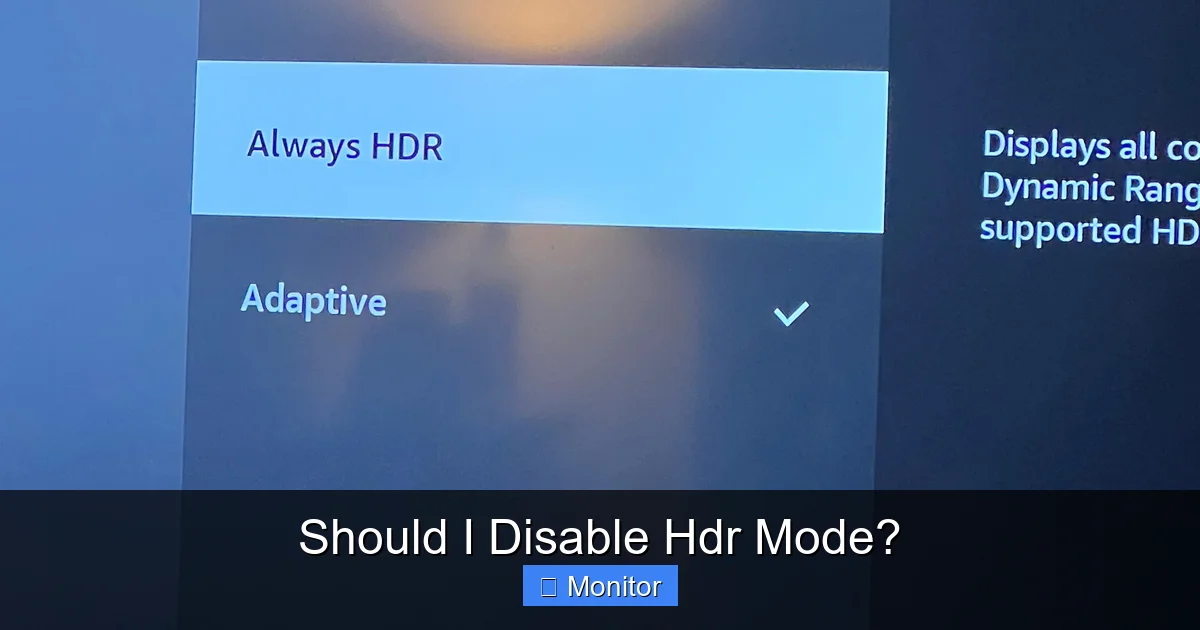
Choosing should I disable HDR mode depends entirely on your specific setup and the content you’re viewing. While High Dynamic Range (HDR) promises stunning visuals with brighter highlights and deeper shadows, poor monitor implementation, inconsistent content, or operating system quirks can sometimes lead to a worse experience than standard dynamic range (SDR). It’s crucial to evaluate your monitor’s true HDR capabilities, calibrate your settings, and assess your personal viewing preference before deciding to disable HDR mode, ensuring you achieve the best possible picture quality for your needs.
Should I Disable HDR Mode?
High Dynamic Range (HDR) is one of those buzzwords that often comes up when we talk about monitors, TVs, and visual experiences. It promises a world of vibrant colors, deep blacks, and dazzling highlights that pop off the screen, making your games and movies look more lifelike than ever before. In theory, it sounds amazing, right? But if you’re like many users, you might have flipped on HDR mode only to be met with washed-out colors, an overly bright desktop, or a generally underwhelming experience. This often leads to the critical question: “Should I disable HDR mode?”
You’re not alone in feeling this confusion. The reality of HDR can be far more complex than its marketing suggests. There’s a significant gap between what “HDR compatible” truly means and what a truly great HDR experience looks like. Add to that the complexities of operating system implementations, varying content quality, and your monitor’s specific capabilities, and it’s easy to see why HDR can sometimes feel more like a headache than a visual upgrade. This article will help you navigate the nuances of HDR, understand when it works best, identify common pitfalls, and ultimately empower you to decide if you should disable HDR mode on your setup.
Key Takeaways
- HDR Quality Varies Greatly: True HDR requires specific monitor hardware, including high peak brightness and effective local dimming zones. Not all “HDR compatible” monitors deliver a genuine HDR experience.
- Evaluate Your Monitor’s True Capabilities: Before asking “should I disable HDR mode,” check your monitor’s specifications for DisplayHDR certification (e.g., DisplayHDR 600, 1000) rather than just “HDR support.”
- Content Is King for HDR: HDR only enhances content specifically mastered for it (games, movies, streaming). Standard SDR content can look worse or inaccurate when displayed with HDR mode forcibly enabled.
- Windows HDR Can Be Tricky: Windows’ desktop HDR implementation can lead to washed-out colors or brightness issues for SDR applications when HDR is globally enabled, often prompting users to disable HDR mode.
- Test and Calibrate for Best Results: Don’t just enable HDR and hope for the best. Actively test it with various HDR content and use tools like the Windows HDR Calibration app to optimize your display.
- Consider Performance Impact: Enabling HDR in some demanding games can introduce a minor performance hit due to the additional processing required, which might influence your decision to disable HDR mode.
- Personal Preference Is Paramount: If, after optimization, you find HDR mode uncomfortable, visually unappealing, or simply prefer the look of SDR, there’s no shame in choosing to disable HDR mode.
Quick Answers to Common Questions
Is HDR always better than SDR?
No, HDR is not always better than SDR. While true HDR offers a wider range of light and color, a poor HDR implementation on incapable hardware, or viewing SDR content with HDR enabled, can often result in an image that looks worse than a well-calibrated SDR.
Can HDR harm my monitor?
No, enabling HDR mode will not physically harm your monitor. It simply changes how the monitor processes and displays the image signal. If anything, it might shorten the lifespan of the backlight slightly due to higher peak brightness, but this is generally negligible and within expected operating parameters.
How do I know if my monitor supports true HDR?
The best indicator of true HDR support is a VESA DisplayHDR certification (e.g., DisplayHDR 600, 1000). This guarantees a certain level of peak brightness, local dimming, and color gamut. Simply being labeled “HDR compatible” is not enough.
Does disabling HDR improve gaming performance?
Sometimes. Enabling HDR can introduce a slight performance overhead on your graphics card due to the additional processing required. While often minor, if you’re experiencing frame rate issues or are highly sensitive to performance, disabling HDR mode might offer a small boost.
Where can I find the Windows HDR settings?
You can find the Windows HDR settings by going to “Settings,” then “System,” and then clicking on “Display.” Scroll down, and you’ll see a section for “HDR,” where you can toggle it on or off.
📑 Table of Contents
- The Promise and Pitfalls of High Dynamic Range (HDR)
- When HDR Shines: Ideal Use Cases and Proper Implementation
- Common Reasons to Consider Disabling HDR Mode
- How to Evaluate Your Current HDR Setup
- Practical Steps to Optimize or Disable HDR Mode
- Is Disabling HDR Mode Right for You? Making the Decision
The Promise and Pitfalls of High Dynamic Range (HDR)
Before you can decide if you should disable HDR mode, it’s essential to understand what HDR is designed to do and why it sometimes falls short. HDR is about delivering a much broader range of light and color than standard dynamic range (SDR) displays. Think of it like taking a photo that captures both the bright sun in the sky and the shaded details under a tree without one being overexposed or the other completely dark.
What Is True HDR?
True HDR aims to replicate what our eyes see in the real world more accurately. This means:
- Brighter Highlights: HDR allows for much brighter peak luminance, making things like sunlight, explosions, or reflections genuinely dazzling.
- Deeper Shadows: It can also display deeper, more nuanced dark areas without losing detail.
- Wider Color Gamut: HDR content utilizes a broader range of colors, making visuals richer and more realistic.
To achieve this, a monitor needs specific hardware capabilities. Crucially, it needs high peak brightness (measured in nits), excellent contrast ratios, and often local dimming zones that can independently brighten or darken different parts of the screen.
Why HDR Can Go Wrong
The primary reason many users ask, “should I disable HDR mode?” is simply because their hardware or software setup isn’t delivering a true HDR experience.
“Fake HDR” Monitors: Many monitors are labeled “HDR compatible” or “HDR ready” but lack the necessary hardware (like sufficient peak brightness or local dimming) to display HDR content properly. They might simply accept an HDR signal, but then convert it poorly, leading to an image that looks worse than SDR.
Inconsistent Implementations: Operating systems like Windows sometimes struggle with HDR. Enabling HDR globally can make your desktop and SDR applications look dull, washed out, or overly bright, even if HDR games or movies look fine. This is a common trigger for wanting to disable HDR mode.
Content Is Key: If you’re not viewing content specifically mastered for HDR, enabling HDR mode won’t magically make it look better. In fact, it often makes it look worse. Your favorite old game or a standard YouTube video will likely benefit from you choosing to disable HDR mode.
When HDR Shines: Ideal Use Cases and Proper Implementation
Visual guide about Should I Disable Hdr Mode?
Image source: mspx.kapilarya.com
Despite the potential frustrations, when HDR is implemented correctly on capable hardware, it truly transforms your visual experience. This is where you’ll understand why it’s worth the effort, and why you might *not* want to disable HDR mode.
Gaming with HDR
For many, gaming is the primary reason to embrace HDR. Modern games, especially AAA titles, are increasingly being developed with HDR in mind. In a truly great HDR game:
- Explosions have an incredible visual punch, making you flinch from the bright flash.
- Shadows in a dark cave reveal subtle details instead of being a flat black void.
- Sunlight streaming through trees creates a realistic glow.
- Colors of otherworldly landscapes are more vibrant and immersive.
The difference between SDR and HDR in a well-implemented game on a good monitor can be astonishing. If your gaming experience is paramount, you might want to carefully evaluate your setup before deciding to disable HDR mode.
Cinematic Experiences
Movies and TV shows, especially those from streaming services like Netflix, Disney+, and Amazon Prime Video, are widely available in HDR (often Dolby Vision or HDR10+). Watching an HDR film on a capable display brings:
- A richer, more cinematic feel with enhanced contrast.
- More lifelike color reproduction, from skin tones to vibrant landscapes.
- The intended dynamic range the filmmakers envisioned.
If you’re a movie buff, a good HDR setup can significantly elevate your viewing pleasure.
Understanding HDR Standards (HDR10, Dolby Vision, DisplayHDR)
It’s crucial to distinguish between various HDR standards. These aren’t just marketing terms; they represent different levels of quality and technical requirements.
- HDR10: The most common and open HDR standard. It uses static metadata, meaning the brightness and color information is set once for the entire piece of content.
- Dolby Vision & HDR10+: These are more advanced, using dynamic metadata, which allows brightness and color information to change scene-by-scene or even frame-by-frame. This results in a more precise and often superior HDR experience.
- VESA DisplayHDR Certification: This is arguably the most important standard for monitors. DisplayHDR certifications (e.g., DisplayHDR 400, 500, 600, 1000, 1400, True Black 400/500/600) provide a clear, measurable indication of a monitor’s actual HDR capabilities, including peak brightness, color gamut, and black levels. A monitor with DisplayHDR 600 or higher usually offers a noticeable HDR improvement. If your monitor is only “HDR compatible” without a DisplayHDR badge, you might frequently wonder should I disable HDR mode.
Common Reasons to Consider Disabling HDR Mode
Visual guide about Should I Disable Hdr Mode?
Image source: gadget-faqs.com
If you’ve encountered one or more of these issues, you’re not alone in contemplating whether you should disable HDR mode. These are the practical frustrations that users often face.
Subpar Monitor Hardware
As mentioned, many monitors are sold with “HDR support” but lack the fundamental hardware to deliver a true HDR experience. If your monitor has a low peak brightness (e.g., under 400 nits) and no local dimming, it’s highly likely that enabling HDR mode will result in a dimmer, washed-out, or otherwise inferior image compared to a well-calibrated SDR. In such cases, you absolutely should disable HDR mode.
Inconsistent Windows Desktop Experience
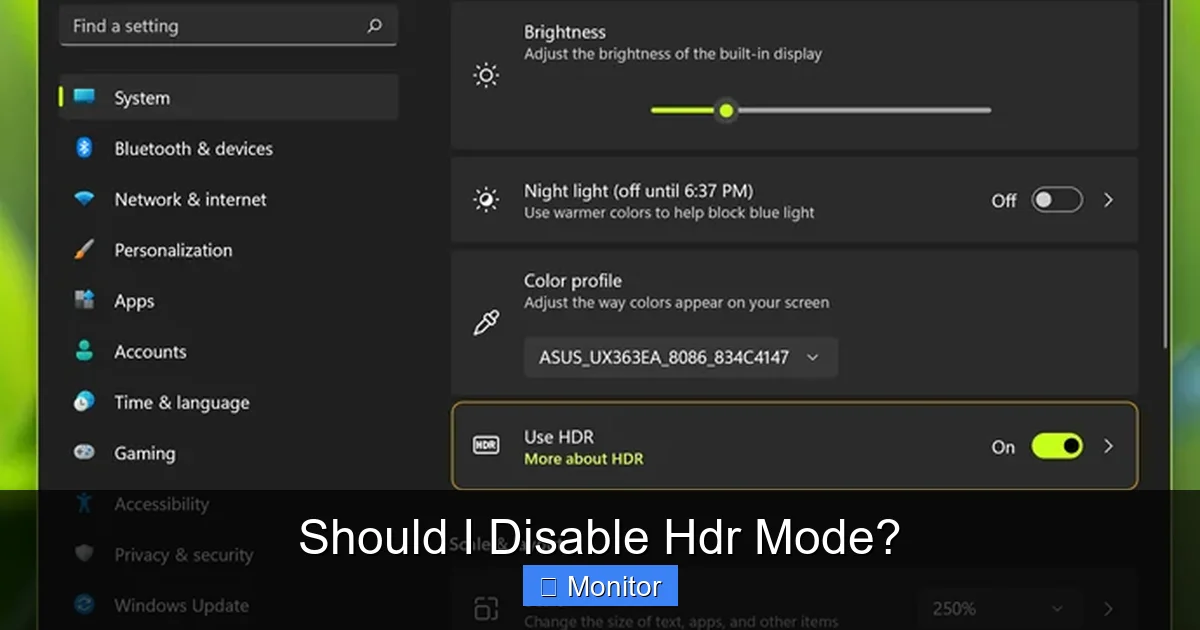
This is perhaps the most common complaint. When you enable HDR globally in Windows (Settings > System > Display > HDR), it forces your entire desktop environment into HDR mode. While this is necessary for HDR games and apps, it often causes standard SDR applications, websites, and even the Windows desktop itself to look dull, desaturated, or have incorrect gamma. Text might look blurry, and colors just won’t seem right. This is a primary driver for many users asking, “should I disable HDR mode?” for everyday use.
Color Inaccuracy and Oversaturation
Some monitors, especially those without proper factory calibration or sufficient color gamut coverage, can struggle with HDR. Instead of rendering accurate, vibrant colors, they might oversaturate them, leading to an artificial or cartoonish look. In other cases, they might struggle to map the wide HDR color gamut to their more limited native gamut, resulting in color shifts or banding. If your colors look “off,” you might want to disable HDR mode.
Performance Considerations in Gaming
While not always significant, enabling HDR mode in some games can introduce a minor performance hit. The GPU needs to perform additional processing to render the wider dynamic range and color information. If you’re on the edge of acceptable frame rates, or if you’re a competitive gamer where every frame counts, this slight performance dip might be enough reason to disable HDR mode for specific titles. Test it out with your favorite games to see if you notice a difference.
Eye Strain or Discomfort
The increased brightness and contrast of HDR, while often impressive, can be uncomfortable for some users, especially in poorly lit rooms or during long viewing sessions. If you find yourself squinting, experiencing eye fatigue, or simply feeling overwhelmed by the intensity, it’s perfectly valid to decide you should disable HDR mode for your comfort. Your visual comfort is more important than chasing theoretical “best” picture quality.
How to Evaluate Your Current HDR Setup
Visual guide about Should I Disable Hdr Mode?
Image source: media.idownloadblog.com
Before making a definitive decision, take some time to properly assess your current HDR situation. This involves understanding your hardware and testing with the right content.
Check Your Monitor’s Specs
This is step one. Look up your monitor’s exact model number and find its specifications. Key things to look for:
- Peak Brightness: Aim for at least 600 nits for a noticeable HDR experience. 1000 nits or more is ideal. If it’s 400 nits or less, your HDR experience will likely be underwhelming, and you might prefer to disable HDR mode.
- Local Dimming Zones: Does it have full-array local dimming (FALD) or mini-LED backlighting? These dramatically improve contrast and black levels. Edge-lit local dimming is less effective, and a monitor without any form of local dimming will struggle with true HDR contrast.
- DisplayHDR Certification: Is it DisplayHDR 400, 600, 1000, etc.? This VESA standard gives you a reliable benchmark. If it just says “HDR compatible” or “HDR ready,” proceed with caution.
- Color Gamut: Does it cover a wide color gamut (e.g., 90% DCI-P3 or higher)?
Assess Your Content Library
Do you mostly play older games, browse the web, or watch standard YouTube videos? If so, you’re primarily consuming SDR content. For these tasks, you might find yourself asking, “should I disable HDR mode?” often, because SDR content rarely benefits from forced HDR. If, however, you frequently play new AAA games, watch 4K HDR Blu-rays, or stream HDR content, then it’s worth trying to optimize your HDR experience.
Verify Your System Configuration
Ensure your entire signal chain supports HDR:
- Graphics Card: Your GPU needs to support HDR output. Most modern GPUs from NVIDIA (GTX 10-series and newer) and AMD (RX 400-series and newer) do.
- Cables: You need an HDMI 2.0b (or 2.1) or DisplayPort 1.4 (or newer) cable. Older cables might not have the bandwidth for HDR at high resolutions and refresh rates.
- Operating System: Make sure Windows is updated, and you have the latest display drivers for your GPU.
Practical Testing and Comparison
The best way to decide if you should disable HDR mode is to see it for yourself.
- Enable HDR: Turn on HDR in Windows Settings (System > Display > HDR).
- Test with SDR Content: Observe your desktop, browse a few websites, open some standard applications. Note if colors look washed out or incorrect.
- Test with HDR Content: Launch an HDR-enabled game (ensure HDR is enabled in the game’s settings too) or play an HDR movie/stream. Compare the HDR image to the SDR version (if possible, by toggling HDR on/off or using an in-game setting).
- Compare: Does the HDR content look significantly better than SDR? Do the highlights pop, and shadows have detail? If the HDR version looks worse or only marginally different, then you have a strong case for deciding to disable HDR mode.
Practical Steps to Optimize or Disable HDR Mode
If you’ve decided to keep trying with HDR, here are some steps to improve your experience. If not, these tips will also help you understand how to properly disable HDR mode when needed.
Windows HDR Calibration App
Microsoft has released a free “Windows HDR Calibration” app available in the Microsoft Store. This app guides you through a few steps to optimize your HDR display, adjusting black levels, peak brightness, and color saturation. It creates an HDR color profile that can significantly improve the accuracy and vibrancy of HDR content, and even make SDR content look better when HDR is enabled globally. This is a must-do before you decide to permanently disable HDR mode.
Toggling HDR Per-Application
For many, the ideal solution is to keep HDR off for the desktop and SDR content, and only enable it when launching an HDR game or application.
- Automatic Toggling: Some games are smart enough to automatically switch your display into HDR mode when launched, and then switch back to SDR when you exit. This is the most convenient option.
- Manual Toggling: If your game doesn’t do this, you can manually toggle HDR in Windows Settings (Win + Alt + B is a handy shortcut) just before launching the game and then toggle it off afterward.
- Dedicated Monitor Presets: Many monitors allow you to save different picture presets. You could have one for SDR desktop use and another for HDR content.
Updating Drivers and Firmware
Always ensure your graphics card drivers are up to date. Manufacturers frequently release updates that improve HDR compatibility and performance. Additionally, check your monitor manufacturer’s website for any firmware updates. Sometimes, a simple firmware update can resolve HDR-related bugs or improve its overall performance, potentially making you reconsider your decision to disable HDR mode.
Adjusting Monitor Settings
Your monitor itself often has settings that impact HDR. Look for options like:
- HDR Mode/Picture Mode: Some monitors have different HDR picture modes (e.g., “HDR Game,” “HDR Movie”). Experiment with these.
- Brightness/Contrast: While HDR content usually overrides these, for SDR content when HDR is enabled, you might need to adjust them slightly.
- Dynamic Contrast: For SDR content, this can sometimes make things look better, but for HDR, it’s generally best to leave it off unless you know what you’re doing.
Is Disabling HDR Mode Right for You? Making the Decision
Ultimately, the question of “should I disable HDR mode?” boils down to your personal experience and the specific hardware you own. HDR is not a “one-size-fits-all” solution, and a poorly implemented HDR experience is undeniably worse than a good SDR one.
If you’ve followed the evaluation and optimization steps and still find that HDR mode on your monitor leads to:
- Washed-out desktop colors.
- Unconvincing or barely noticeable improvements in HDR content.
- Eye strain or discomfort.
- Significant performance drops in games that bother you.
Then, by all means, you should disable HDR mode. There is no shame in sticking with SDR if it provides a more consistent, accurate, and enjoyable visual experience for you.
On the other hand, if your monitor has good HDR capabilities (DisplayHDR 600+), you primarily consume HDR content, and after calibration, you find the increased contrast, brightness, and color vibrancy genuinely enhance your experience, then keep HDR mode enabled. You can always choose to disable HDR mode for specific applications or toggle it on/off as needed.
The key takeaway here is to trust your eyes. Don’t feel pressured by marketing hype. Experiment, evaluate, and choose the setting that genuinely looks best to you. Your monitor, your rules.
Frequently Asked Questions
What is the difference between HDR10 and Dolby Vision?
Both HDR10 and Dolby Vision are HDR standards, but they differ in how they handle metadata. HDR10 uses static metadata, meaning the brightness and color information is set once for the entire movie or game. Dolby Vision uses dynamic metadata, allowing for scene-by-scene or even frame-by-frame adjustments, which can result in a more optimized and precise visual experience.
Why do colors look washed out with HDR enabled on my desktop?
Colors often look washed out on the Windows desktop when HDR is globally enabled because the operating system is converting standard dynamic range (SDR) content into an HDR signal. Many monitors struggle to accurately display this converted SDR content within the wider HDR color space, leading to a dull or desaturated appearance. The Windows HDR Calibration app can help mitigate this, but sometimes the best solution is to disable HDR mode for desktop use.
Should I keep HDR enabled for all content?
Generally, no. You should primarily enable HDR for content specifically mastered in HDR, such as modern video games, 4K HDR movies, and compatible streaming shows. For everyday desktop use, web browsing, or viewing standard SDR videos, enabling HDR mode can often make things look worse, prompting you to disable HDR mode.
How do I calibrate HDR in Windows?
To calibrate HDR in Windows, download the free “Windows HDR Calibration” app from the Microsoft Store. This app will guide you through a series of steps to adjust your monitor’s black level, peak brightness, and color saturation, creating an ICC profile that optimizes your HDR display for both HDR and SDR content when HDR is enabled.
Does the type of cable matter for HDR?
Yes, absolutely. To properly transmit HDR signals at high resolutions and refresh rates, you need a high-bandwidth cable. This typically means an HDMI 2.0b (or newer, like 2.1) cable or a DisplayPort 1.4 (or newer) cable. Older or lower-quality cables may not support HDR or may cause artifacts, flickering, or display issues.
Can I use HDR on multiple monitors?
Yes, you can use HDR on multiple monitors, but each monitor needs to individually support HDR and be connected via a compatible port and cable. Windows allows you to enable HDR for each display separately in the display settings. However, inconsistencies in HDR quality across different monitors might lead to a varied experience, and you might find yourself needing to disable HDR mode on some displays for consistency.

With experience in IT support and consumer technology, I focus on step-by-step tutorials and troubleshooting tips. I enjoy making complex tech problems easy to solve.