
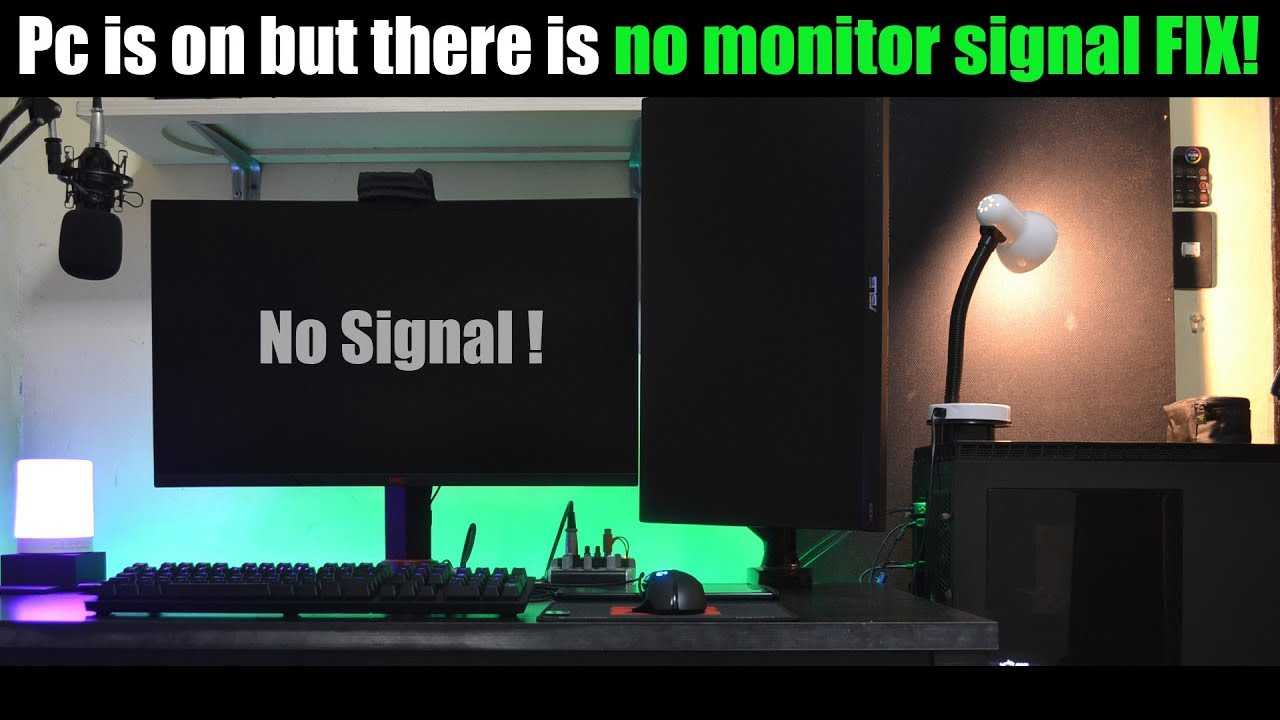
If your gaming monitor is displaying a “no signal” message, it typically means there’s an issue with the connection between your monitor and the computer or gaming console. This can happen for various reasons, including loose cables, incorrect input settings, or hardware malfunctions. To quickly resolve this, ensure that all cables are securely connected, switch to the correct input source on your monitor, and try restarting both your monitor and your device. If the problem persists, it might be worth checking if your graphics card is functioning properly. Let’s dive deeper into the common causes and solutions for this frustrating issue, so you can get back to your gaming experience without any interruptions.

Why is My Gaming Monitor Saying No Signal?
When you sit down to play your favorite game and your gaming monitor displays a **”no signal”** message, it can be extremely frustrating. This message usually indicates that your gaming monitor isn’t receiving a proper signal from your computer or console. In this article, we’ll delve into various reasons why this may happen, alongside detailed troubleshooting steps to solve the issue.
Understanding the Signal Issue
First, it’s important to understand what “no signal” means. When your monitor doesn’t receive data from your computer or console, it displays this message. The source of the problem can come from various areas including:
- Hardware connections
- Graphics card issues
- Monitor settings
- Power supply problems
- Cable compatibility
Knowing these areas can help narrow down the specific issue you’re facing.
Check Your Connections
One of the simplest steps to take when facing a “no signal” issue is to check your **cable connections**. Make sure all cables are securely connected to both the monitor and your computer or console.
Types of Connections
There are several types of video connections you might use:
- HDMI
- DisplayPort
- DVI
- VGA
Each of these connections can fail, so inspect them thoroughly. If any cables are damaged or frayed, replacing them may resolve the issue.
Test with a Different Cable
If you suspect a damaged cable, test the monitor with a different cable. This simple step can quickly determine whether the cable is the source of the problem.
Using Different Ports
Additionally, if your monitor or GPU has multiple ports, try using a different port. Sometimes specific ports can malfunction. This is a quick way to troubleshoot without spending money on new equipment.
Check Your Monitor Settings
If your connections are good and you’re still facing the issue, the next step is to check your monitor settings. Sometimes, the monitor could be set to the wrong input.
Input Selection
Many monitors have an **input selection** menu. Make sure the correct source is selected. For example, if you’re using HDMI, ensure that HDMI is the active input.
Graphics Card Issues
Your graphics card might be the culprit if you’ve ruled out all connection and input issues. An incorrectly seated graphics card can cause a “no signal” message.
Check the Graphics Card Seating
If you’re comfortable doing so, open your computer case and ensure that the graphics card is firmly seated in its slot. Reseat it if necessary, ensuring that it clicks into place.
Test with Another PC or Monitor
If possible, connect your graphics card to another monitor or connect a different graphics card to your monitor. This can help identify if the problem lies with your monitor or graphics card.
Power Supply Problems
Power supply issues can also lead to a “no signal” message. If your power supply isn’t delivering enough power to your GPU, it may not be able to send a signal to the monitor.
Check Power Connections
Make sure that all power cables connected to your graphics card are secure. Some GPUs require additional power connectors that need to be plugged in appropriately.
Software and Driver Issues
Sometimes the problem isn’t hardware-related but stems from software or driver issues. Outdated drivers can hinder your graphics card’s performance.
Update Your Drivers
Regularly check for updates for your graphics card drivers. Manufacturers like NVIDIA and AMD provide updates that enhance performance and fix bugs.
Reinstalling Drivers
If updating doesn’t help, consider uninstalling and reinstalling the drivers. This can help clear up any corruption or issues with the current installation.
Monitor Malfunctions
If you’ve checked everything else and are still experiencing the “no signal” message, the problem might be related to the monitor itself.
Check for Lights and Sounds
When you turn on your monitor, check for any **indicator lights**. If there are no lights turning on, the monitor might be defective. Additionally, you should listen for any sound as it powers up, which could indicate that it is functioning internally.
Testing with Another Monitor
To quickly find out if your monitor is the issue, try using a different monitor with the same computer setup. If the new monitor works, it’s time to look into repairs or replacement for your original monitor.
Resolution and Refresh Rate Settings
Sometimes, the settings on your computer might be configured to a resolution or refresh rate that your monitor cannot display.
Access Display Settings
To check your resolution settings, right-click on your desktop and select **Display Settings**. Here, you can adjust the resolution or refresh rate to match your monitor’s specifications.
Using Safe Mode
If you cannot access display settings normally, try booting your computer in **Safe Mode**. This mode uses basic video settings that might enable you to adjust your resolution back to a compatible level.
Operating System Issues
At times, the operating system itself can cause problems. Corrupt files or system updates can lead to various issues, including signal problems.
Performing a System Restore
If the issue started after a recent update, consider performing a **system restore** to revert to a previous state where everything was functioning correctly.
Reinstalling the Operating System
As a last resort, reinstalling your operating system can help fix underlying issues. Just make sure to back up important data before taking this step.
Consulting the Manufacturer’s Guidelines
If you’ve gone through all these troubleshooting steps and still encounter issues, it may be worth consulting the manufacturer’s guidelines. Many manufacturers have unique troubleshooting steps or tips that might not be listed elsewhere.
Seeking Professional Help
If none of the above methods work, consider reaching out to a professional technician. Trying to fix hardware issues without proper knowledge can sometimes lead to further damage.
Experiencing a “no signal” message on your gaming monitor can feel overwhelming, but understanding the reasons behind it can make troubleshooting easier. By systematically checking all connections, settings, and components, you can often identify the problem and resolve it. If the issue persists after trying these tips, a professional evaluation may be necessary. Your gaming experience awaits, and with a little patience, you can get back to enjoying your favorite games.
How to Fix Black Screen or No Signal On Gaming PC🔧
Frequently Asked Questions
“`html
What could cause my monitor to display a “no signal” message?
A “no signal” message on your monitor can result from various issues. Common causes include loose or damaged cables, incorrect input source selection, malfunctioning graphics cards, or even power supply problems. Double-check all connections and ensure that the monitor is set to the correct input source corresponding to your gaming device.
How can I troubleshoot if my monitor is showing no signal?
To troubleshoot, start by inspecting all cables for damage and ensuring they are securely connected. Next, try using a different cable or port if available. Restart your computer or gaming console and check if the monitor displays an image. If possible, connect your monitor to another device to see if the problem persists, which can help you identify whether the issue lies with the monitor or the original device.
Could a faulty graphics card be the reason for the no signal message?
Yes, a faulty graphics card can lead to a “no signal” message on your monitor. If your graphics card is malfunctioning or improperly seated in its slot, it may not send the correct signal to your monitor. Inspect the card for any visible damage, and reseat it carefully to ensure a proper connection. Testing with another graphics card can also help determine if this is the issue.
Can changes in display settings cause a no signal issue?
Adjustments to display settings can indeed result in a “no signal” issue. If your display resolution or refresh rate settings exceed what your monitor can support, it may not receive a signal. To resolve this, boot your computer in safe mode or use another display to adjust the settings back to compatible values.
Is it possible for the monitor itself to be the problem?
Absolutely, the monitor might be the source of the problem. If it’s not powering on or showing any images at all, there could be an internal hardware failure. To troubleshoot, try connecting the monitor to a different device. If it still doesn’t work, it may require servicing or replacement.
“`
Final Thoughts
To conclude, if your gaming monitor says no signal, it usually indicates an issue with the connection or settings. Check the cables to ensure they are securely connected and not damaged. Additionally, verify that your graphics card is correctly seated and functioning.
Adjusting monitor settings and checking input sources can also resolve this issue. In summary, understanding why is my gaming monitor saying no signal can help you troubleshoot and enjoy your gaming experience without interruptions.

I’m passionate about hardware, especially laptops, monitors, and home office gear. I share reviews and practical advice to help readers choose the right devices and get the best performance.
