


Yes, monitors can influence the colors of exported files, but it’s not as straightforward as just viewing on a different screen. Your monitor’s calibration, color settings, and display technology all play a role in how colors are perceived during editing and how accurately they are saved into the final export. Essentially, what you see on your screen might not perfectly match the exported file’s colors, especially if your monitor isn’t properly calibrated. So, to ensure your exported images or videos look consistent across different devices, you need to fine-tune your monitor and manage color profiles carefully. In this article, we’ll explore how your monitor impacts exported file colors, what factors to consider, and how to get more accurate results for your creative projects.
When working on digital images or videos, your monitor’s color fidelity significantly influences how your final exported files turn out. A well-calibrated monitor ensures that the colors you see during editing are true representations, making your exported files look just as they should on other screens. Conversely, an uncalibrated or poorly calibrated monitor can lead to color discrepancies, causing your final files to look different once exported or viewed elsewhere. Understanding this relationship is crucial for photographers, designers, and videographers who demand color accuracy in their work. Proper calibration, color management, and awareness of the display technology can help you maintain consistency from your screen to the final exported file.

Do Monitors Affect Exported File Colors?
Understanding How Monitors Display Colors
Monitors are essential tools for visual work because they show us how images and videos will look. They have screens that display colors using tiny dots called pixels. The colors you see depend on how the monitor processes and reproduces light. Different monitors can show very different colors even if the images are the same.
Not all monitors display colors in the same way. Factors like the type of screen, color settings, and calibration affect color accuracy. When you edit a photo or video, a monitor that shows accurate colors helps ensure your work looks the same on other screens. If the monitor isn’t properly calibrated, the colors you see might not match the final exported file.
The Role of Color Calibration in Monitors
Color calibration is the process of adjusting your monitor to display colors correctly. It involves using specialized tools and software to set the monitor’s brightness, contrast, and color levels. Proper calibration ensures that the colors you see are as close as possible to true colors.
Without calibration, monitors can display overly saturated or dull colors. This means that the colors you select for editing may not be represented accurately in your exported files. Regular calibration, especially for professional work, helps maintain color consistency and prevents unwanted color shifts.
Color Profiles and Their Impact
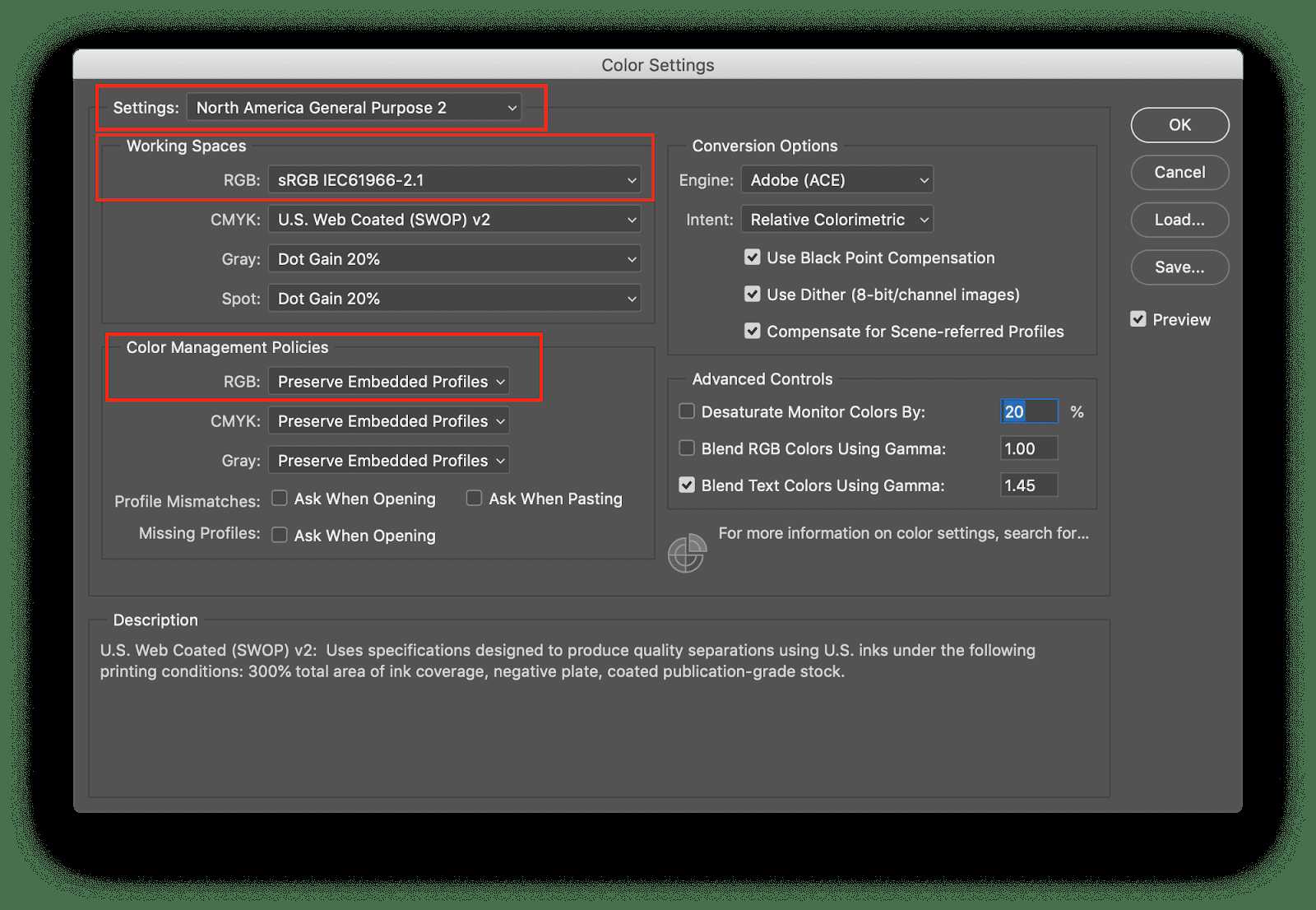
Color profiles are like sets of rules that tell your monitor how to display colors. Common profiles include sRGB, Adobe RGB, and ProPhoto RGB. These profiles help standardize colors across different devices and software.
If your monitor uses a different color profile than your editing or exporting software, colors may look different in the final file. For example, editing in Adobe RGB and exporting in sRGB can cause color discrepancies. Choosing the right profile and keeping it consistent throughout your workflow helps achieve color accuracy in exports.
How Export Settings Affect Color Output
When you export a file, the settings you choose directly impact how colors appear. Export options often include color space, bit depth, and compression settings. Selecting a wider color space like Adobe RGB or ProPhoto RGB can preserve more colors but might not be compatible with all viewers.
Additionally, bit depth (like 8-bit or 16-bit) affects color gradation. Higher bit depths display smoother color transitions, reducing banding. If export settings are not aligned with your monitor’s capabilities, color shifts and quality loss can occur, making it seem like the monitor is affecting the exported file.
The Difference Between Monitor-Dependent and Software-Dependent Color Fidelity
Colors seen on your monitor depend heavily on hardware (the monitor itself) and software (editing programs). Hardware calibration and quality screens influence initial color accuracy. Software settings like color space selection and rendering intent are equally important.
Even with a calibrated monitor, if your software doesn’t support the same color profile used during editing, color differences can occur in the exported file. Conversely, software that correctly respects color profiles can help ensure that the final output closely matches what you see on your screen.
Can Different Monitors Lead to Different Exported Colors?
Yes, using different monitors can produce different exported file colors. Monitors with varying color gamuts, calibration, and display technologies show different ranges and intensities of colors. This affects how you perceive colors during editing and how the final file appears after export.
For example, a monitor with a wider color gamut like Adobe RGB can display more vivid colors than an sRGB monitor. If you edit on a wide-gamut monitor and export without converting the color space, the colors may look dull or different on a device with a narrower gamut. Consistent use of calibrated monitors aligned to your workflow minimizes these discrepancies.
How Color Management Systems Help Maintain Color Accuracy
Color management systems (CMS) are tools used in software to ensure consistent color display across devices. They help match the colors on your monitor with the colors in the exported file. CMS uses embedded color profiles to translate colors correctly between devices.
Using a proper CMS allows you to see a realistic preview of how the final exported file will look. It also helps avoid issues like color shifts or mismatches, especially when working across multiple devices or exporting images for print or web use.
The Impact of Display Technologies on Color Reproduction
Different display technologies, such as LCD, OLED, or IPS panels, influence how colors are reproduced. OLED screens often provide richer contrast and more vivid colors, while IPS panels tend to have more accurate color representation.
The choice of display technology can influence your perception during editing. A monitor with poor color reproduction may lead you to make incorrect adjustments, affecting the colors in the exported files. Using high-quality displays designed for color accuracy benefits professional workflows significantly.
Factors to Consider When Choosing a Monitor for Accurate Color Work
To ensure that your monitor does not adversely affect exported file colors, consider these factors:
- Color Gamut Coverage: Look for monitors with wide gamuts like Adobe RGB or DCI-P3.
- Calibration Capabilities: Choose monitors that support hardware calibration.
- Uniformity: Ensure consistent color and brightness across the screen.
- Color Accuracy Ratings: Prefer monitors with factory calibration or high Delta E ratings.
These factors help maintain consistent and reliable colors in your editing and export processes.
Common Mistakes That Affect Exported File Colors
Some frequent errors include:
- Not calibrating the monitor regularly.
- Using different color profiles without proper conversion.
- Ignoring software color management settings.
- Exportting files in incompatible or incorrect color spaces.
- Viewing files on monitors with poor color accuracy post-export.
Avoiding these mistakes ensures that your exported files look consistent and true to your intended colors.
Best Practices for Ensuring Color Consistency
Implementing good practices can help you maintain accuracy:
- Calibrate your monitor at least once a month.
- Use a consistent color profile for editing and exporting.
- Choose the right export settings suited to your output medium.
- Preview your work on multiple devices if possible.
- Regularly update your software and monitor firmware for improved color handling.
Following these steps minimizes unwanted color shifts and keeps your exported files looking professional.
The Future of Display Technology and Color Reproduction
Advancements like HDR (High Dynamic Range) and wider gamuts are improving how monitors replicate colors. Newer display technologies promise even better color fidelity and consistency. These innovations will help creators produce more accurate and vibrant outputs.
As display technology advances, the gap between on-screen colors and exported files will close. This progress will make it easier to trust that what you see during editing matches the final exported product. Staying updated with the latest monitors and calibration tools is essential for professional-quality results.
Summary and Final Thoughts
In summary, monitors play a crucial role in how colors appear during editing and how they are rendered in exported files. Proper calibration, color profile management, and high-quality display technology are key factors that influence color accuracy. While different monitors can produce varying results, consistent workflows and professional tools help minimize discrepancies.
Ensuring that your monitor accurately displays colors and uses proper color management practices leads to exported files that truly reflect your intended vision. Understanding these elements helps create consistent, vibrant, and professional-looking images and videos every time.
How To Fix Export Color Problem In Adobe Premiere Pro (Fast & Easy) #shorts
Frequently Asked Questions
Can the color calibration of a monitor impact the colors seen in exported files?
Yes, the color calibration of a monitor plays a significant role in how colors appear both on-screen and in exported files. If a monitor isn’t properly calibrated, colors displayed may not accurately reflect the original color settings used in editing. This discrepancy can lead to exported files having colors that differ from what the designer or photographer intended. To ensure consistency, calibrate your monitor regularly using professional calibration tools or software.
Does the monitor’s display technology influence the colors in exported images or videos?
Display technology, such as IPS, OLED, or TN panels, affects how colors are rendered on your screen. Different technologies offer varying levels of color accuracy and depth. When exporting files, the colors you see during editing might not translate exactly to other devices or print. Using a high-quality monitor with accurate color reproduction minimizes discrepancies and ensures that exported files match your visual expectations.
Are there specific monitor settings that can cause discrepancies in exported file colors?
Yes, certain monitor settings like brightness, contrast, gamma, and color temperature can influence the appearance of images during editing. If these settings aren’t correctly adjusted, they may cause colors to appear different from their intended look in the exported file. Always set your monitor to a neutral calibration profile and avoid making adjustments that could bias color perception before exporting your work.
How does the color space of a monitor relate to the colors in exported files?
The color space your monitor displays, such as sRGB or Adobe RGB, shapes how colors are rendered during editing. If your monitor covers a narrower color space than your export settings, colors may not translate accurately. To minimize color shifts, ensure your monitor supports and is properly configured for the color space you plan to use for export. This alignment helps maintain color consistency from editing to final output.
Can differences between monitors lead to inconsistent color results across devices?
Absolutely. Different monitors have varying color profiles, calibration statuses, and display technologies, which can cause colors to look different from one device to another. When you export files on your monitor and view them on a different device, the colors may not match exactly. To achieve consistent colors across multiple devices, consider calibrating all monitors regularly and, where possible, use standardized color profiles.
Final Thoughts
The conclusion is that do monitors affect exported file colors significantly. Variations in monitor calibration and color profiles can lead to differences between what you see on screen and the final exported file. Consistent calibration ensures accurate color reproduction across devices. Paying attention to monitor settings helps achieve true-to-life colors in your exported files.



