


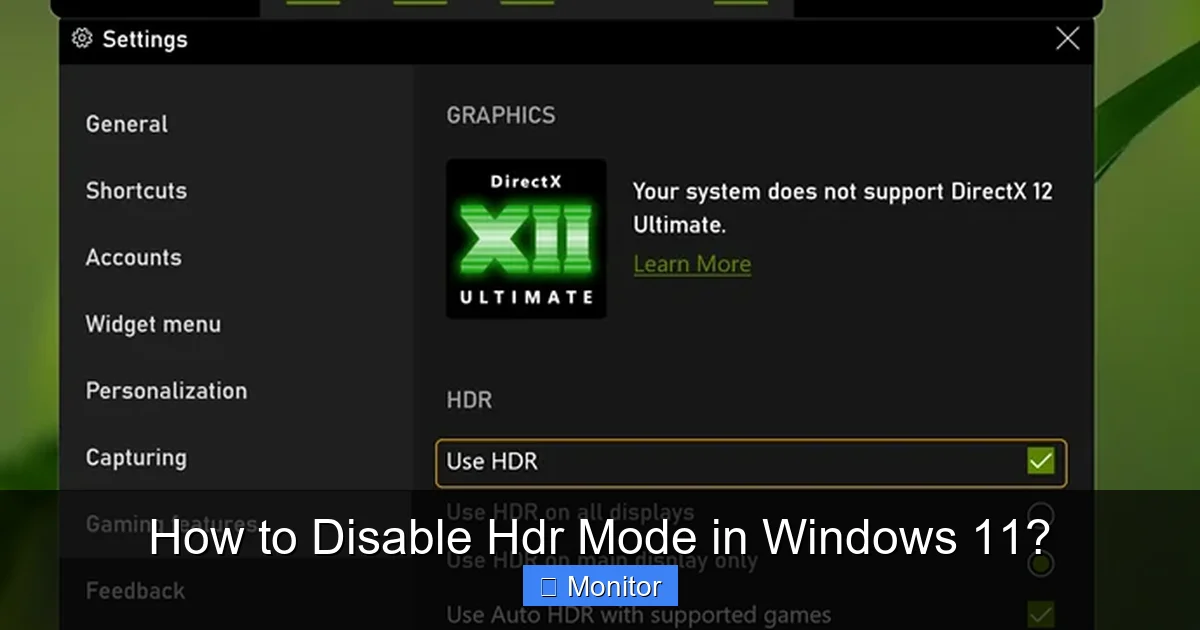
HDR (High Dynamic Range) can offer stunning visuals, but sometimes it causes issues like washed-out colors or performance dips in Windows 11. This comprehensive guide will walk you through multiple methods to disable HDR, from tweaking Windows Display Settings to adjusting your monitor’s OSD, ensuring you can enjoy your screen exactly how you prefer. Get ready to reclaim vibrant colors and optimal performance!
Hey there! Ever found yourself staring at your Windows 11 screen, wondering why everything looks a bit… flat? Or maybe your games aren’t running as smoothly as they should, and the colors just seem off? You might be experiencing the joys (or frustrations) of High Dynamic Range, or HDR mode. While HDR is fantastic technology designed to deliver incredibly vivid colors, deeper blacks, and brighter whites, it doesn’t always play nice with every setup, every app, or every user’s preference.
If you’re reading this, chances are you’re one of the many Windows 11 users who wants to take control and learn how to disable HDR mode. Perhaps your monitor isn’t quite up to snuff for true HDR, leading to a “washed-out” look, or maybe you’re dealing with unexpected performance hits in your favorite games. Whatever your reason, you’re in the right place! We’re going to dive deep into the world of Windows 11 display settings and give you all the tools you need to disable HDR mode effectively, ensuring your screen looks exactly how you want it to.
What is HDR and Why Does it Matter?
Before we jump into disabling it, let’s quickly understand what HDR is. Traditional displays use SDR (Standard Dynamic Range), which has a limited range of brightness and color. HDR, on the other hand, expands this range significantly, allowing for a much more lifelike and immersive visual experience. Think of it like going from a standard definition movie to a 4K Ultra HD one – the difference can be truly striking. When implemented correctly with a compatible monitor and content, HDR makes colors pop, shadows appear more detailed, and highlights shine without blowing out the rest of the image.
However, the “implemented correctly” part is key. If your monitor only offers a basic form of HDR, or if your system’s drivers aren’t up to date, or even if the content itself isn’t perfectly optimized, HDR can sometimes be a detriment rather than a benefit. This often manifests as dull, washed-out colors, especially in SDR content (which is still most of what we consume daily), or a noticeable performance drop due to the additional processing required. That’s why knowing how to disable HDR mode in Windows 11 is such a valuable skill for any PC user.
Key Takeaways
- Understanding HDR: While beneficial for vibrant visuals, HDR can sometimes lead to washed-out colors or performance issues, prompting the need to disable it.
- Windows Display Settings: The primary method to disable HDR is through the Windows 11 Display Settings, specifically the “Use HDR” toggle under the HDR section.
- Monitor OSD is Crucial: Even after disabling HDR in Windows, some monitors might still interpret a signal as HDR; always check and adjust your monitor’s On-Screen Display (OSD) settings.
- App-Specific Adjustments: For a more granular approach, you can sometimes manage HDR settings for individual games or applications within their own settings or through Windows’ Advanced Display settings.
- Troubleshooting Steps: If issues persist, ensure your graphics drivers are updated, check your display cables, and perform a system restart to resolve lingering HDR-related display problems.
- Performance and Visual Trade-offs: Disabling HDR can resolve performance slowdowns and color inaccuracies, but you might miss out on the extended color and brightness range it offers when properly implemented.
Quick Answers to Common Questions
Can disabling HDR improve gaming performance in Windows 11?
Yes, disabling HDR can sometimes improve gaming performance, especially on systems with mid-range graphics cards or older hardware, as HDR processing requires additional GPU resources.
Will disabling HDR fix washed-out colors on my monitor?
Often, yes. Many users experience washed-out or dim colors when HDR is enabled, particularly with SDR content or on monitors that don’t have true HDR capabilities. Disabling it usually reverts to a more natural color presentation.
Do I need to restart my PC after disabling HDR?
While not always strictly necessary, restarting your PC after disabling HDR mode in Windows 11 can help ensure all display settings are properly applied and resolve any lingering display glitches.
Can I disable HDR for just one game or application?
Sometimes. While the primary Windows HDR toggle affects the entire system, many games and media players have their own internal HDR settings that you can disable independently, even if Windows HDR is on.
What if the “Use HDR” toggle is greyed out in Windows 11 settings?
If the “Use HDR” toggle is greyed out, it usually means your system (graphics card, monitor, or cable) does not fully support HDR, or there’s an issue with your graphics drivers. Ensure drivers are updated and hardware meets HDR requirements.
📑 Table of Contents
Understanding HDR in Windows 11
Windows 11 has built-in support for HDR, making it relatively straightforward to manage. When HDR is enabled, Windows attempts to output a wider color gamut and dynamic range. For this to work well, you need:
- A compatible HDR monitor.
- A compatible graphics card.
- An HDMI 2.0 (or newer) or DisplayPort 1.4 (or newer) cable.
- Windows 11 with the latest updates.
Even if you meet all these requirements, personal preference or specific software compatibility can still make disabling HDR a desirable option. Windows 11’s HDR implementation can be a bit of a mixed bag; while it improves native HDR content, it can struggle with displaying SDR content accurately when HDR is on, often leading to that “washed-out” look that so many users complain about. So, let’s explore the different ways you can disable HDR mode in Windows 11.
Method 1: Disabling HDR via Windows Settings
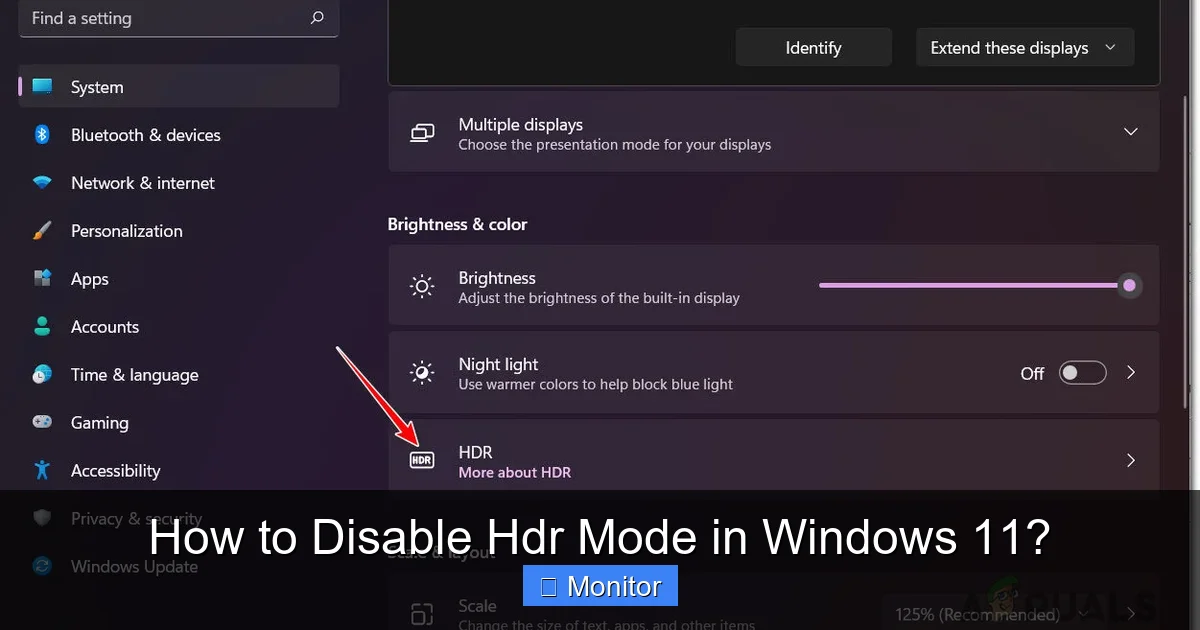
Visual guide about How to Disable Hdr Mode in Windows 11?
Image source: cdn.appuals.com
This is the most common and straightforward way to disable HDR mode in Windows 11. It’s usually the first place you should check.
Step-by-Step Guide to Windows Display Settings
- Open Settings: Right-click anywhere on your desktop and select “Display settings,” or go to Start > Settings > System > Display.
- Identify Your Display: If you have multiple monitors, ensure you select the monitor for which you want to disable HDR. You can usually identify them by clicking “Identify” or observing their arrangement in the display settings.
- Locate the HDR Section: Scroll down a bit until you see the “HDR” section. Underneath it, you’ll see a toggle switch labeled “Use HDR.”
- Toggle Off “Use HDR”: Simply click this toggle switch to turn it “Off.” Your screen might flicker briefly as the display mode changes.
- Confirm the Change: Once the toggle is off, you should immediately notice a difference in your display’s color and brightness. If HDR was causing issues, colors should now appear more vibrant and natural.
What to Expect After Disabling HDR
After you disable HDR mode in Windows 11 using this method, your display will revert to Standard Dynamic Range (SDR). This means your color profile will switch, and the brightness and contrast will adjust accordingly. For many users, this instantly resolves issues like overly dim screens when HDR is on or that frustrating washed-out appearance. It’s a quick and easy fix that often makes a world of difference.
Method 2: Adjusting Advanced Display Settings and App-Specific HDR
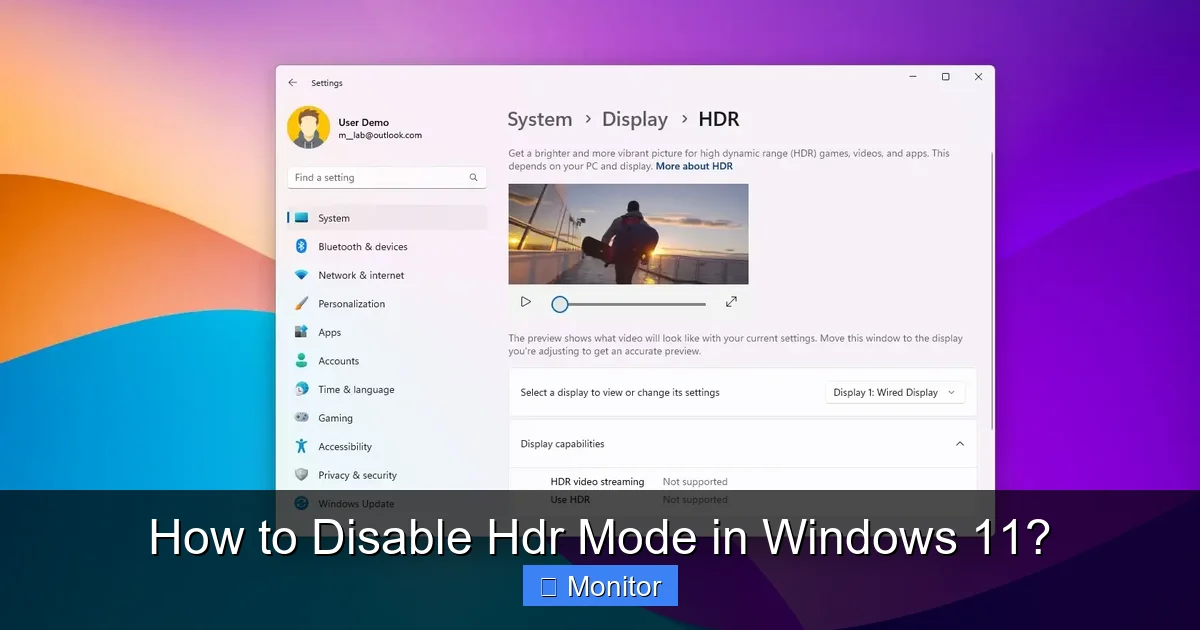
Visual guide about How to Disable Hdr Mode in Windows 11?
Image source: pureinfotech.com
Sometimes, just toggling the main “Use HDR” switch isn’t enough, or you might want more granular control. Windows 11 offers a few more options under its advanced display settings.
Delving into Windows HD Color Settings
Even when “Use HDR” is off, you can still dive into the “Windows HD Color settings” (which used to be a separate section but is now integrated into the main Display settings under the HDR section when HDR is enabled). This section allows you to:
- SDR Content Brightness: This slider appears when HDR is enabled. If you decide to keep HDR on but find SDR content too dim, you can adjust this slider to make SDR content brighter without affecting HDR content. This isn’t for disabling HDR, but for managing it better.
- HDR Video Streaming: There might be options here related to streaming HDR video. If your issue is specifically with video playback, you can try toggling related settings here.
While these aren’t direct “disable HDR mode in Windows 11” steps, they are crucial for fine-tuning your HDR experience if you choose to keep it enabled or encounter specific issues related to content types.
Managing HDR for Specific Games and Applications
Many games and media applications have their own internal HDR settings. If you disable HDR mode in Windows 11 globally but a specific game still looks off, check its in-game display settings.
- In-Game Settings: Launch the game and navigate to its graphics or display options. Look for toggles like “HDR,” “HDR Display Mode,” or similar options. Turn these off.
- Application-Specific Settings: Some media players also have their own HDR toggles. For example, if you’re watching a movie in a media player and it looks wrong, check the player’s video settings.
It’s important to remember that global Windows settings usually override app-specific ones, but sometimes a game might try to force HDR if it detects a compatible display, even if Windows has it off. Checking both ensures you’ve covered all bases.
Method 3: Checking Your Monitor’s On-Screen Display (OSD) Settings
Visual guide about How to Disable Hdr Mode in Windows 11?
Image source: thewindowsclub.com
This is a step many users overlook, but it’s critically important! Even if you disable HDR mode in Windows 11, your monitor itself might still be set to an HDR profile or trying to interpret the signal as HDR, especially if it has multiple display modes.
Why Your Monitor’s Settings Matter
Your monitor’s firmware and internal processing can significantly impact how it displays content. Many modern monitors have dedicated HDR modes, picture profiles, or settings that can override or interfere with Windows’ display preferences. If your monitor is stuck in an HDR mode internally, even an SDR signal from Windows might look strange.
How to Access and Adjust Your Monitor’s OSD
- Locate Monitor Buttons: Most monitors have physical buttons (sometimes joysticks) on the bezel, usually on the bottom right or back.
- Open the OSD Menu: Press the appropriate button to bring up the On-Screen Display (OSD) menu.
- Navigate to Picture/Display Settings: Use the navigation buttons to find sections like “Picture,” “Display,” “Image,” or “Advanced Settings.”
- Look for HDR Options: Within these menus, search for anything related to “HDR,” “HDR Mode,” “Display Mode,” “Picture Mode,” or “Color Space.”
- Disable or Set to SDR: If you find an HDR option, make sure it’s turned “Off,” “Disabled,” or set to “SDR,” “Standard,” or “Desktop.” Some monitors might have specific “Gaming” or “Movie” modes that enable HDR, so switching to a “Standard” or “Custom” mode can also help.
- Save and Exit: Always remember to save your changes before exiting the OSD menu.
This step is vital for a complete and thorough approach to disable HDR mode in Windows 11. It ensures that both your operating system and your display hardware are on the same page, preventing any lingering visual anomalies.
Troubleshooting Common HDR Issues After Disabling
Even after following these steps, you might encounter lingering issues. Here are a few troubleshooting tips:
Still Washed Out or Colors Look Wrong?
- Restart Your PC: A simple reboot can often resolve display driver glitches or apply settings more effectively.
- Update Graphics Drivers: Outdated or corrupted graphics drivers are a common culprit for display issues. Visit your graphics card manufacturer’s website (NVIDIA, AMD, Intel) and download the latest drivers for your specific card. Perform a clean installation if possible.
- Check Display Cables: Ensure your HDMI or DisplayPort cable is securely connected at both ends. Try a different, high-quality cable if you suspect yours might be faulty or not fully compatible with your display’s capabilities.
- Windows Calibrate Display Color: Even with HDR off, you might want to run Windows’ built-in color calibration tool. Search for “Calibrate display color” in the Start menu.
- Reset Monitor Settings: If all else fails, consider doing a factory reset of your monitor’s settings via its OSD menu. Just be aware this will revert all custom settings.
HDR Won’t Turn Off (Toggle Greyed Out)?
If the “Use HDR” toggle in Windows settings is greyed out, it typically means one of two things:
- Hardware Incompatibility: Your graphics card or monitor does not support HDR, or your cable isn’t capable. In this case, HDR was never truly enabled, so there’s nothing to disable.
- Driver Issue: Ensure your graphics drivers are up to date. Sometimes a driver issue can prevent Windows from correctly detecting your display’s capabilities.
When to Re-Enable HDR?
While the focus here is on how to disable HDR mode in Windows 11, it’s worth noting when you might want to re-enable it. If you upgrade to a truly premium HDR monitor (e.g., VESA DisplayHDR 1000 or higher), or if you primarily consume high-quality HDR content (4K HDR movies, latest AAA games with excellent HDR implementation), then re-enabling HDR can provide a truly stunning visual experience. Always test it out with content specifically designed for HDR to see if it benefits your setup.
Conclusion
You now have all the knowledge and steps required to confidently disable HDR mode in Windows 11. Whether you’re battling washed-out colors, seeking better performance, or simply prefer the look of SDR, taking control of your display settings is empowering. Remember to check both your Windows Display Settings and your monitor’s OSD for the most effective results.
Don’t let your computer dictate how your screen should look. With these methods, you can tailor your visual experience to your preferences, ensuring vibrant, accurate colors and smooth performance, every time you fire up your Windows 11 PC. Enjoy your perfectly tuned display!
Frequently Asked Questions
What causes the washed-out look when HDR is on?
The washed-out look often occurs because your monitor or graphics card isn’t properly converting Standard Dynamic Range (SDR) content (which is most content) into a High Dynamic Range format. This can happen with entry-level HDR monitors that lack the necessary brightness or local dimming zones, leading to inaccurate color mapping and a dull appearance.
Is HDR always better than SDR?
Not always. While HDR offers the potential for a much wider range of colors and brightness, its effectiveness heavily depends on the quality of your monitor, the content being displayed, and the system’s ability to process it. If your setup isn’t fully optimized for HDR, or if you primarily consume SDR content, disabling it often provides a superior visual experience.
How can I tell if my monitor truly supports HDR?
Check your monitor’s specifications for VESA DisplayHDR certification levels (e.g., DisplayHDR 400, 600, 1000). A higher number indicates better HDR performance. Monitors without any VESA certification or those simply labeled “HDR compatible” may not offer a true HDR experience and might benefit from having HDR disabled in Windows 11.
Will disabling HDR affect the brightness of my screen?
Yes, disabling HDR can affect your screen’s perceived brightness. When HDR is active, your monitor’s peak brightness might be higher, but SDR content can often appear dimmer. Turning HDR off typically brings SDR content back to its intended brightness and contrast, which many users find more pleasing for everyday use.
Can my display cable impact HDR performance?
Absolutely. For proper HDR display, you need a high-quality display cable that supports the necessary bandwidth. For most modern setups, this means an HDMI 2.0 (or newer) or DisplayPort 1.4 (or newer) cable. Older or lower-quality cables might lack the bandwidth, leading to flickering, reduced refresh rates, or failure to enable HDR at all.
Are there any downsides to disabling HDR mode in Windows 11?
The primary downside is that you won’t experience the enhanced color depth, contrast, and brightness that true HDR content offers when displayed on a capable monitor. If you have a premium HDR display and are watching native HDR content (like 4K HDR movies or certain games), you might miss out on the intended visual impact by keeping HDR off.



