


Mastering your Staples gaming chair’s recline function is key to unlocking personalized comfort and ergonomic support. This comprehensive guide walks you through every step, from engaging the recline lever to adjusting tension, ensuring you can lean back effortlessly. Discover how to optimize your seating position for extended gaming sessions, work, or relaxation, transforming your chair into a true comfort hub.
Welcome, fellow gamers and comfort-seekers! If you’ve recently invested in a Staples gaming chair, you’ve made a great choice for your setup. These chairs are known for their blend of affordability, style, and essential ergonomic features. But getting the most out of your new throne often means understanding all its nifty adjustments. One of the most sought-after features, and arguably the most crucial for long-term comfort, is the ability to lean back.
Whether you’re celebrating a hard-won victory, unwinding after a long work day, or simply enjoying some casual browsing, being able to recline comfortably can transform your experience. It takes pressure off your spine, allows for a quick stretch, and just feels incredibly good. However, if you’re new to the world of ergonomic chairs, figuring out exactly “Staples gaming chair how to lean back” might seem a little tricky at first. Don’t worry, you’re not alone! This comprehensive guide is designed to walk you through every step, ensuring you master your chair’s recline function and unlock its full potential for comfort and relaxation.
Why Leaning Back Matters for Your Comfort
Before we dive into the “how-to,” let’s quickly touch on the “why.” Leaning back isn’t just about taking a break; it’s about proper ergonomics. Spending hours hunched over a desk can lead to back pain, neck strain, and overall fatigue. Reclining gently redistributes your body weight, reducing pressure on your lower back. It can improve blood circulation, allow your muscles to relax, and even enhance focus by making you more comfortable. A well-utilized recline function on your Staples gaming chair can be a game-changer for your posture and well-being.
Key Takeaways
- Identify Your Chair’s Controls: Locate the recline lever (usually on the right) and the tilt tension knob (often under the seat front) to control how your Staples gaming chair leans back.
- Engage the Recline: Pull the recline lever upwards to unlock the backrest, allowing you to lean back. Push the lever down to lock it in your desired angle.
- Adjust Tilt Tension: Use the round knob under the seat to increase or decrease resistance when rocking or leaning. Turn clockwise for more tension (harder to lean back), counter-clockwise for less (easier to lean back).
- Utilize Rocking Mode: Some Staples gaming chairs offer a rocking function. Pull out the main lever (often the height adjustment lever) to enable rocking, then push it in to lock it.
- Find Your Ergonomic Sweet Spot: Experiment with different recline angles and tension settings to find the position that best supports your back, neck, and arms for long-term comfort and posture.
- Troubleshoot Common Issues: If your chair isn’t leaning back, check for obstructions, ensure all levers are disengaged correctly, and verify the tension knob isn’t overtightened.
- Regular Maintenance Matters: Keep your chair clean, and occasionally check bolts to ensure all components function smoothly, preserving the recline mechanism and overall comfort.
Quick Answers to Common Questions
How do I make my Staples gaming chair recline?
To make your Staples gaming chair recline, locate the recline lever, typically on the right side under the seat. Pull this lever upwards to unlock the backrest, lean back to your desired angle, and then push the lever downwards firmly to lock it in place.
What is the tilt tension knob on a gaming chair for?
The tilt tension knob, usually found under the front of the seat, controls the resistance you feel when the chair is in rocking mode or free-tilt. Turning it clockwise makes the chair harder to lean back, while counter-clockwise makes it easier, allowing you to personalize the recline effort.
Can all Staples gaming chairs lock at any recline angle?
Most Staples gaming chairs allow you to lock the backrest at various angles using the dedicated recline lever. However, if using the full chair tilt/rocking function, some models may only lock in the upright position, while others allow locking at multiple tilted positions. Refer to your specific chair’s manual for exact capabilities.
Why is my Staples gaming chair not leaning back easily?
If your Staples gaming chair isn’t leaning back easily, first check if the recline lever or tilt lock lever is fully disengaged (pulled up or out). Also, ensure the tilt tension knob isn’t overtightened; turn it counter-clockwise to reduce tension and make reclining easier.
How do I fix a squeaky Staples gaming chair when leaning back?
To fix a squeaky Staples gaming chair when leaning back, try applying a small amount of silicone-based lubricant to the moving joints and pivot points of the recline mechanism. You should also check and gently tighten any loose bolts connecting the backrest to the seat plate, as these can often cause squeaking.
📑 Table of Contents
- Understanding Your Staples Gaming Chair’s Recline Mechanism
- Step-by-Step Guide: How to Lean Back in Your Staples Gaming Chair
- Mastering Recline Tension: Finding Your Sweet Spot
- Beyond Recline: Other Staples Gaming Chair Adjustments for Comfort
- Troubleshooting Common Leaning Back Issues
- Maintaining Your Chair for Lasting Comfort
- Conclusion: Embrace the Recline!
Understanding Your Staples Gaming Chair’s Recline Mechanism
Most Staples gaming chairs, like many other office and gaming chairs, come with a set of intuitive controls designed to adjust your seating experience. Before you can truly master how to lean back, it’s essential to identify these key components. While designs can vary slightly between models, the core principles remain the same.
Identifying Key Levers and Knobs
Your Staples gaming chair will typically have a few levers and a knob under the seat. Let’s break down what they usually do:
- The Recline (Backrest) Lever: This lever is specifically for adjusting the angle of the backrest relative to the seat. It’s often found on the right-hand side, just under the seat. When you pull this lever up, it unlocks the backrest, allowing you to lean it back or bring it forward. Releasing the lever (pushing it down) will lock the backrest in your chosen position.
- The Height Adjustment/Tilt Lock Lever: This is usually the main lever, also often on the right side but sometimes on the left. Pushing it down (or pulling up, depending on the design) while you’re seated and applying weight usually lowers the chair, and when you stand up, it raises it. This lever often doubles as a tilt lock for the entire chair’s rocking motion. Pushing it inwards or outwards might engage or disengage the full chair tilt/rocking function.
- The Tilt Tension Knob: This is a large, round knob located directly under the front of your seat. It controls the amount of resistance you feel when the chair is in its rocking or free-tilt mode. Turning it one way will make the chair harder to lean back, while turning it the other way will make it easier.
Familiarizing yourself with these controls is the first critical step in understanding “Staples gaming chair how to lean back.” Take a moment to sit in your chair and locate each one. Give them a gentle wiggle to understand their movement.
Step-by-Step Guide: How to Lean Back in Your Staples Gaming Chair

Visual guide about Staples Gaming Chair How to Lean Back
Image source: cdn.shopify.com
Now that you know your chair’s controls, let’s get to the main event: learning how to lean back. This process is straightforward, but it involves a couple of steps to ensure you do it correctly and safely.
Initiating the Backrest Recline
This is the most direct way to lean back in your Staples gaming chair, adjusting only the backrest angle.
- Sit Down and Position Yourself: Make sure you are comfortably seated with your back against the backrest.
- Locate the Recline Lever: Reach for the lever on the right side, usually positioned slightly behind the main height adjustment lever. This is your backrest recline lever.
- Pull the Lever Upwards: While keeping some pressure against the backrest with your back, pull this lever upwards. This action unlocks the backrest’s angle.
- Lean Back to Your Desired Angle: With the lever held up, gently lean back. The backrest will smoothly recline. Find the angle that feels most comfortable for you.
- Lock the Backrest: Once you’ve found your perfect recline angle, push the lever downwards firmly. This will lock the backrest securely in place.
- Release Pressure: You can now relax into your reclined position.
If you want to sit more upright again, simply pull the recline lever upwards, lean forward with your body weight, and then push the lever back down to lock it in the new, more upright position. It’s a simple, intuitive motion once you get the hang of it.
Utilizing the Full Chair Tilt (Rocking Function)
Many Staples gaming chairs also offer a full chair tilt or rocking function. This allows the entire seat and backrest assembly to tilt backward together, often giving a more relaxed, rocking sensation.
- Locate the Main Lever: This is typically the same lever used for height adjustment. It might be on the right or left side.
- Pull the Lever Outwards: Instead of pushing it down for height, you’ll likely pull this lever outwards from under the seat. This action “unlocks” the chair’s ability to rock freely.
- Lean Back and Rock: Once unlocked, you can lean back, and the entire chair (seat and back) will tilt with you, rocking gently. Your body weight will dictate the degree of tilt.
- Lock the Tilt (Optional): If you find a specific tilt angle you like and want to stay there without rocking, some chairs allow you to push the lever back inwards while at that angle. This “locks” the chair in a tilted position. Note that not all chairs allow locking at multiple tilt angles; some only lock in the fully upright position.
This method offers a different kind of recline, often used for more casual relaxation or light rocking. Understanding how to lean back using both methods gives you maximum flexibility with your Staples gaming chair.
Mastering Recline Tension: Finding Your Sweet Spot
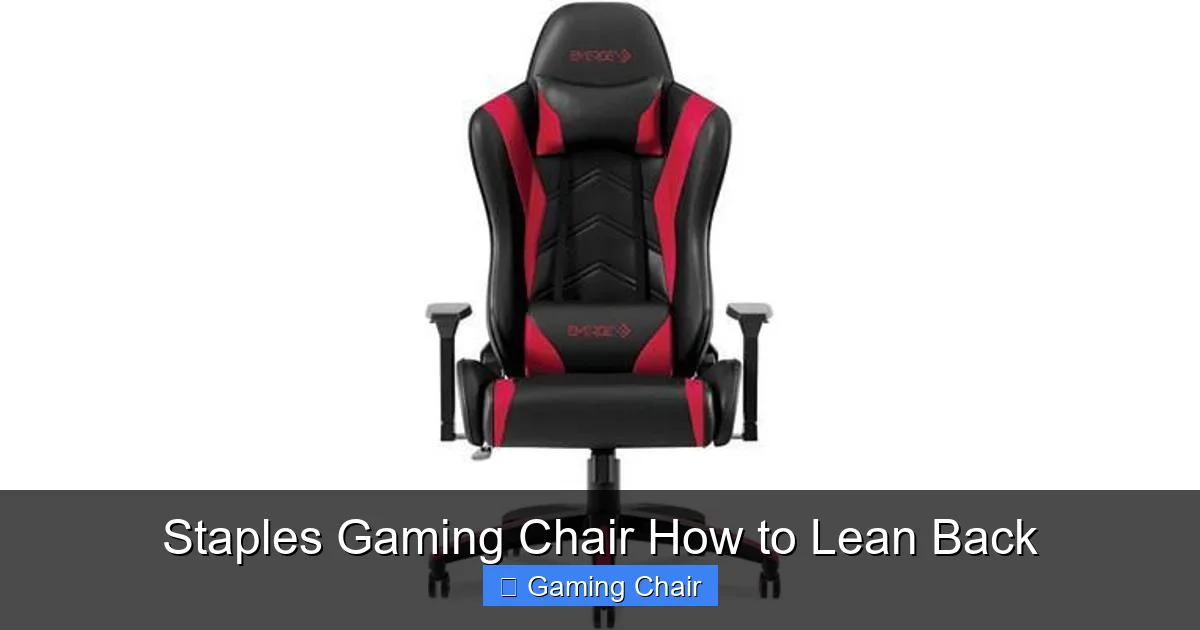
Visual guide about Staples Gaming Chair How to Lean Back
Image source: klarna.com
Just knowing how to lean back isn’t enough; you also need to control *how easily* it leans back. This is where the tilt tension knob comes into play. Adjusting this knob correctly is crucial for personalized comfort and safety.
How to Adjust Tilt Tension
The tilt tension knob is usually the large, round knob found directly under the front center of your seat. It can be a bit awkward to reach, but its function is vital.
- To Increase Tension (Harder to Lean Back): Turn the knob clockwise. This will make the chair require more force to lean back when in rocking mode. It’s ideal if you prefer a firmer feel or if you’re a heavier individual and don’t want the chair to recline too easily.
- To Decrease Tension (Easier to Lean Back): Turn the knob counter-clockwise. This will make the chair easier to lean back and rock. This is great for lighter individuals or those who enjoy a more relaxed, free-flowing recline.
Why Tension Adjustment is Important
Imagine a heavy person trying to lean back on a chair with very low tension – they might recline too quickly or unexpectedly. Conversely, a lighter person might struggle to recline at all if the tension is too high. Proper tension adjustment ensures:
- Personalized Comfort: The chair responds to your body weight and preference.
- Safety: Prevents sudden, uncontrolled reclining.
- Ergonomic Support: Allows you to comfortably maintain a slightly reclined position without constant effort.
Experiment with this knob! It might take a few turns and tests to find what feels just right for you. It’s a key part of optimizing your Staples gaming chair how to lean back experience.
Beyond Recline: Other Staples Gaming Chair Adjustments for Comfort

Visual guide about Staples Gaming Chair How to Lean Back
Image source: refinery29.com
While learning how to lean back is crucial, your Staples gaming chair offers other adjustments that work in tandem to create a truly ergonomic experience. Don’t forget these!
Seat Height Adjustment
This is usually controlled by the main lever on the side (often the same one for tilt lock). Adjust your seat height so your feet are flat on the floor (or a footrest) and your knees are at a 90-degree angle. This foundational adjustment ensures proper circulation and hip alignment, which supports your lower back even when reclined.
Armrest Adjustments
Many Staples gaming chairs feature adjustable armrests. They might go up and down (2D), or also swivel and move forward/backward (3D or 4D). Adjust them so your elbows are at a 90-degree angle when your arms are resting. This takes pressure off your shoulders and neck, complementing your reclined posture.
Lumbar and Headrest Pillows
Most gaming chairs come with removable lumbar (lower back) and headrest pillows.
- Lumbar Pillow: Position this pillow to fill the natural curve of your lower back. It provides essential support, preventing slouching when you lean back.
- Headrest Pillow: Place this so it supports your neck and head, especially when you’re reclined. It should cradle the curve of your neck, not push your head forward.
Using these pillows correctly, along with your recline, creates a supportive cocoon for your entire spine.
Troubleshooting Common Leaning Back Issues
Even with a good understanding of “Staples gaming chair how to lean back,” you might occasionally encounter an issue. Here are some common problems and their quick fixes.
“My Chair Won’t Recline!”
- Check the Recline Lever: Is it fully pulled up? Sometimes it doesn’t quite engage. Give it a firm pull.
- Is it Locked?: If you’re trying to use the full chair tilt, ensure the main lever is pulled *outwards* to unlock the rocking function. If you’re just adjusting the backrest, make sure the backrest lever is pulled *up*.
- Too Much Tension: If the tilt tension knob is overtightened (clockwise all the way), it might feel like the chair won’t recline at all. Try loosening it significantly by turning it counter-clockwise.
- Obstructions: Is anything physically blocking the backrest’s movement? Check for items behind the chair or under the seat mechanism.
“My Chair Reclines Too Easily/Too Hard!”
- Adjust the Tilt Tension Knob: This is almost always the culprit here. Turn it clockwise to make it harder to recline, and counter-clockwise to make it easier. Small adjustments can make a big difference.
- Body Weight Discrepancy: Remember that tension adjustment is relative to your body weight. What feels right for one person might be too loose or too tight for another. Keep experimenting.
“My Chair Makes Squeaking Noises When I Lean Back!”
- Lubrication: Often, squeaking is a sign that metal-on-metal parts need lubrication. A silicone-based spray lubricant (avoid WD-40 on plastic) can be applied to the pivot points of the recline mechanism.
- Loose Bolts: Over time, bolts can loosen. Carefully inspect the bolts connecting the backrest to the seat mechanism and tighten any that seem wobbly.
Most issues with how to lean back in your Staples gaming chair are easily resolved with a quick check of the levers, knob, or a bit of lubrication.
Maintaining Your Chair for Lasting Comfort
To ensure your Staples gaming chair continues to lean back smoothly and reliably for years to come, a little maintenance goes a long way.
Regular Cleaning
Wipe down the upholstery and plastic parts with a damp cloth to remove dust and grime. For PU leather or fabric, follow the manufacturer’s cleaning recommendations to avoid damage. A clean chair also means less gunk getting into the mechanisms.
Check for Loose Components
Periodically (every few months), do a quick check of all the bolts and screws. Use the included Allen wrench (or a standard set) to gently tighten any that feel loose, particularly around the armrests, seat plate, and backrest connection points. Loose bolts can affect the chair’s stability and how smoothly it operates, including how to lean back.
Lubricate Moving Parts
If you notice any stiffness or squeaking in the recline mechanism, apply a small amount of silicone-based lubricant to the moving joints and pivot points. Do this sparingly, and wipe away any excess. This helps keep the mechanism smooth and prevents wear.
By taking these simple steps, you’ll not only preserve the life of your chair but also ensure that the “Staples gaming chair how to lean back” function remains as smooth and comfortable as the day you bought it.
Conclusion: Embrace the Recline!
Mastering how to lean back in your Staples gaming chair is more than just a party trick; it’s an essential skill for maximizing your comfort, supporting your posture, and elevating your overall gaming or work experience. From understanding the individual levers and knobs to fine-tuning the tilt tension, each adjustment plays a role in creating your perfect ergonomic haven.
Remember, comfort is personal. Take the time to experiment with different recline angles, tension settings, and other adjustments. Combine the backrest recline with the full chair tilt, find the sweet spot for your lumbar and headrest pillows, and always ensure your seat height and armrests are aligned correctly.
With this guide, you now have all the knowledge to confidently adjust your Staples gaming chair how to lean back, rock, and relax. So go ahead, lean back, take a deep breath, and enjoy the ultimate comfort your gaming chair has to offer. Your back (and your gaming performance!) will thank you for it.
Frequently Asked Questions
What is the difference between backrest recline and full chair tilt?
Backrest recline only adjusts the angle of the backrest relative to the seat, while the seat itself remains level. Full chair tilt, often called a rocking function, allows the entire seat and backrest assembly to tilt backward together, providing a more uniform rocking motion.
Is it bad to lean back in my gaming chair all the time?
Leaning back gently can be beneficial for reducing spinal pressure and improving circulation. However, extreme reclining for very long periods, especially without proper lumbar and neck support, might not be ideal. The best practice is to vary your posture and find a balanced recline that supports your natural spinal curve.
How often should I adjust my chair’s recline?
You should adjust your chair’s recline as often as you feel the need to change your posture or comfort level. For long sessions, it’s good to periodically shift your recline angle to prevent stiffness and promote blood flow, even if it’s just a slight adjustment.
Can I lean back too far in my Staples gaming chair?
Most Staples gaming chairs have a maximum recline limit built into their design for safety and stability. While you can lean back to this limit, exceeding it or applying excessive force could potentially damage the chair or cause it to tip. Always remain within the chair’s intended range of motion.
What if my Staples gaming chair doesn’t have a specific recline lever?
Some simpler office or gaming chairs might integrate the recline function with the main height adjustment lever. In such cases, pulling the main lever outwards often unlocks the entire chair for a rocking motion. You would then use your body weight to recline and push the lever back in to lock at a desired tilt, if that feature is available.
How do I know the best recline angle for me?
The best recline angle is highly personal, but a good starting point is often around 100-110 degrees, which is a slight recline from an upright 90-degree angle. Experiment to find an angle where your back feels fully supported, your neck is comfortable, and there’s no undue pressure on your hips or thighs.



