


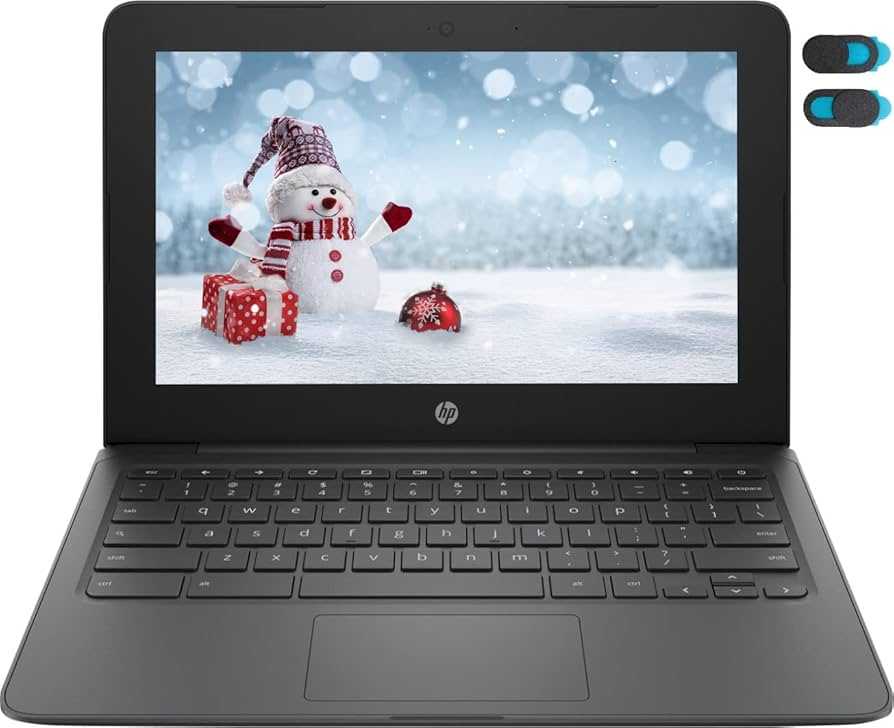
Yes, external webcams can work with Google Classroom, often providing better video quality and flexibility compared to built-in cameras. Most external webcams are compatible with Google Classroom as long as they are properly connected and recognized by your computer. With the right setup, you can easily enhance your online learning or teaching experience by using an external webcam for clearer and more professional video calls.
External webcams work smoothly with Google Classroom, offering students and teachers improved video clarity and customization options. If you’re wondering whether you can upgrade your video setup for virtual classes, the good news is that most external webcams are compatible with Google Classroom with minimal setup. Simply connect the webcam to your computer, select it as your video source in Google Meet (used within Google Classroom), and you’re all set for a better virtual experience.
Getting your external webcam to work with Google Classroom is straightforward and can significantly upgrade your online interactions. Whether you’re a student aiming for clearer visuals or a teacher trying to present more professionally, using an external webcam can make a real difference. The process involves plugging it into your device, installing any necessary drivers, and selecting it in Google Meet settings. No complicated procedures needed – just a simple connection and a few clicks to improve your virtual presence and engagement.

Can External Webcam Work with Google Classroom?
If you are a student or teacher using Google Classroom, you might want to improve your video quality during online lessons. External webcams can offer better image clarity, higher resolution, and more features compared to built-in laptop cameras. But the big question is, can external webcams work with Google Classroom? The answer is usually yes, but several factors influence compatibility and functionality. Let’s explore this topic in detail to help you understand everything you need about using external webcams with Google Classroom.
Understanding External Webcams
External webcams are devices that connect to your computer via USB or other ports, providing an additional or improved video source. They come in a variety of models, including basic webcams and high-end options with 4K resolution. These devices are great for video conferencing, streaming, and classroom presentations. The key benefit is their ability to offer better video quality than most built-in laptop cameras.
Most external webcams connect easily through standard USB ports, making setup straightforward. They require minimal configuration, often just plug-and-play. In many cases, they are compatible with multiple platforms, including Google Classroom, Zoom, Microsoft Teams, and others.
Compatibility of External Webcams with Google Classroom
The good news is, in most cases, external webcams do work with Google Classroom’s video functions. Since Google Classroom uses your computer’s camera hardware and software, any webcam recognized by your operating system can usually be accessed during video calls or recordings.
However, there are some important points to check beforehand. Compatibility depends on your operating system (Windows, Mac, Chrome OS), browser settings, and device drivers. Ensuring your webcam is properly installed and recognized by your computer is crucial for it to work with Google Classroom.
Setting Up Your External Webcam for Google Classroom
Step 1: Connect the Webcam
First, plug your external webcam into an available USB port. Most webcams are plug-and-play, meaning they will automatically be detected by your computer. Wait a few moments for the device to install any necessary drivers.
Step 2: Install or Update Drivers
If your webcam isn’t recognized automatically, visit the manufacturer’s website to download and install the latest drivers. Updated drivers ensure compatibility and optimal performance during video sessions.
Step 3: Check Camera Settings on Your Computer
Go to your device settings or control panel. Confirm that your webcam appears as an available device. Adjust permissions to allow your browser or apps to access your camera.
Step 4: Configure Camera in Your Browser
Google Chrome is the most commonly used browser for Google Classroom. Make sure Chrome has permission to use your webcam. To check, click the three-dot menu in Chrome, go to Settings, then Privacy and Security, and select Site Settings. Under Permissions, choose Camera and ensure your external webcam is selected.
Using the Webcam During Google Classroom Sessions
Once your webcam is connected and recognized by your operating system and browser, you can select it within Google Classroom or any associated video call platform. When starting a video session, choose your external webcam from the camera options.
Always test your setup before a class begins. Google Classroom often prompts you to select a camera each time you start or join a video meeting. Here, you should see your external webcam listed along with any built-in cameras.
Troubleshooting Common Issues
Webcam Not Recognized
- Ensure your webcam is properly connected to the USB port.
- Check device manager on Windows or system report on Mac for driver issues.
- Restart your computer and try reconnecting the webcam.
Camera Not Showing in Google Classroom
- Make sure your browser has camera permissions enabled.
- Update your browser to the latest version.
- Restart the browser and test your webcam in other applications like Skype or Zoom.
Video Quality Problems
- Check the webcam’s resolution settings.
- Close other applications that may be using bandwidth or system resources.
- Adjust lighting conditions for clearer video.
Enhancing Your Video Quality in Google Classroom
To improve your video during lessons with a webcam, consider the following tips:
- Use good lighting: Natural light or ring lights can brighten your face.
- Position your camera correctly: Keep it at eye level for a natural view.
- Adjust camera settings: Many webcams come with software for brightness, contrast, and zoom controls.
- Check background: Avoid clutter to keep focus on you.
Additional Features of External Webcams
Many webcams offer features beyond basic video. These include:
- Built-in microphones: Improve audio quality during lessons.
- Autofocus: Keeps your face in sharp focus even when you move.
- Wide-angle lenses: Capture more of your surroundings.
- Lighting adjustments: Adjust brightness or include low-light correction.
Using webcams with these features can make your Google Classroom lessons more dynamic and professional-looking.
Compatibility with Different Operating Systems
Windows
Most external webcams are compatible with Windows 10 or later. Install the driver if necessary, and check your privacy settings to allow camera access for browsers.
Mac
Mac users simply plug in the webcam and check in the System Preferences under Security & Privacy to ensure camera access is granted for the browser.
Chrome OS
Chromebooks support many USB webcams. Test connection by opening the camera app or a video call app to verify recognition.
Choosing the Right Webcam for Google Classroom
When selecting an external webcam, consider these factors:
- Resolution: Look for at least HD 720p, preferably 1080p for clearer video.
- Frame rate: 30 frames per second (FPS) provides smooth motion.
- Compatibility: Confirm it works with your operating system.
- Price range: Basic models are affordable, while advanced options are more expensive but offer higher quality.
Summary of Key Points
| Aspect | Details |
|---|---|
| Compatibility | Generally works with Windows, Mac, and Chrome OS if recognized by the system. |
| Setup | Connect via USB, check driver installation, and set permissions in browser settings. |
| Functionality | Provides better video quality, additional features like microphones, autofocus, and adjustable settings. |
In conclusion, most external webcams can work seamlessly with Google Classroom, provided they are properly installed and configured. These devices can significantly improve your video quality, making your online lessons more engaging and professional. Keep your device drivers updated, check permissions regularly, and explore the features your webcam offers to get the best experience during your virtual classroom sessions.
Google Classroom – Google Meet – Using an external camera
Frequently Asked Questions
How do I set up an external webcam for use with Google Classroom?
To set up an external webcam with Google Classroom, connect your webcam to your computer via USB or the appropriate port. Once connected, ensure your device recognizes the webcam by checking it in your device settings or camera application. Open Google Classroom and navigate to the video conferencing option. Select your external webcam as the preferred camera in the video settings. Test the video feed to confirm that the external webcam works correctly before joining a class.
Are there specific types of external webcams that work best with Google Classroom?
Most standard external webcams that are compatible with your computer’s operating system work well with Google Classroom. Devices with higher resolution and good autofocus features tend to offer clearer video quality. Make sure the webcam is compatible with your computer system—Windows, Mac, or Chrome OS—and that you have the necessary drivers installed. USB webcams are generally the most straightforward option for use with Google Classroom.
What should I do if my external webcam isn’t recognized by Google Classroom?
If Google Classroom doesn’t detect your external webcam, first check if your computer recognizes the device. Restart your computer and reconnect the webcam. Verify that your browser has permission to access your camera in the browser’s privacy settings. Also, ensure your webcam drivers are up to date. If issues persist, try using a different USB port or test the webcam with other applications to confirm it functions properly.
Can I use an external webcam with a Chromebook for Google Classroom sessions?
Yes, most external webcams are compatible with Chromebooks, provided they connect via USB and are recognized by the device. Once connected, access the camera permissions in your Chromebook settings to allow Google Classroom to access the webcam. Test the webcam in a video call or camera app before joining a live session to ensure everything works smoothly.
Will using an external webcam improve video quality during Google Classroom classes?
Using an external webcam can significantly enhance your video quality compared to built-in cameras, especially if the external device offers higher resolution and better focus features. Clearer video ensures your classmates and teachers see you more clearly, making interactions more natural and engaging. However, ensure your internet bandwidth supports high-quality video streaming for the best experience.
Final Thoughts
External webcams can work seamlessly with Google Classroom with proper setup. Most webcams are compatible as long as your device recognizes them and they are selected in the settings. Connecting via USB is straightforward, and you may need to update your browser permissions.
Ensuring your webcam drivers are up-to-date helps avoid compatibility issues. Test the camera before joining an online class to confirm it functions correctly. If problems occur, check your device’s camera permissions and settings.
can external webcam work with google classroom? Yes, it generally does, provided your device recognizes the device and you select it properly within Google Classroom.



