


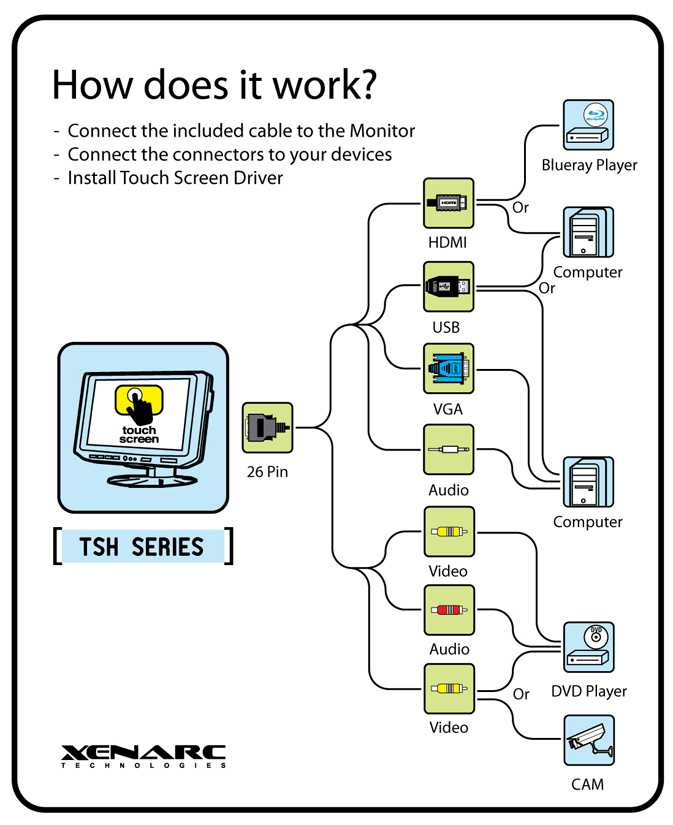
Yes, touchscreen monitors can often be connected via HDMI, but it depends on the specific model and its compatibility. Many modern touchscreen displays support HDMI for video input, making it easy to connect them to computers and other devices. However, the touch functionality may require additional connections or drivers to work correctly, since HDMI alone usually transmits only visual data.
Touchscreen monitors can generally be connected to devices using HDMI for video, but to enable the touch interface, you might need a separate USB connection or ensure the monitor is designed for that purpose. Before connecting, check your monitor’s specifications to confirm it supports HDMI and what additional cables or drivers you might need.
If you’re wondering whether you can use an HDMI port to connect a touchscreen monitor, the answer is yes—mainly for the display aspect. You’ll need to verify if the monitor supports touch input through a USB connection or other means, as HDMI by itself typically handles just the visual display. This setup is popular since HDMI is a widely adopted standard, but to fully utilize the touchscreen feature, additional connections may be necessary. Keep in mind, compatibility and proper drivers are key to ensuring your touchscreen monitor works smoothly with your computer.

Can Touchscreen Monitors Be Connected with HDMI?
Understanding HDMI and Touchscreen Monitors
HDMI stands for High-Definition Multimedia Interface. It is a common port used to connect computers, gaming consoles, and other devices to monitors and TVs. Touchscreen monitors, on the other hand, combine display with touch sensitivity, allowing users to interact directly with what appears on the screen.
Most modern touchscreen monitors rely on specific input methods, but many can connect to devices using HDMI. Knowing whether your touchscreen monitor supports HDMI input is essential before attempting any connection. Some monitors are designed for HDMI, while others may require different connection types.
Are Touchscreen Monitors Usually HDMI Compatible?
Many touchscreen monitors come with HDMI ports, making it easy to connect to a variety of devices. This compatibility offers flexibility for users who want to use their monitor with laptops, desktops, or media players.
However, some touchscreen displays are designed mainly for specialized interfaces or use other connection types, such as DisplayPort or USB-C. It’s important to check the specifications of your specific monitor model to confirm HDMI support.
Types of HDMI Connections for Touchscreen Monitors
Touchscreen monitors can support different HDMI connection types. The main types include:
- Standard HDMI: Common for most consumer monitors and TVs. Supports high-definition video and audio.
- Mini HDMI: Smaller port often found on compact devices like tablets or small laptops.
- Micro HDMI: Even smaller, used on some portable devices.
Most larger or professional touchscreen monitors feature standard HDMI ports for straightforward connectivity.
Connecting a Touchscreen Monitor with HDMI to a Computer
Connecting a monitor via HDMI is generally straightforward. First, locate the HDMI port on your computer and the monitor.
Use an HDMI cable to link the two devices securely. Once connected, turn on both devices, and the display should automatically recognize the connection. If the touchscreen does not work immediately, you may need to adjust display settings.
Ensuring Touch Functionality Alongside HDMI
Connecting via HDMI typically handles video and audio signals. However, touch functionality might require an additional connection.
Many touchscreen monitors include a USB cable that is essential for touch input. Connect this USB cable from the monitor to your computer to enable touch sensitivity. Without this, the monitor will display the image but may not register touch inputs.
Can HDMI Alone Support Touch Features?
In most cases, HDMI alone does not transmit the touch input signals. HDMI is mainly used for transmitting **video** and **audio** data.
To make the touch feature work, a USB connection or alternative data transfer method is often necessary. This additional connection ensures the computer receives touch input data separately from the video signal.
Using USB for Touch Input
Most touchscreen monitors require a USB cable to send touch data. Typically, this USB cable runs from the monitor to the computer.
Once connected, the operating system recognizes the touch input, allowing you to interact with the display naturally. Always ensure both the HDMI and USB cables are securely connected for proper function.
Compatibility with Different Devices
Touchscreen monitors with HDMI support are compatible with a wide range of devices, including:
- Desktops and laptops
- Game consoles that support HDMI output
- Media players and streaming devices
- Tablets with HDMI capabilities
However, for devices that do not support USB inputs or require specific drivers, check the manufacturer’s instructions for compatibility.
Understanding HDMI Versions and Their Impact
Different HDMI versions offer varied capabilities that can affect touchscreen functionality. For example:
- HDMI 1.4: Supports up to 1080p resolution and basic audio.
- HDMI 2.0: Supports 4K resolution and higher frame rates.
- HDMI 2.1: Offers even higher resolutions and bandwidth, useful for advanced displays.
Ensure your monitor and connecting device support compatible HDMI versions, especially if high resolution and fast refresh rates are important.
Advantages of Using HDMI to Connect Touchscreen Monitors
Using HDMI for connection offers multiple benefits:
- Ease of setup with widely available ports and cables
- High-quality video and audio output
- Compatibility with most modern devices
- Reliable connection with minimal lag
It also simplifies cable management and reduces clutter on your workspace.
Potential Limitations and Troubleshooting
Despite the advantages, some issues may occur with HDMI connections:
- Touch functionality not working if the USB connection is missing or faulty
- Resolution or display issues if the HDMI cable is damaged or incompatible
- Display flickering or lag if bandwidth is insufficient
Troubleshoot by checking all cables, updating device drivers, and adjusting display settings if needed.
Alternatives to HDMI for Touchscreen Connectivity
While HDMI is common, other connection options exist:
USB-C
Supports both video and touch input through a single port, making it ideal for newer devices.
DisplayPort
Offers higher bandwidth and supports high resolutions, suitable for professional touchscreens.
VGA or DVI
Older options mostly suitable for basic display needs; may not support touch functionality effectively.
In most cases, **touchscreen monitors can be connected with HDMI** to display high-quality visuals. However, for full touch capabilities, a supplementary USB connection is usually required. Always check your monitor’s specifications and compatibility before setting up your device. By understanding the roles of HDMI and USB, you can ensure your touchscreen monitor functions seamlessly with your computer or other devices.
USB-C and HDMI Portable Touchscreen Monitor Review
Frequently Asked Questions
Can HDMI cables support touchscreen functionality on monitors?
HDMI cables primarily transmit video and audio signals. They do not carry touch input data, so connecting a touchscreen monitor via HDMI alone does not enable touch functionality. To utilize the touchscreen feature, you need a separate connection method, such as USB, which allows the touch input data to be transmitted to the computer.
Are there specific requirements for connecting a touchscreen monitor through HDMI?
Yes, for a touchscreen monitor connected via HDMI, you need a compatible HDMI port on your computer or device that supports the connection. Additionally, ensure the monitor has the necessary USB connection or other touch interface ports to transmit touch data. Installing any required drivers provided by the manufacturer ensures proper touch responsiveness.
Can I use an HDMI to connect my touchscreen monitor to a laptop with only HDMI ports?
If your laptop has only HDMI ports, you may face limitations because HDMI carries only video and audio signals. To activate touchscreen functionality, you’ll also need a USB port or equivalent to connect the monitor’s touch interface. Using a combined HDMI and USB cable, or separate cables, will enable both display and touch features.
What other connection options are suitable for touchscreen monitors besides HDMI?
Besides HDMI, options such as DisplayPort, DVI, and VGA can connect the display. However, for touch functionality, you generally need a USB connection, regardless of the video interface. Many monitors use a combination of video cable plus a USB cable for touch input transfer, ensuring full operation of the touchscreen features.
Does connecting a touchscreen monitor through HDMI impact its responsiveness?
Connecting via HDMI alone does not influence the responsiveness of the touchscreen. The touch experience depends on a proper connection of the touchscreen interface, usually via USB. If you connect the USB correctly and install the necessary drivers, you should achieve smooth and accurate touch responsiveness regardless of the video connection method.
Final Thoughts
Touchscreen monitors can be connected with HDMI, making setup straightforward. Most modern displays support HDMI input, enabling easy connection to various devices. This flexibility allows users to enjoy both touchscreen features and high-definition visuals seamlessly.
In conclusion, can touchscreen monitors be connected with HDMI? Yes, they can. This compatibility simplifies how you integrate your touchscreen with other devices, enhancing productivity and entertainment.



